
















A backup copies the server’s files, saves included. You can take one by hand, on a schedule, and the panel takes one for you before it makes a new world. To go back, choose Restore on the backup.
A backup holds the world as the game last saved it. The server runs saves/world.zip, and the game writes that file at a stop, at Save now and at Save a copy now. Autosaves are separate _autosave files, at most 10 minutes old by default, and a backup copies them too. So a backup taken in the middle of play can hold a world.zip that is much older. Before a backup, choose Save now on the Players page, or stop the server: a stop saves the world. A backup taken while the server runs may still note “Taken while running. The game did not confirm a save.” A stop is the only certain way.
The backup before a new world
When you make a new world on the World page, the panel stops the server, takes a backup, makes the world and starts the server again. Your old world stays on the server as a save.
- Open the World page.
- In New world, fill in the name, preset and seed.
- Choose Make the world. A box asks Make the world (name)?.
- Read it. It says the server stops, a backup is taken, and the new world runs from the next start.
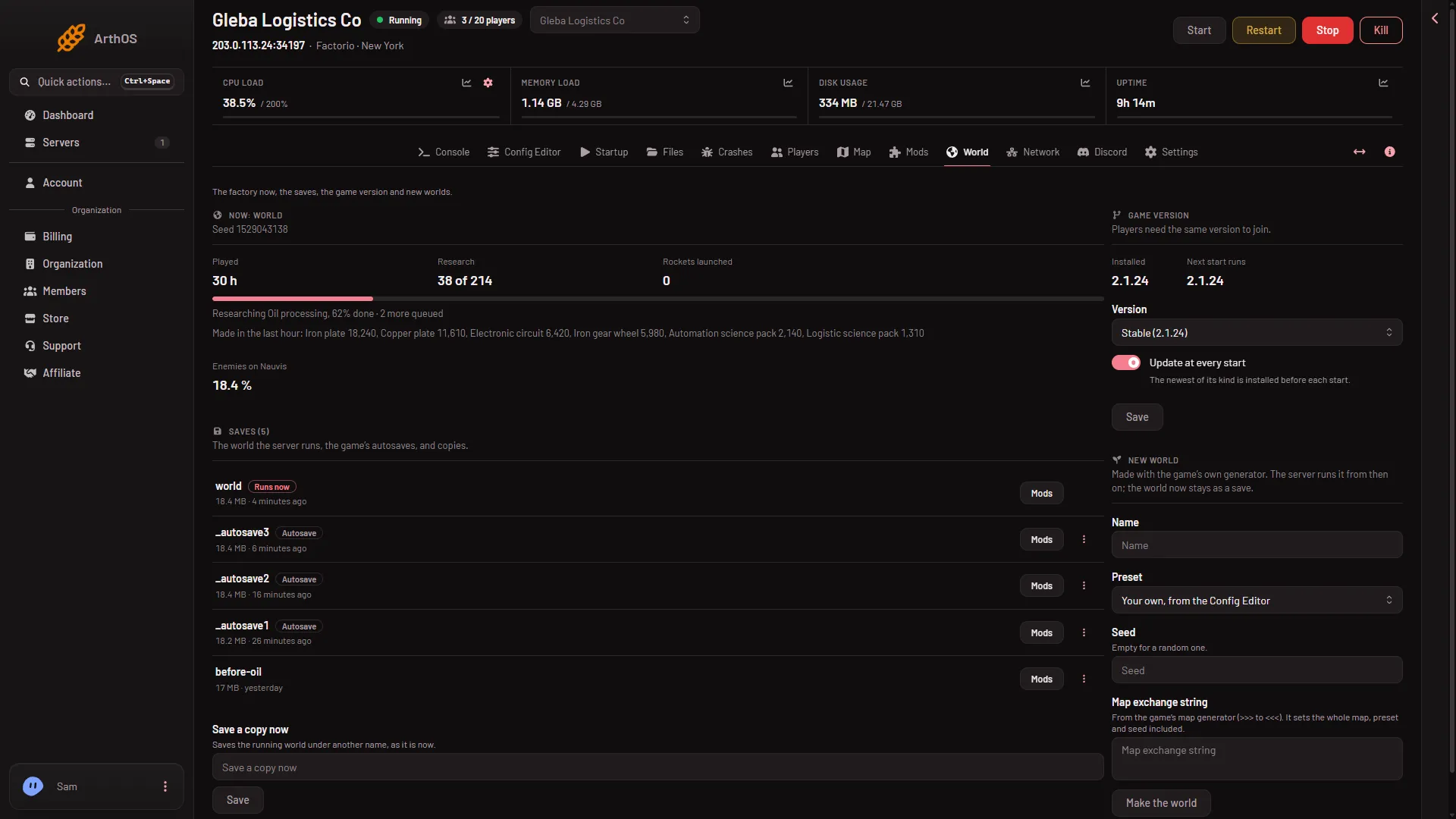
- Saves (1)
- The save that runs (2)
The old world stays in Saves (1). The one tagged Runs now (2) is the world the server runs.
If the panel cannot take a backup (for example the plan’s backup limit is full), it stops and says so. You can tick Go ahead without a backup when one cannot be taken and choose again. Do that only when you do not need the old world, or when it is already safe as a save or an earlier backup.
To run the old world again later, open the World page, open the menu on its save and choose Run this from the next start. Then restart the server.
Take a backup by hand
- Open Settings, then the Backups tab.
- Choose Create, then Create Backup.
- Choose Create Backup in the box.
The page shows “(N) of (M) maximum backups created.” That is your plan’s limit. A backup you take by hand is refused when you are at the limit. Remove one you no longer need, or choose Lock on the ones you want to keep and remove the others.
Take backups on a schedule
A scheduled backup deletes the oldest backup that is not locked when you are at the limit. It does not refuse.
- Open Settings, then the Schedules tab.
- Choose Create Schedule and give it a Schedule Name.
- Under Triggers, pick when it runs, such as Daily.
- Choose Add Step and pick Create Backup.
Use Lock on a backup you want kept for good. Locked backups are never deleted by a schedule.
Restore a backup
- Choose Stop at the top of the server page. A stop saves the world first. It drops everyone who is on, so use Message everyone on the Players page first.
- Open Settings, then the Backups tab.
- Open the menu on the backup and choose Restore.
- Confirm in the box that opens.
- Choose Start.
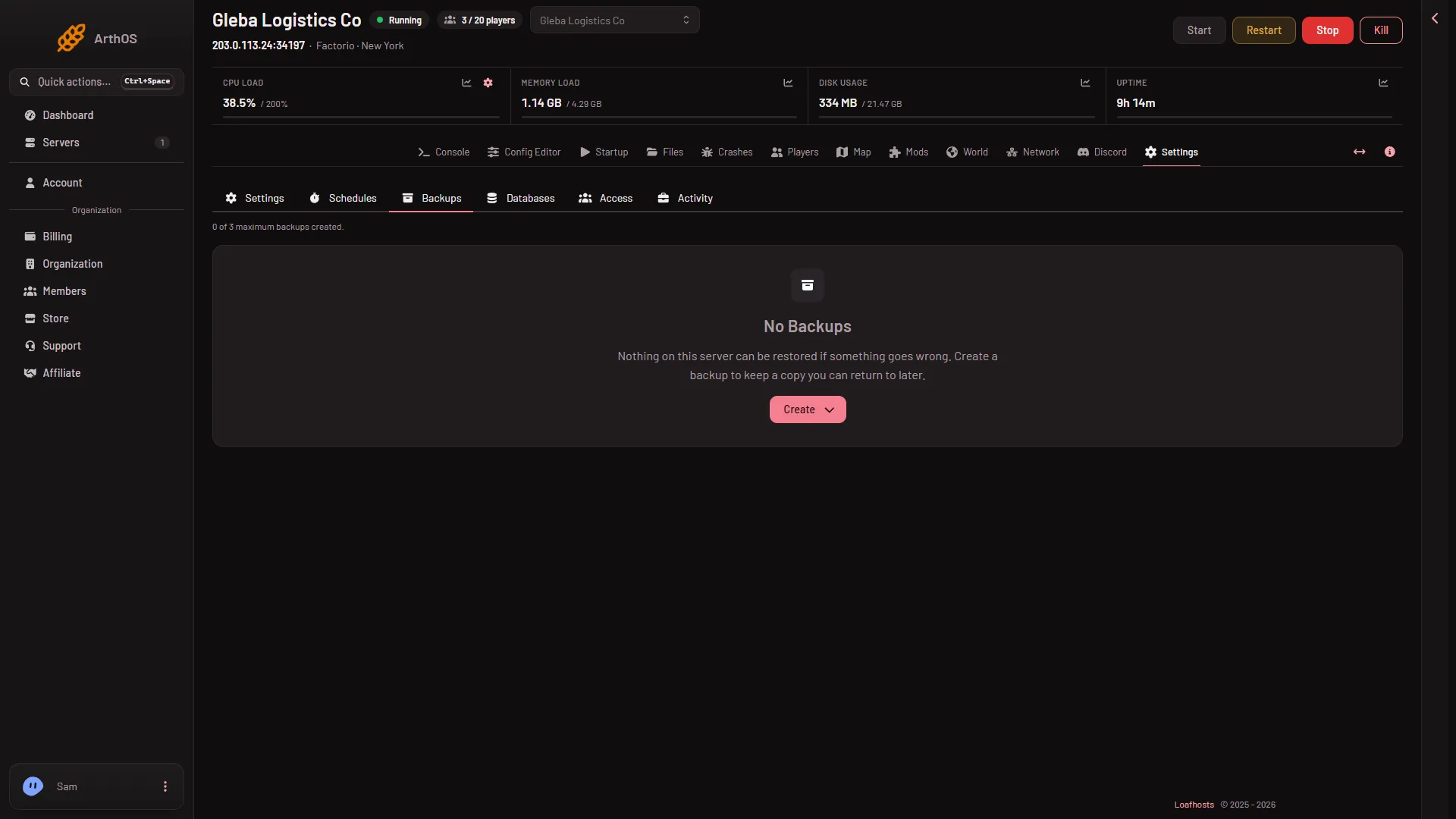
- Create
Once a backup exists, its row has the menu with Restore.
If you are not sure, take a new backup first, then restore the old one.
The server runs the world named in World on the Startup page, world by default. If the backup holds a different world, open the World page and run that save from the next start.
A deleted save
Deleting a save on the World page removes it from the server. Backups taken before keep their copy, so you can still restore it.
If it does not work
- The new world will not start without a backup. The backup could not be taken. Free a slot on the Backups tab, or tick Go ahead without a backup when one cannot be taken.
- The backup is missing recent play. A backup copies what the game last saved. Choose Save now or stop the server before you take one. See saves and autosaves.
- The world looks old after a restore. The server may run a different save. Check Runs now on the World page.
More about the game: Factorio servers.