












Palworld gives every player two ids. The user id is the one you use to kick, ban or whitelist someone. For a Steam player it is steam_ followed by their SteamID64, a 17-digit number, for example steam_76561190000000000. The player id is a 32-character code the game gives each character. The Loafhosts panel prints the user id on every player row.
The two ids
- User id. Pocketpair’s player list calls it
userId. For Steam players it issteam_plus a SteamID64, which starts with7656. Players on other platforms have an id of their own form. Copy theirs from the panel, as below. - Player id. Pocketpair’s player list calls it
playerId. It is 32 letters and digits, such as23554A1F000000000000000000000000.
Kicks, bans and the whitelist in the panel use the user id. The box on the Players page named Player id also wants the user id: steam_ and the SteamID64, or the bare 17-digit SteamID64. It does not take the 32-character player id.
In the panel
- Open the Players page.
- Look at the small line under each name. It starts with the user id. Players currently in the game are under Online. Players who were here before are under Everyone who has played. Banned players in Banned show theirs too. A banned id with no name is shown in the name’s place.
- Click the id to copy it.
The panel checks who is on every 30 seconds while the game’s API is on, so a player who stays longer than that is listed under Everyone who has played. The Console and the kept logs still show every join.
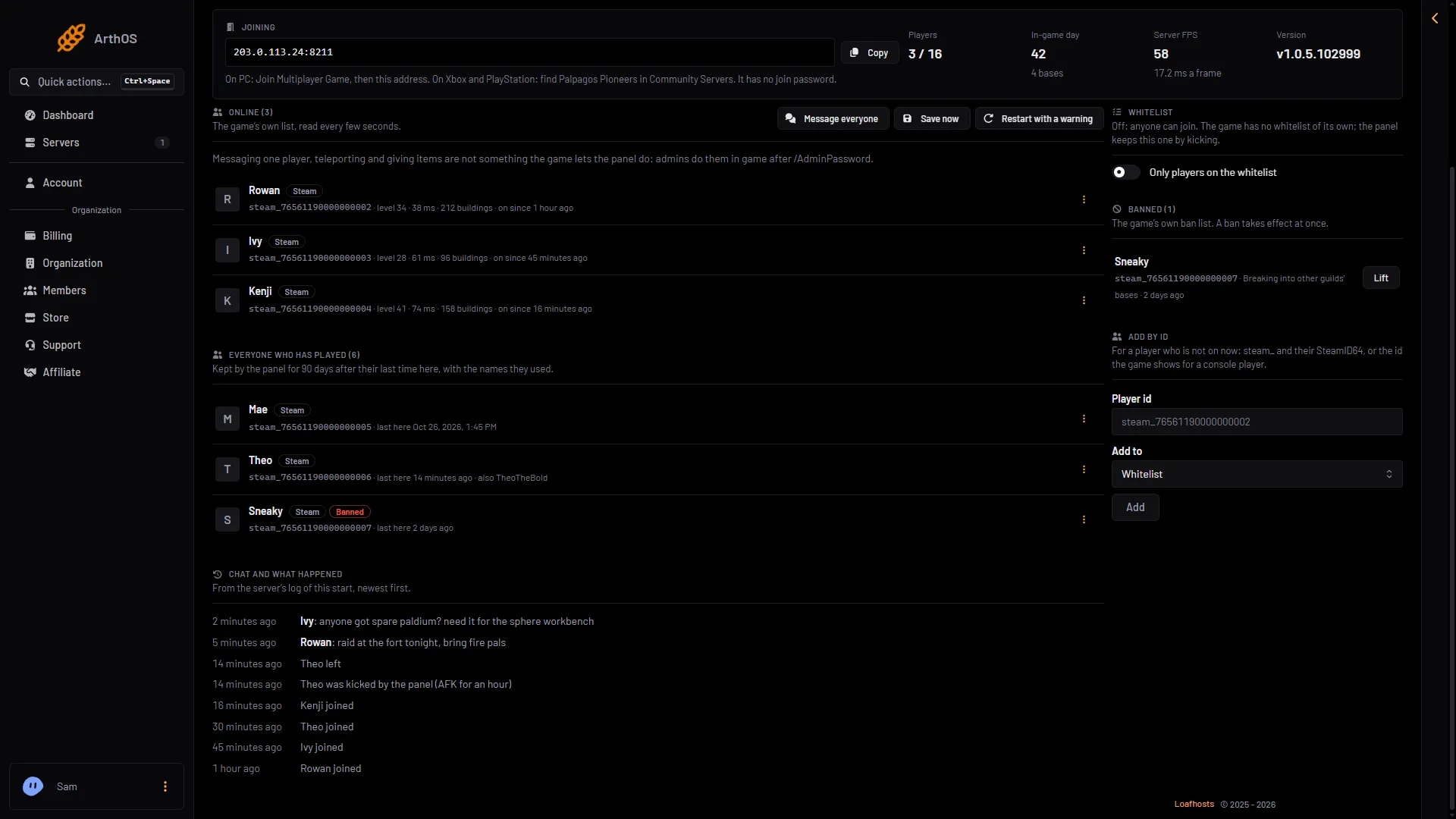
- Everyone who has played
- The id under a name
The list (1) holds players who were here before. The id sits under each name (2).
On the Map page, click a player’s marker. The card has the button Copy their id. It copies the user id. Only people whose role allows moderating players see that button. If the card says “The panel has not seen this player join since it started keeping track, so it has no id to ban or whitelist them by.”, that offline player was never on while the panel was checking. Find their id in the kept logs instead.
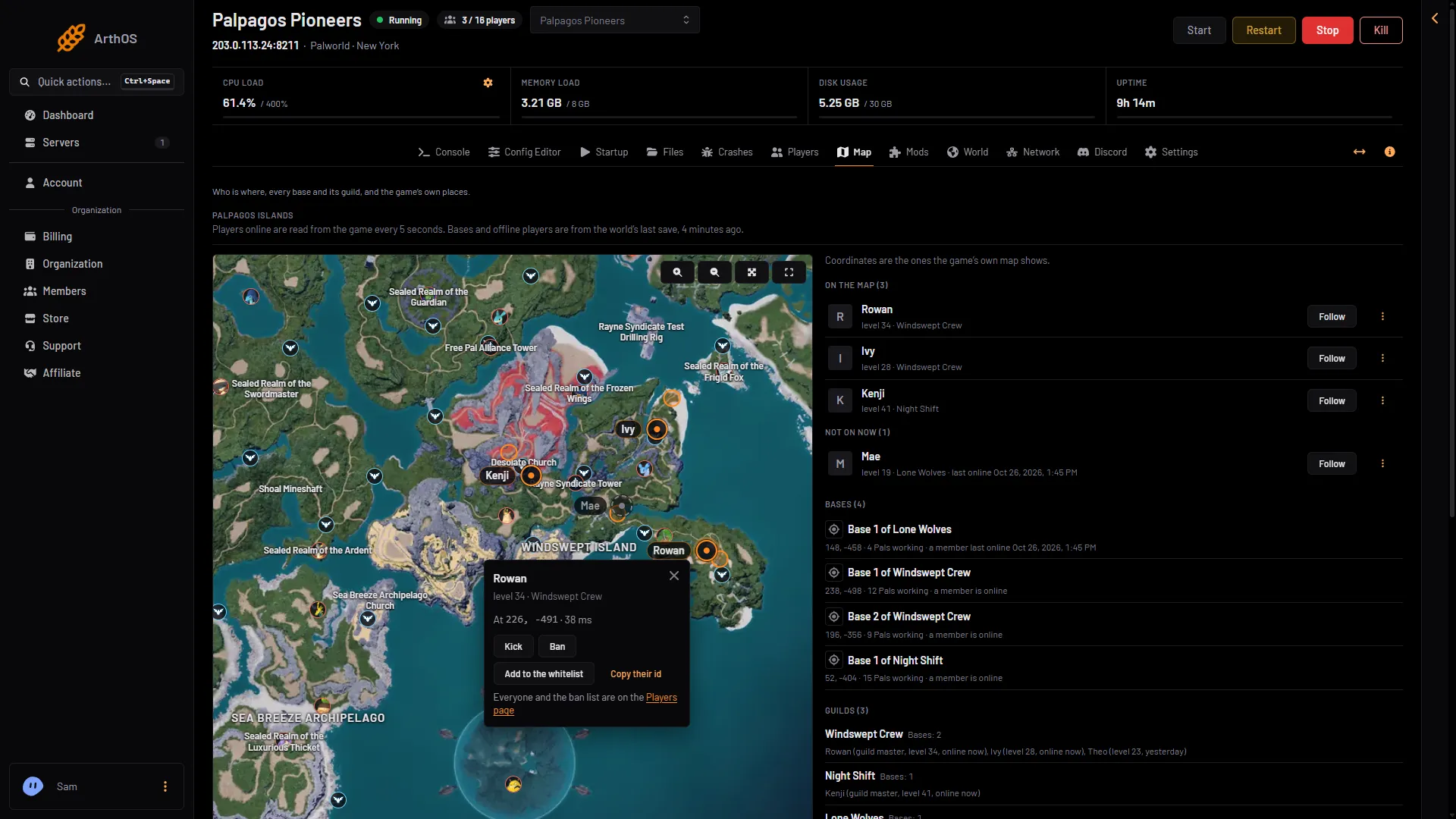
- Copy their id
In the log
The game prints both ids when a player joins. Open the Console and look for the line that says “joined the server”. The line before it says “connected”; it has only the user id.
In the kept log in Files, the line is written with the time and a tag, like this:
[2026-11-02 17:29:14] [LOG] Name joined the server. (User id: steam_76561190000000000, Player id: B16E0B1D000000000000000000000000)The Console shows the same line with its level in front (INFO) and no time until you turn on Show Timestamps.
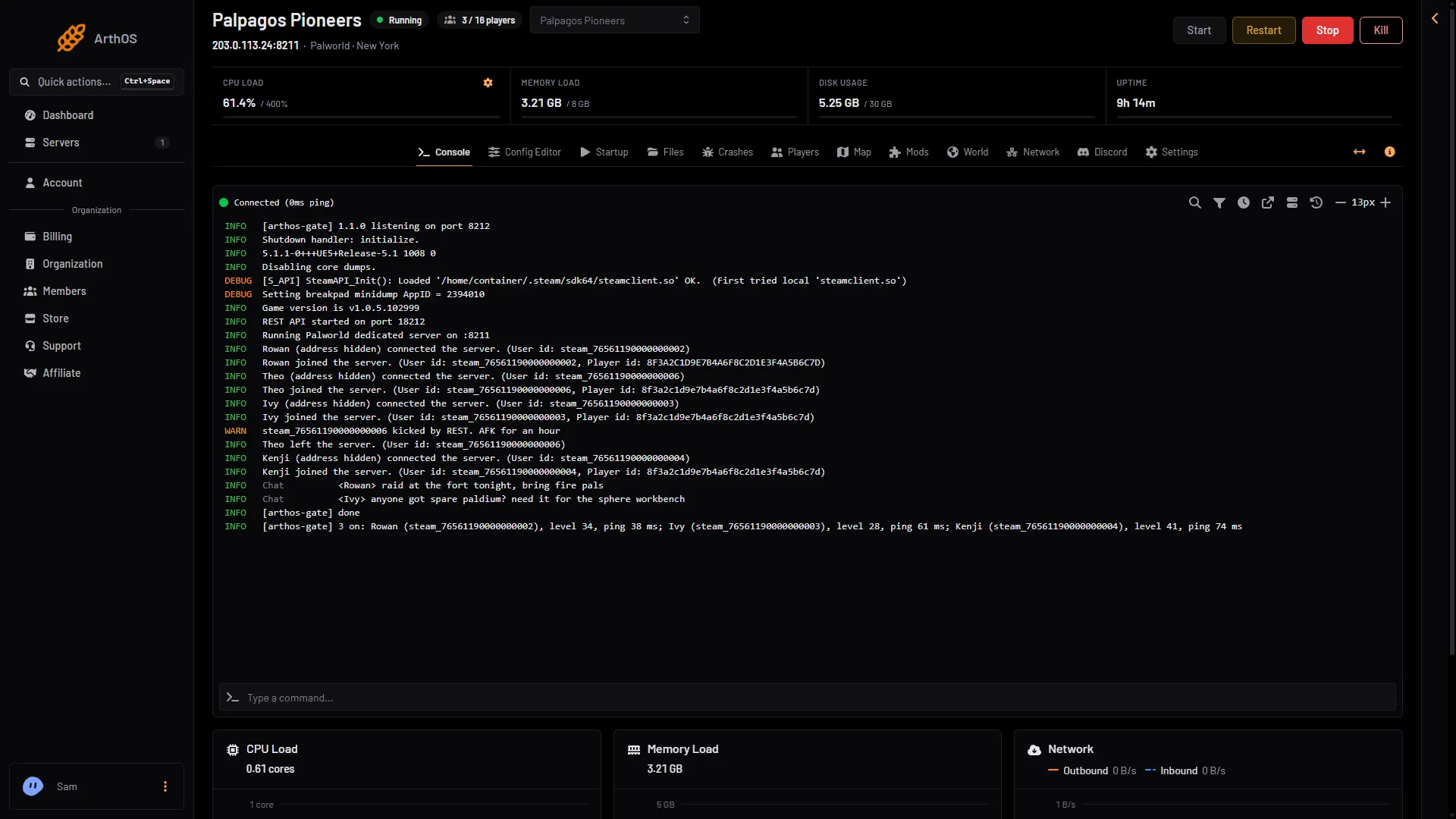
- A join
- Type a command
The line that says joined the server (1) holds the user id first, then the player id. You can also read joins in Chat and what happened on the Players page. Older starts are in the kept logs in Pal/Saved/Logs, in Files.
In the game
If you are an admin in the game, press Enter and type /ShowPlayers. It lists everyone connected with their ids. You become admin first with /AdminPassword and your admin password. Pocketpair’s command table asks for the SteamID. Whether the in-game commands also take the steam_ prefix is not checked on 1.0.5, so if one is refused, try the bare SteamID64.
In the panel’s Console you can type ShowPlayers in the command box (2 in the Console picture). The answer is printed in the console. It needs the game’s API. The game’s API is how the panel talks to the game. The panel keeps it on while the Admin password is 16 characters or more (a new server gets a 20-character one).
Use the id
- Add by id on the Players page and the Console take a bare 17-digit SteamID64, or
steam_and the SteamID64. See the whitelist and kick and ban. - The console words
KickPlayer,BanPlayerandUnBanPlayertake the same id.
If it does not work
- The panel says the id is not valid. An id is letters, digits,
_and-, or a 17-digit SteamID64. Remove spaces and quotes. - The Players page shows nobody. The game’s API is off, or the server is stopped. Everyone who has played is still listed.
- I only know the player’s name. Look for the name under Everyone who has played. It lists the names each player used.
- The player has never joined. Their own SteamID64 is in their Steam profile address or their Steam account details. Ask them to send it.
- An Xbox or PlayStation friend. Let them join once, then use their row under Online. See the whitelist.
More about the game: Palworld servers.
Sources: docs.palworldgame.com: Players, docs.palworldgame.com: Commands