












A kick sends a player out now, and they can rejoin straight away. A ban sends them out and keeps them out until you lift it. Both are one click on the Players page.
Kick or ban from the Players page
Kick and ban need a role that allows moderating players. They also need the game’s API. The game’s API is how the panel talks to the game. The panel keeps it on while the Admin password is 16 characters or more (a new server gets a 20-character one).
-
Open the server and go to Players.
-
Find the player under Online.
-
Open the menu at the end of their row (the three dots) and choose Kick (1) or Ban (2).
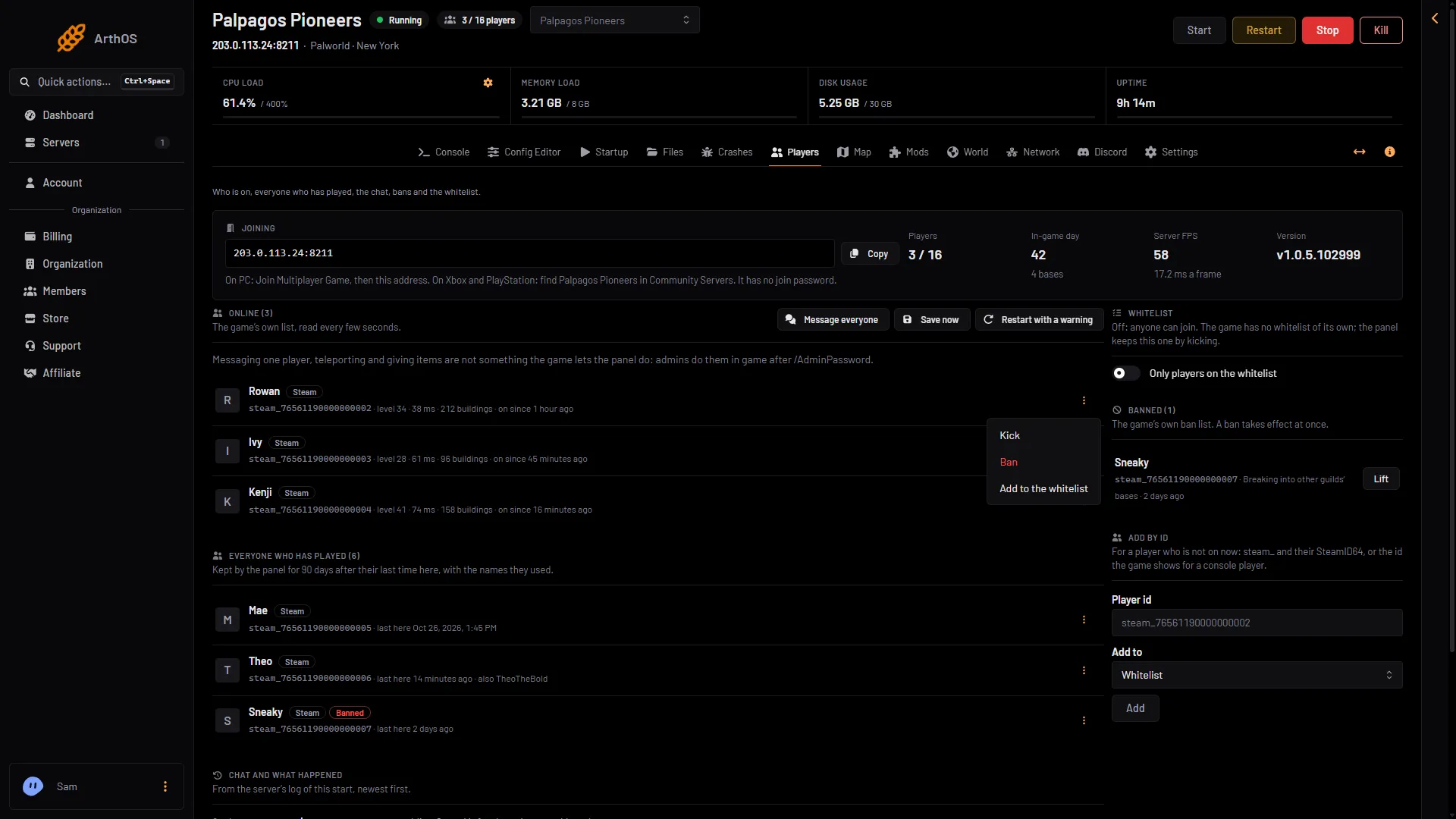
- Kick
- Ban
-
In the box that opens, you can type a Reason. The player sees it. It can be empty, or up to 200 characters on one line, and the panel refuses a longer one.
-
Confirm with Kick or Ban.
The Kick box says: “They leave the server now and can join again straight away.” In the Kick box, Reason is (1) and Kick is (2).
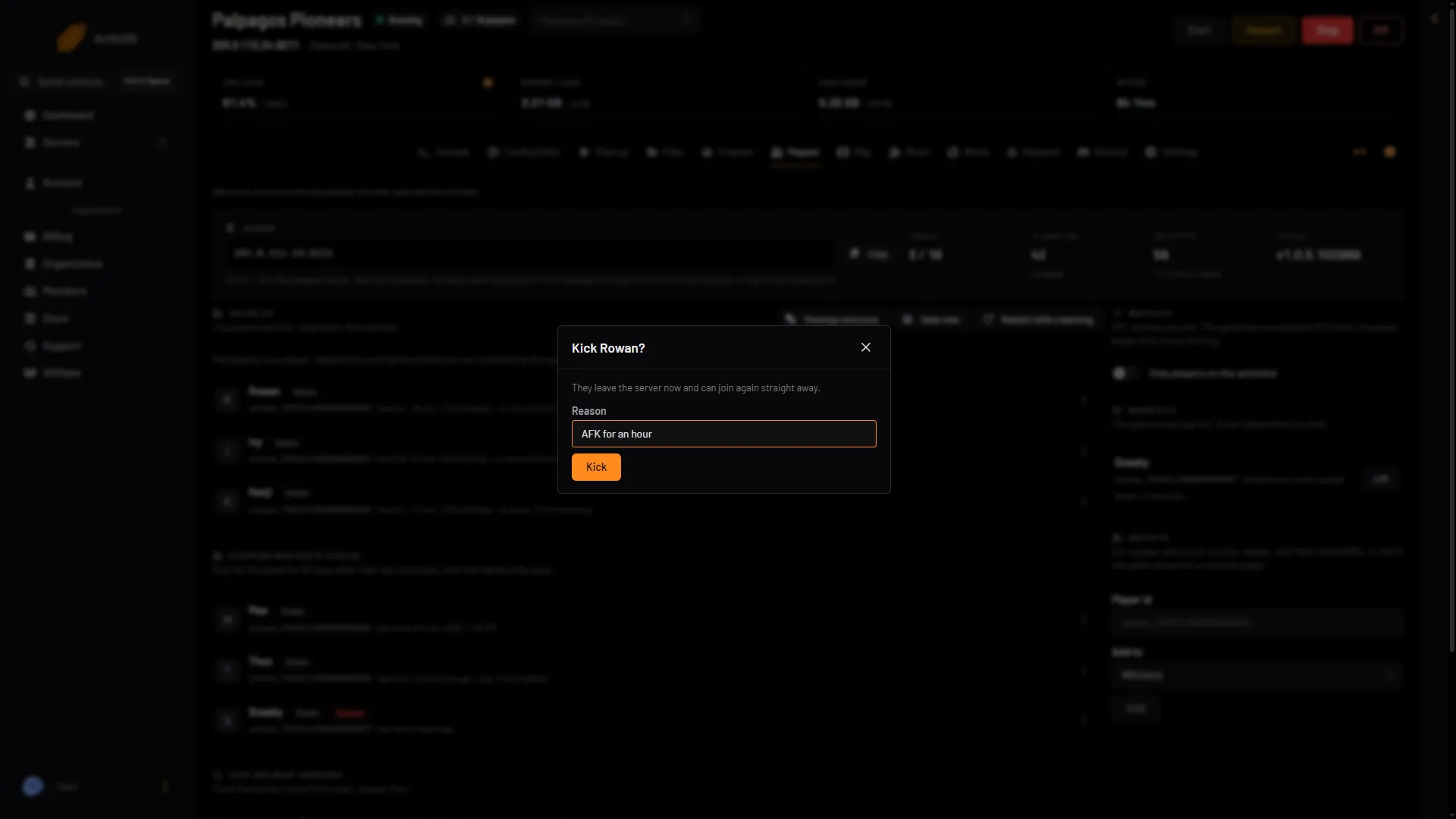
- Reason
- Kick
The Ban box says: “If they are on, they leave now, and they cannot join again until the ban is lifted.” In the Ban box, Reason is (1) and Ban is (2).
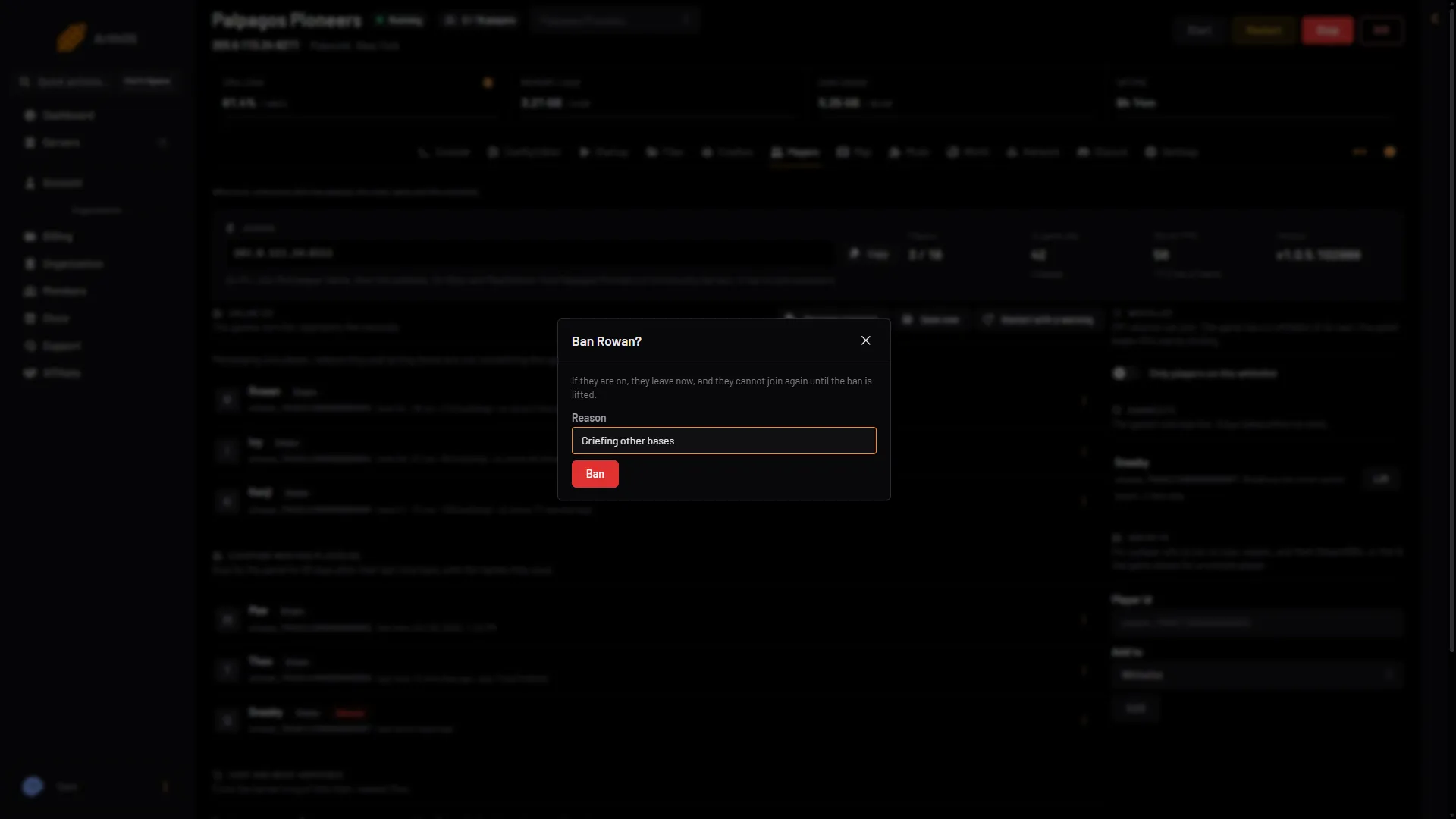
- Reason
- Ban
From the Map
Open the Map and click the player. Their card has Kick for someone who is on now. Kick and Ban need the game’s API: with it off, the card says “Kick and ban need the game’s API on.” For a banned player, Ban is replaced by Lift the ban.
If the card says “The panel has not seen this player join since it started keeping track, so it has no id to ban or whitelist them by.”, the player is offline and the panel never saw them on: it checks who is on every 30 seconds while the game’s API is on. Ban them with Add by id below.
Ban someone who is not on
Use Add by id on the Players page.
- Find their id. It is their 17-digit SteamID64, or
steam_and the same number. You can see it in their Steam profile address or in their Steam account details. See find a player id. - In Add by id, type it in Player id.
- In Add to, choose Banned.
- Choose Add.
- In the Ban box that opens, type a Reason if you like and choose Ban. Nothing is banned before that.
The panel takes both forms. A bare 17-digit SteamID64 is taken as steam_ plus the number.
From the Console
Open the Console page and type one of these:
KickPlayer 76561190000000000 Please be kind
BanPlayer 76561190000000000 Cheating
The slash is optional. The reason is optional too. See server commands.
In the game
If you are admin in the game (see make yourself admin), press Enter and type /KickPlayer (SteamID) or /BanPlayer (SteamID). Whether the game’s own commands want the steam_ prefix is not checked, so try the bare number first and steam_ plus the number if it does nothing.
Where bans are kept
A ban goes into the game’s own ban list, the file Pal/Saved/SaveGames/banlist.txt. The Players page lists it under Banned, with the reason. A ban takes effect at once, with no restart. To undo one, see unban a player.
If it does not work
- Kick and Ban are missing or greyed out. Missing: your role may not allow moderating players. Ask the owner. Greyed out: the game’s API is off, and the menu says so.
- The page says the API is off. The admin password is shorter than 16 characters. Set a longer one in the Config Editor, under Server settings, and restart.
- You cannot kick someone. A kick needs the player to be online. The panel answers “that player is not on the server now”. For someone offline, use a ban.
- The player can still join. Check Banned for their id. A wrong id bans nobody.
More about the game: Palworld servers.
Sources: docs.palworldgame.com: Commands, docs.palworldgame.com: Ban