












Palworld has no whitelist of its own. The Loafhosts panel adds one. When you switch it on, the panel kicks anyone who is not on the list, within seconds of them joining. Put yourself on the list first, or you will be kicked too.
How it works
The panel keeps a list of player ids for your server. While Only players on the whitelist is on, it checks who is in the game. Anyone not on the list is kicked with this message: “This server only lets in players on its whitelist.”
So the whitelist does not stop a player from reaching the server. They get in, then they are removed a few seconds later. Admins are not an exception. An admin who is not on the list is kicked like everyone else.
The whitelist needs the game’s API. The game’s API is how the panel talks to the game. The panel keeps it on while the Admin password is 16 characters or more (a new server gets a 20-character one). See the Players page says the API is off. With the API off, nobody is checked and nobody is kicked.
In the panel
- Open the Players page of your server.
- Add yourself first. Use one of these:
- Find your row under Online, open the menu at the end of the row (the three dots), and choose Add to the whitelist.
- Click your marker on the Map page and choose Add to the whitelist on its card.
- Use Add by id, described below.
- Add every friend who should be allowed in the same way.
- In the Whitelist card, switch on Only players on the whitelist.
- The box Turn the whitelist on? warns that anyone on the server who is not on the list is kicked within seconds, and so is anyone who joins later. Choose Turn it on.
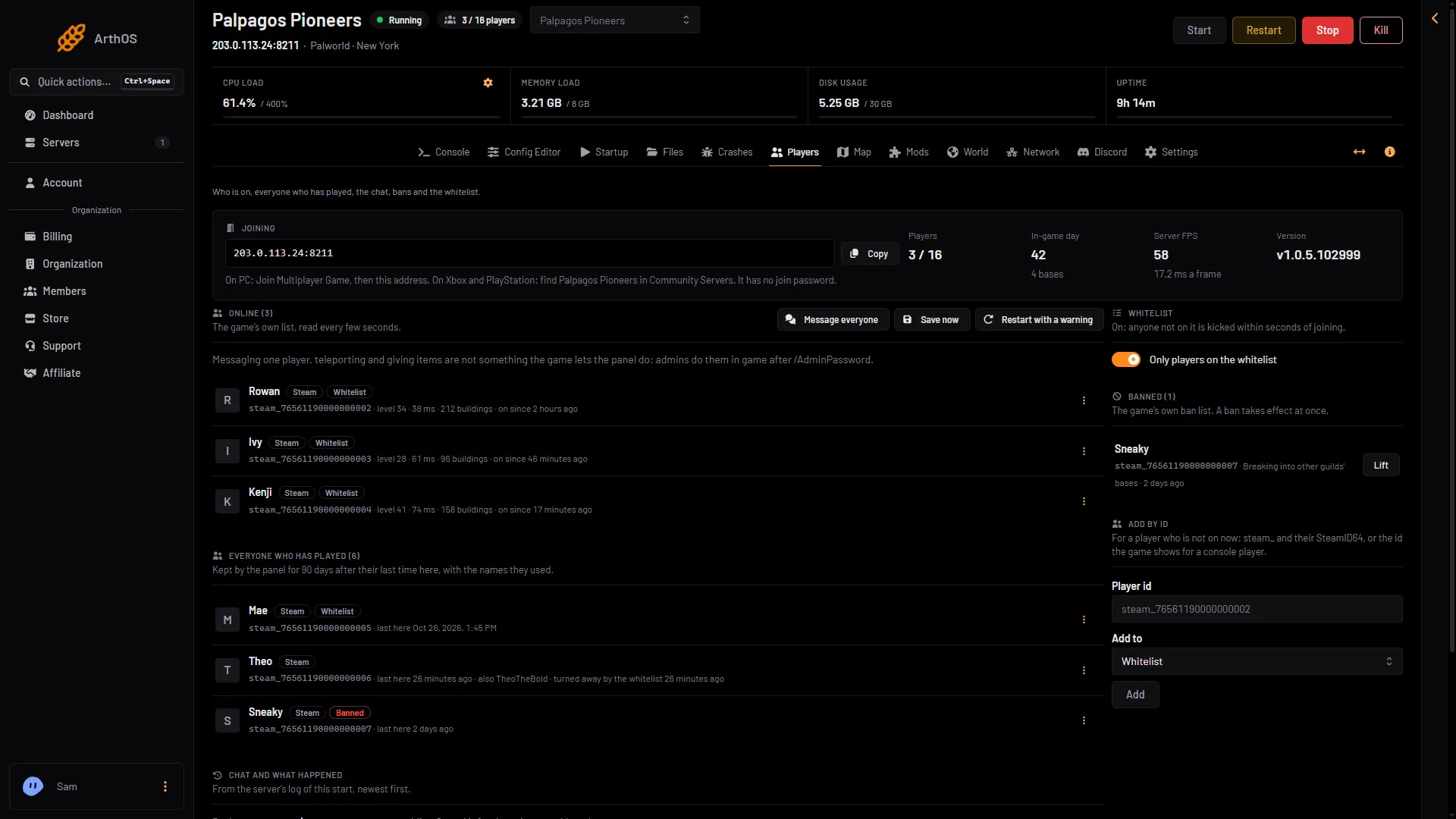
- Only players on the whitelist
- The list is on
- Whitelist tag
The switch (1) turns the list on. The card then says “On: anyone not on it is kicked within seconds of joining.” (2). Players on the list show the tag (3).
The panel refuses to switch the whitelist on while nobody is on the list. It tells you to put at least one player on the whitelist first, because otherwise nobody could stay on the server.
The tag Whitelist shows only while the whitelist is switched on.
Adding and removing names is allowed while the server is stopped, as long as your role allows moderating players.
A friend who has not joined yet
Use the card Add by id.
- Get their id. For a Steam player it is their SteamID64, a 17-digit number. See find a player id.
- Type it in Player id. The box wants the user id:
steam_and the SteamID64, or the bare 17-digit SteamID64. It does not take the 32-character player id from the join line. - In Add to, choose Whitelist.
- Choose Add.
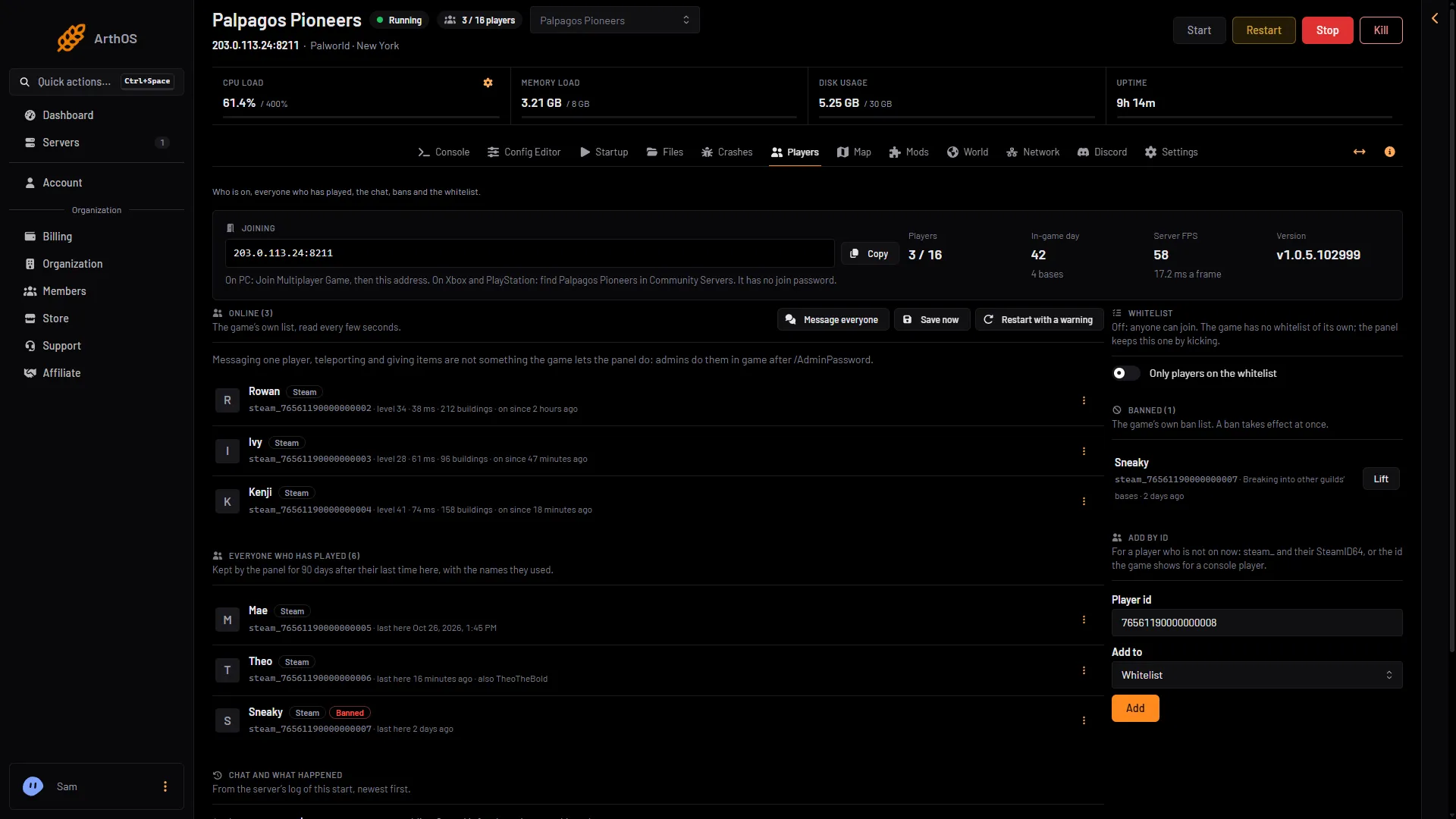
- Type the id
- Choose Whitelist
- Choose Add
Type the id in Player id (1), choose Whitelist in Add to (2), then choose Add (3).
The player then appears under Everyone who has played, with the tag Whitelist once the list is on.
A friend on Xbox or PlayStation
Do not guess their id. Let them join once instead:
- Switch Only players on the whitelist off.
- Ask your friend to join. They appear under Online.
- Open the menu at the end of their row and choose Add to the whitelist.
- Switch Only players on the whitelist on again.
Not checked on 1.0.5 as of 4 November 2026: whether Xbox and PlayStation 5 players can type a join password. Test with one console friend before you rely on it.
Take someone off the list
Open the menu at the end of their row (the three dots) and choose Take off the whitelist. The change applies at once. If they are in the game, they are kicked within seconds.
To let everyone in again, switch Only players on the whitelist off. The names stay on the list, so you can switch it back on later.
Who was turned away
When the panel kicks someone, their row under Everyone who has played shows “turned away by the whitelist” and the time. Use it to see why a friend says they cannot join: they are not on the list.
If it does not work
- Nobody is kicked. The game’s API is off. Set an admin password of 16 characters or more in the Config Editor, restart, and check the Players page.
- You were kicked yourself. You were not on the list. Open the Players page, find your row under Everyone who has played, choose Add to the whitelist, and join again. Or switch Only players on the whitelist off.
- The switch will not turn on. The list is empty. Add a name first.
- The menu or the Map card has no Add to the whitelist. Your role on the panel may not allow moderating players.
More about the game: Palworld servers.
Sources: docs.palworldgame.com: Commands, docs.palworldgame.com: Kick