






“Failed to bind to port” means the server asked the machine for its port and the machine said it is already taken. The server then stops. Either another copy of the server holds the port, or a setting sends the server to the wrong one. On the ArthOS panel the port is set for you, so the first things to check are a second copy and your add-ons.
What the error looks like
In the Console or latest.log:
**** FAILED TO BIND TO PORT!java.net.BindException: Address already in use
The Crashes tab reports it as “The server’s port is already in use”.
In the ArthOS panel
The panel writes three lines into server.properties every time the server starts: server-ip (set to 0.0.0.0, which means all addresses), server-port and query.port. Both ports are set to the server’s own port. If you change them by hand, the panel puts them back at the next start. In the Config Editor, Server port and Query port are locked and say “The panel sets this every time the server starts, so it cannot be changed here.”
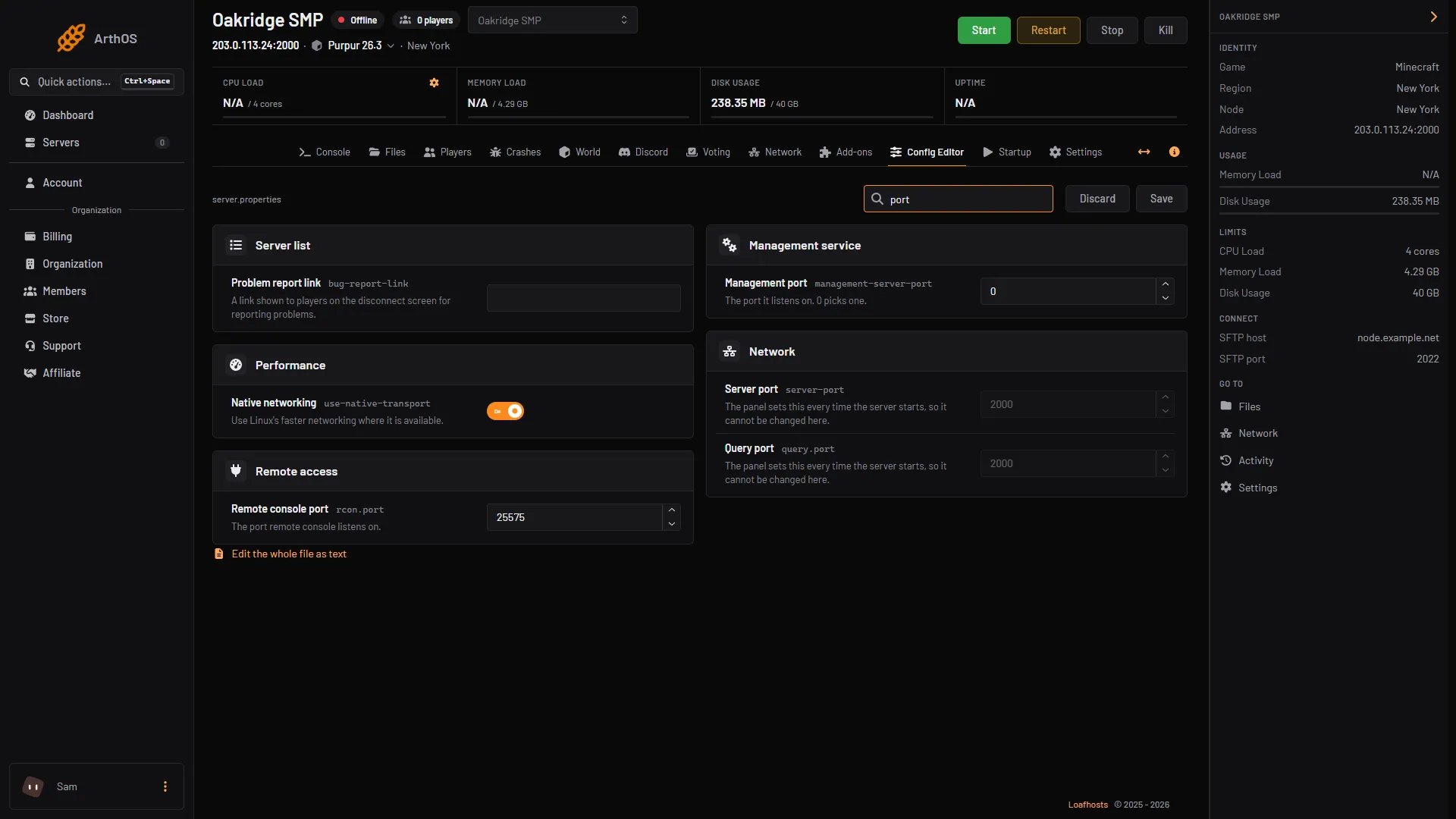
So a wrong value in those lines is not the cause. Work through these checks.
1. Read what the Crashes tab says
- Open the Crashes tab and choose Logs, then
latest.log. - Under Detected issues, look for “The server’s port is already in use”. The advice is: “Another program or a second copy of this server holds the port. Stop it, or check Network for the right address and port in server.properties.”
2. Make sure no second copy is running
- Stop the server with Stop and wait until it is offline. If it will not go offline, see stop the server safely.
- Start it once. Do not click Start twice.
3. Check for a plugin or mod that opens its own port
Some plugins and mods open a port for a map, a web page or voting. If that port is the same as the server’s, the second one to start fails.
- Read the lines just above the error in the Console. A plugin or mod that failed to start names itself there.
- Open Add-ons, Plugins, Manage all. Turn off the newest plugin and restart. See install plugins for how.
- Check that plugin’s own settings. Give it a different port, or turn its web server off.
4. Check the port in Network
- Open the Network tab. The Allocations sub tab lists the addresses and ports your server may use.
- Compare the main port in the list with the one in the server address at the top of the page.
- If they differ, or the list is empty, ask the server owner or support. You cannot change the main port from this page.
One port serves Java players (TCP) and Bedrock players through Geyser (UDP). That is normal, because the two use different kinds of traffic.
By hand
Where you host it yourself, the settings in server.properties matter:
| Setting | What it does |
|---|---|
server-port | The TCP port players connect to. The default is 25565. |
query.port | The UDP port for the query protocol. |
server-ip | Which network address to listen on. Leave it empty. |
- See what holds the port. The holder can be any program, not only Java. On Linux run
ss -ltnp | grep 25565(orlsof -i :25565). On Windows runnetstat -ano | findstr :25565. Replace 25565 with yourserver-port. - Make sure
server-ipis empty. It is not a place for your public address. It decides which network card the server listens on, and a wrong value causes this error. - Give each server on the machine its own
server-port. Two servers cannot share a port. A second server could use 25566.query.portonly matters whenenable-query=true; if you use it, change both ports for the second server. - Restart the server.
Paper’s documentation lists the same two causes: a server already running, or a wrong server-ip.
If it does not work
- It worked until you installed something. Turn that plugin or mod off, as in step 3.
- It fails right after a crash. The old process may still be running. Choose Stop, wait until the server is offline, then press Start once.
- The error comes back at every start. Open the Crashes tab and read Recent output for the line before the error.
- Players cannot connect even though the server starts. That is a different problem: see can’t connect to the server.
More on running a server: Minecraft servers.
Sources: docs.papermc.io: Basic troubleshooting, minecraft.wiki: Server.properties