






Start with the server, not the message. Check four things first, in this order: the server is Running, the address and port are typed exactly, the player is on the whitelist, and the game version matches. The sections below cover each message.
Which one is yours?
- The server list says “Can’t connect to server”: go to Can’t connect to server.
- The game says it cannot find the name: go to The domain name cannot be found.
- “Connection timed out”: go to Connection timed out.
- “Connection refused”: go to Connection refused.
- “Invalid session” or a sign-in problem: go to The account check fails.
- “You are not whitelisted on this server”: go to You are not whitelisted.
- “Outdated client” or “Outdated server”: go to Outdated client or Outdated server.
- A Bedrock player: go to Bedrock: Unable to connect to world.
Check these first, in the ArthOS panel
A new Java server starts with the whitelist on, so a friend who types everything right is still refused until you add their name.
- Is it running? Open the server. If it is stopped, choose Start and wait until the Console shows the server is up. A server that has not accepted the EULA does not start; the Console then asks you to choose Accept EULA (see the EULA helper). If the console says The server stopped unexpectedly., choose Open crash details and read why a Minecraft server crashes.
- Is the address right? The address and port are under the server name. Click it to copy it, then send exactly that. If you use a domain, the Network tab must say the domain works.
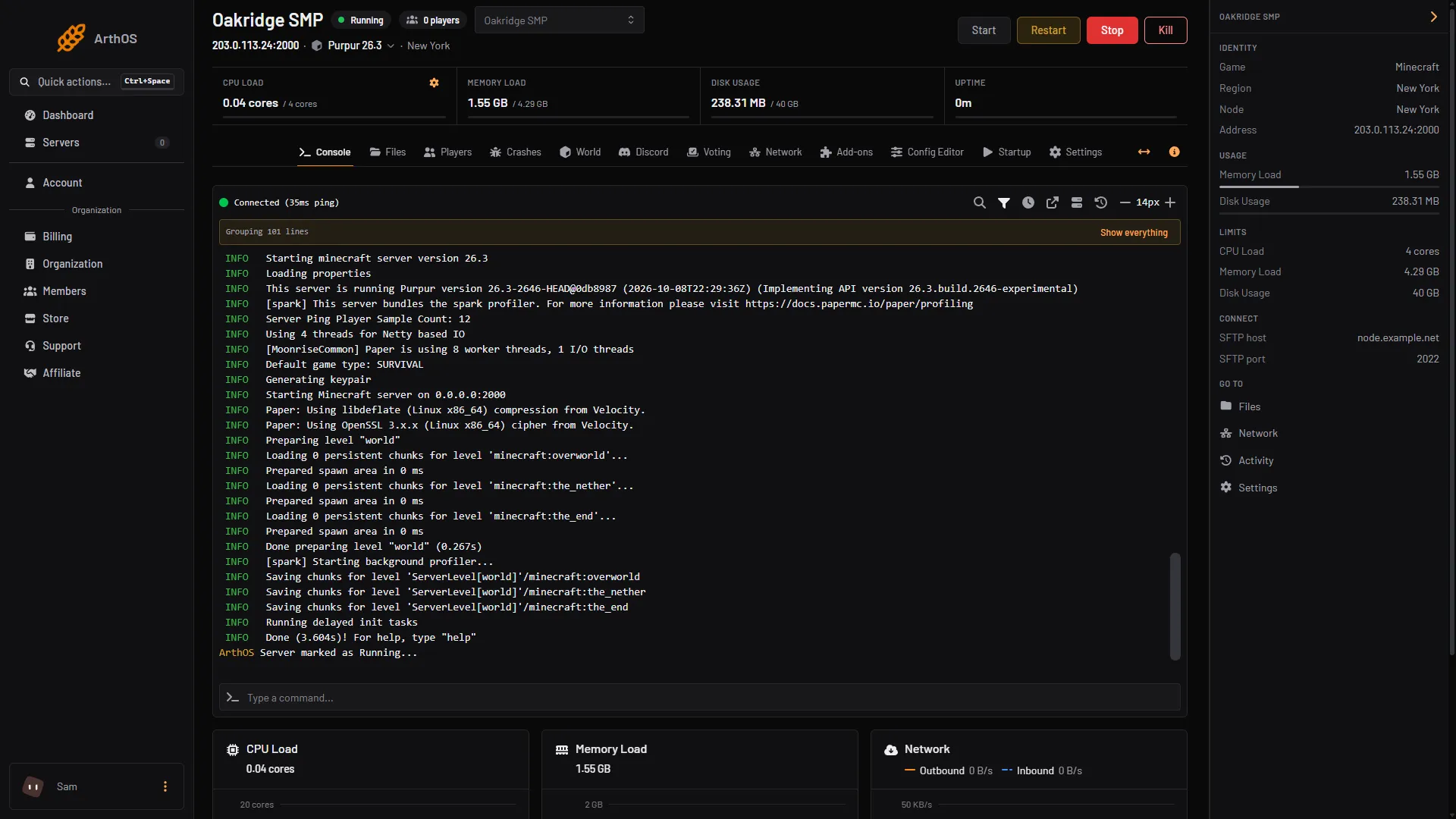
- Copy this address and port
- Start the server
- Is the player on the whitelist? Open Players, type the name in Minecraft name and choose Add to whitelist. See set up the whitelist.
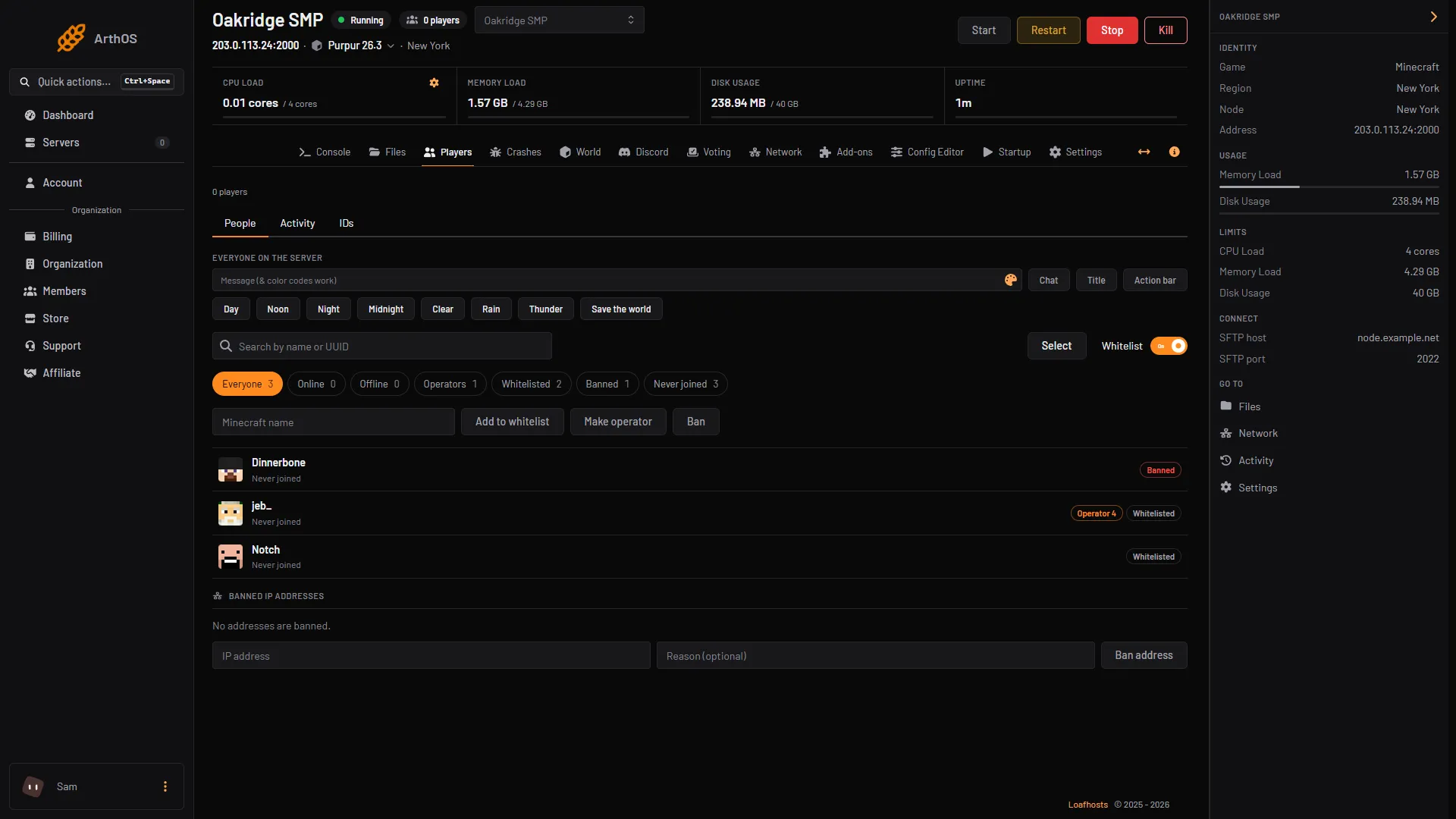
- The whitelist is on
- Type the name
- Add to whitelist
To see who is on the list, type whitelist list in the Console. On a new server it answers “There are no whitelisted players”.
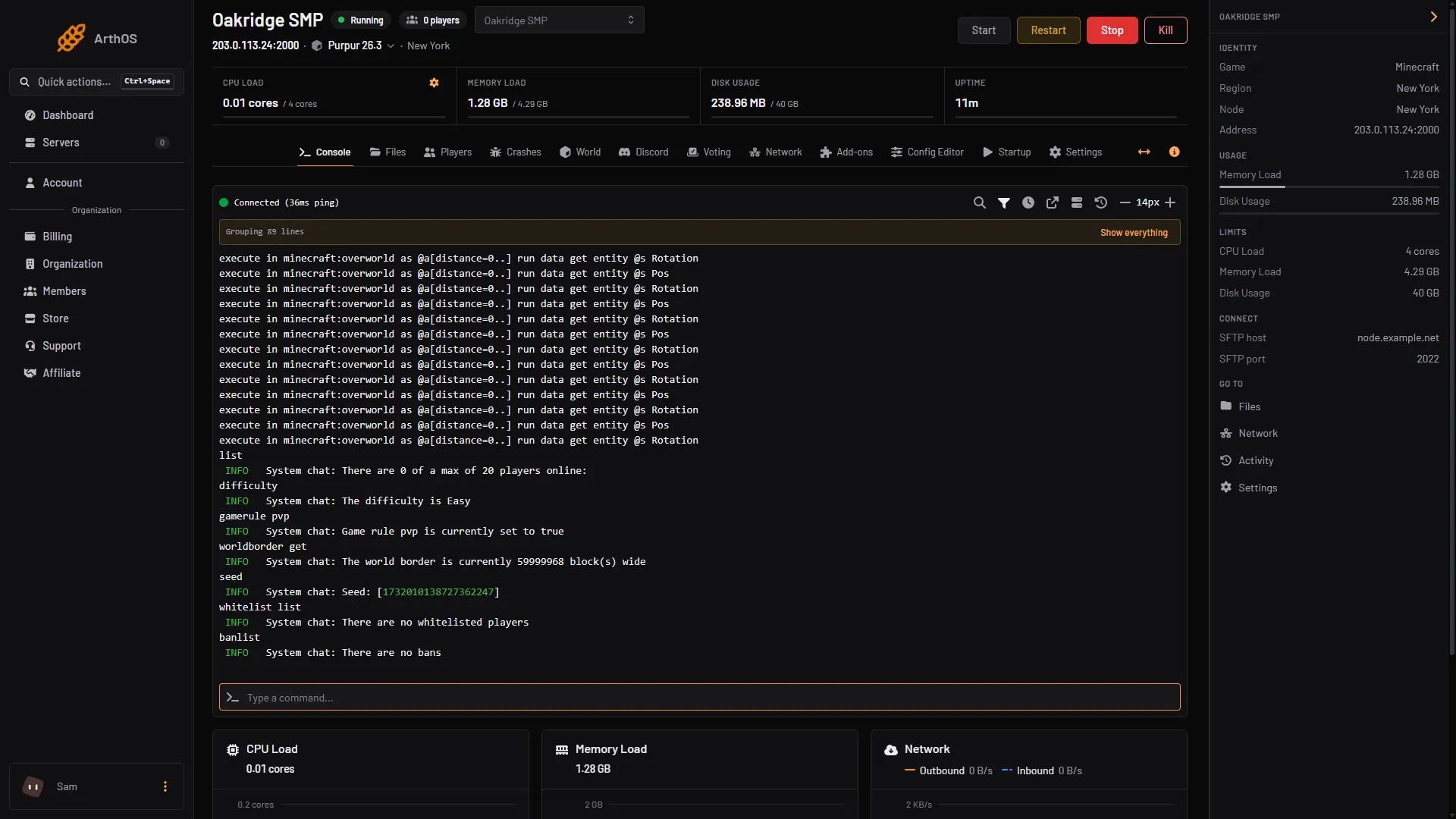
- The whitelist list reply
- Do the versions match? The software chip in the header shows the server’s version, for example
Purpur 26.3. The player’s game must match.
Connection timed out
The game asked the server and got no reply. A firewall between the player and the server often causes this. First make sure the server is running and the address and port are right, because a wrong port also looks like a time out. Then ask the player to try another network, turn off a VPN, and allow Java or the launcher through their firewall.
Connection refused (no further information)
Nothing is listening on that address and port. The server is stopped, still starting, or the player typed a different port. Start the server, wait for it to finish starting, and copy the address again from the header.
Can’t connect to server
The server list shows “Can’t connect to server” when the game could not reach the server at all: it is down, the player has no internet, or the server did not answer in time.
The domain name cannot be found
If the game says there is no server with that name, the address has a typo or the domain name has no record yet. Check it in the Network tab, Domains.
The account check fails
The server checks every player against Minecraft’s account service. If that check fails, the player’s session may be out of date: “Invalid session” tells them to restart the game, because only the newest session of an account can join. Minecraft’s account service can also be down for a while, and a launcher that does not sign in with a real Minecraft account is refused. Restart the game and the launcher, sign in again, and try later if the service is down.
You are not whitelisted on this server
The whitelist is on and the name is not in it. Add the exact name on the Players tab, as above, and check the spelling. A banned player is refused even when on the whitelist. See how to unban someone.
Outdated client or Outdated server
The game and the server run different versions. “Outdated client” means the server is newer than the player’s game. “Outdated server” means the player’s game is newer than the server. Match the versions. The full fix is in Outdated server or client.
Bedrock: Unable to connect to world
Java uses TCP and Bedrock uses UDP, both on the same port number. You do not need to do anything about this. On Bedrock the address and the port go in two boxes. Check that the port is typed in Port. Then check that the server was ordered as Java + Bedrock, or that Let Bedrock players join is turned on in Settings. These are two different ways to allow Bedrock players. Bedrock does not read domain records that hide the port, so a Bedrock player always types the port. If the game says Invalid IP address!, the name uses a record Bedrock cannot read. Use the plain IP and the port.
By hand
If you host the server yourself, the port is server-port in server.properties (25565 by default). Open it in your firewall and router. A time out with the server running is normally a closed port.
If it does not work
- It works for you but not for one friend. Compare what they typed with the address in the header, character by character, and check their game version. Then have them try another network or turn off a VPN.
- Everyone is refused except the owner. The whitelist is on and has nobody else in it.
- Everyone is refused right after a restart. The server may still be starting. Watch the Console.
More on the game: Minecraft servers.
Sources: minecraft.wiki: Setting up a Java Edition server, minecraft.wiki: Playing on servers, minecraft.wiki: Server, minecraft.wiki: Server.properties, geysermc.org: Common issues, geysermc.org: Faq