






“Outdated client” means the server is newer than your game. “Outdated server” means your game is newer than the server. In both cases the two versions do not match. Either put your game on the server’s version, or change the server’s version in Add-ons, Versions. A newer game can also join an older server if the owner installs the ViaVersion plugin.
Which message you got
| Message | What it means | Fix |
|---|---|---|
Outdated client! Please use <version> | The server runs a more recent version than your game. | Start your game on the version in the message. |
Outdated server! I’m still on <version> | Your game is more recent than the server. | Change the server to your version, or add ViaVersion. |
A Java client can only join a server on the same protocol version. Most releases have their own, and snapshots never match a release.
Fix it as a player
- In the launcher, create or choose a profile on the version named in the message. For “Outdated client”, that is the version after “Please use”.
- Start the game on that profile and join again.
Fix it as the server owner, in the ArthOS panel
You have two choices: move the server to the version players use, or let newer clients in.
Change the server’s version
- Open Add-ons and choose Versions. The Running now card shows what the server runs now. You can also click the software chip in the server header.
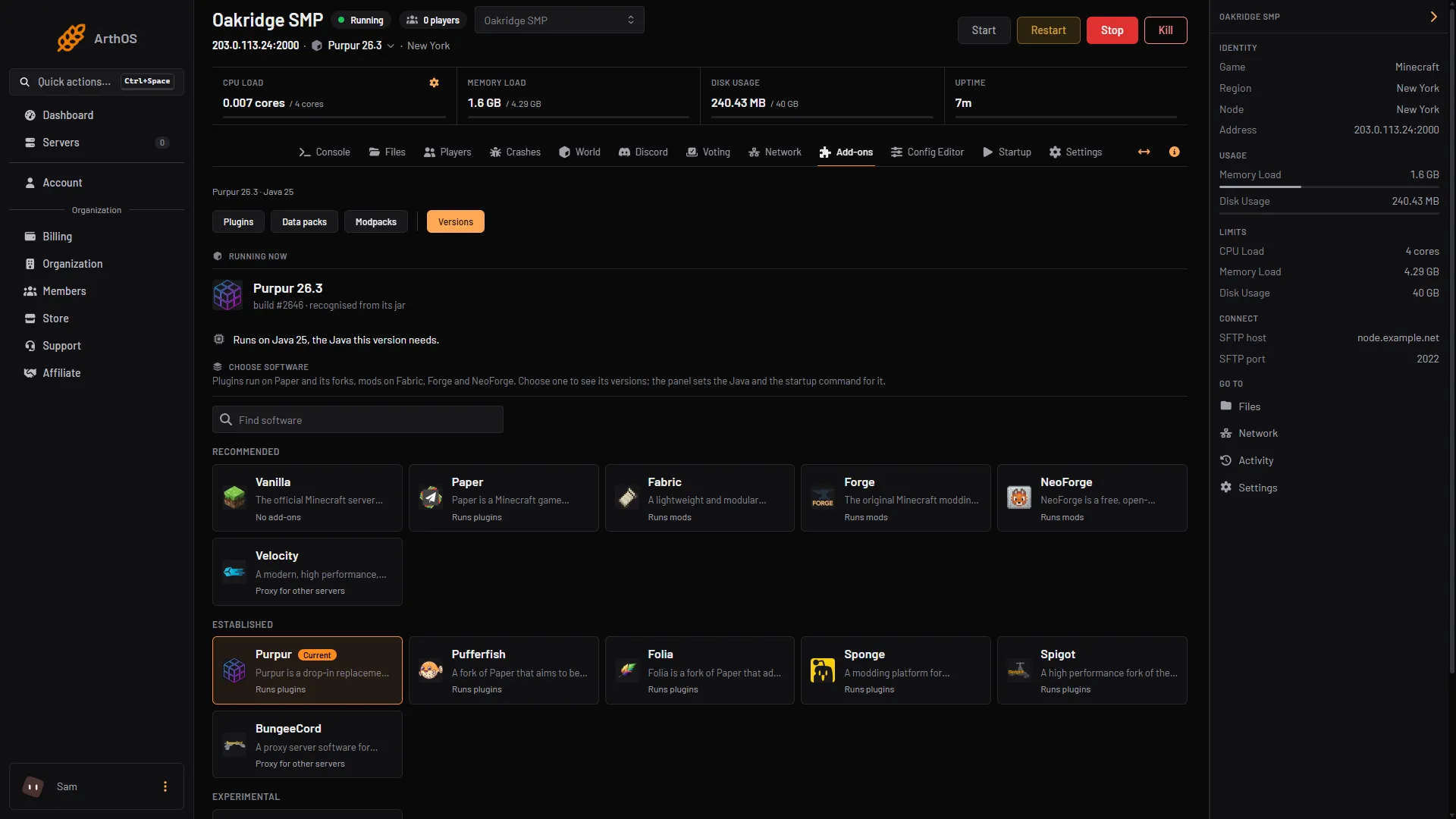
- Open Versions
- What runs now
- Find software
- Pick your software, for example Paper, then pick the version in the list and choose Choose.
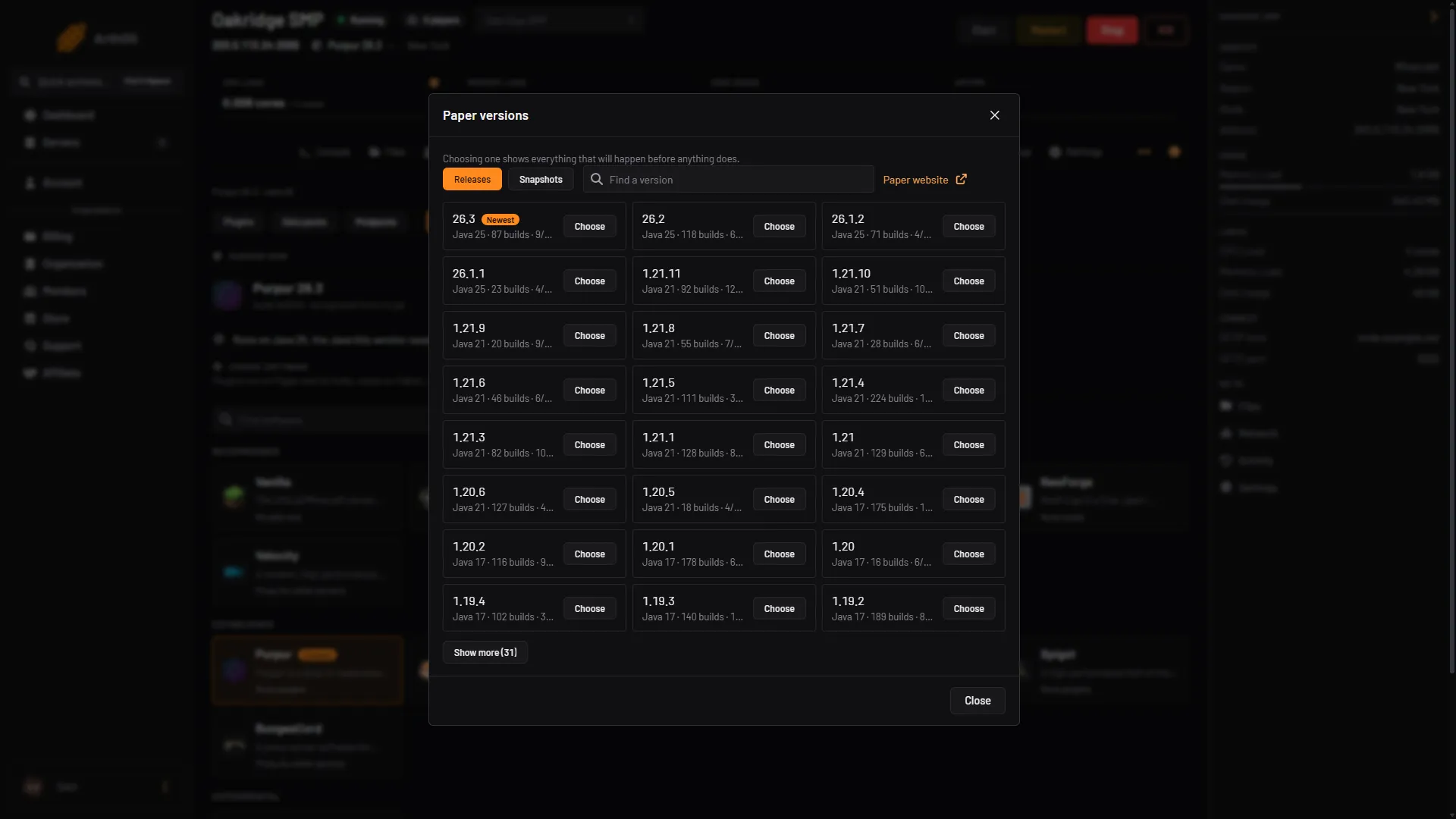
- Releases or Snapshots
- Find a version
- Choose a version
- Read the dialog, then choose Switch now. The panel takes a backup first when it can. Start the server when it finishes.
Going to an older version can leave a world the server cannot load. A newer Minecraft version upgrades an older world the first time it loads it, and that world cannot go back. See change your server version before you move a server backwards.
Let newer clients join with ViaVersion
ViaVersion lets players on a higher version join a server on a lower one. It is a plugin, so the server needs Paper or a fork such as Purpur. It does not make the server newer: plugins and the world stay on the server’s version.
- Open Add-ons and choose Plugins.
- Choose a source such as Modrinth or Hangar, type
ViaVersionin the search box and choose Install.
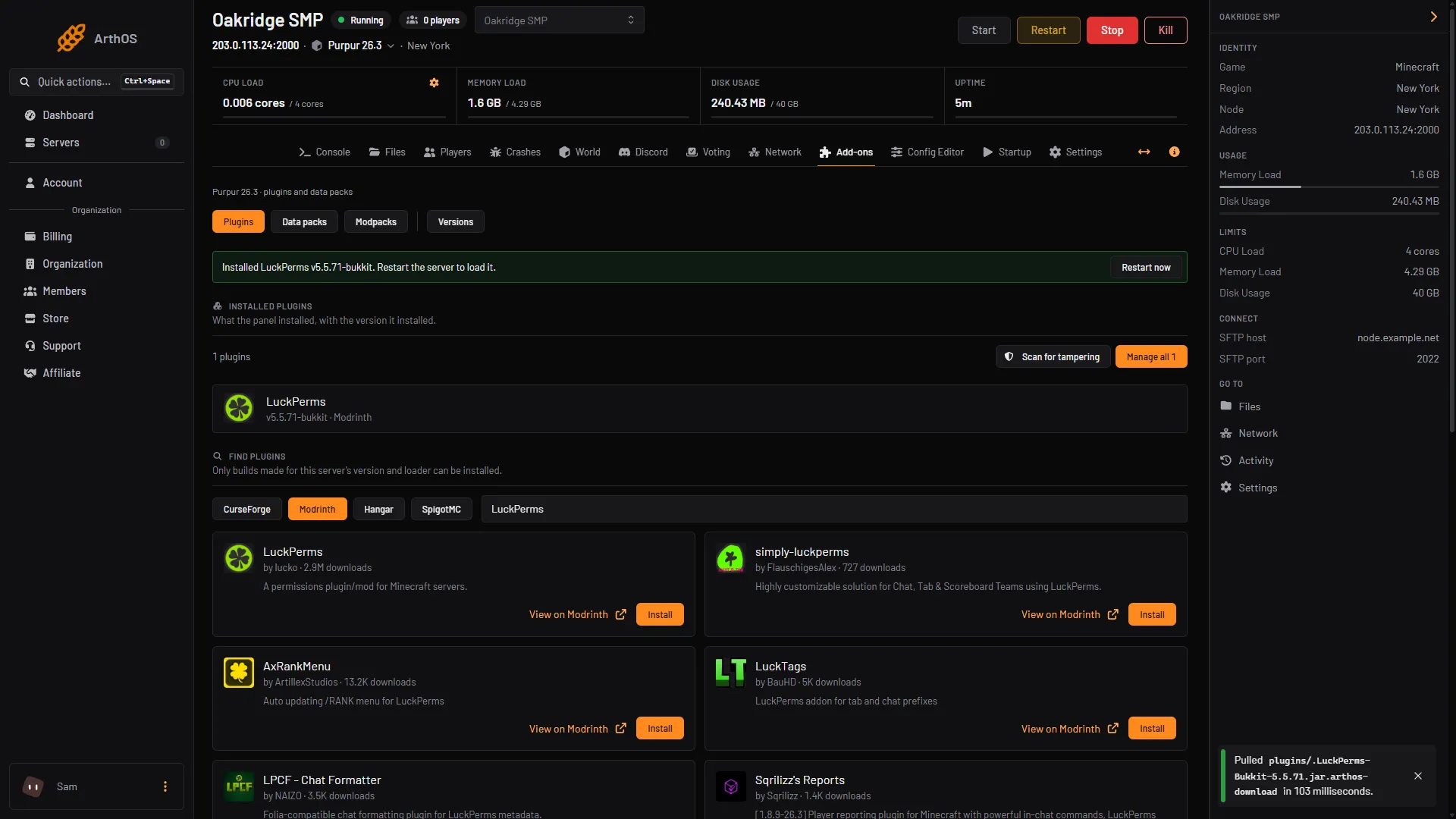
- Plugins
- Pick a source
- Search for ViaVersion
- Install
- When the panel says to restart the server, choose Restart now.
If the Install dialog says “No build of this is made for this server’s version and loader”, that source has no build for your version yet. Try the other source, or use the first fix.
By hand
- In the plugin folder, add the
ViaVersionjar for your Paper-based server, then restart the server. - To change the server version, stop the server, back up the world, and replace the server jar with one for the version you want.
Plugins only load at a restart. See install plugins.
If it does not work
- Players on Bedrock see Outdated client or Outdated server. Geyser, the part that lets Bedrock players in, only supports a range of Bedrock and Java versions. “Outdated client” there means the server is too new or Geyser is old. “Outdated server” means the server needs to be updated or given ViaVersion. See Bedrock players on a Java server.
- The message names a version you do not have in your launcher. Create a profile for it. If it is a snapshot, the server runs a test version and players must use the same snapshot.
- The server will not start after a version change. Open Crashes and read the newest log. A version change can need a newer Java, and plugins built for the old version may refuse to load.
- It still says outdated after installing ViaVersion. You did not restart after installing it, or the player runs a version the plugin does not support yet.
More on the game: Minecraft servers.
Sources: minecraft.wiki: Server, minecraft.wiki: Playing on servers, minecraft.wiki: Protocol version, github.com: ViaVersion, geysermc.org: Common issues, docs.papermc.io: Getting started