

The public map is a link anyone can open to see your world map, with no account. Open the World tab, choose World map, then choose Public map. Turn on Share this map, choose Save, and copy the link.
You decide what the link shows. Players can show live, a few minutes late, or not at all. You can hide chosen players, group players in coloured teams and pick which dimensions show. See the World map guide for the map itself. See Minecraft servers for the game.
Turn it on
- Open your server, choose World, then choose World map.
- Choose Public map in the left panel. Its line says “Not shared” at first.
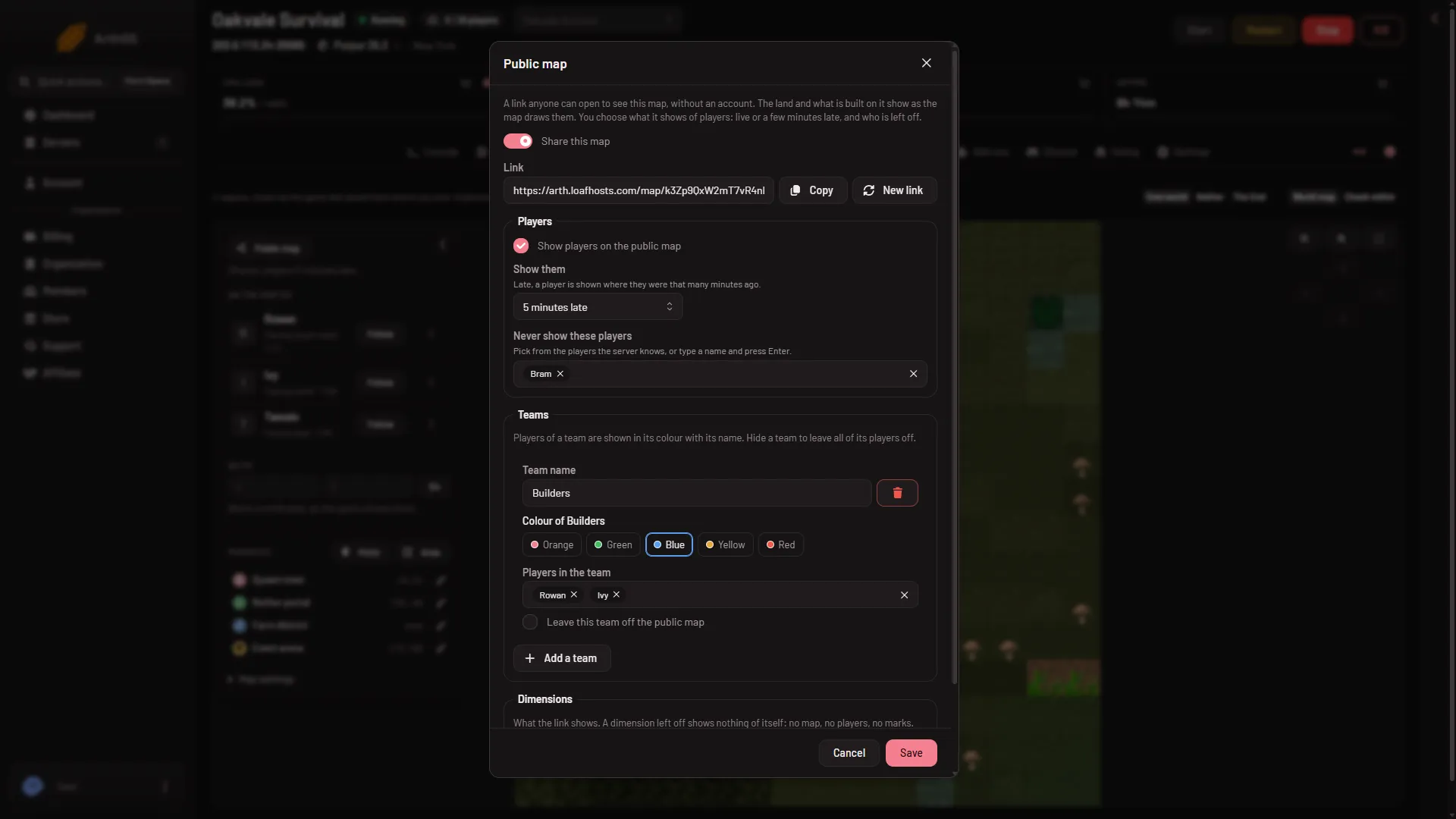
- Share this map
- Copy
- New link
- Show them
- Never show these players
- Turn on Share this map (1) in the dialog.
- Set what players see, below.
- Choose Save. The link appears after the first save, and the dialog stays open on it.
- Choose Copy (2) and send the link.
Players on the public map
Under Players, tick Show players on the public map or leave it off.
Show them (4) sets the delay. Choose Live, or 1, 2, 5, 10, 15, 20 or 30 minutes late. A late map shows a player where they were that many minutes ago.
Why a delay: a live map tells everyone where a player is right now. A delay makes it harder to catch someone, but the map still shows the land and everything built on it. Hide players or turn players off if bases must stay private.
Never show these players (5) hides people altogether. Pick from the players the server knows, or type a name and press Enter. You can list up to 200.
The panel decides this before anything leaves it. A hidden player’s position is never sent. A late map only sends readings that old.
Teams
Under Teams, choose Add a team. Give it a name and a colour, then add its players. Its players show in that colour with the team name. A player can be in one team only. Tick Leave this team off the public map to hide the whole team.
Dimensions and marks
If your world has more than one dimension, Dimensions lets you choose which show. Leave at least one ticked. A dimension left off shows nothing: no map, no players, no marks. A dimension the world gets later shows too, if every box was ticked.
Tick Show public marks to show your marks. A mark only appears there if you ticked Show on the public map on that mark. Marks show their title and description to everyone with the link. Do not mark a base you want hidden.
Change or stop sharing
- To stop, turn off Share this map and choose Save. The link says “This map is not shared any more.”
- New link (3) makes a new address. The old link stops working at once. Send the new one to anyone who should still see the map.
- Change any setting and choose Save again. The link stays the same. The first Save stays open on the link. Later saves close the dialog.
What visitors see
Visitors see everything the map draws, in every dimension you leave on. They open the link and see the map, the dimension switch, players if you allow them, teams and marks. A late map tells them “Players are shown where they were (time) ago.” They cannot change anything.
Keep the link to people you trust. Anyone who has it can pass it on. Choose New link if it spreads too far.
Who can do this
Your role needs to look at the world. To change the settings or make a new link it also needs to change the world. A person who can only look sees the settings and the link, but cannot change them. That means they can copy the link too.
If it does not work
- The link says the map is not shared. Share this map is off, or the link was replaced. Copy the current link.
- The link stopped while the server is suspended. A suspended server cannot show a map.
- New link does nothing. It only works once the map has been shared once.
- Players do not show. Check Show players on the public map, and that you did not hide them. On a late map the visitor sees “Players appear here … so keep this page open.” They must leave the page open to see players.
- You cannot change a setting. Your role may only look at the world. Ask the owner.
- You cannot add a team. A team name must be unique, 1 to 32 characters.