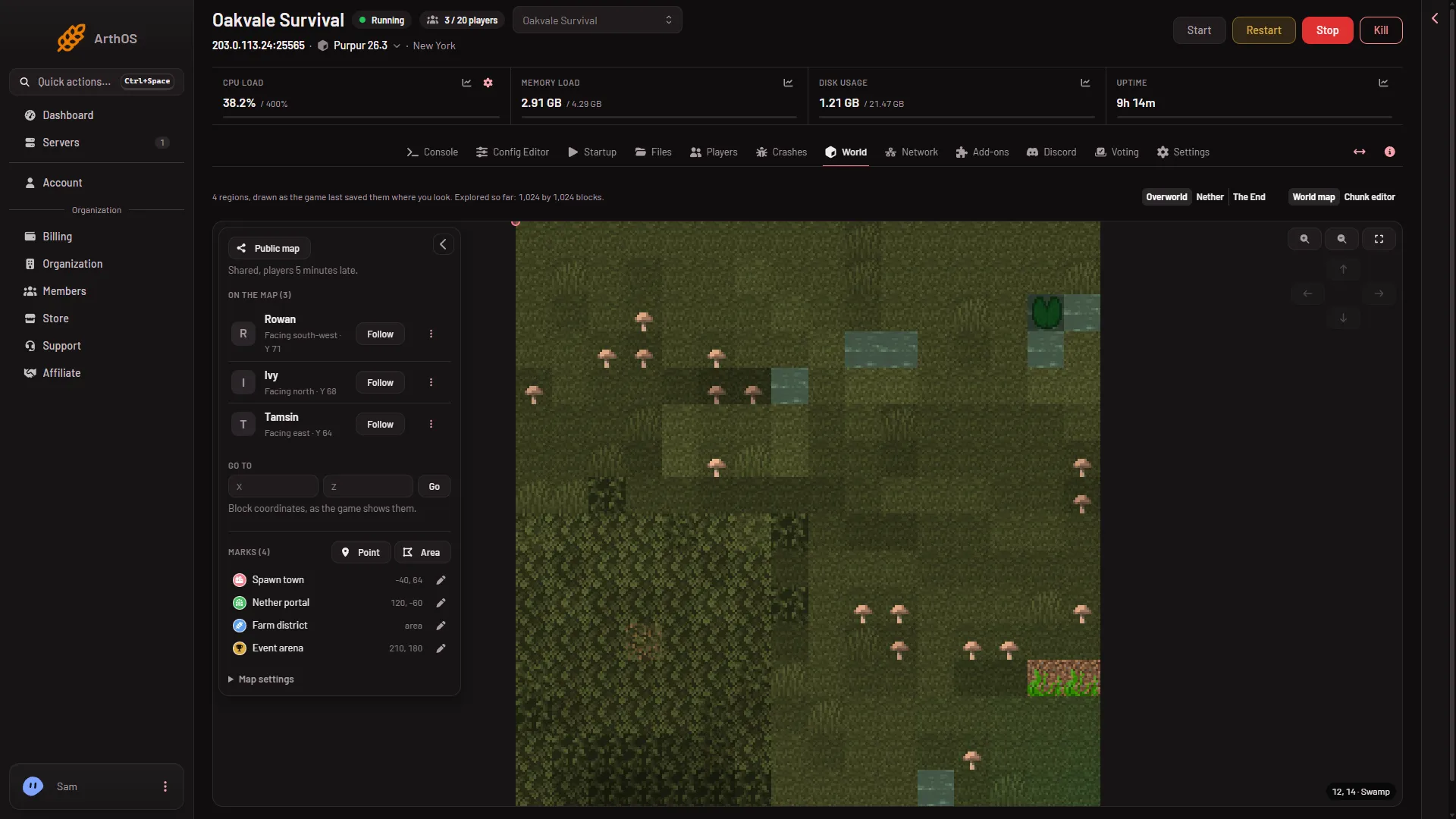
Open the World tab and choose World map. You see your world from above, drawn from the files the game saved. You do not install a plugin and you do not open a port. It works while the server is stopped.
The map is for you and for anyone whose role needs to look at the world. To show it to players, see share a public map. The map works on Minecraft Java servers. See Minecraft servers.
Open the map
- Open your server and choose the World tab.
- The first time, the tab asks how you want to look: choose World map. After that it opens the last view you used, and the World map / Chunk editor switch (1) at the top right changes it.
- Choose Overworld, Nether or The End to change dimension. They show when the world has more than one.
- World map and Chunk editor
- Players on the map
- Go
- Point
- A mark
The line under the title says how many regions were drawn and how far you have explored. A region is a square of 512 by 512 blocks. For example “Explored so far: 1,024 by 1,024 blocks”. The panel draws the world as the game last saved it. A part you only just changed may take a little while to show.
What the map shows
The map shows a window of the world, about 1,536 blocks across, not the whole world at once. It opens near the spawn, or on the players if they are read right away. Move the window and the panel draws what comes into view. A big world is fine: the panel draws only what you look at. A dimension with more than 20,000 region files shows the first 20,000.
- Grass, leaves and water use the colours of their biome, as the game draws them.
- Move the pointer over the map. The corner shows the block position and the biome, for example “7, 8 · Swamp”.
- World spawn has its own marker.
Move around
- Drag the map to move it. The arrow buttons on the map move it too.
- Scroll over the map to zoom. On a phone use the zoom buttons.
- Zoom in far enough and every block shows its own texture.
- The full screen button makes the map larger.
Find players
The left panel lists On the map (2) with every player in this dimension. Choose Follow to keep the map on that player. The menu beside a name opens a card with the player’s position, Open in 3D here (the Chunk editor at that chunk) and Manage player (their page). A player only shows while the server is running and this page is open.
If nobody is in the dimension, the panel says so. A stopped server says “The server is stopped. Players show here while it runs.”
Go to a place
In Go to, type the X and Z numbers and choose Go (3). Use block coordinates, as the game shows them. Use whole numbers inside the world border.
Marks
Marks are labels on the map for places you care about. Choose Point (4) for one place or Area for a box between two corners. Then click the map. A form opens. Fill in:
- Title, up to 80 characters.
- Description, up to 500 characters.
- Colour: Orange, Green, Blue, Yellow or Red.
- Symbol: Pin, Home, Bed, Castle, Town, Flag, Star, Crown and more.
- Show on the public map. It is off for a new mark.
Choose Save mark. Each mark is listed (5). Click one to move the map to it. The pencil edits it. A server can hold 300 marks.
Your role needs permission to change the world to add or edit marks. Without it you see the marks but not the buttons.
Map settings
Map settings at the foot of the left panel holds the layer switches. Player markers sets the marker size: Small, Medium or Large.
Map or Chunk editor?
Use the map to look. Use Chunk editor to change blocks, delete chunks or open game rules. See the Chunk editor guide.
Plugin maps
A plugin map such as BlueMap or Dynmap is a different tool with its own web page and port. See BlueMap or Dynmap.
If it does not work
- “Nobody has explored this dimension yet, so there is nothing to draw.” Join the server and walk around first.
- “This server has no world yet. Start it once and the game creates one.” Start the server.
- The World tab is missing. The map is for Minecraft Java servers, and your role needs to look at the world.
- Players are missing. The server may be stopped, or the page was in a hidden tab.
- Part of a very large world is missing. The map reads the first 20,000 region files of a dimension. Regions it cannot read show as empty.
- The map looks empty at the edge. You are at the edge of what the game saved. Move toward your builds.
- “Type whole numbers inside the world border.” Check the numbers you typed in Go to.