






To run mods, your server must run a mod loader: Fabric, Forge or NeoForge. Open Add-ons, choose Versions, pick the loader your mods are built for, pick a version and press Switch now. Your world stays. Your plugins stop working, because plugins do not run on a mod loader.
On the loader’s card in Versions, read its version list. If your Minecraft version is not there, that loader cannot run it. Not checked on 26.3 as of 11 October 2026: which loaders list 26.3.
Pick the loader from your mods
- Open the page of each mod you want, on Modrinth or CurseForge. It lists the loaders and Minecraft versions it is built for.
- Pick the loader that all your mods share. A mod made for Fabric does not run on Forge or NeoForge, and the other way round.
- Pick the newest Minecraft version that all your mods support.
Using a modpack? The pack decides the loader and the version. Install the pack instead: install a modpack.
Forge’s downloads page lists a build for Minecraft 26.3 as of 11 October 2026. The panel’s list for each loader is what counts.
In the ArthOS panel
- Open your server, choose Add-ons and press the Versions button (1).
- Under Choose software, pick Fabric (3), Forge or NeoForge. Find software (2) searches by name. The cards for mod loaders say “Runs mods”.
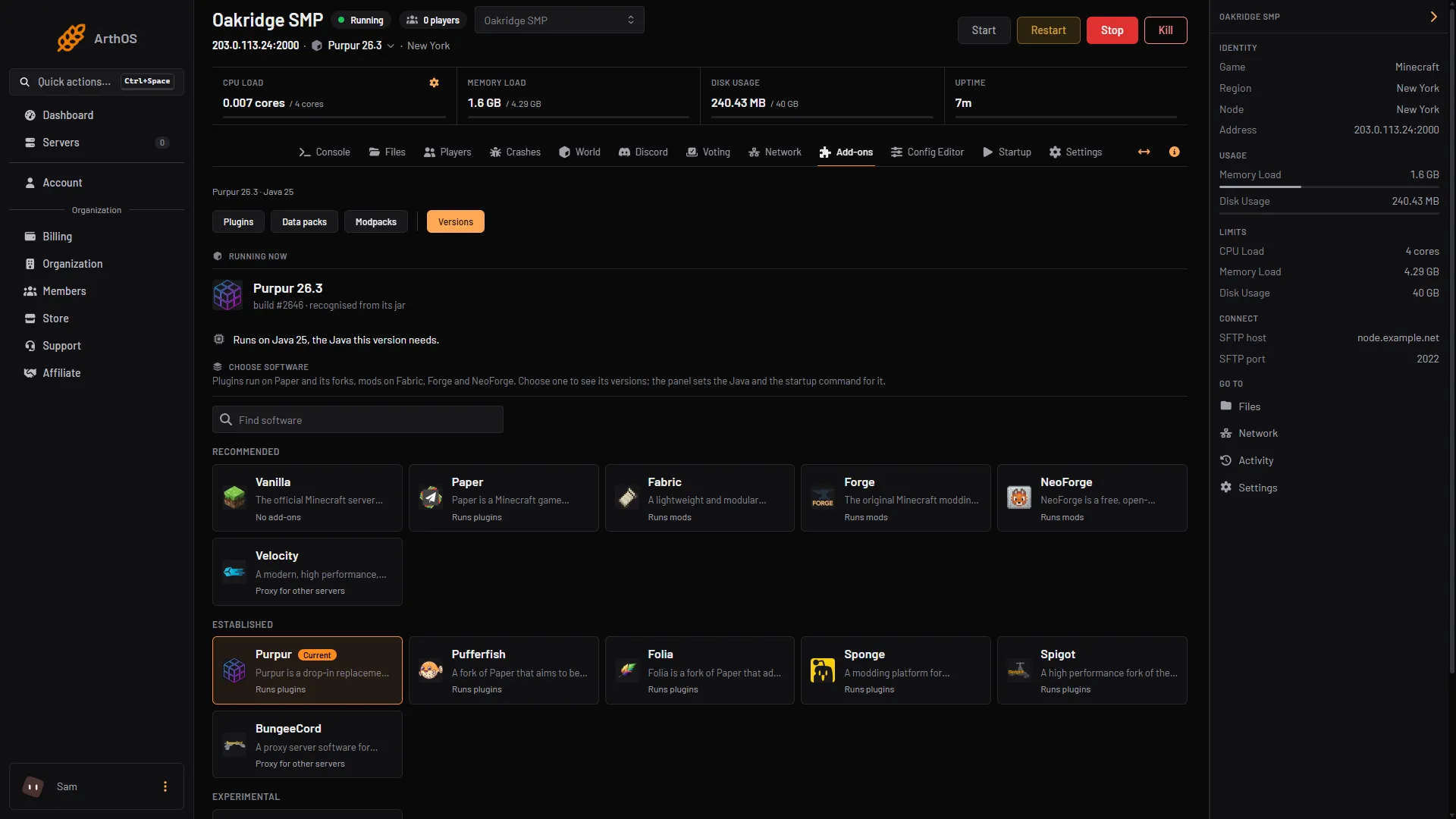
- Versions button
- Find software
- Fabric card
- Choose the Minecraft version your mods need. Each card shows the Java it needs.
- The “Switch to” dialog lists what will happen before anything does. Read it. Below the list are Build, Clean install, Cancel and Switch now.
- Look for these lines:
- “N plugins in the plugins folder will not load on Fabric.” Your plugins stay on disk but do not run.
- A warning that the world was saved by a newer version. You must tick a box named for the version you chose to go on, and the server can hang on that world.
- The Java the server moves to. The panel sets the Java and the startup command for you.
- Leave Clean install off. Clean install removes everything at the top of the server except the folders you tick. That includes
server.properties, the operator list (ops) and the whitelist. The panel ticks the world folders for you. To clear out an old loader, remove its jars from themodsfolder by hand instead. - Read the warning under “Before you switch” below, then press Switch now. The server is unavailable while this runs. Progress shows at the top of every page.
- When it finishes, start the server. Open Add-ons again: a Mods button now appears.
The panel takes a backup first when it can. If it cannot, the dialog says why, and you must tick Continue without a backup to go on. See Minecraft server backups.
Before you switch from Paper
Plugin data stays in the plugins folder, and nothing on a mod loader reads it. Paper’s changes to gameplay do not apply on a mod loader.
Go back to Paper
- Open Add-ons, then Versions, and choose Paper.
- Pick a version and press Switch now.
- Your mods stay on disk but do not load on Paper. Your plugins load again.
The panel takes a backup when it can. If the version is older than the one the world was saved in, the dialog asks you to tick a box named for the older version. Read it before you go on.
Moving from one mod loader to another
Between mod loaders, the dialog does not warn about your mods. Mods built for the old loader will not load on the new one. Remove them from the mods folder and install builds made for the new loader. Choose Clean install if you want a fresh start, and tick the folders you want to keep.
After the switch
- Install each mod: install a mod.
- Most Fabric mods also need Fabric API. The Fabric guide says most mods require it in the
modsfolder. - Tell your players to install the same loader and the same Minecraft version, and the mods the server needs: install a mod. A mod’s page says whether it is needed on the player’s side, on the server, or both. A client-only mod such as Sodium belongs on players’ computers and works with a server that does not have it.
- Do not put a plugin jar in
mods. It does not load.
By hand
- Stop the server and back up the whole folder.
- Download the server installer for your loader: Fabric from fabricmc.net, Forge from files.minecraftforge.net, NeoForge from neoforged.net. Choose your Minecraft version.
- Run the installer, or place the launcher it gives you, and point your start command at it.
- Put mods in the
modsfolder and start the server.
Paper’s guide says that moving between Paper and Fabric or Forge uses the same steps as moving between Paper and Vanilla. Blocks and items that mods added are lost on a server without them. Going from Paper to a mod loader also means moving five world data files, listed in Paper’s migration guide.
If it does not work
- Your plugins stopped. Plugins only run on Paper and software built on it. Install mods in their place, or go back to Paper.
- The server stops on start and names a mod. The mod needs another mod, often Fabric API. Install what it names. See install a mod.
- The error says the mod is for another version or loader. Get the build for your exact loader and Minecraft version.
- Players cannot join. They are missing a mod their side needs, or run another version. Compare their mod list with yours.
- No Mods button. The server is not on a mod loader yet. Check Running now in Versions.
- The server hangs when it starts. The world was saved by a newer Minecraft than the server. Restore the backup, or choose a newer version.
More on the game: Minecraft servers.
Sources: docs.fabricmc.net: Installing mods, fabricmc.net: Server, docs.papermc.io: Adding plugins, docs.papermc.io: Migration, minecraft.wiki: Mod, files.minecraftforge.net