












The admin password lets you become an admin in the game. You set it in the Config Editor, under Server settings. On Loafhosts, make it 16 characters or more. A new server already has a random 20-character one.
What it is for
The admin password is different from the join password. The join password lets players in. The admin password gives one player the power to run admin commands in the game.
Pocketpair says the admin password must be set before the admin commands work. In the game you press Enter, then type /AdminPassword, a space, and the password. After that the admin commands work in chat. Type it again after you rejoin. See Palworld admin commands.
Where it is
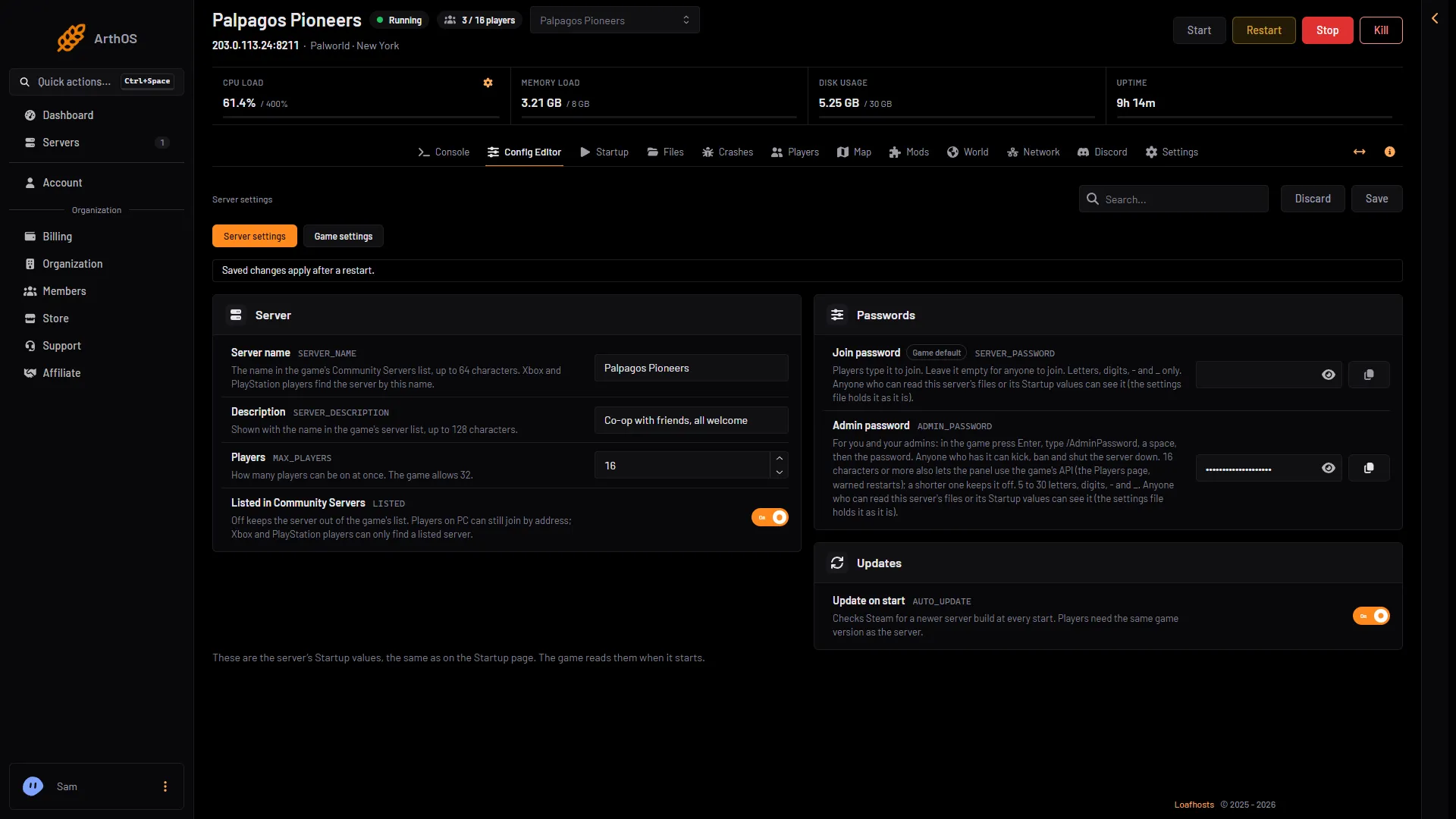
- Open your server and choose Config Editor.
- Open Server settings.
- Find the card Passwords.
- Use Admin password. There is a Join password beside it. Do not mix them up.
- Admin password
- Join password
- Save
The Admin password (1) is hidden. Use the eye button beside it to show it, and the copy button to copy it. The Join password (2) is the one players type to get in. Choose Save (3) when you change something.
A new server gets a random 20-character admin password. You can read it here and change it.
The rules
- 5 to 30 characters.
- Letters, digits,
-and_only. - 16 characters or more, for the game’s API to stay on.
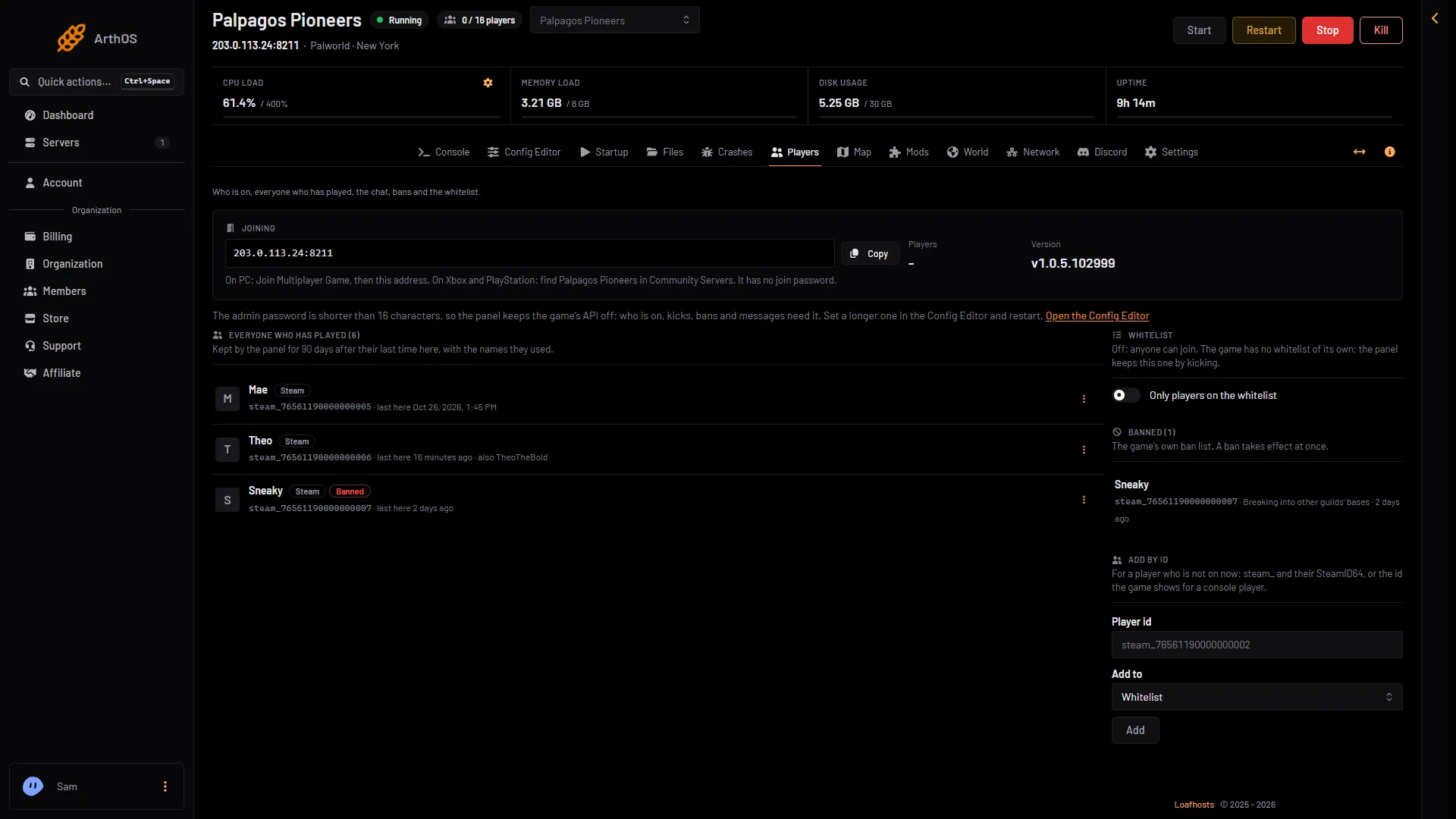
The game’s API is how the panel talks to the game. The panel keeps it on while the Admin password is 16 characters or more (a new server gets a 20-character one). With a shorter password the API stays off. Then the Players page cannot show who is on, and kicks, bans, messages, Save now, warned restarts and the live map positions do not work.
If the password is too short, the Players page shows a line that says the API is off (1), with a link Open the Config Editor (2). Set a longer password there and restart. See the Players page says the API is off.
- Why the API is off
- Open the Config Editor
Change it
- In Server settings, Passwords, type the new Admin password.
- Save.
- Restart the server.
The new password applies at the next start. Until then the old one still works in the game.
If the server is running when you save, the editor shows Restart now. When you restart from the panel, it saves the world first while the game’s API is on. Players are disconnected while it restarts.
Who can see it
Anyone who may change the server’s startup settings, or read its files, can see both passwords: PalWorldSettings.ini holds them as they are. The Startup page only shows a note that points to the Config Editor. Give panel access to your helpers with care. See panel access for admins.
If it does not work
- The game says the password is wrong. The new password only applies after a restart. Also check for a space or a copied extra character.
- The panel refuses the password. The admin password is 5 to 30 letters, digits,
-and_. A password with any other character is refused when you save. - The Players page does not show who is on. The password may be shorter than 16 characters. Make it longer and restart.
More about the game: Palworld servers.
Sources: docs.palworldgame.com: Commands, docs.palworldgame.com: Configuration