












The Map page draws the game’s own world map, the Palpagos Islands, and puts every player who is on the server on it. It reads their positions from the game every 5 seconds. The numbers it shows are the same coordinates the game’s own map shows, so you can tell a player “meet at 238, -498” and they can find it.
Open the map
- Open the Map page on the server page.
- Wait for the map to load. Players who are on show as markers, and On the map (N) lists them.
The map needs the game’s API for live positions. The game’s API is how the panel talks to the game. The panel keeps it on while the Admin password is 16 characters or more (a new server gets a 20-character one). If yours is shorter, the page says “Who is where needs an admin password of 16 or more characters (Config Editor, Server settings), then a restart.”
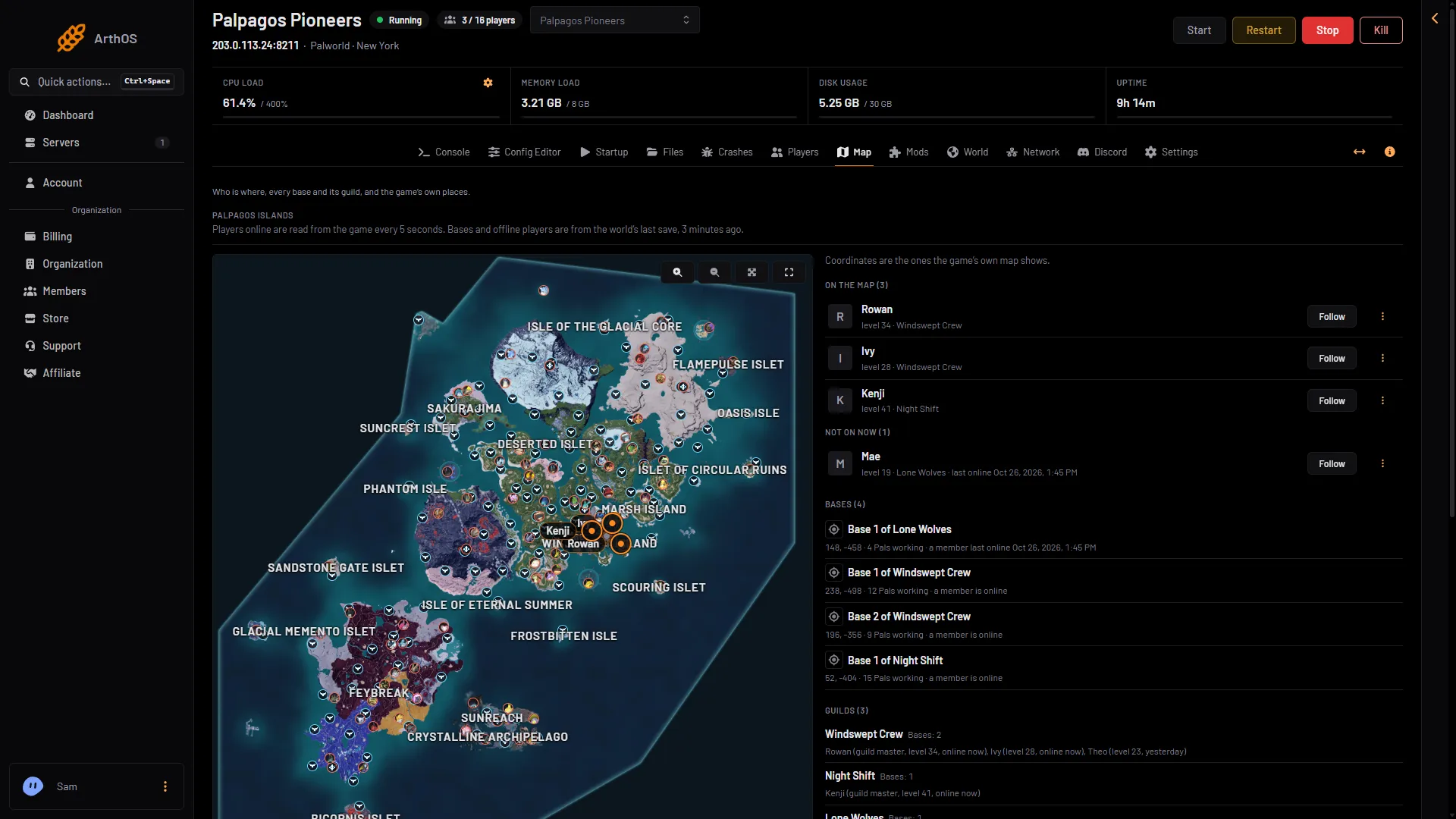
- Read every 5 seconds
- Who is on the map
- Follow a player
The note above the map (1) says how fresh the positions are. On the map (2) lists the players who are on. Follow (3) is on each player’s row.
Move around
- Scroll over the map to zoom, then drag to move around. The buttons on the map are Zoom in, Zoom out, Whole map and Full screen. On a phone, use them.
- Whole map shows everything again. Full screen fills your screen.
- Player markers has Small, Medium and Large. This is your own choice and changes nothing for other people.
- Follow on a player’s row keeps the map centred on that player as they move. It changes to Following while it is on.
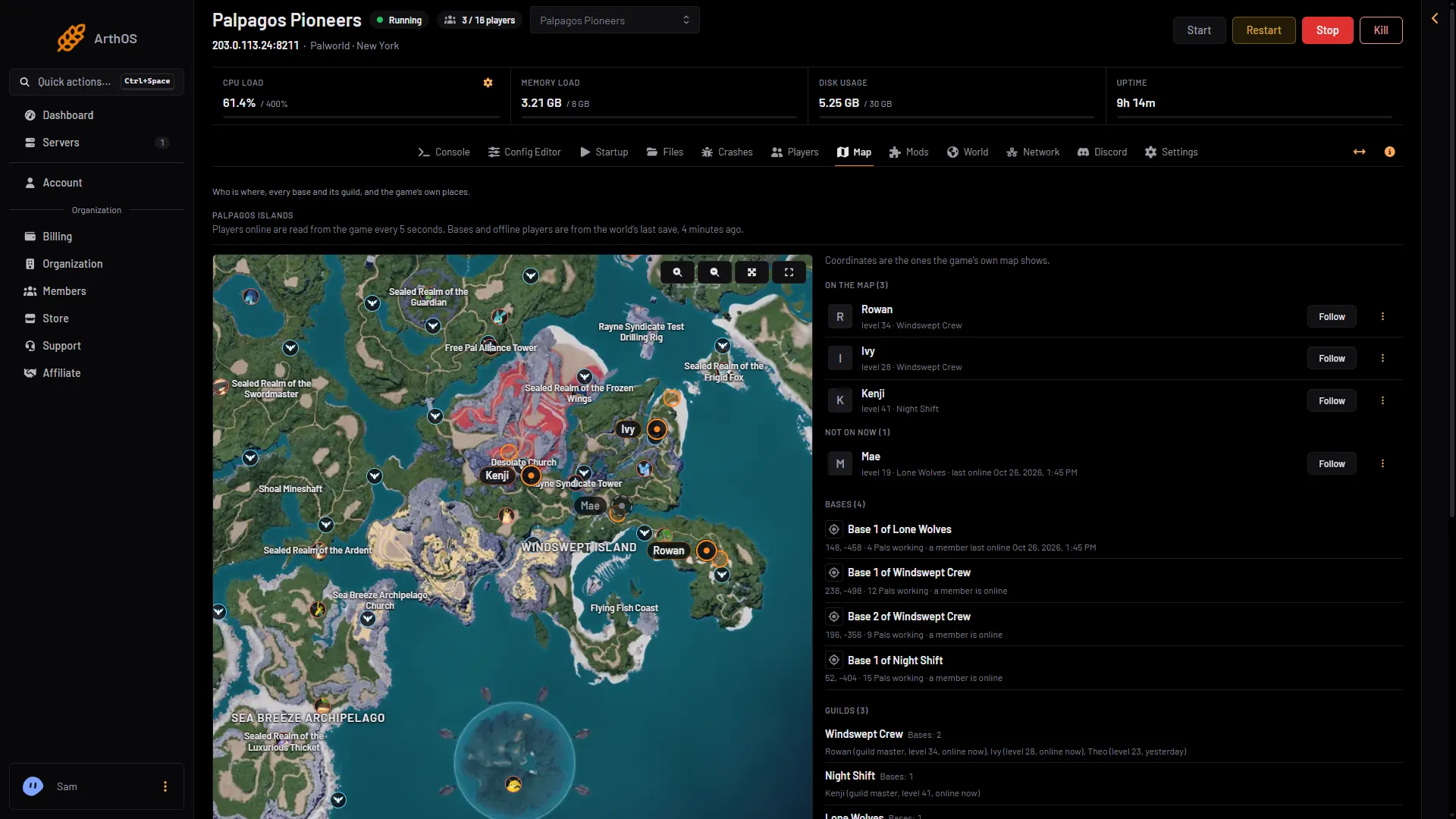
- A player
- Island name
- A tower
The card for a player
Click a player’s marker to open their card. It shows their name, level, guild, where they are, and their ping in milliseconds. Click the coordinates to copy them.
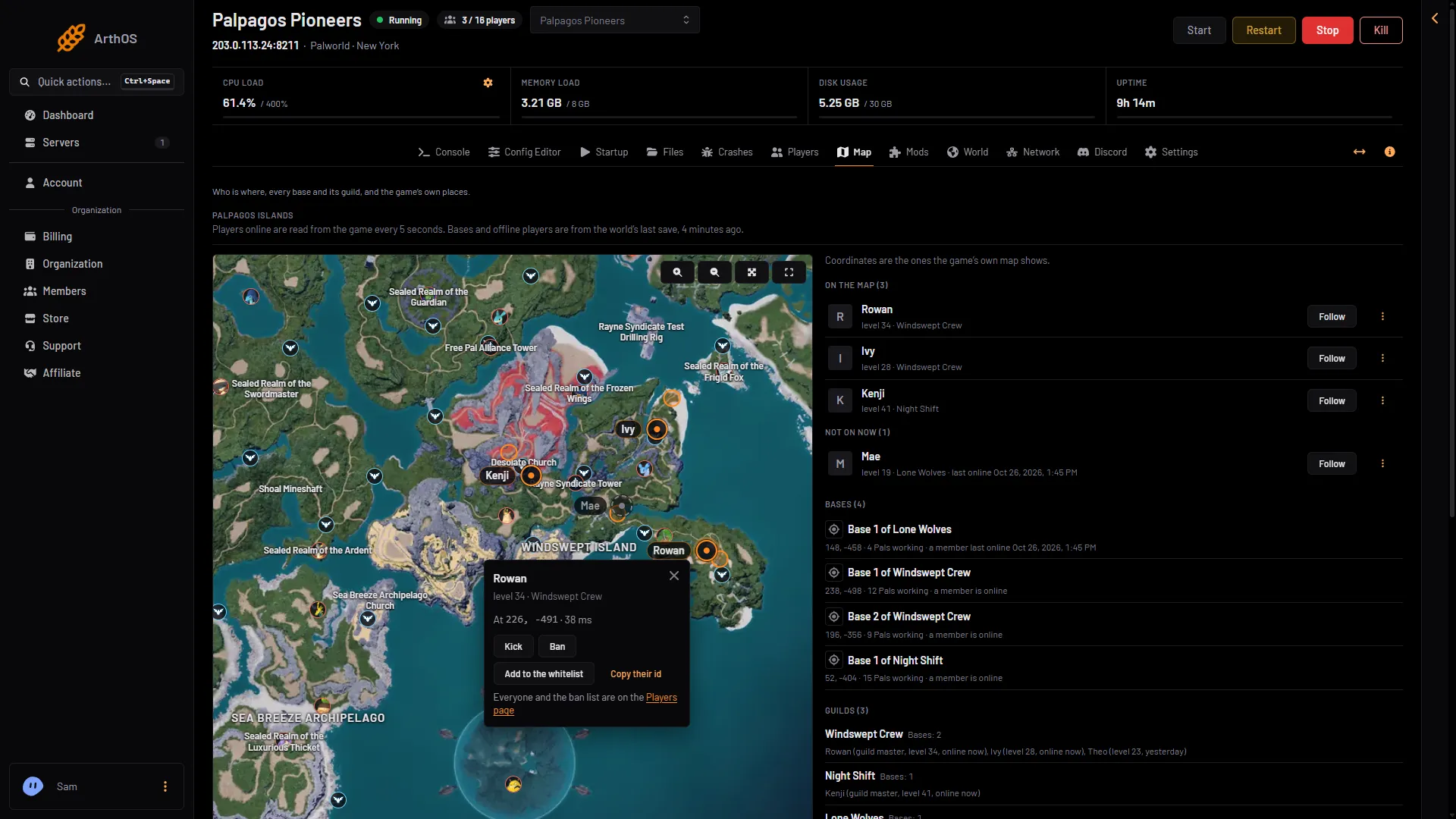
- Kick
- Ban
- Add to the whitelist
- Copy their id
If your role may moderate players (players.moderate), the card also has Kick for a player who is on, Ban (or Lift the ban for a banned player), Add to the whitelist (or Take off the whitelist) and Copy their id. Kick and Ban need the game’s API: with it off the buttons are gone and the card says “Kick and ban need the game’s API on.”
If the card says “The panel has not seen this player join since it started keeping track, so it has no id to ban or whitelist them by.”, the player is offline and the panel never saw them on (it checks who is on every 30 seconds while the game’s API is on). Use Add by id on the Players page instead. See kick and ban players.
Places on the map
The map also shows the game’s own places: islands, fast travel points, towers, Alpha Pals and more. See the game’s places on the map.
What needs the private permission
Some parts show only to people with the live map’s private permission (live-map.private). The page says why: it is “what players keep to themselves on the map”.
- Bases, guilds, and where offline players were. See bases and guilds on the map.
- On a PvP server, where players are right now. Without the permission the page says “This is a PvP server: where players are is shown only to those who may see private places.”
Existing roles do not have this permission until you give it. Each time someone looks at the private parts, the server’s activity log records it, at most once an hour for each person.
Why the map can be empty
- The server is stopped. The page says so. Start it.
- Nobody is on. The page says “Nobody is on the server.”
- The API is off. Set an admin password of 16 characters or more in the Config Editor and restart.
- The server has not restarted since the panel changed how it starts Palworld servers. Restart it once. The page says who is where shows after the next restart.
- A player is on the server but not on the map. The page lists them under “Not in the world right now” until the game gives a place for them.
More about the game: Palworld servers.