












The Console page shows what the Palworld server is printing, live. You can search it, filter it, and type admin commands into the box under it. The server’s name, state and the power buttons stay in the header.
Reading the log
Open Console from the server’s tab row. Lines arrive as the game writes them.
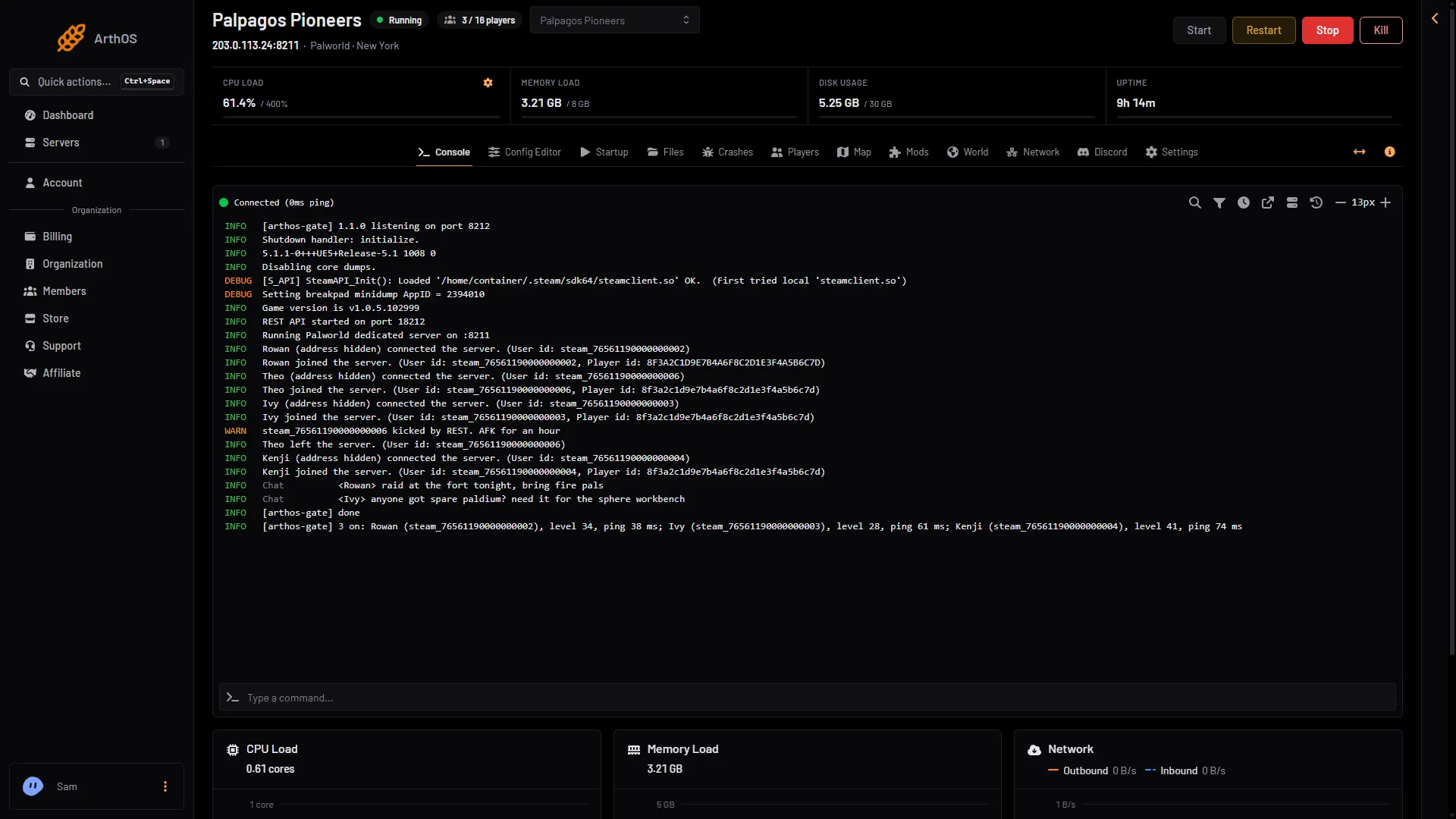
- A join
- A kick
- Chat
- Type a command
- Joins, leaves, kicks and bans come from the game’s own log. The box (1) is on the line that says “joined the server”. A kick or a ban is shown as a warning, so it stands out (2).
- Chat lines have their own Source, Chat (3).
- The start-up lines (the game version, the port it listens on) are shown without a time.
- The console holds the lines of the current start. For an older start, open the Crashes page.
The console shows each line with its level in front, such as INFO or WARN. The time is hidden until Show Timestamps is on. The kept log in Files writes the time and a tag instead, for example [2026-11-02 17:29:14] [LOG] Name joined the server. and [2026-11-02 17:36:16] [CHAT] <Name> hello.
The icons above the log do this:
- Search finds text in the log. Use the arrows for Previous match and Next match.
- Filter console opens a panel. Contains text keeps lines with that text. Severity keeps errors, warnings or info. Source keeps one tag, such as Chat. Group repeated lines folds a run of the same message into one line with a count.
- Show Timestamps and Hide Timestamps switch the time on each line.
- Command History brings back what you typed before.
- Open in Separate Window puts the console in its own window.
A filter only changes what you see. The server keeps sending everything, and nothing is thrown away.
Typing a command
Click the box that says Type a command… (1) and press Enter. The console runs Palworld’s admin words for you, so there is no need to log in as an admin first. They work with or without the / and in any case.
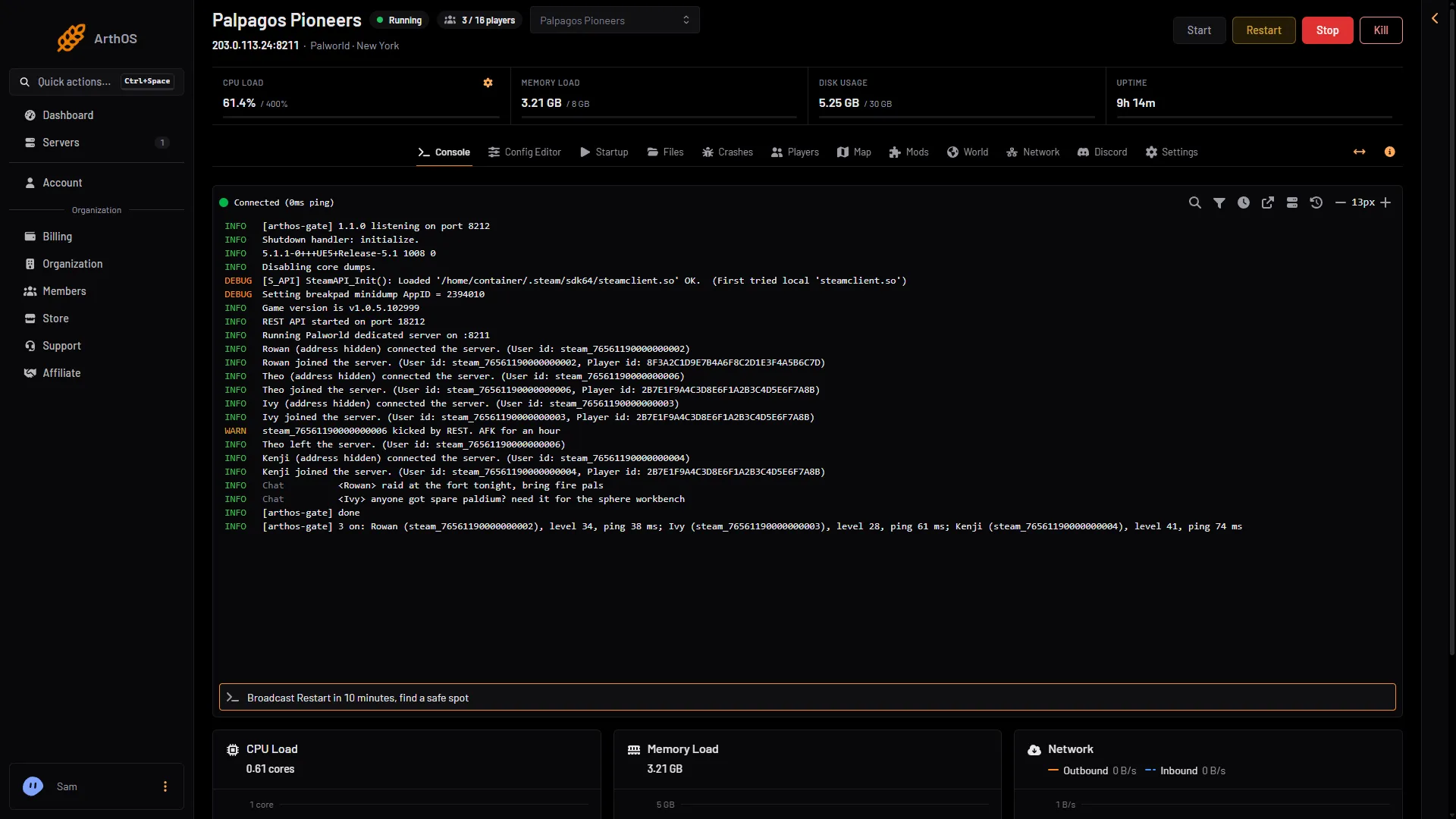
- Type the command here
- The answer appears in the log
The game’s API is how the panel talks to the game. The panel keeps it on while the Admin password is 16 characters or more (a new server gets a 20-character one). These commands need it. Typing them needs a role that may use the console.
| Type | What it does |
|---|---|
Broadcast (message) | Sends a message to everyone on the server. Say does the same. |
KickPlayer (id) (reason) | Kicks a player. Kick works too. |
BanPlayer (id) (reason) | Bans a player. Ban works too. |
UnBanPlayer (id) | Lifts a ban. Unban works too. |
Save | Saves the world now. |
ShowPlayers | Lists who is on. Players works too. |
Info | Shows the server’s name and version. |
Shutdown | Stops the server now, after saving. Stop works too. |
An id is steam_ followed by the SteamID64, or just the SteamID64. A reason is optional.
Shutdown ignores a time and a message, so it cannot count down. For a countdown, use Restart with a warning on the Players page.
The answer (2 in the picture above) prints in the console after [arthos-gate]. A command that worked prints done. ShowPlayers prints each player with their id, level and ping.
Some commands do not work here. DoExit is refused, because it stops the server without saving. AdminPassword, TeleportToPlayer, TeleportToMe and ToggleSpectate only work inside the game, after you press Enter and type /AdminPassword and the admin password. The console says so when you try one.
See the Palworld server commands for what each one does.
Stop and Kill
The header has Start, Restart, Stop and Kill. Stop asks the game to shut down, and it saves first. Kill ends it at once and does not save. If a stop takes longer than 90 seconds, the panel kills it.
Passwords and the start line
The start line is the command the panel runs to start the game. For Palworld it carries the port, the player limit and whether the server is listed. It carries no password. The join password and admin password are set in the Config Editor page, on the Passwords card.
Anyone who may change the server’s startup settings, or read its files, can see both passwords: PalWorldSettings.ini holds them as they are. A server whose Players page says it still runs the start line it came with also prints both passwords in the console as it starts, until its next restart. That means the server has not restarted since the panel changed how it starts Palworld servers. Restart it once.
The console also leaves out the game’s lines for every call the panel makes, the blank lines, and a player’s address, which shows as (address hidden). The kept log has the same lines.
The Crashes page
Each start of the server keeps its own log in Pal/Saved/Logs, named arthos- and the start time. The newest ten are kept. Each holds at most the first 50 MB of its start, so a very long or noisy start can end its log before the server stopped. The Crashes page reads them and shows how each start ended.
If it does not work
- A command answers “restart the server once”. The game refused the admin password the panel read. Restart the server so both agree.
- A command prints that it is not a command here. Use one from the table above.
- Nothing happens when you press Enter. The server may be stopped. Check the state in the header.
- Commands never answer. Check the Admin password is 16 characters or more, then restart.
More about the game: Palworld servers.
Sources: docs.palworldgame.com: Commands