












A Palworld server prints its log to its console. On Loafhosts the panel also saves each start’s console to a file, so you can read it after the server has stopped. Watch it live on Console, read how a start ended on Crashes, or download the file from Files.
Where the log is
Each time the server starts, a new log file is made here:
Pal/Saved/Logs/arthos-(start time).log
For example, arthos-20261104-153000.log is a start on 4 November 2026 at 15:30:00. The newest ten are kept. When an eleventh start happens, the oldest file is deleted. A file holds the console of that one start, and nothing from the starts before it.
Each file holds at most the first 50 MB of its start. A very long or noisy start can end its log before the server stopped. The Chat and what happened list on the Players page shows only the newest 80 lines of the current start; older ones are in these files.
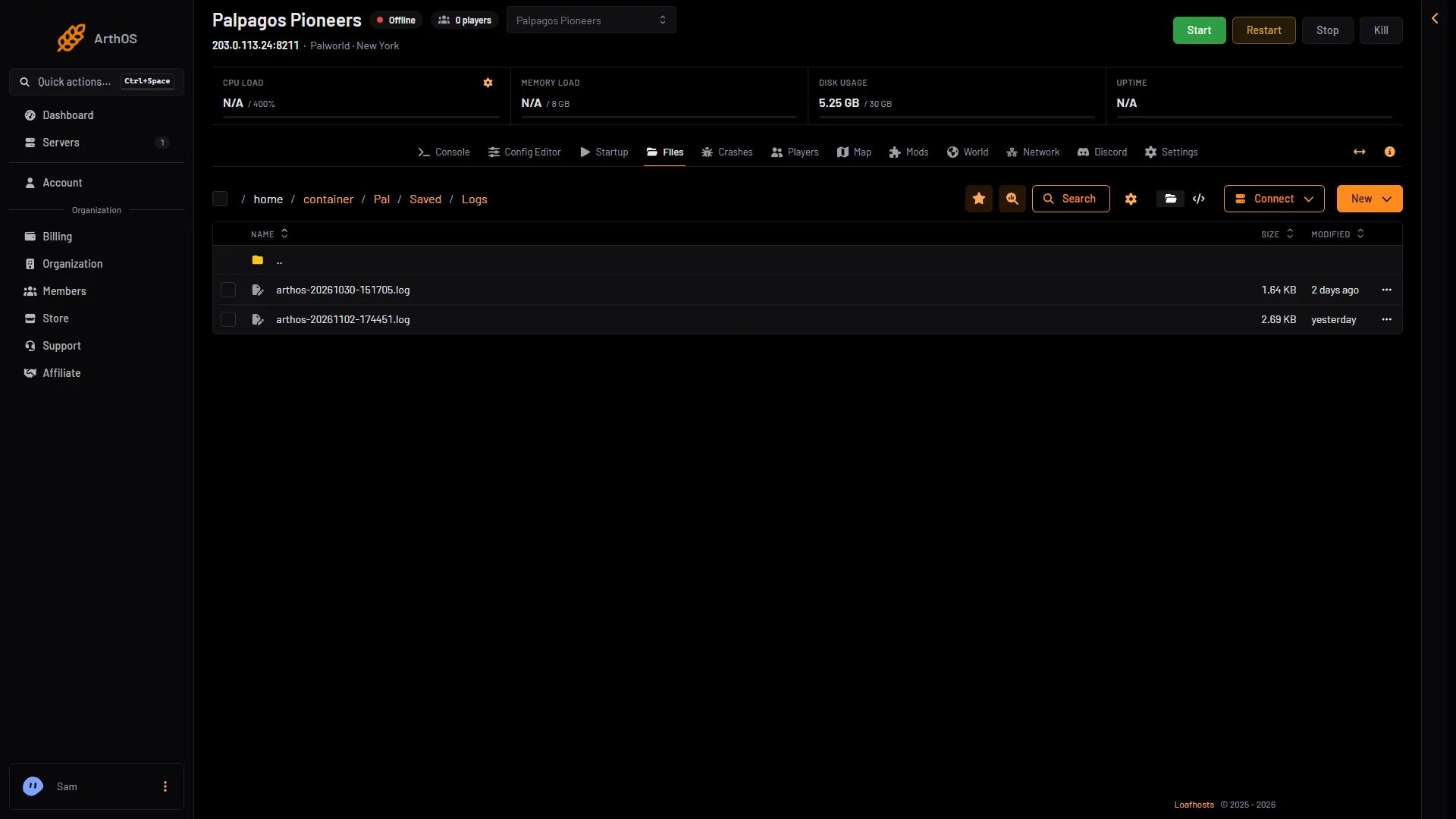
- One log for each start
Watch it live
- Open Console.
- Start the server. Lines appear as the game prints them.
The Console shows each line with its level in front, such as INFO or WARN, and marks chat lines with Chat. The time is hidden until Show Timestamps is on. The kept log in Files looks different: it writes the time and a tag before each line, for example [2026-11-02 17:29:14] [LOG] Name joined the server. and [2026-11-02 17:36:16] [CHAT] (Name) hello.
You can type admin words in the console too. See Palworld server console.
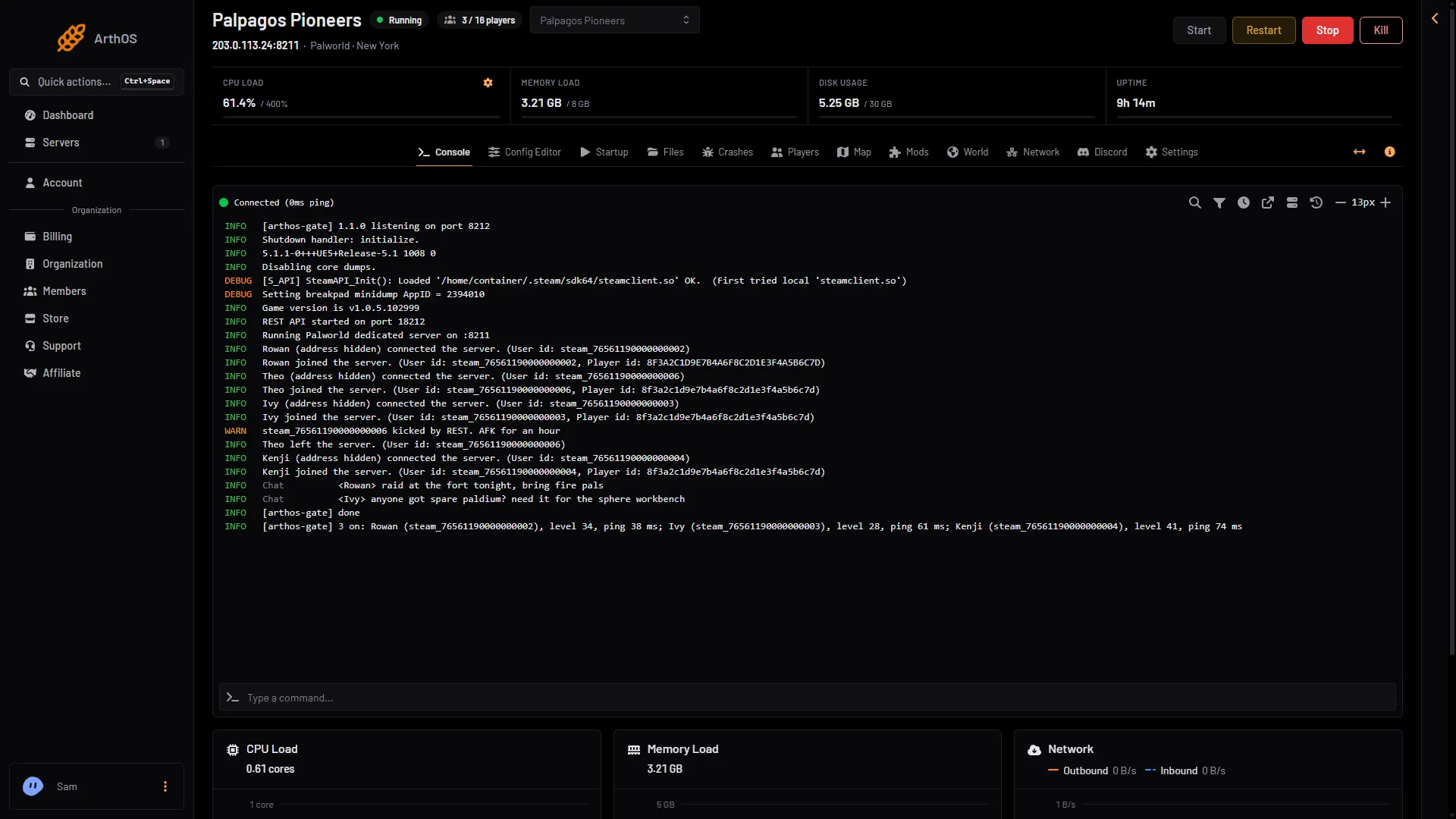
- The server is ready
- A join
- A kick
- Type a command
The server is ready when the console shows the game version and “Running Palworld dedicated server” (1). The line that says joined the server (2) and the kick line (3) have their own lines. Admin words go in the box at the foot (4).
See how a start ended
- Open Crashes.
- Each start has a row. The row shows how it ended: Running now, Ran and stopped, Crashed, Failed to start or Ended early.
- Open a row to see Started, Log last written, Game version, Out of memory, what the panel found, and the last lines of the log.
The panel reads the kept log to find causes such as “The server ran out of memory”, “A port the game needs was in use”, “The world could not be loaded” or “The game was stopped without saving”. Each finding comes with a fix. See Palworld server crash.
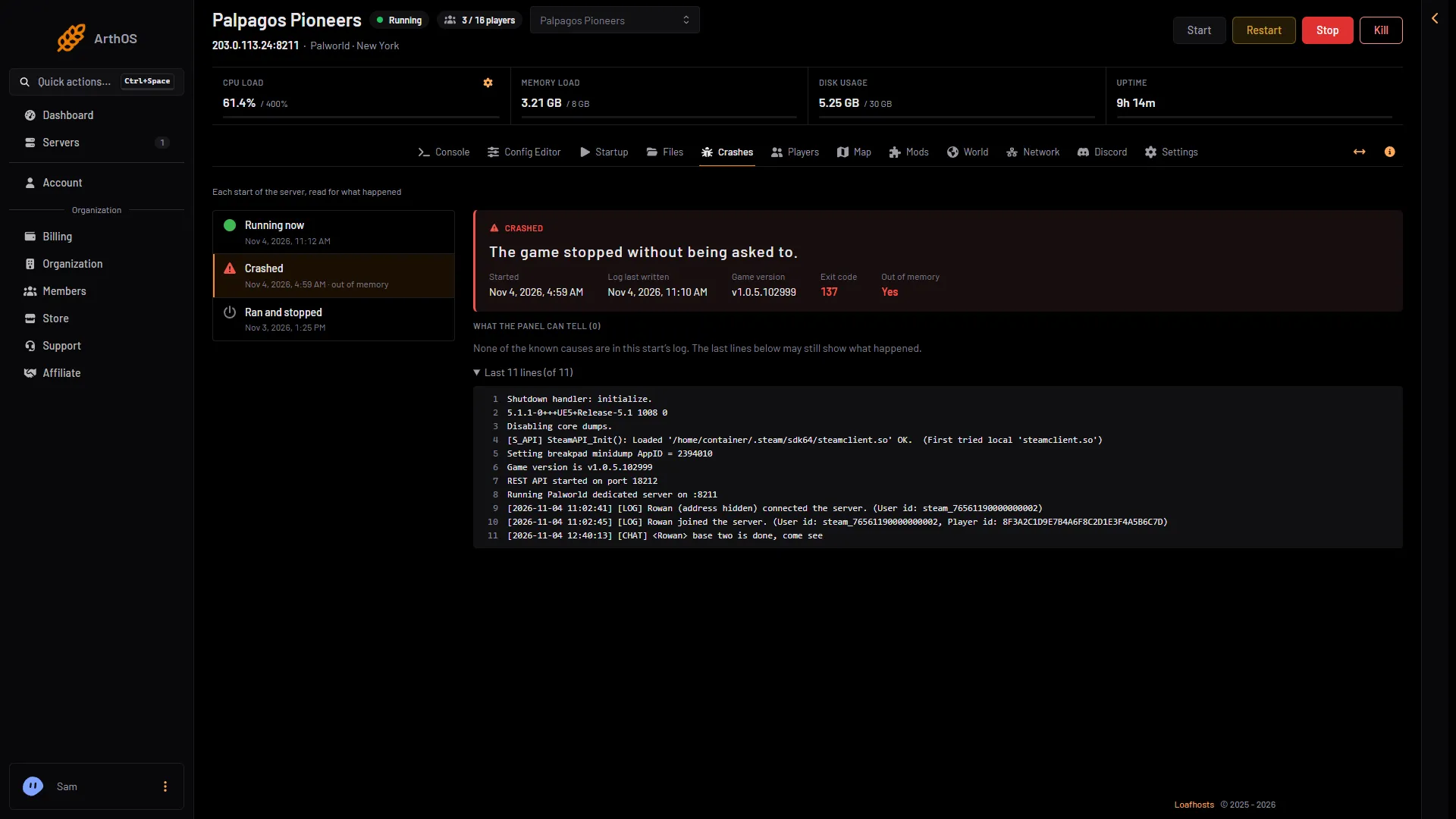
- A crashed start
- Game version
- Out of memory
Pick the start on the left (1). The page shows the game version (2) and whether the machine ended it for memory (3). When the machine ended the start, the log usually has no line about it, so “What the panel can tell” can be empty. That is normal.
Download the file
- Open Files.
- Go to
Pal/Saved/Logs. - Open the menu at the end of the log’s row (the three dots) and choose Download.
What is hidden
- Addresses. The console hides the network address of every player. A join reads like
Jess (address hidden) connected the server.The kept log is written after this filter, so the file has no player addresses either. - Passwords. On the panel’s start line the console prints no password. Both live in the settings, under Passwords in the Config Editor. Anyone who may change the server’s startup settings, or read its files, can see both:
PalWorldSettings.iniholds them as they are. - The panel’s own traffic. The game’s own API lines for the panel’s requests are removed, so they do not bury the lines that matter.
If it does not work
- The Console is empty. The server is stopped, or it has only just started. Start it and wait a few seconds.
- There is no file in the folder. The server has never started with the panel, or the folder was cleared. A log appears at the next start.
- An old start is missing. Only the newest ten are kept. Download a log you want to keep before ten more starts pass.
- A log is short. The server stopped early, or the log reached 50 MB and stopped writing. Open Crashes to see how the start ended.
More about the game: Palworld servers.