












Players join a Palworld server with its address and its game port. The game port uses UDP. Pocketpair’s requirements list one port: “UDP Port 8211 (Default, Changeable)”. On Loafhosts your server has its own port, so use the one shown on the Players page, not a number from a guide.
The two ports of your server
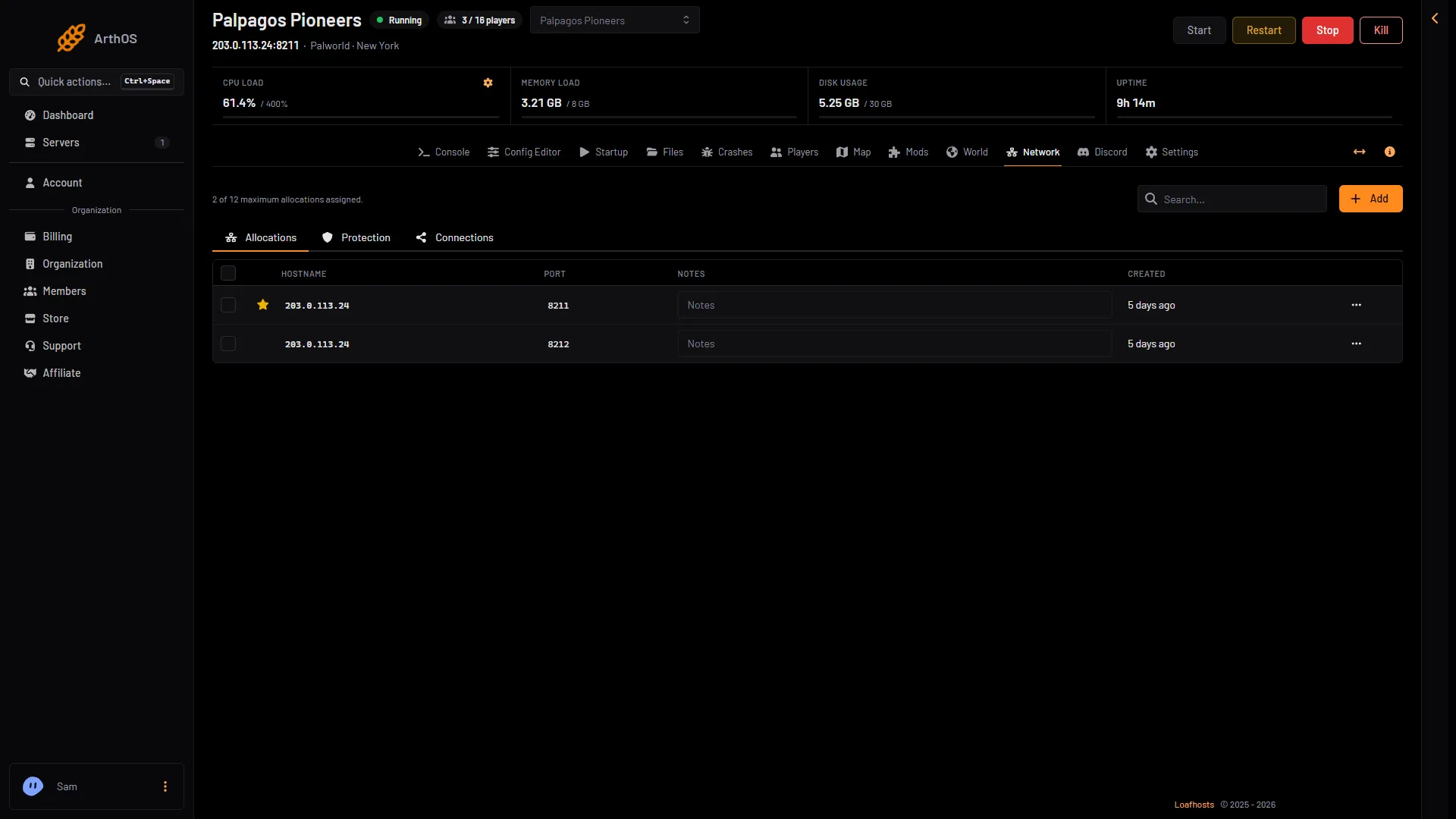
Your server has two ports on the Network page.
- The game port (UDP). Players type this one. It is the port the game listens on.
- The port after it (TCP). This is the panel’s own port. The panel uses it to talk to the game: who is on, kicks, bans, messages and Save now. Players never type it.
The panel starts the game with -port and -publicport both set to the game port. -publicport is the port the server tells the Community Servers list. Pocketpair says it “does not change the port number itself that the server uses for listening.” You do not set either one yourself.
- The game port
- The panel's own port
The starred port (1) is the game port. The one below it (2) is the panel’s own port. The numbers in this picture are an example: yours are different. Nothing on this page needs changing for Palworld.
What players type
- Open the Players page.
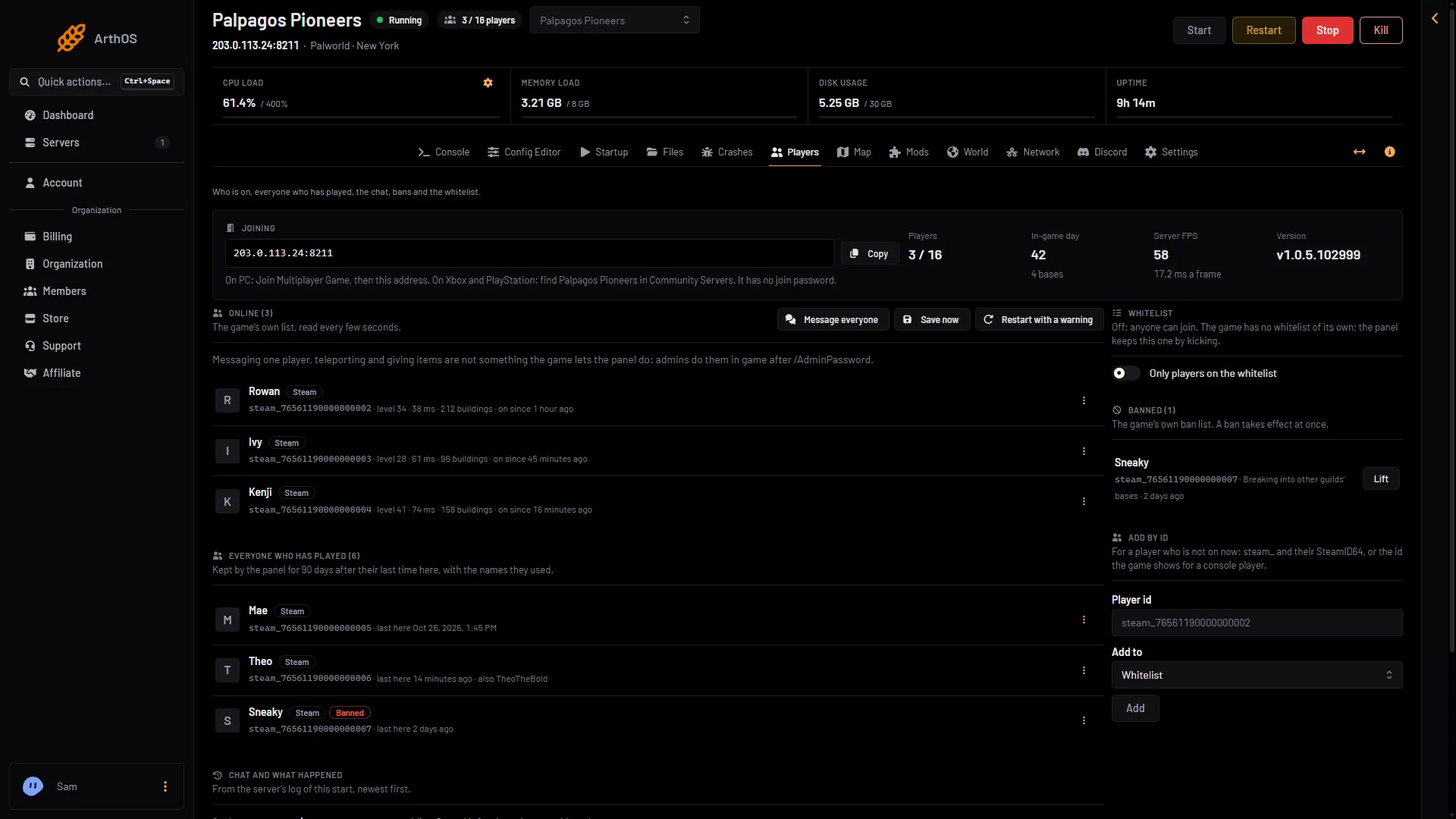
- In the Joining card, choose Copy (1) to copy the address, and read how players join (2).
- On PC, choose Join Multiplayer Game and paste the address in the box under the server list.
- Copy the address
- How players join
Xbox and PlayStation 5 players do not type an address. They find the server by name under Community Servers. See connect to a Palworld server.
Port forwarding
There is nothing to forward. Pocketpair’s guide tells people who host at home to forward UDP 8211 on their router. A Loafhosts server is not behind your router, so there is no router to change and no firewall of yours to open.
The game’s other ports
The game has a REST API and an old RCON feature. The game’s API is how the panel talks to the game. The panel keeps it on while the Admin password is 16 characters or more (a new server gets a 20-character one).
The game’s own defaults are 8212 for the REST API and 25575 for RCON, with RCON off. Those are the values the game ships with, not what a Loafhosts server runs. On Loafhosts the API listens inside the server on 18212, and RCON is off. You cannot reach either from the internet. Pocketpair says the REST API is “not designed to be exposed directly to the Internet”, and that RCON will stop working in a future update.
The panel reaches the API for you. Use the Players page and the Console instead. See the REST API and RCON on Palworld.
Change the port
You cannot pick the game port in the Config Editor. Before every start the panel writes PublicPort (the game port), RESTAPIEnabled, RESTAPIPort and RCONEnabled (False) into Pal/Saved/Config/LinuxServer/PalWorldSettings.ini, together with the server name, passwords and player limit. It leaves RCONPort as the game ships it, unused. A hand edit to any of these keys is replaced at the next start. With server mods on, the settings files are in another folder under Pal/Saved/Config. Open Config in Files and use the folder that holds them.
If it does not work
- Players cannot connect. Check the address and port against the Joining card. Copy it instead of typing. See Palworld cannot connect.
- Players typed the wrong port. They must use the game port, not the panel’s own port.
- You used a port from another host or a guide. Use the one in the Joining card.
More about the game: Palworld servers.
Sources: docs.palworldgame.com: Requirements, docs.palworldgame.com: Arguments, docs.palworldgame.com: Configuration