












On PC and Mac, use Join Multiplayer Game and type the server’s address and port. On Xbox and PlayStation 5, open Community Servers and pick the server by its name. Consoles cannot type an address.
Get the address
- Open your server in the panel.
- Open the Players page.
- In the Joining card, choose Copy (1) next to the address.
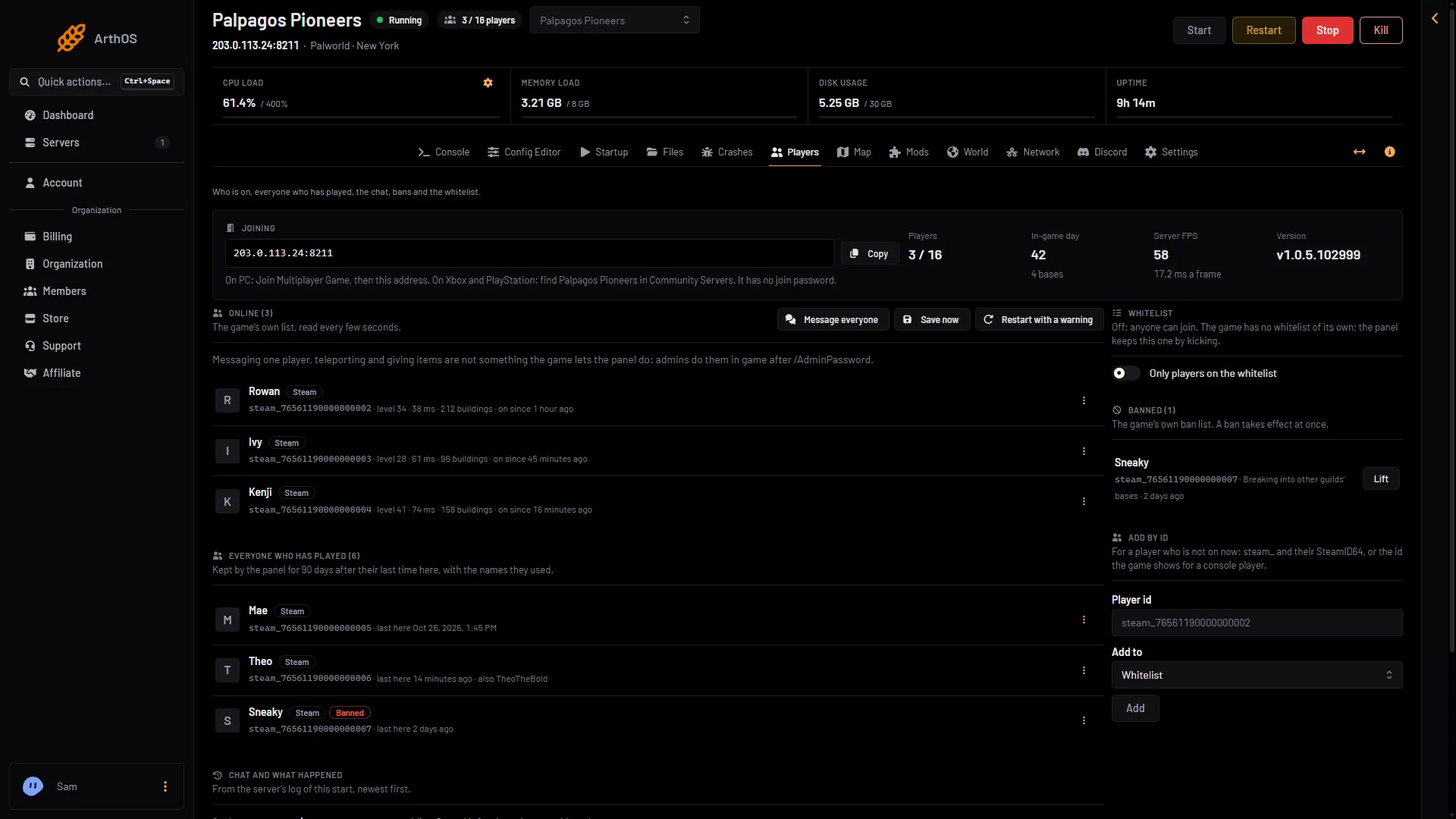
- Copy the address
- How players join
The address has two parts: the server’s IP and its game port, such as 203.0.113.10:8211. Your own port may be different. Send the whole thing to your friends. The line under the address (2) tells players how to join.
On PC (Steam or Microsoft Store) and Mac
- Start Palworld and choose Join Multiplayer Game.
- Look below the server list. There is a box for the address.
- Paste the address and port there, then join.
If the server has a join password, players need it to join.
On Xbox and PlayStation 5
- Start Palworld and open the multiplayer server list.
- Choose Community Servers.
- Find your server in the list by its name and select it.
The Joining card on the Players page shows the exact name to look for: “On Xbox and PlayStation: find (name) in Community Servers.” Only a listed server shows up there. If Listed in Community Servers is off, consoles cannot find the server at all. PC players can still join it by address. See Palworld community servers.
Not checked on 1.0.5 as of 4 November 2026: whether Xbox and PlayStation 5 players can type a join password. Test with one console friend before you rely on it.
The join password
A new server has no join password. If you set one, players need it to join. To set or change it, see set a server password.
The game version must match
Everyone must run the same Palworld version as the server. When Palworld updates, players who have updated cannot join until the server has restarted and updated too. The server updates itself as it starts when Update on start is on, which is the default.
If it does not connect
- The server is not in the list on a console. Check that Listed in Community Servers is on and that the server has restarted since you turned it on.
- Version error. Update the player’s game, and restart the server so it updates too.
- Wrong password. Check the password in the Config Editor page, under Server settings, Passwords.
- A PC player gets a time-out. Check the address has the port, and that the server is running.
More fixes are in Palworld cannot connect. To see the platform list, read Palworld crossplay.
Sources: docs.palworldgame.com: Connect server, docs.palworldgame.com: About server