












A player who cannot join a Palworld server is nearly always stopped by one of ten things. Work down the list in this order. Every check is on a page of the panel.
If nobody can join, start with checks 1 to 3 and the Crashes page (see the server crashed). If only one person cannot join, checks 4 to 10 are the likely ones.
1. The server is stopped or still starting
Open the Players page. If the server is not ready it says “The server is stopped.” or “The server is starting. Players show here once it has loaded its world.”
Wait until it is running. A server that standby stopped stays offline until someone starts it or opens its wake link. A brand new server makes its world about a minute after it is up, so the first start is slower than the next ones. Open the Console if you want to watch it.
2. The address or port is wrong
On the Players page, the Joining card shows the address. Choose Copy (1) and paste it as it is. It has the address and the port in one piece. The line under it (2) says how each platform joins.
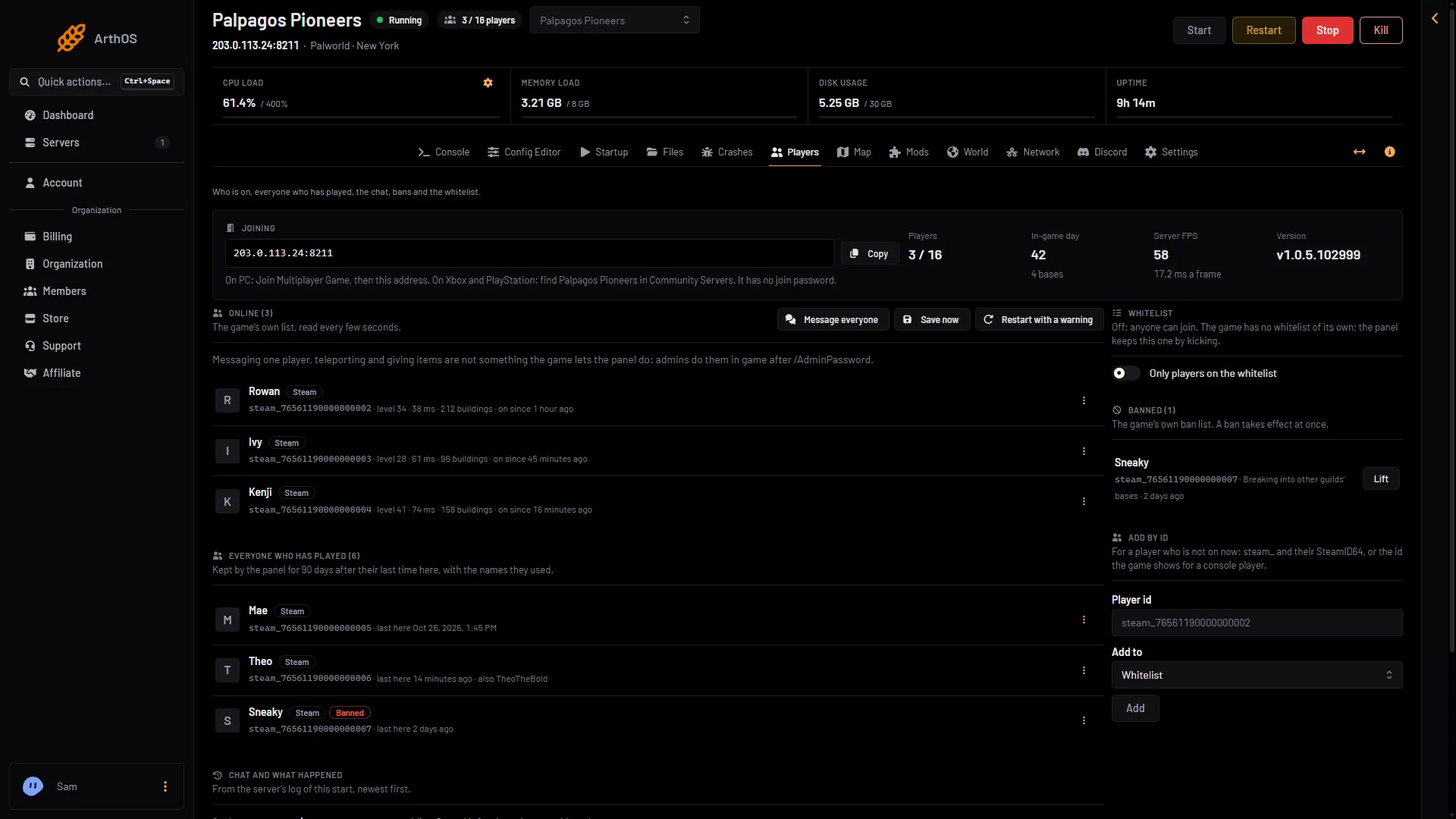
- Copy the address
- How players join
- On PC (Steam or the Microsoft Store) and on Mac: in Palworld choose Join Multiplayer Game, then type the address and port in the box below the server list.
- On Xbox and PlayStation 5: you cannot type an address. You must find the server by name under Community Servers. See the server is not showing.
A Loafhosts server has no port forwarding to do. Players only use the game port. They never enter the second port, which only the panel uses.
3. The game version is different
Players must run the same Palworld version as the server. After a Palworld update, a player who updated cannot join a server that has not updated yet. Open the World page and read Game version. The full steps are in Palworld version mismatch.
4. The join password is wrong
Open the Config Editor, choose Server settings, and look at the card Passwords. The Join password is empty when the server has none. The Players page says “It has no join password.” or “Players need its join password (Config Editor).”
Players need the exact password. The Join password is 1 to 30 letters, digits, - and _. An empty one means no password. A change applies at the next start.
Not checked on 1.0.5 as of 4 November 2026: whether Xbox and PlayStation 5 players can type a join password. Test with one console friend before you rely on it.
5. The whitelist is on
On the Players page, find Whitelist. If Only players on the whitelist is on, anyone not on the list is kicked within seconds of joining. The player sees “This server only lets in players on its whitelist.” The page shows “turned away by the whitelist” next to their name. Add them with Add to the whitelist in the menu at the end of their row (the three dots), or switch the whitelist off. See the Palworld whitelist.
6. The player is banned
On the Players page, find Banned. If the player is listed, choose Lift. A ban takes effect at once, and it stays until it is lifted. If there is no Lift, your role may not moderate players, or the game’s API is off (see the last section). See kick and ban players.
7. The server is full
On the Players page the Players stat shows how many are on out of the limit. The limit is Players in the Config Editor, Server settings, card Server. It can be 1 to 32. The size you bought sets the starting number. Raise it, save, and restart. A change applies at the next start.
8. Their platform is not allowed
In the Config Editor, choose Game settings, and open the group Joining. Platforms that can join has a tick for Steam, Xbox, PlayStation 5 and Mac. A player on an unticked platform cannot join. At least one stays ticked. Tick the platform, save, and restart.
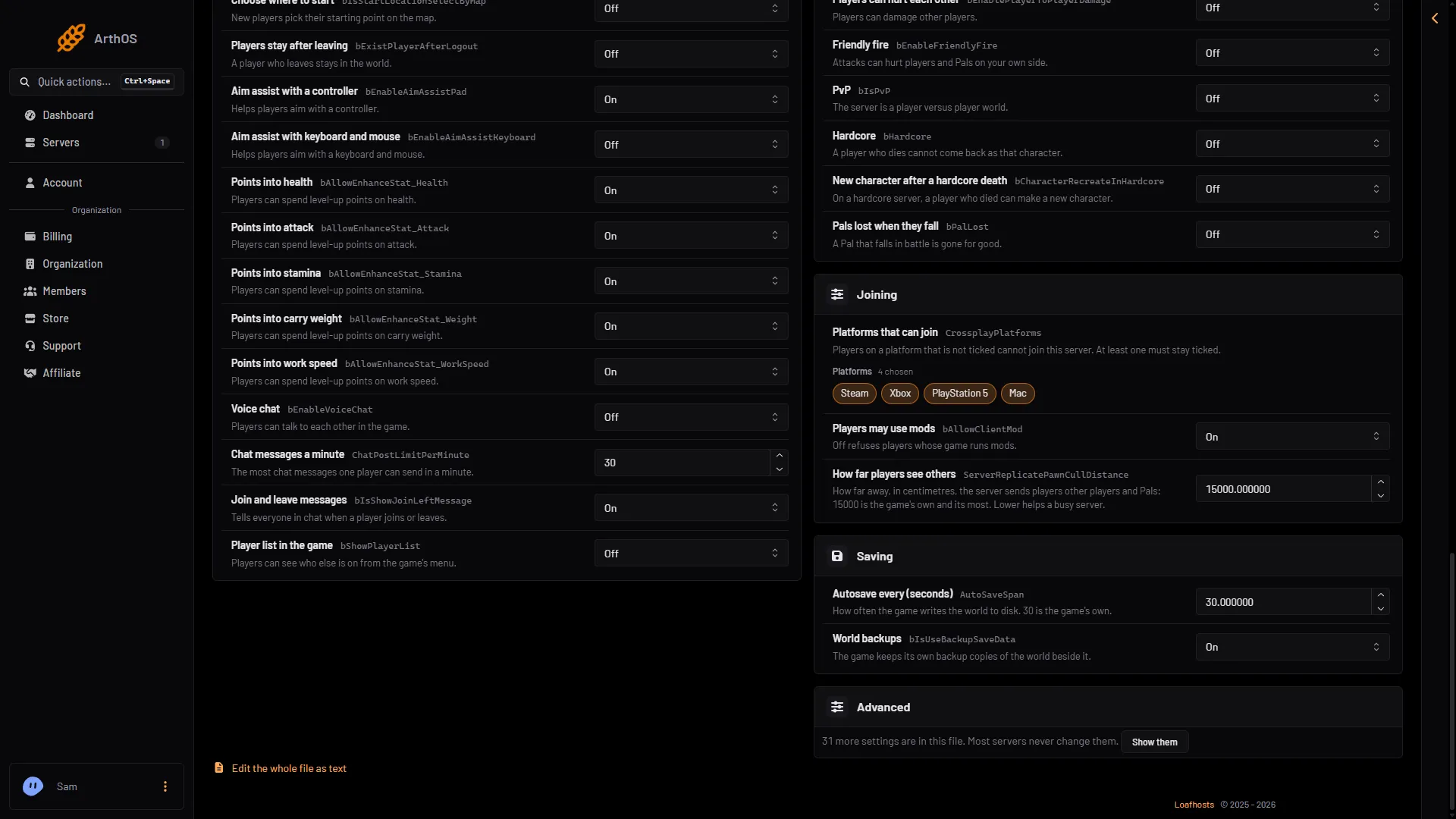
- Platforms that can join
- Players may use mods
Platforms that can join (1) and Players may use mods (2) are both in this group. Section 10 below covers the mods switch.
9. A console player and an unlisted server
Xbox and PlayStation 5 players can only join a server that is listed. In the Config Editor, Server settings, check that Listed in Community Servers is on. The Players page says “It is not listed, so Xbox and PlayStation players cannot find it.” when it is off.
10. Mods
In the Config Editor, Game settings, group Joining, Players may use mods off “refuses players whose game runs mods”. A player who runs mods is turned away. Turn it on, or ask them to play without mods.
If server mods are on, a mod can also have a part for players, and Xbox and PlayStation players cannot install mods. The Mods page marks those mods with For players too. Check the mod’s Workshop page to see whether players need it. See Palworld server mods.
The API being off does not stop joining
The game’s API is how the panel talks to the game. The panel keeps it on while the Admin password is 16 characters or more (a new server gets a 20-character one). The Players page may say “The admin password is shorter than 16 characters, so the panel keeps the game’s API off”. That only stops the panel from showing who is on and from kicking, banning and messaging. Players can still join. The whitelist also needs the API, so with the API off it does not turn anyone away. To fix the notice, set a longer Admin password in the Config Editor and restart.
More about the game: Palworld servers.
Sources: docs.palworldgame.com: About server, docs.palworldgame.com: Connect server, docs.palworldgame.com: Configuration