












A Palworld setting that does not stick has one of five causes. The most common is a hand edit made while the server runs: the game writes its settings file again when it stops and puts back what it loaded. Use the Config Editor instead, and restart.
1. You edited the file by hand while the server ran
The game rewrites PalWorldSettings.ini (and GameUserSettings.ini) when it stops, with the values it loaded. A change made to the file while the game runs is lost at that stop.
Use the Config Editor to change game settings. To edit the whole file, choose Edit the whole file as text there: it is the supported route. A change still waiting in the Config Editor is written into the file at the next start, over the same setting in a hand edit.
By hand
Only if you must edit the file in Files, with the server stopped. It is Pal/Saved/Config/LinuxServer/PalWorldSettings.ini, next to GameUserSettings.ini. With server mods on, these two files are in another folder under Pal/Saved/Config. Open Config in Files and use the folder that holds them, or use the Config Editor, which always finds them.
The file has one section line and one OptionSettings=(...) line. Inside that line, change these pairs and keep the commas between them:
ExpRate=2.000000,PalCaptureRate=1.5000002. You saved while the server runs
In the Config Editor you can save at any time. Saved while the server is stopped, a game setting is written at once. Saved while it runs, the change waits. The game uses it from its next start either way.
- Game settings show “Saved, waiting for the next restart: (names).” with Restart now.
- Server settings show “Saved changes apply after a restart.” and then “Saved. Restart the server to apply the changes.” with Restart now.
Choose Restart now (2) to apply it. Until the server has restarted, the game still uses the old value. If the server is starting or stopping, wait: the page says changes can be saved once it has finished.
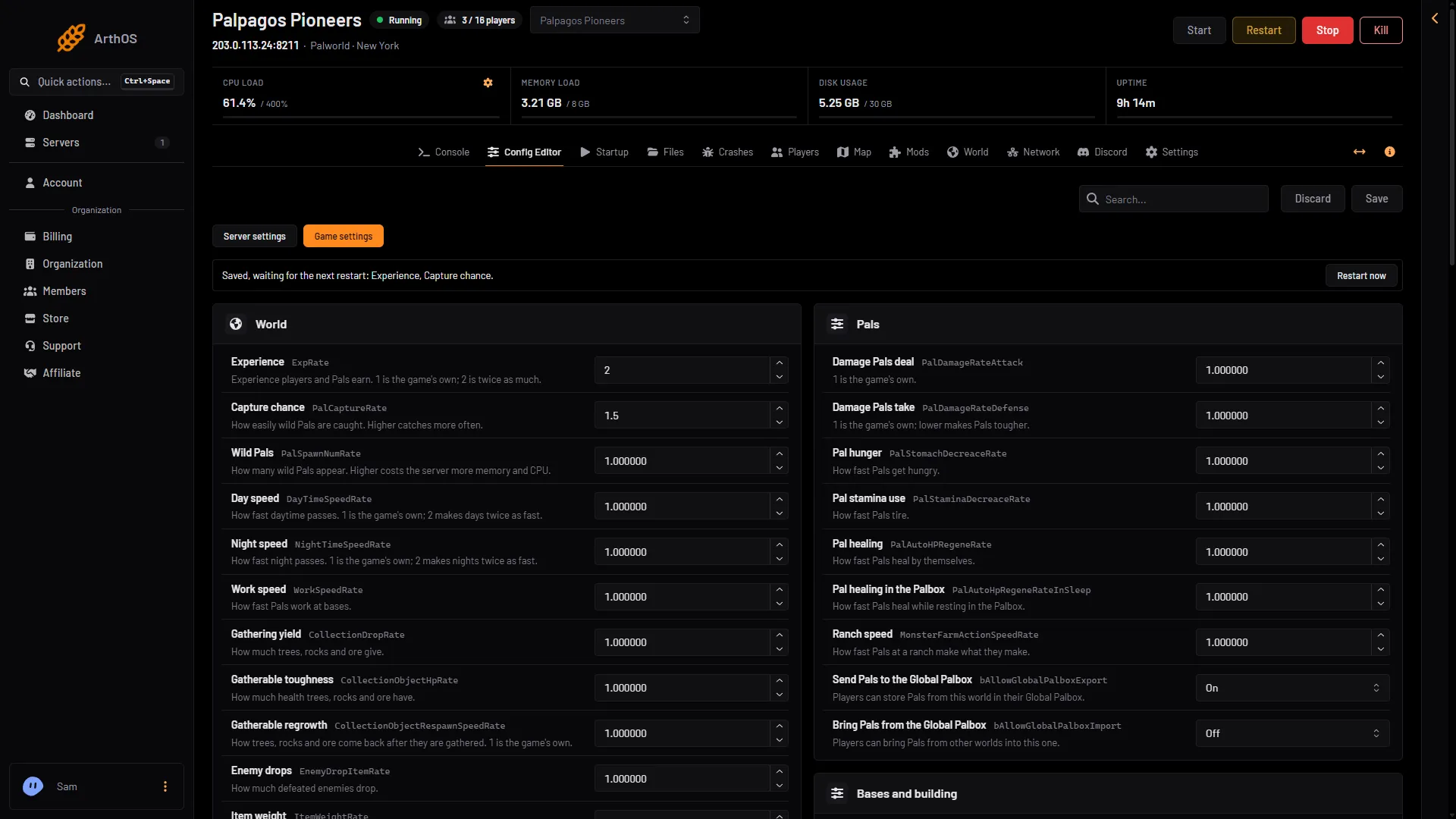
- Waiting for the next restart
- Restart now
- Experience
The note (1) names the settings that are waiting, here Experience (3) and Capture chance.
3. You changed one of the panel’s own settings in the file
Before every start the panel writes these keys into PalWorldSettings.ini:
ServerName,ServerDescription,AdminPassword,ServerPasswordandServerPlayerMaxNum.PublicPort(the game port) andPublicIP.RESTAPIEnabledandRESTAPIPort. The game’s API is how the panel talks to the game. The panel keeps it on (RESTAPIEnabledTrue) while the Admin password is 16 characters or more; a new server gets a 20-character one.RCONEnabled(False),RCONPortandLogFormatType(Text).
A hand edit of any of them is replaced at the next start. The game’s own defaults, such as 8212 for the REST API and 25575 for RCON, are not what a Loafhosts server runs. The REST API and RCON are never reachable from the internet on a Loafhosts server.
Change them in the Config Editor under Server settings: Server name, Description, Players, Listed in Community Servers, Join password and Admin password. They apply at the next start.
4. The world has its own settings
A world brought from a co-op game can have its own WorldOption.sav. The game then ignores the Config Editor’s Game settings for the settings that file holds. The server name, passwords, player limit and ports still come from Server settings.
Open the World page. A world like that is tagged Own settings (1), with the note “This world brought its own settings (from a co-op game), which the game uses instead of the Config Editor’s.” Choose Use the Config Editor’s settings (2). The panel renames the file, it does not delete it, and the Config Editor’s settings apply from the next start. See WorldOption.sav.
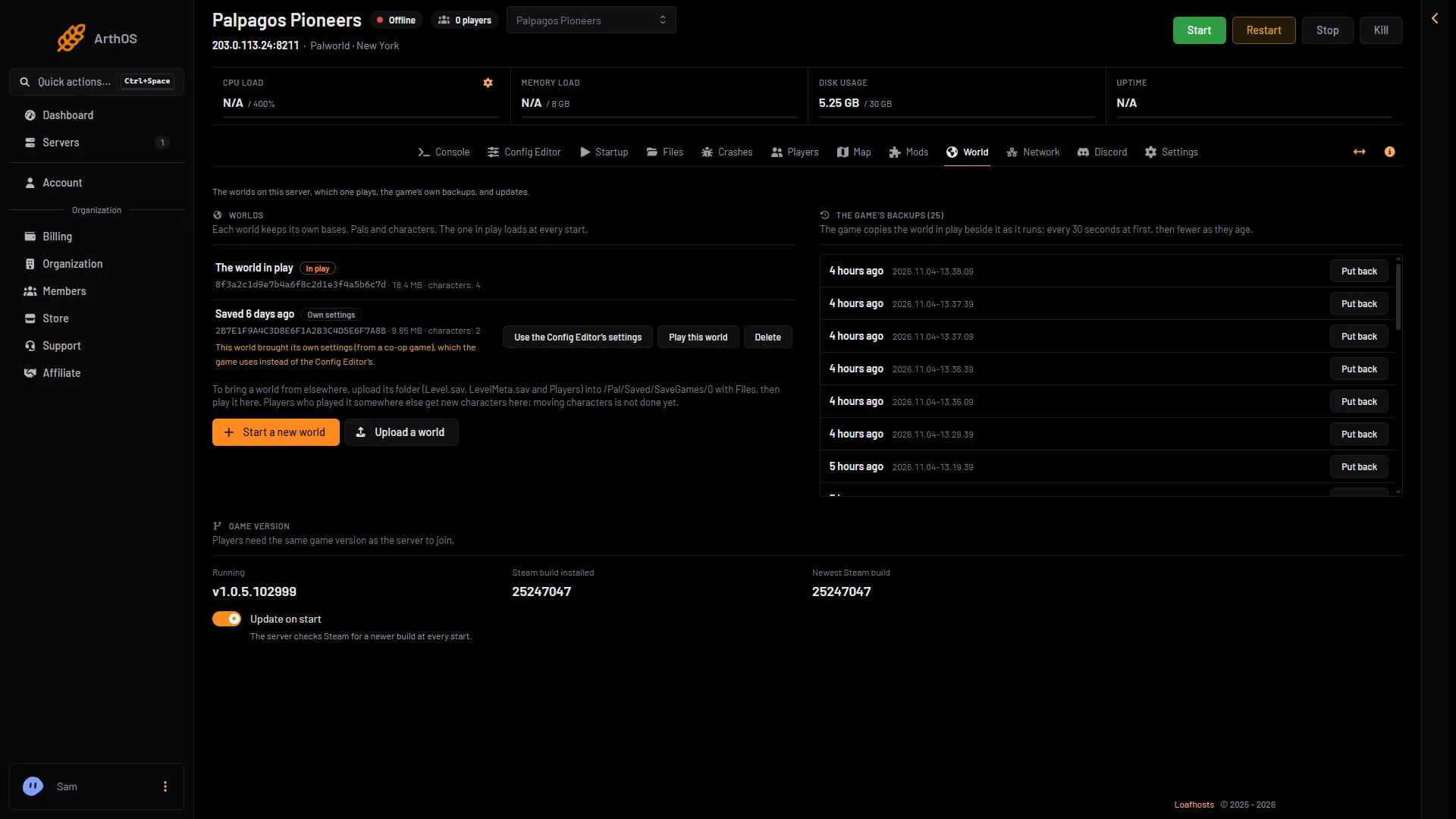
- Own settings
- Use the Config Editor's settings
5. You edited the wrong file
Pocketpair says that editing DefaultPalWorldSettings.ini does not change anything. It is only the template the game ships with, and the server reads Pal/Saved/Config/LinuxServer/PalWorldSettings.ini instead. On Loafhosts the Config Editor writes it for you.
Check that it saved
- Open the Config Editor and Game settings. The value should be the one you set. Watch for the “waiting” note.
- Restart the server.
- Open the Config Editor again and check the value.
If a value is back to the game’s default after a restart, one of the five causes above applies. See the Config Editor for how it works.
More about the game: Palworld servers.
Sources: docs.palworldgame.com: Configuration