












WorldOption.sav is a file inside a Palworld world folder. It holds that world’s own settings. A world with this file ignores the Config Editor’s Game settings for the settings the file holds, so your changes there seem to do nothing for that world. The server name, passwords, player limit and ports still come from Server settings: the panel writes them before every start. To make Game settings apply again, set the file aside. The World page does it in one click.
Where it comes from
A world you hosted from the game’s own menu (a co-op world) brings a WorldOption.sav with it. Its settings are the ones chosen when that world was made. If you upload such a world to your server, the file comes along.
The file sits in the world’s folder: Pal/Saved/SaveGames/0/(world id)/WorldOption.sav. See find the Palworld save files.
How to tell
On the World page, a world that has the file shows the tag Own settings and the line: “This world brought its own settings (from a co-op game), which the game uses instead of the Config Editor’s.”
If you changed a rate or a rule and the game still plays as before, and the world is one you uploaded, the file is the likely reason.
In the panel
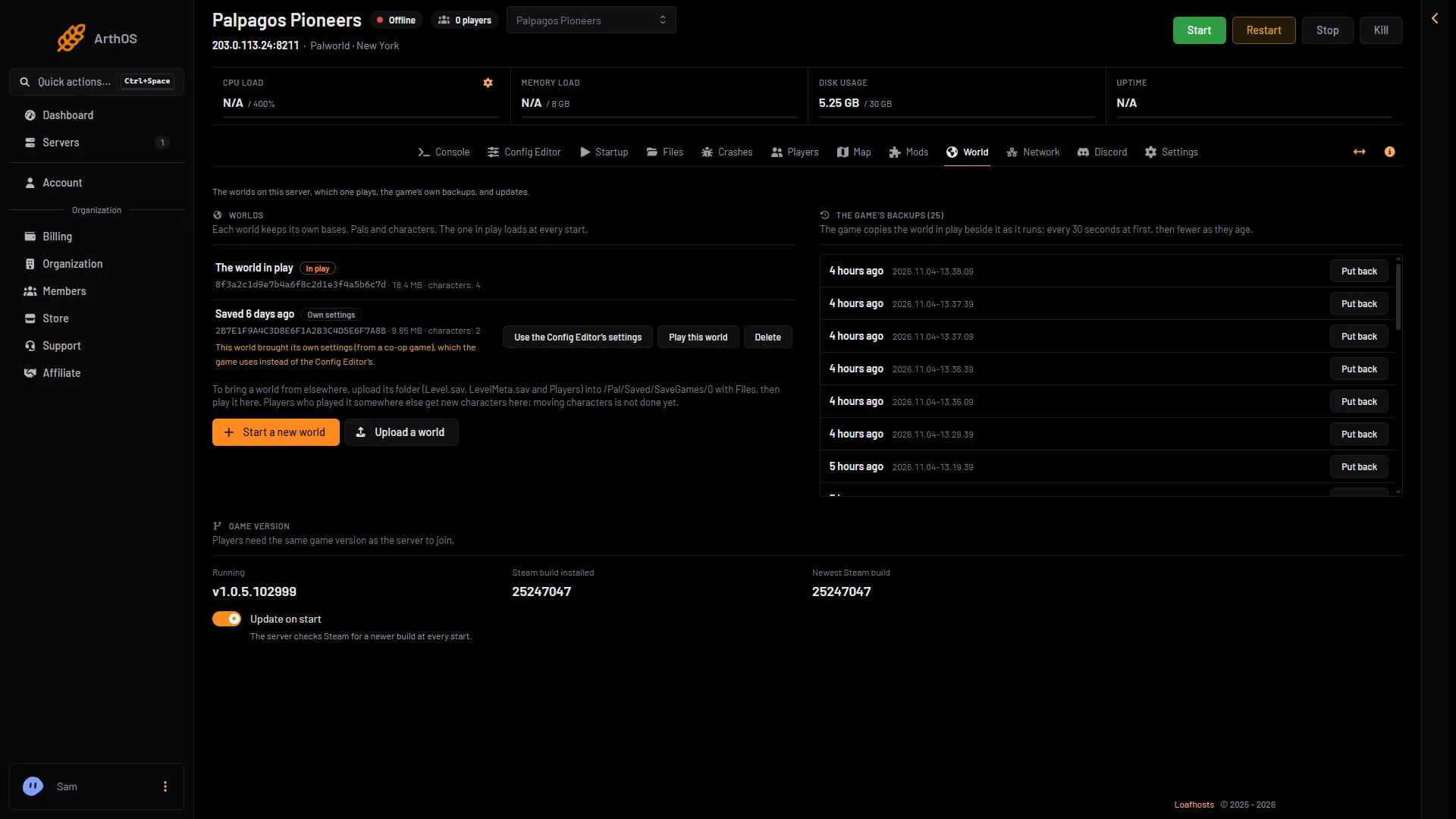
- Own settings tag
- Use the Config Editor's settings
- Stop the server. Use the Config Editor’s settings is greyed out while the server runs, because the game writes its world and settings again when it stops.
- Open the World page.
- On the world with the tag Own settings (1), choose Use the Config Editor’s settings (2).
- The box says: “The world’s own settings file is renamed, not deleted, so the settings in the Config Editor apply to it from the next start.” Choose Use the Config Editor’s settings to agree.
- The page says “Done. The Config Editor’s settings apply from the next start.”
- Start the server. The Config Editor’s settings now apply to that world.
To go back to the world’s own settings, rename it back to WorldOption.sav while the server is stopped.
The button needs a role that allows editing the server’s files.
By hand
- Stop the server.
- Open Files and go to
Pal/Saved/SaveGames/0, then the world’s folder. - Rename
WorldOption.savto something else, for exampleWorldOption.sav.old. Keep it, in case you want it back. - Start the server.
Which settings does the world use now
After the file is set aside, the world uses the settings in the Config Editor. See the Config Editor. A setting you save while the server runs waits for the next restart: the page shows “Saved, waiting for the next restart”.
If it does not work
- The button is greyed out. The server is running. Stop it first.
- There is no Own settings tag. The world has no
WorldOption.sav, so the cause is something else. See Palworld settings not saving. - The settings still seem wrong. Make sure the server was started after the change. The change applies at the next start.
More about the game: Palworld servers.