









A Project Zomboid server is not in the in-game list until the setting List in the in-game browser is on. It starts off. Turn it on, restart the server, and the server shows up under the name in Server name. Until then, players can still join by address.
Turn the listing on
- Open the Config Editor and the server’s ini file.
- In the group Server, switch on List in the in-game browser. This is the game’s
Publicsetting. - Check Server name (
PublicName). This is the name players look for. Add a Description (PublicDescription) if you want one. - Choose Save, then choose Restart at the top of the server page. Saved changes apply after a restart.
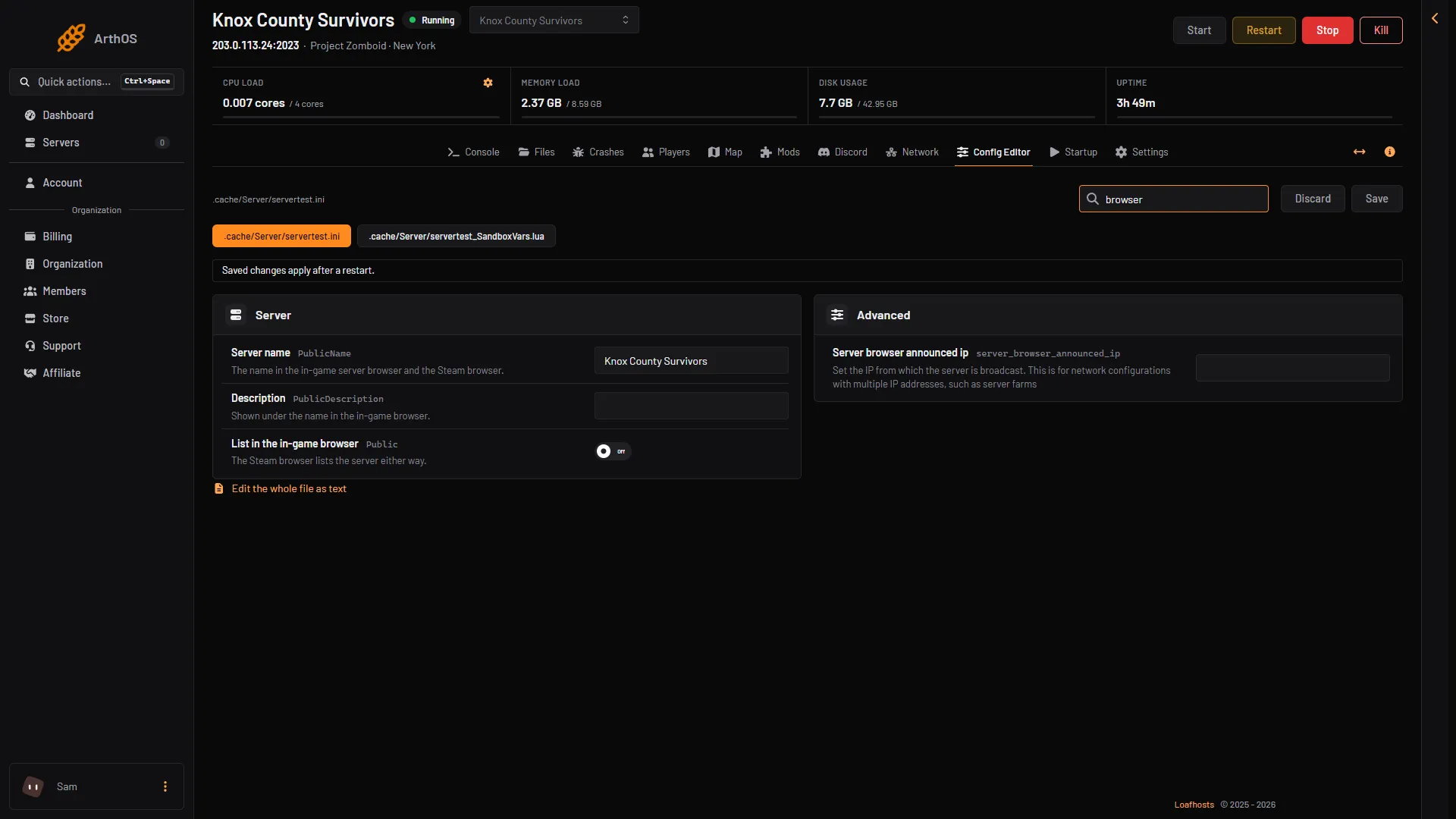
- Server name
- List in the in-game browser
Wait for the server to finish starting
A Loafhosts server stops by itself after 3 days with nobody on (Settings, Standby). If it is stopped, choose Start at the top of the server page, or players can use the wake link (Make link in the Standby card).
A server that is still starting is not ready for players. Open the Console page and wait for this line:
*** SERVER STARTED ****
The log fills with many ERROR lines while it starts. That is normal. Only the line above matters.
Join by address while you wait
You do not need the list to play. In the game, choose Multiplayer and open the Favorites tab. Add the server’s address and its game port, then your account details, and save. Select the server and join. The address and port are on the Network page. Use the game port, not the port next to it.
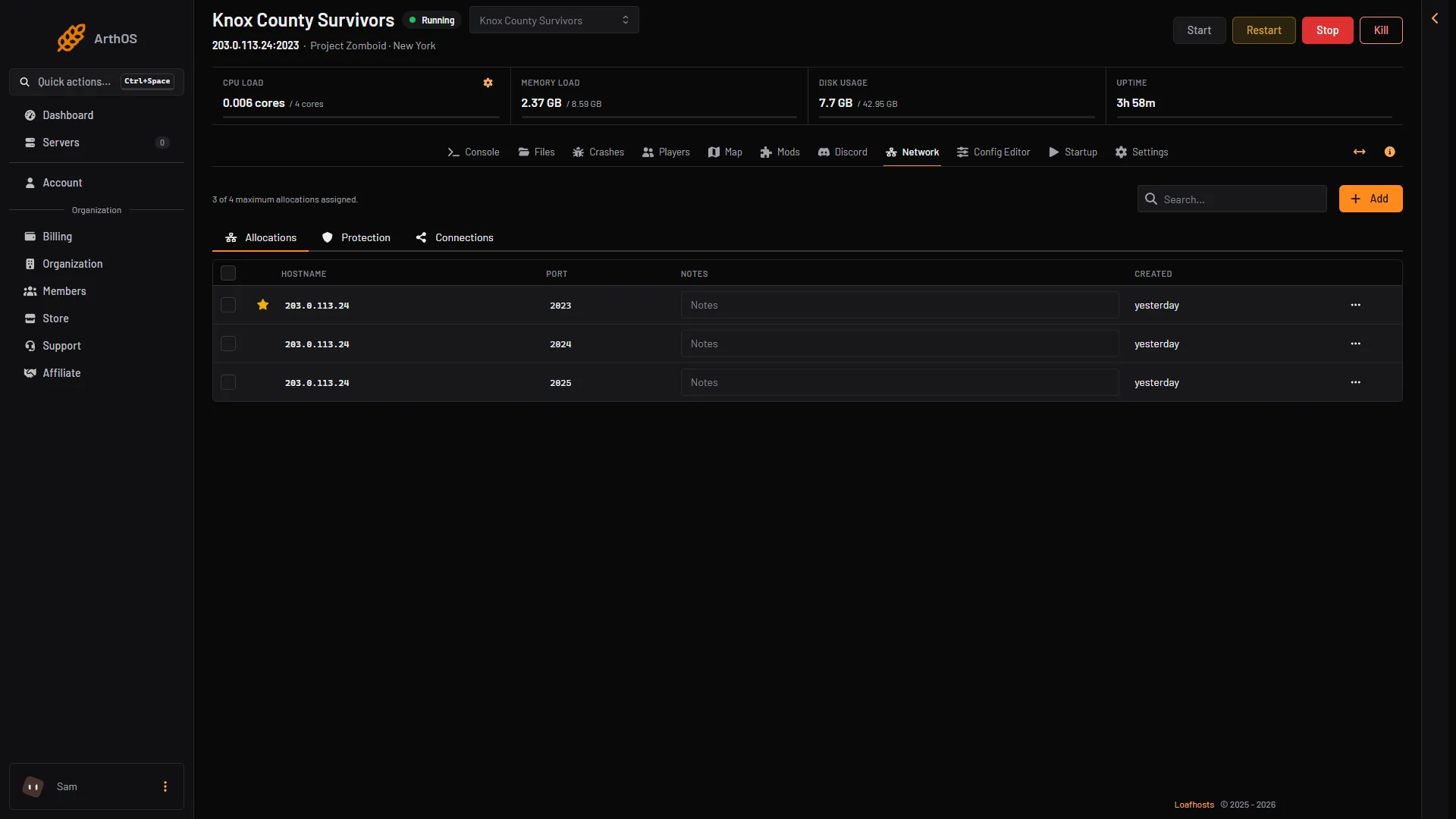
- Game port
The game port is the first one in the list and has a star (box 1). The next number up is for direct connections, and the one after is the panel’s RCON port.
Use Steam’s server browser
Steam’s own server browser (View, Game Servers) is a separate list from the in-game one, and the game’s own comment for List in the in-game browser says the setting does not decide whether Steam lists the server. Not checked on a Loafhosts server as of 18 October 2026: that the server shows in Steam’s Game Servers list. If the server is missing there too, it is probably still starting or not running.
Check the list name and the build
- The name in the list is the Server name row in the Config Editor. The Server list name on the Startup page only sets the name on the very first start.
- A player whose game is on a different build than the server is a separate problem. Build 42.21 shows that player a notification when they try to join. Not checked on Build 42.21 as of 18 October 2026: whether the Internet tab hides such a server, and what its filters do. Clear any filter in the list while you look.
- An old “updated” date in the list is not a fault. In 42.21 it shows the last wipe, not the last restart.
If it does not work
- The setting is on and the server still does not show. Make sure you restarted after saving. The change does not apply until then.
- You see it in Steam’s browser but not in the game. The game list needs List in the in-game browser on.
- Players see it but cannot join. See Project Zomboid cannot connect.
- Your own game is on another build. See Project Zomboid version mismatch.
More about the game: Project Zomboid servers.
Sources: pzwiki.net: Server settings, pzwiki.net: Dedicated server, pzwiki.net: Tech Support, pzwiki.net: Build 42.21.0