









When a mod updates on the Steam Workshop, the players’ game updates it through Steam. Players who already have the new version cannot join until your server has it too. Open the Mods page, update the mod, then Apply and restart.
In the ArthOS panel
- Open the Mods page. Under On this server, a mod with a newer version shows an Update tag (box 1). Its row reads: “The Workshop has a newer version. Players who already have it cannot join until the server has it too.”
- Choose Update on the row (box 2) to update that mod. Its row then says “Updates on apply”. To update every mod that has a newer version, choose Update all and its count (box 3). Update none clears the choice.
- A bar at the bottom shows what is waiting, with the number of changes and the size to download, and the buttons Discard changes and Apply and restart. Choose Apply and restart.
- Read the box “Apply the mod changes?”. Applying stops the server now, downloads the new versions and starts the server again. Players online are disconnected. Choose Apply and restart in the box to confirm (second picture).
- Wait for
*** SERVER STARTED ****in the Console. Players can join again.
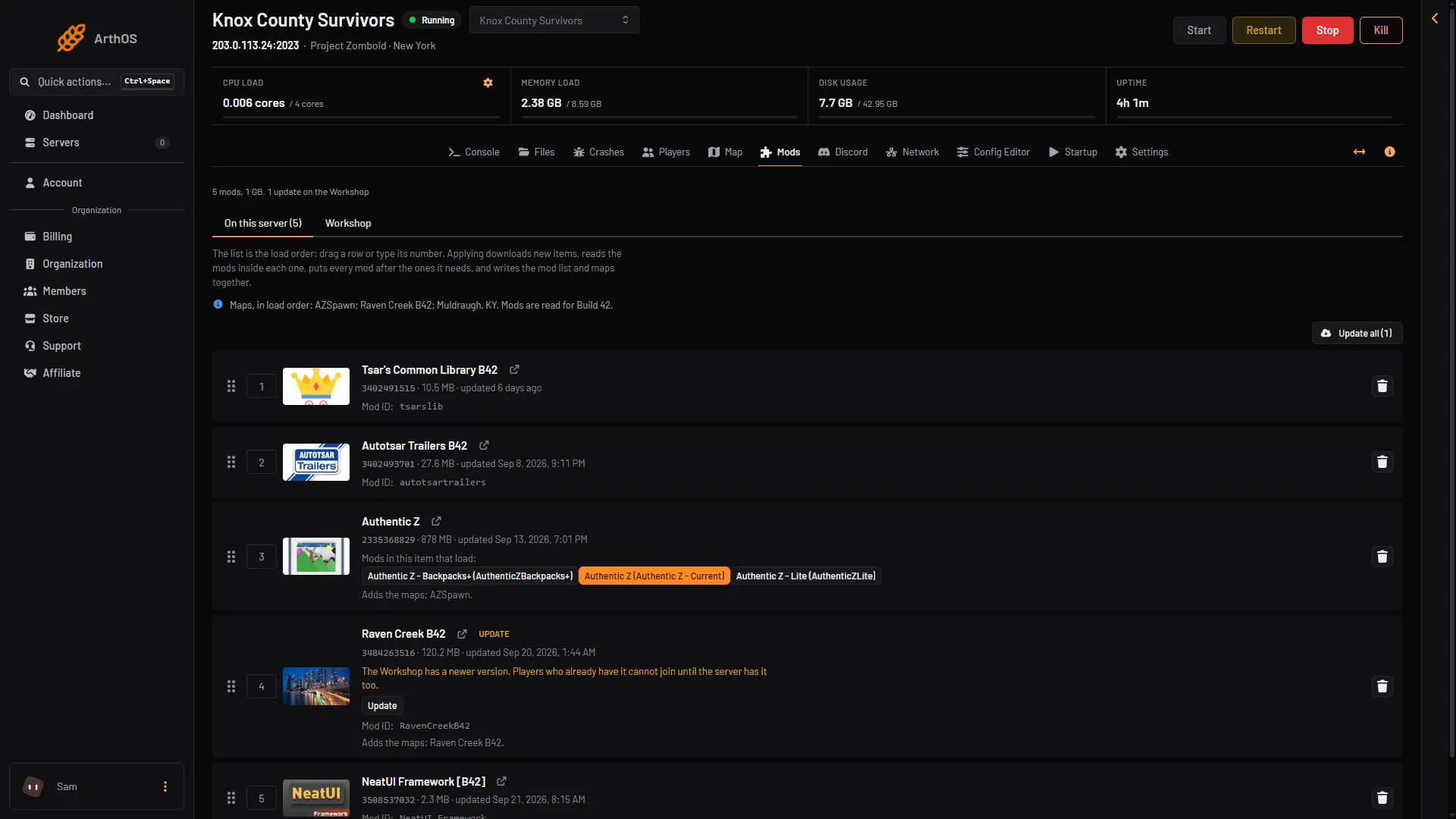
- Update tag
- Update
- Update all
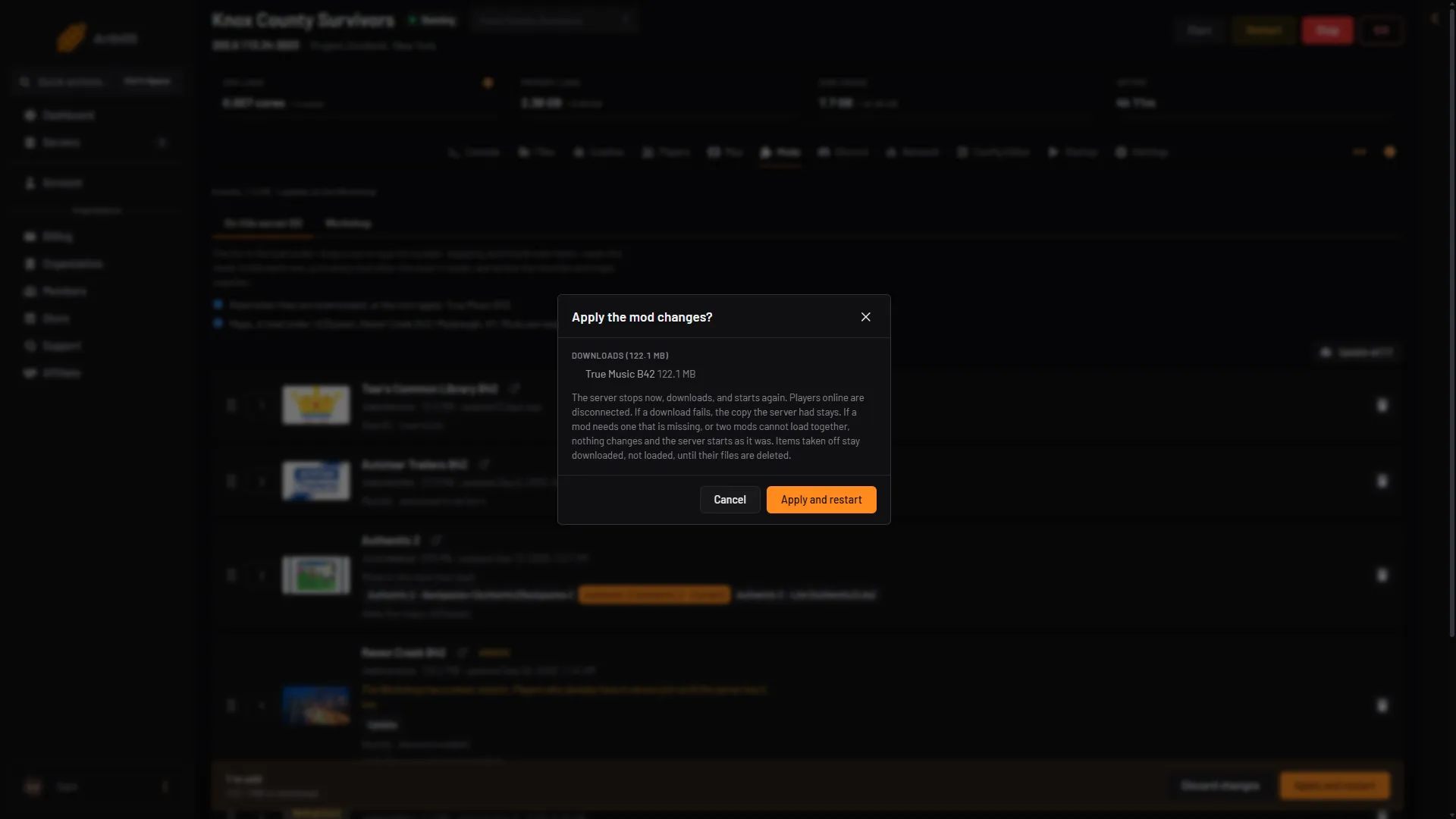
- Apply and restart
Not checked on Build 42.21 as of 18 October 2026: whether a plain restart also updates mods. Use Update on the Mods page.
If the server is stopped, the button reads Apply instead. It downloads now and the server stays stopped. The mods load at its next start.
If a download fails, the panel names the mod, says it could not be updated and gives the reason. The copy the server had stays and keeps loading. Try again in a few minutes.
Check for updates by hand
PZwiki lists an admin command, checkModsNeedUpdate, that “indicates whether a mod has been updated” and writes the answer to the log file. On the dedicated server, type it in the Console without a slash. In game, an admin types /checkModsNeedUpdate. The log is in .cache/Logs in Files. See server logs. Not checked on Build 42.21 as of 18 October 2026.
Remove a mod
- On the Mods page, choose the bin icon on the row to take the mod off the list. The page says the mod is off the list and to apply to take it off the server.
- Choose Apply and restart (or Apply when the server is stopped). The box lists the mod under “Takes off the list”.
- The files stay on the server, not loaded. Under “On the server, not loaded”, choose Delete files and confirm to free the space. Adding the mod again later downloads it again.
Make a backup first. PZwiki warns that a mod can break a save, and says to try taking the mod out of the save’s list if it does. See backups and saves.
If it does not work
- Players still cannot join after the update. Check that the restart finished and that the mod’s row has no Update tag. Then see Workshop item version mismatch.
- The server does not start after the update. Open Crashes and read the newest start. See mod errors.
- The tag says “Not on the Workshop”. The author removed the item. The copy on the server keeps loading, but it cannot be updated.
More about the game: Project Zomboid servers.
Sources: pzwiki.net: Admin commands, pzwiki.net: Resolving problems with mods, pzwiki.net: Mods