











If Sign in as admin fails in the game, the password you typed is not the one the server has. Open the Server page, choose Show beside Admin password, and copy it exactly. If that fails too, make a new one.
Show the admin password
- Choose Start at the top right of the server page and wait until the server is ready. The passwords show only while the game runs.
- Open the Server page.
- In Name and passwords, find Admin password and choose Show.
- Copy it. In the game, open the Server Manager and paste it into Sign in as admin.
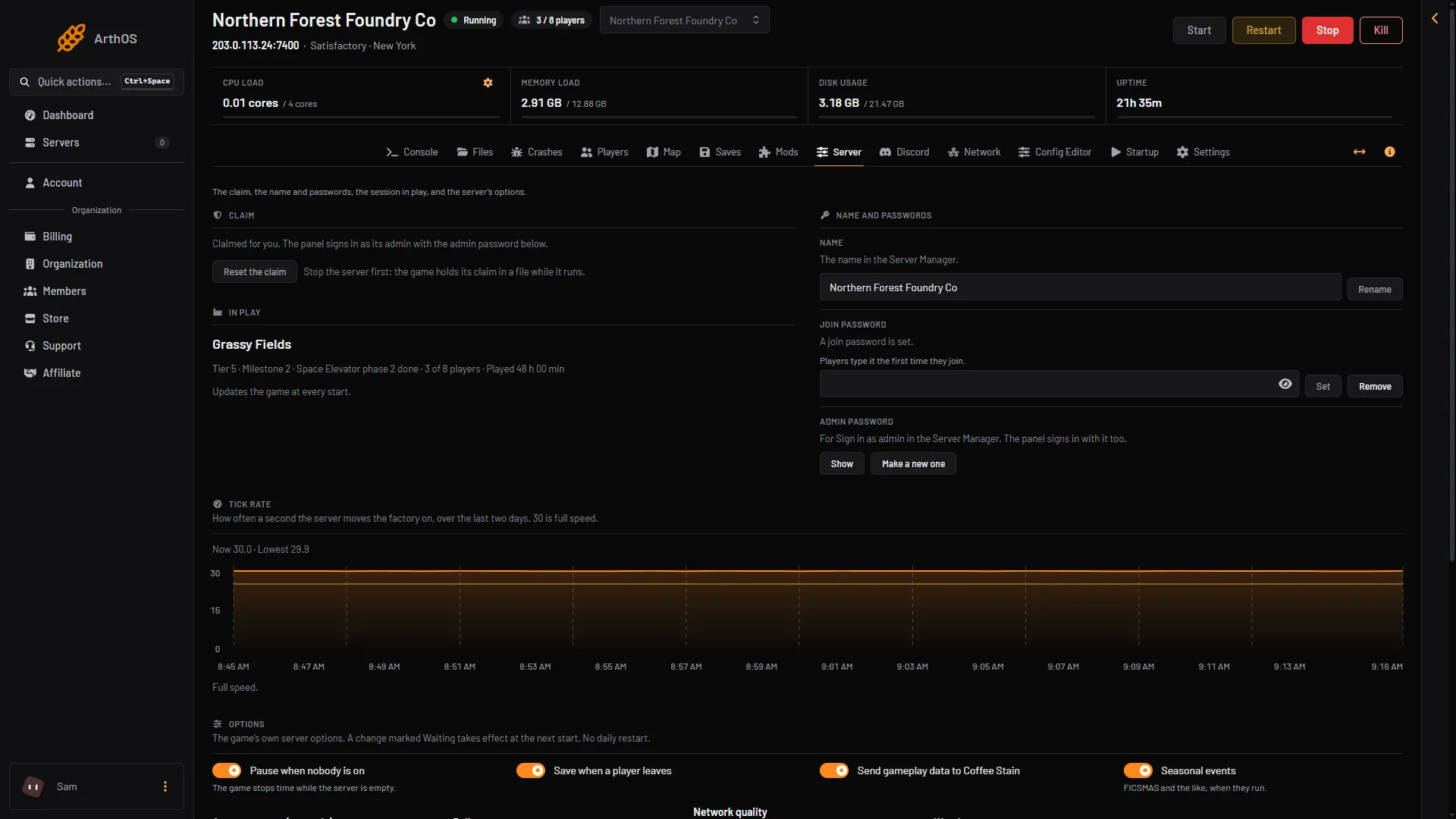
- Show the admin password
- Make a new one
- Reset the claim
Your server claims itself at its first start, with a password the panel makes. Nobody else can claim it. If the row says “Not made yet”, the server makes one at its next start.
You changed the password in the game
An admin can change the admin password inside the game. The panel then still holds the old one, and the Server page shows a card: “The game refused the admin password the panel has: it was changed in the game.”
- In the card, type the new password in The admin password set in the game.
- Choose Use it.
The panel can sign in again.
The panel accepts only 8 to 64 letters, digits, - and _. If the password you set in the game has any other character, the panel cannot use it. Set a new one in the game that fits, or use Make a new one below. If the card says “the game refused that password too”, the game does not accept what you typed: check it against the password set in the game.
Make a new one
If you do not know the password, make one.
- On the Server page, choose Make a new one (2 in the picture) beside Admin password.
- Confirm. Anyone already signed in as admin in the game signs in again with the new password.
- Choose Show (1 in the picture) and copy it.
Reset the claim, as the last step
Do this only if the steps above do not work. It makes the server forget a lot.
- Stop the server with Stop at the top right of the server page. The game holds its claim in a file while it runs.
- On the Server page, choose Reset the claim (3 in the picture) and confirm.
- Choose Start at the top right of the server page.
The game forgets its claim, its join password and admin password, its options, and the session it loads at start. A session is one game world with all its saves. At the next start the server claims itself again with the admin password shown on the page. Then it waits with no game loaded. Load a save on the Saves page. Your saves are kept.
After a reset the panel may show a card about a new certificate. If you did the reset, choose Trust the new certificate.
If it does not work
- The Server page shows no password. The server is stopped or still starting. Start it and wait.
- Players cannot join at all. That is not the admin password. See connect to the server. Players must use the game’s Server Manager.
More about the game: Satisfactory servers.