










The Server Manager is the game’s own screen for dedicated servers. You add your server there, join it, and sign in as admin to change settings. Players can only join through it.
Add your server and join
- Start Satisfactory on your PC.
- From the main menu of the game, open the Server Manager.
- In the game, choose Add Server. Type the address (the part before the colon, for example
203.0.113.24) and the port (the number after it, for example7400). The Players page in the panel shows both in the card Joining, with a Copy button. Not checked on 1.2 as of 27 October 2026: the names of the boxes in Add Server. - Choose Join Game.
If the server has a join password, type it the first time you join.
The game only lets players in through the Server Manager. A join any other way is refused, and the player sees “Encryption token missing”.
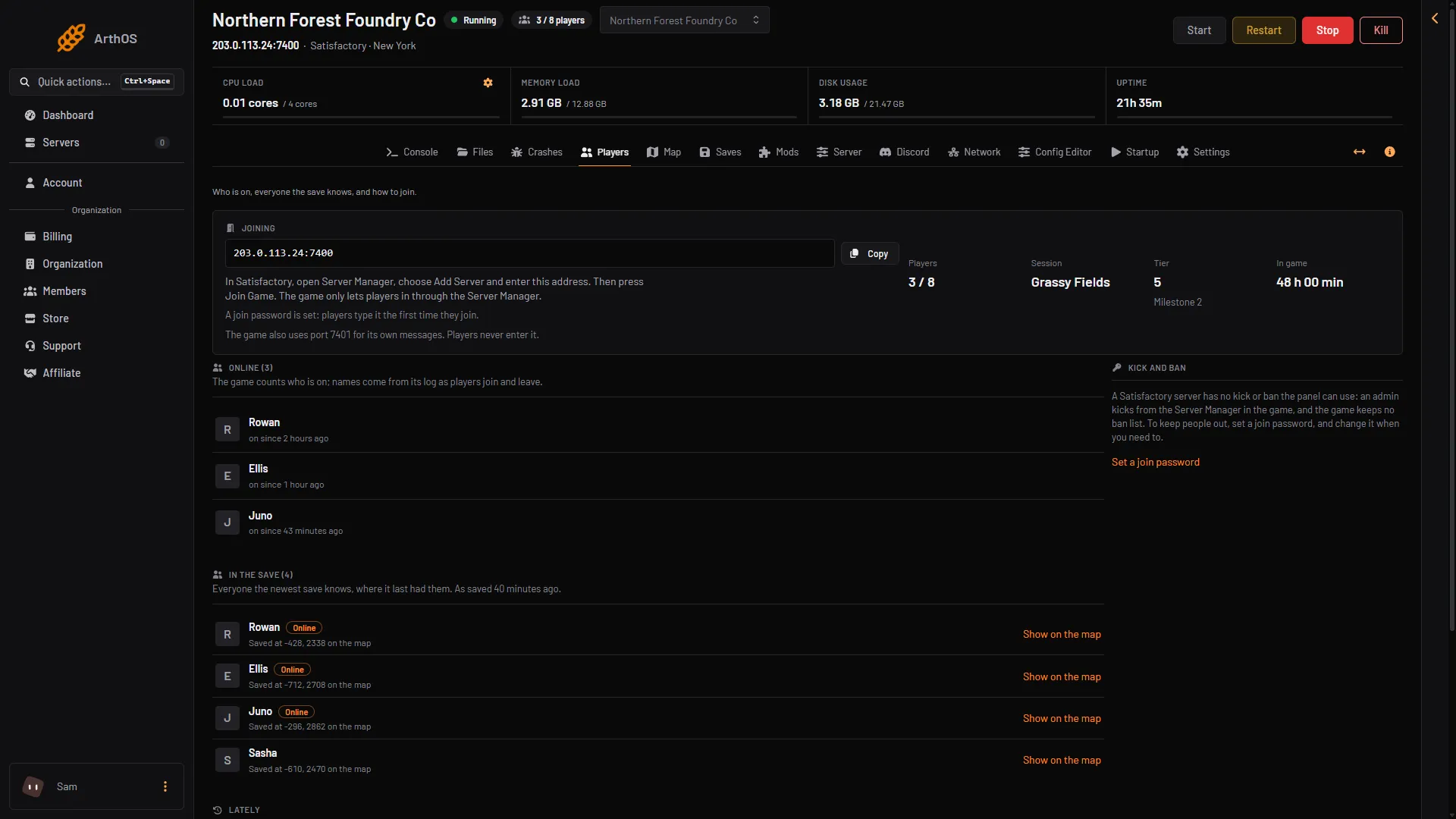
- Copy the address
- How players join
Your game must be the same version as the server, on the same branch. Players on Steam and on the Epic Games Store can join the same server. Console players cannot use dedicated servers.
Sign in as admin
A server from Loafhosts is already claimed. It claims itself at its first start, so you do not set the admin password in the game.
- In the panel, open the Server page.
- In Admin password, choose Show.
- In the game’s Server Manager, open your server and choose Sign in as admin.
- Type the admin password.
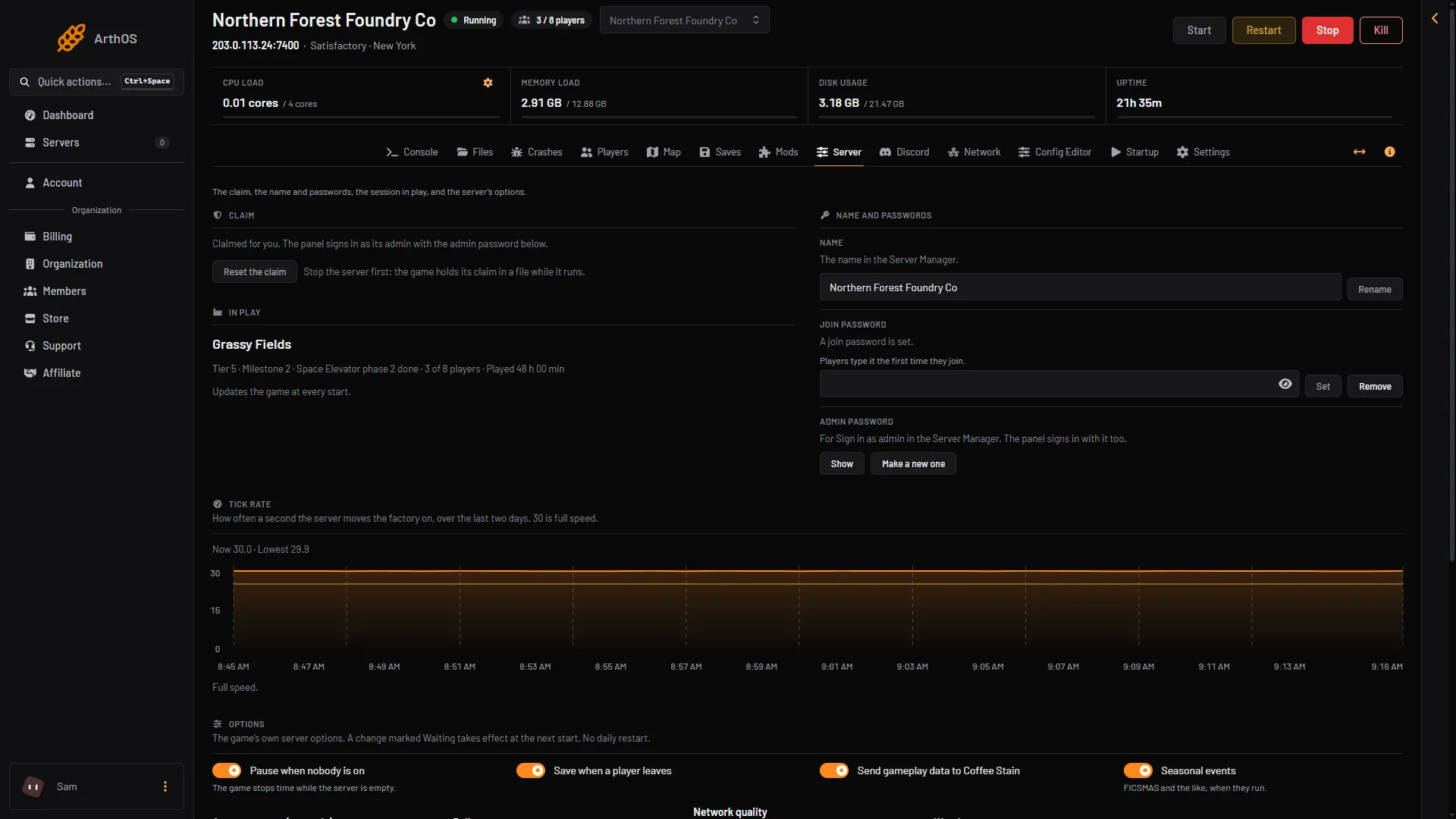
- Show the admin password
If you change the admin password inside the game, the panel can no longer sign in. The Server page then asks for the new one: type it so the panel can sign in again.
The panel accepts only 8 to 64 letters, digits, - and _. A password set in the game with other characters cannot be used in the panel. Set one that fits in the game, or use Make a new one on the Server page.
What an admin can change in the game
The official wiki lists these in the Server Manager once you are signed in as admin. The panel has the same settings:
| In the Server Manager | In the panel |
|---|---|
| Server Name | Server page, Name, Rename |
| Admin Password | Server page, Admin password, Show or Make a new one |
| Player Password Protection | Server page, Join password, Set or Remove |
| Auto-Load Session Name | Saves page, Load at start on a session |
| Auto Pause | Server page, Options, Pause when nobody is on |
| Auto-Save on Player Disconnect | Options, Save when a player leaves |
| Server Restart Interval | Options, Daily restart |
| Autosave Interval (minutes) | Options, Autosave every (seconds) |
| Send Gameplay Data | Options, Send gameplay data to Coffee Stain |
| Network Quality | Options, Network quality |
| Manage Saves | Saves page |
The game’s screen counts the autosave interval in minutes. The panel counts it in seconds, from 60 to 3600.
In the panel, press Save options after a change. A change marked Waiting takes effect at the next start.
An admin can also load a save, start a new game and upload a save. A session is one factory and all its saves. In the panel these are on the Saves page: Load, New game and Upload a save. After a new game, an upload with load, or a load, check that the session shows Loads at start on the Saves page. If it does not, open the session’s menu and choose Load at start.
Which one to use
Both change the same server. The panel’s Server page reads the settings from the running game, so start the server first. The panel saves before every stop. Use the Server Manager to join, and to kick a player (see kick and ban). Use the panel for the rest, if you prefer it.
Seeing or changing anything on the Server page, the admin password included, needs a member’s role that may change the startup settings.
If it does not work
- Encryption token missing. You joined without the Server Manager. Add the server there and join from it.
- Sign in as admin refuses the password. Copy it again from Show on the Server page. If someone changed it inside the game, the panel asks for the new one: type it under “The admin password set in the game”, or make a new one with Make a new one.
- The server is not in the list. Add it again with the address and the game port from the Players page.
- Nobody can play yet. A new server has no game loaded. Start one on the Saves page with New game.
More about the game: Satisfactory servers.