










Make a backup in Settings, then Backups. A Satisfactory backup copies the server’s files as they are at that moment. It does not ask the game to save first. So press Save now on the Saves page before you back up if you want the newest progress in the copy.
Make a backup
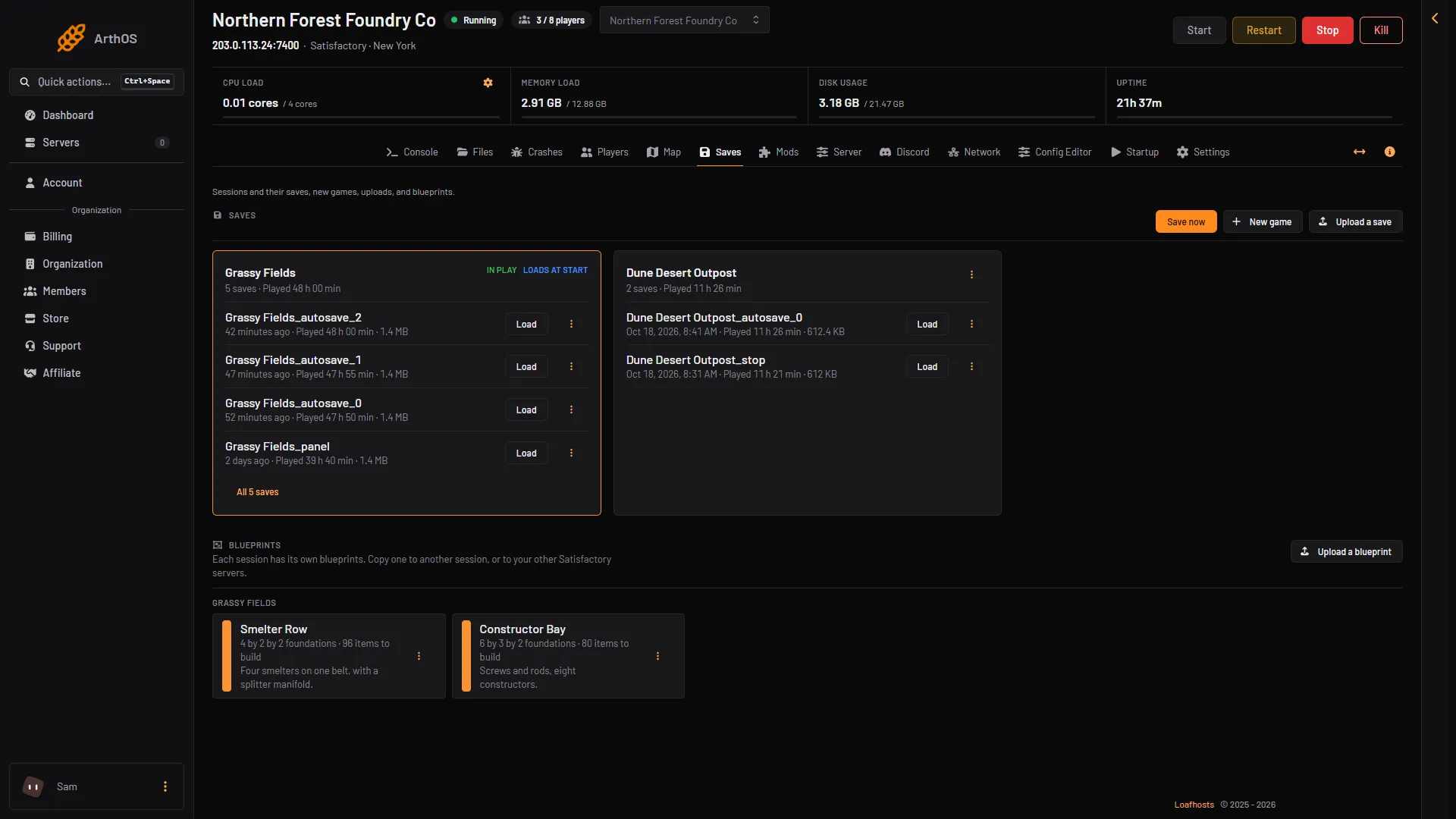
- Open the Saves page and choose Save now. The server must be running for this. Leave the name empty and choose Save. The panel writes
(session)_panel, the same file that Refresh now on the Map page and the save before a load write, and it replaces it each time. For a save you want to keep as a rollback point, type a name of your own. - Open Settings, then the Backups tab.
- Choose Create Backup, then Create.
The backup appears in the list when it finishes.
- Save now
Another way to get the newest copy is to stop the server first. Every stop and restart from the panel saves the game first, as (session)_stop. Choose Stop at the top right of the server page, then make the backup from the stopped server.
Why the first step matters: the game autosaves every 300 seconds by default. A backup made in between holds the game as the last save left it. Anything built since then is not in it. The game saves nothing when it is stopped, and the panel does that for you.
Limits
The top of the page says how many backups you have, like 2 of 5 maximum backups created.
- A backup you start by hand is refused when you are at the limit. Delete one first, or lock the ones you want to keep and delete another.
- A backup made by a schedule deletes the oldest backup that is not locked, then makes a new one.
Use Lock on a backup you never want to lose. A locked backup is not deleted by a schedule.
Back up on a schedule
Open Settings, then Schedules, and add a step Create Backup. A scheduled backup works the same way: it takes the files as they are. If you want a fresh save in each backup, rely on the game’s own autosave, or set a shorter autosave time. See where save files are.
Restore a backup
The panel says: “Stop the server and restore a backup of the server files”. Restoring stops the server and overwrites its files. Everyone on it is dropped, and the backup’s files replace the current ones.
- Open Settings, then Backups.
- Open the menu on the backup and choose Restore.
- Decide on the two switches:
- The first asks whether to delete all files of the server before the restore. It cannot be undone. Leave it off to put the backup’s files over the current ones.
- The second restores the startup command, image and variables from the backup.
- Choose Restore.
The server shows that it is restoring. Wait for it to finish before you start the server. Players who were on the server lose any progress made after the backup was taken.
The game’s own safety net
The game keeps 3 autosaves by default. You can see them on the Saves page, under their session. A session is one factory and all its saves. You can load an older autosave there. See autosave settings and where save files are.
A backup holds every file, including blueprints. If you delete a save by mistake on the Saves page, an older backup may still have it.
If it does not work
- Create Backup is refused. You are at the limit. Delete one backup you no longer need.
- The restored game is older than you expected. The backup was made between two autosaves. Next time press Save now first, or stop the server before the backup.
- Save now is not available. The server is stopped or still starting. Start it, or stop it properly and back up from the stopped server.
More about the game: Satisfactory servers.