










You can move a single-player game, or a game one of you hosted, to your server. Find the .sav file on your PC, upload it on the Saves page, and load it. The factory you built then runs on the server all day. A session is one factory and all its saves.
Before you start
- The server must run the same game version as the game that made the save. A save from a newer version than the server cannot be loaded.
- It must also be on the same branch, stable or experimental. Players must use that version too.
- Save the game once in the game so the file is up to date. Then quit to the menu.
- Console saves cannot be used. Console players cannot join dedicated servers.
- A save made with mods shows a Modded tag on the Saves page, and players then need the same mods to join. Not checked on 1.2 as of 27 October 2026: whether such a save loads on a server that does not have those mods. Install them on the Mods page first.
Step 1: find the save on your PC
- Press the Windows key and the R key.
- Paste
%LOCALAPPDATA%\FactoryGame\Saved\SaveGamesand press Enter. - Open the folder named with your id. Steam and Epic Games Store both use this place. If you have two id folders, the Steam one is usually the shorter.
- Find the newest
.savfile. The newest one has the latest time in the Date modified column.
The names look like My Factory_autosave_0.sav. The first part is your session name. More about the folder is in where save files are.
The name of the file may only have letters, digits, spaces, - and _. Rename it first if it has other signs, or the upload is refused. See upload a save.
Step 2: upload it
- Open the Saves page of your server.
- Choose Upload a save.
- In Save file, pick the
.savfile. - Tick Load it once it is on the server if you want to play it now. Leave it off to only copy it.
- Choose Upload. A bar shows the progress.
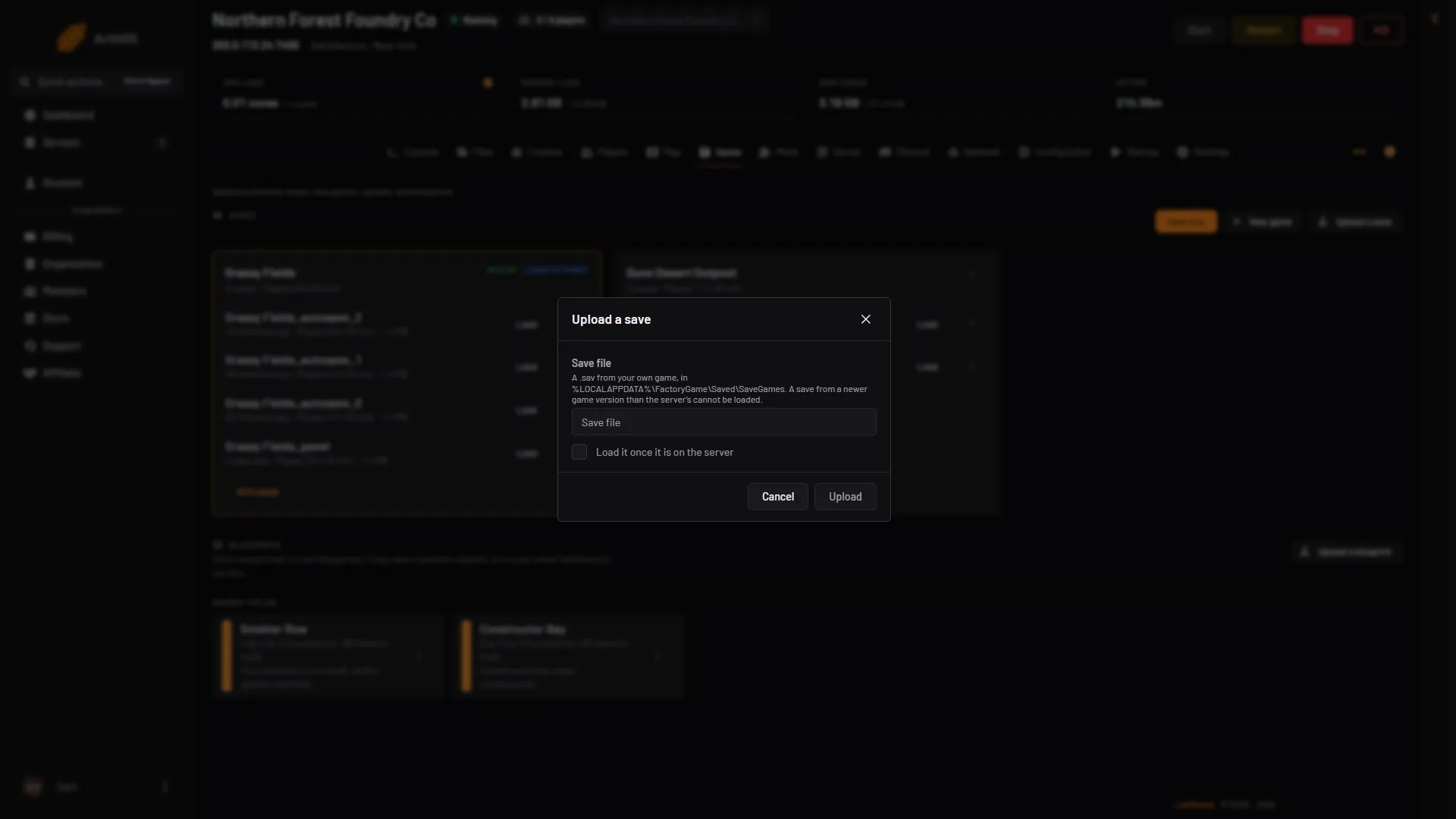
- Save file
- Load it once it is on the server
- Upload
If you did not tick the box, load it later. Find the save in the list and choose Load beside it. A box asks you to confirm. See load a save.
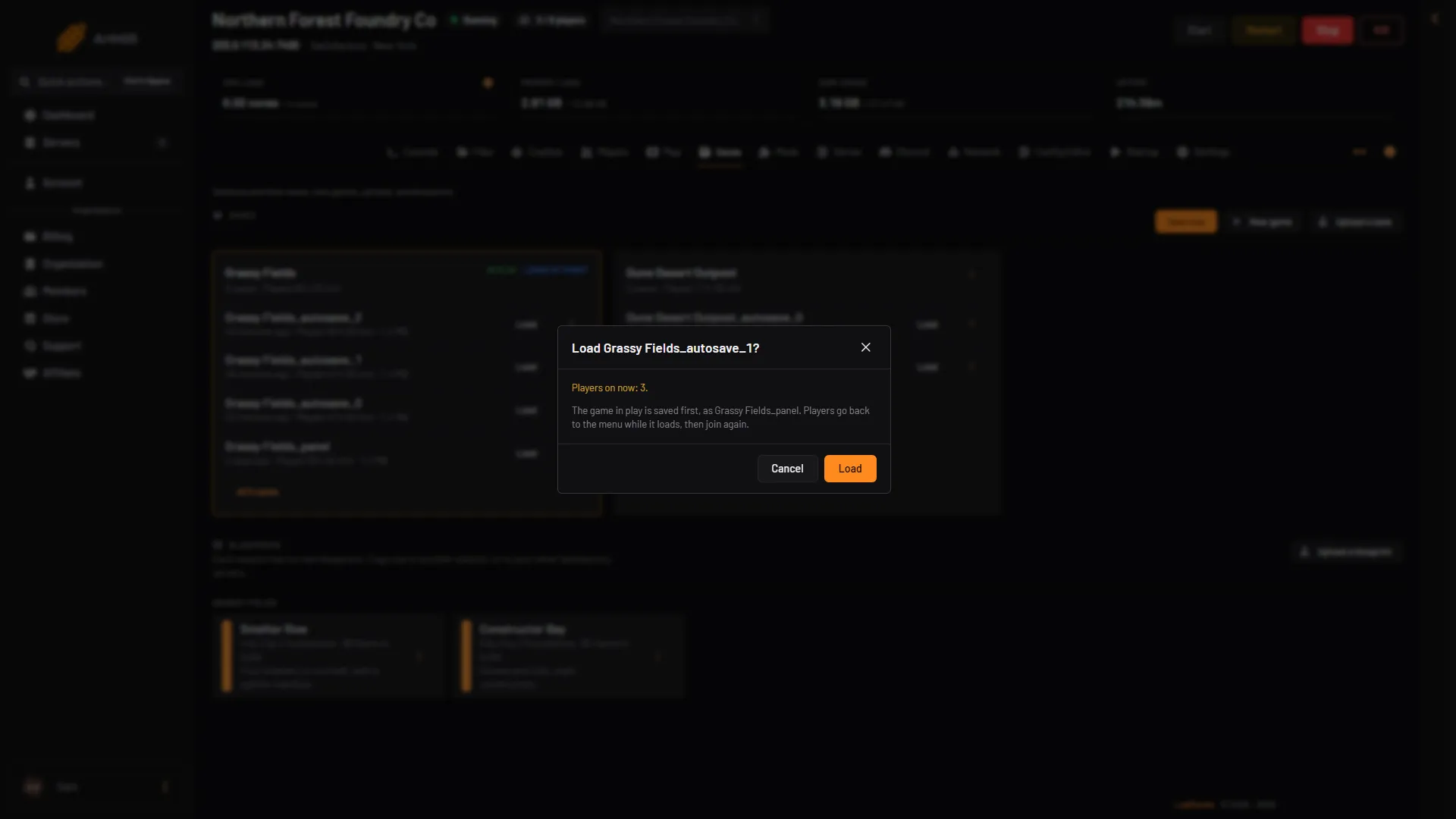
- Saved first
- Load
Check that it loads at start
After the load, check that the session shows Loads at start on the Saves page. If it does not, open the session’s menu and choose Load at start. Without it, the next start may load a game other than the one you uploaded. See load at start.
What happens when it loads
If a game is running, the panel saves it first, as (session)_panel. Players go back to the menu while the new save loads. They join again once it is ready. The panel shows the new session as In play.
Your session keeps its name from the single-player game. The Saves page lists the saves by session.
Players join through the Server Manager, a screen inside the game, as for any server. In the game, open the Server Manager and choose Add Server. Type the address (the part before the colon, for example 203.0.113.24) and the port (the number after it, for example 7400). Not checked on 1.2 as of 27 October 2026: the names of the boxes in Add Server. Then choose Join Game. See connect to your server.
Not checked on 1.2 as of 27 October 2026: where each player stands and what they carry after the move. Check in the game after the first join.
The other way
The game can also upload for you. In the game, open the Server Manager, open your server and use its Manage Saves tab to upload a save from your PC.
If it does not work
- The upload says to choose a .sav file. You picked another type, such as a
.sbpblueprint. Pick the.sav. - The save will not load. It may come from a newer game version than the server. Update the server, or switch both to the same branch.
- Players cannot join after the load. They must be on the same version, and join through the Server Manager. See Encryption token missing.
More about the game: Satisfactory servers.
Sources: satisfactory.wiki.gg: Save files, satisfactory.wiki.gg: Dedicated servers