










Network quality is a Satisfactory server option with four levels: Low, Medium, High and Ultra. A lower level sends less data to each player, which helps with many players. A higher level sends more.
The game describes the trade like this: raising network quality may improve client load times and network performance, at the cost of server framerate. Experiment to see what works for you.
Change it in the panel
- Open the Server page of your Satisfactory server. The server must be running and the game must be answering.
- In the card Options, find Network quality.
- Pick Low, Medium, High or Ultra.
- Choose Save options.
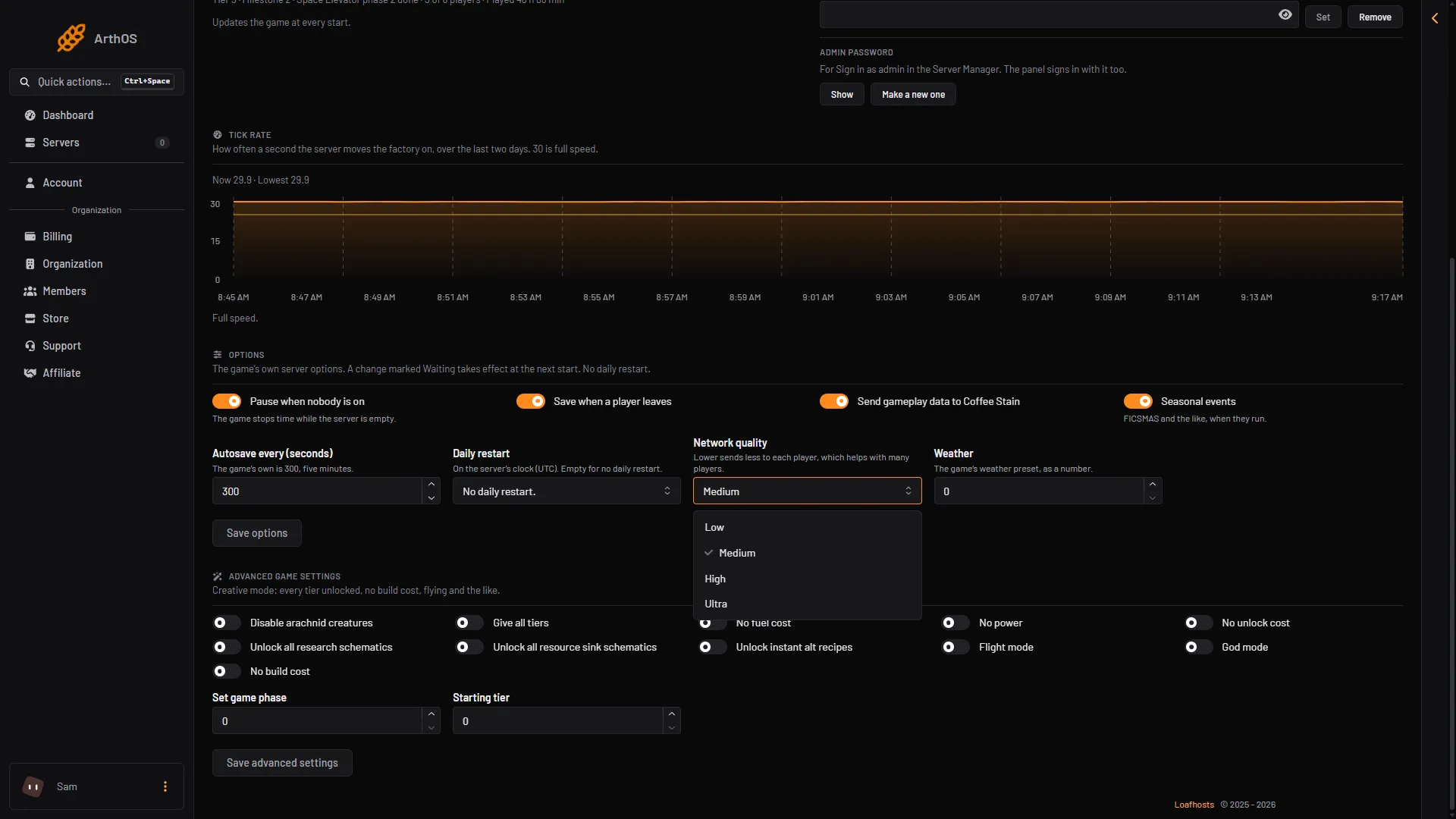
- Network quality
- Low
- Ultra
If the option shows Waiting, the change applies at the next start of the server. To apply it, choose Restart at the top right of the server page. A member’s role must be allowed to change the startup settings to use this card.
Which level to pick
- Many players, or a big factory, and the server runs slow. Try a lower level. The Tick rate card on the same page says the same: a lower network quality helps with many players. See the tick rate.
- Few players, and things load slowly for them. Try a higher level.
Change one step at a time, then watch the tick rate and ask your players how it feels.
Buildings that jump around
If things jump around for players in a busy factory, the cause may be the data the server is allowed to send each player. The Config Editor has a group of settings called Upload to players:
- Upload per player: bytes a second the server sends each player. 120000 is about 1 Mbit/s.
- Most upload per player, and the same ceiling for players who join through Steam and through the Epic Games Store.
- Upload for everyone together: bytes a second for all players together.
- Send only what is near: players get updates only for what is near them. Leave it on.
The Config Editor saves only while the server is stopped, because the game rewrites its ini files when it stops. Stop the server, change the settings, save, then start it. See upload per player for the steps.
By hand
The file is FactoryGame/Saved/Config/LinuxServer/Engine.ini. Edit it only while the server is stopped. The keys:
/Script/Engine.Player:ConfiguredInternetSpeed/Script/OnlineSubsystemUtils.IpNetDriver:MaxInternetClientRate/Script/SteamSockets.SteamSocketsNetDriverand/Script/SocketSubsystemEOS.NetDriverEOS:MaxInternetClientRate/Script/Engine.GameNetworkManager:TotalNetBandwidth,bUseDistanceBasedRelevancy
[/Script/Engine.Player]
ConfiguredInternetSpeed=120000
The official tip for joining trouble
The game’s multiplayer page lists tips from the official Discord for players who cannot connect. The first one says the host and all clients should choose Network Quality: Ultra in the options. The wiki lists it as a general multiplayer tip, not for dedicated servers in particular. Not checked on 1.2 as of 27 October 2026: whether it helps on a dedicated server.
If it does not work
- The Network quality option is missing. The server is stopped or still starting. Start it with Start at the top right of the server page and wait until the page shows its settings.
- Nothing changed. Look for Waiting next to the option and choose Restart at the top right of the server page.
- Players still cannot join. Network quality does not fix that. See cannot connect.
More about the game: Satisfactory servers.
Sources: satisfactory.wiki.gg: Dedicated servers, satisfactory.wiki.gg: Multiplayer