











Upload per player is how much data the server sends each player every second. If things jump around for players in a busy factory, raise it. You change it in the Config Editor, with the server stopped. It may not help every server: the game’s wiki says this section may not apply to dedicated servers, and that every player must also change their own game files for it to work.
The number is in bytes a second. The panel says 120000 is about 1 Mbit/s.
The settings
They sit in the group Upload to players:
- Upload per player. What the server sends each player.
- Most upload per player. The ceiling on what one player is sent. Keep it at or above Upload per player.
- Most upload per player, Steam. The same ceiling for players who join through Steam. Raise it together with the one above.
- Most upload per player, Epic. The same ceiling for players who join through the Epic Games Store. Raise it together with the one above.
- Upload for everyone together. The most the server sends to all players together, in bytes a second.
- Send only what is near. Players get updates only for what is near them. Leave it on.
The game writes only the settings that differ from its own defaults, so a setting you have never changed may not show a value yet.
Raise it
- Stop the server: choose Stop at the top right of the server page. The game writes this file again when it stops, over anything changed while it runs.
- Open Config Editor and choose Server settings.
- Open the group Upload to players.
- Raise Upload per player (2 in the picture). Raise the three Most upload per player settings to match or higher.
- Save, then choose Start at the top right of the server page.
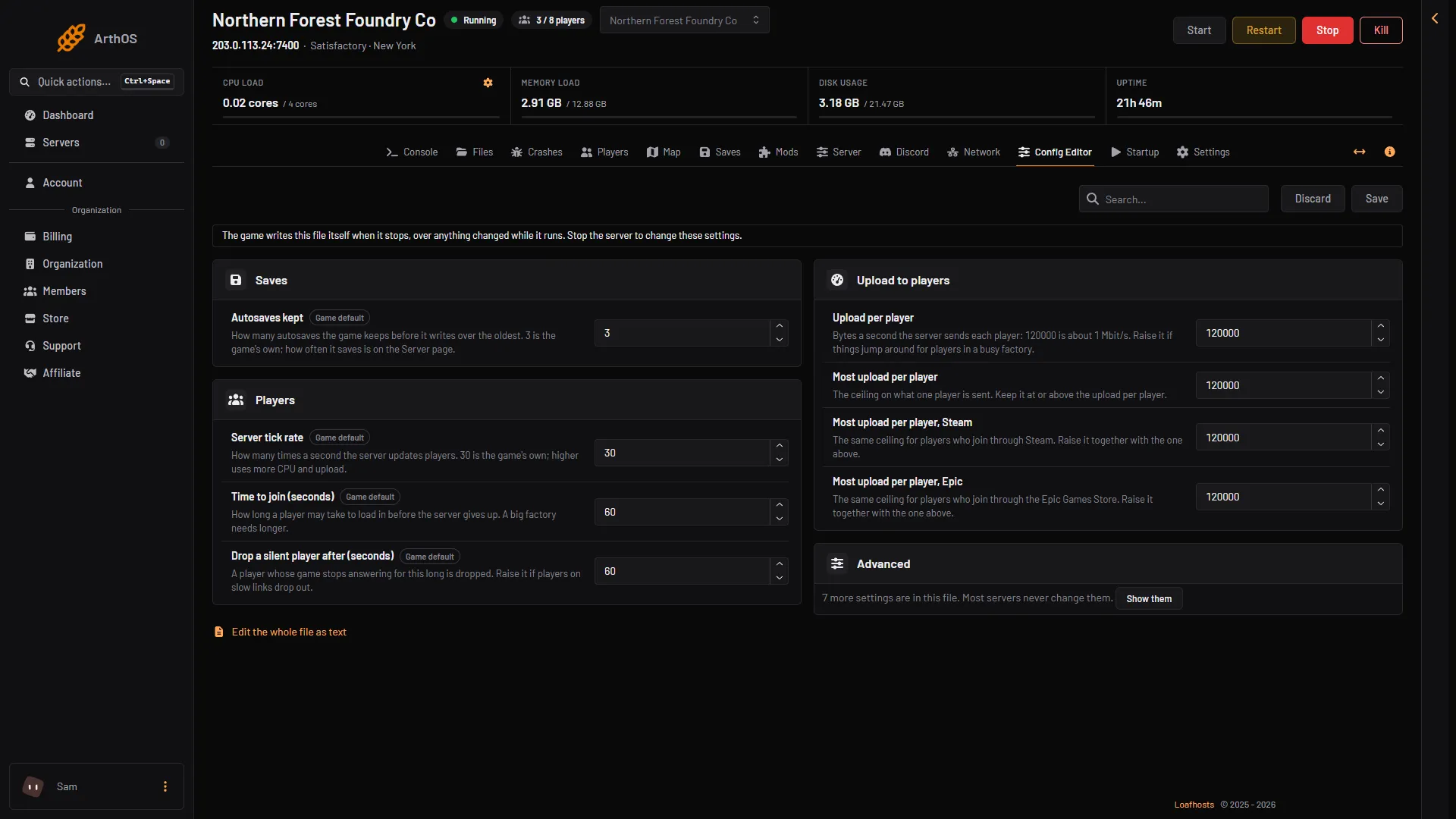
- Stop the server first
- Upload per player
Raise the numbers in steps. The game’s own wiki shows how far people go: a lag fix that sets these values to 104857600, which is 800 Mbit/s, and a lower figure of 480000 for weak connections. The wiki also says the extra bandwidth can be up to five times what the game used before, so each player needs a stable connection.
By hand
The file is FactoryGame/Saved/Config/LinuxServer/Engine.ini. Edit it only while the server is stopped. The keys are in these sections:
[/Script/Engine.Player]
ConfiguredInternetSpeed=200000

[/Script/OnlineSubsystemUtils.IpNetDriver]
MaxInternetClientRate=200000

[/Script/SteamSockets.SteamSocketsNetDriver]
MaxInternetClientRate=200000

[/Script/SocketSubsystemEOS.NetDriverEOS]
MaxInternetClientRate=200000

[/Script/Engine.GameNetworkManager]
TotalNetBandwidth=1000000
bUseDistanceBasedRelevancy=True
Other things that help
- Lower Network quality on the Server page when many players are on. It sends less to each player.
- A daily restart can be set on the Server page. See the tick rate guide if the factory runs slow.
Not checked on 1.2 as of 27 October 2026: how much a raised number helps on a Loafhosts server.
If it does not work
- The change was gone after a restart. You saved while the server ran. Stop it first.
- You cannot save. The server is running. Stop it first.
- Players still jump around. The cause may be the factory’s size or a player’s own connection. See Satisfactory server lag.
More about the game: Satisfactory servers.
Sources: satisfactory.wiki.gg: Multiplayer