











Most players who cannot join a Satisfactory server did not use the Server Manager, the game’s own list of servers. They must add the server there, then choose Join Game. If that was not the cause, work down the list below. The Players page on the panel shows most of these causes.
Look at the Players page first
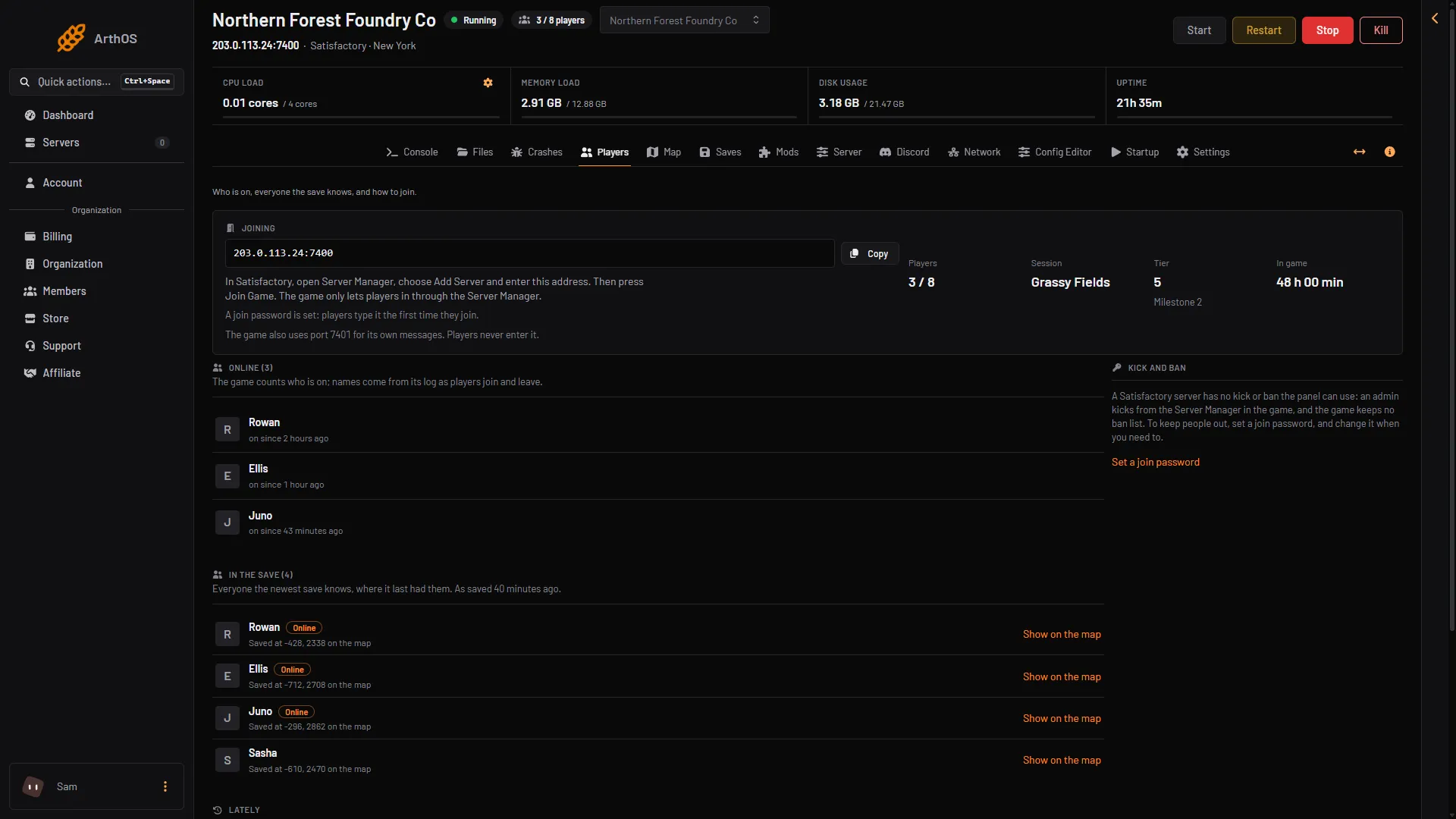
Open the Players page. The Joining card shows the address to use and says if a join password is set. A line above it tells you the state of the server:
- “The server is stopped. Start it to see who is on.”
- “The server is running, but the game is not answering yet: it may still be starting.”
- “No game is loaded. Load a save or start a new game on the Saves page.”
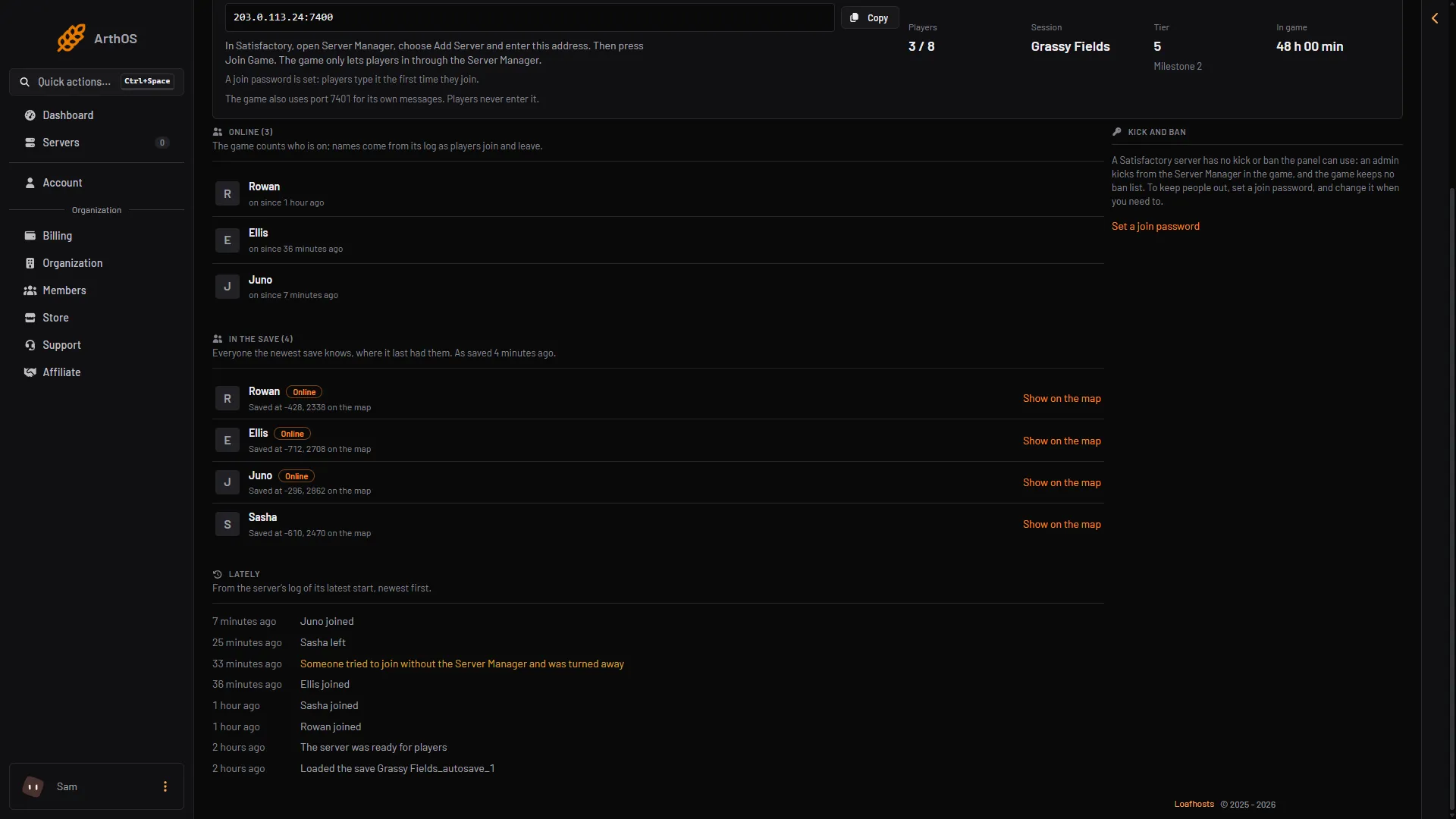
The Lately list at the bottom shows each join and each player who was refused, newest first.
- Lately
- Turned away
- Copy the address
- How players join
- Join password
- The second port
Not joined through the Server Manager
A Satisfactory server only lets players in through the Server Manager. A join from anywhere else is refused. The player sees “Encryption token missing”. Lately shows “Someone tried to join without the Server Manager and was turned away”.
- In the game, open the Server Manager and choose Add Server. Type the address (the part before the colon, for example
203.0.113.24) and the port (the number after it, for example7400). - Use Copy (1) on the Joining card of the Players page to copy the address.
- Choose the server, then Join Game.
Not checked on 1.2 as of 27 October 2026: the names of the boxes in Add Server.
More: Encryption token missing.
The server is stopped or still starting
Choose Start at the top right of the server page and wait. A Satisfactory server is ready a few seconds after it starts. The Server Manager shows it as offline until then.
The server stopped by itself
Standby is on by default on every server. A server nobody plays on for 10 days stops by itself. You can change the time in Settings, under Standby. A stopped server shows offline in the Server Manager. Choose Start at the top right of the server page, or use its wake link (Make link in the Standby card).
No game is loaded
A new server from the store has no game in it. It is up and claimed, but nobody can play until a game is started.
- Open the Saves page.
- Choose New game.
- Enter a Session name and choose a Starting area.
- Choose Start.
A session is one world and its saves. After New game, check that the session shows Loads at start on the Saves page. If it does not, open the session’s menu and choose Load at start.
Or load a save you already have: see load a save.
The join password
If a join password is set, players type it the first time they join. Open the Server page. Under Join password, the panel says whether one is set. Choose Set to make a new one (up to 64 characters) or Remove to let anyone with the address in. Both apply at once. Players already on stay, and new players type the password the first time they join from the Server Manager.
A different game version or branch
Players must run the same version of the game as the server, and the same branch: stable or experimental. A branch is a separate line of game releases. See version mismatch.
A modded server
When the server runs mods, the Joining card says “This server runs mods: players need SML and the same mods to join.” SML is the Satisfactory Mod Loader. A player without it cannot join. The For players list on the Mods page has what each player needs.
The server is full
The Server page shows In play and “(count) of (limit) players”. The limit is the Players setting on the Startup page. A server from the store starts at its plan’s player count: 4, 8 or 16 for Small, Standard and Large. The game reads the number at the next start, so choose Restart at the top right of the server page after you change it. The game’s own number is 4, and its wiki says there is no hard limit on PC.
Console players cannot join a dedicated server at all. Players on Steam and on the Epic Games Store can join the same server.
The reliable port
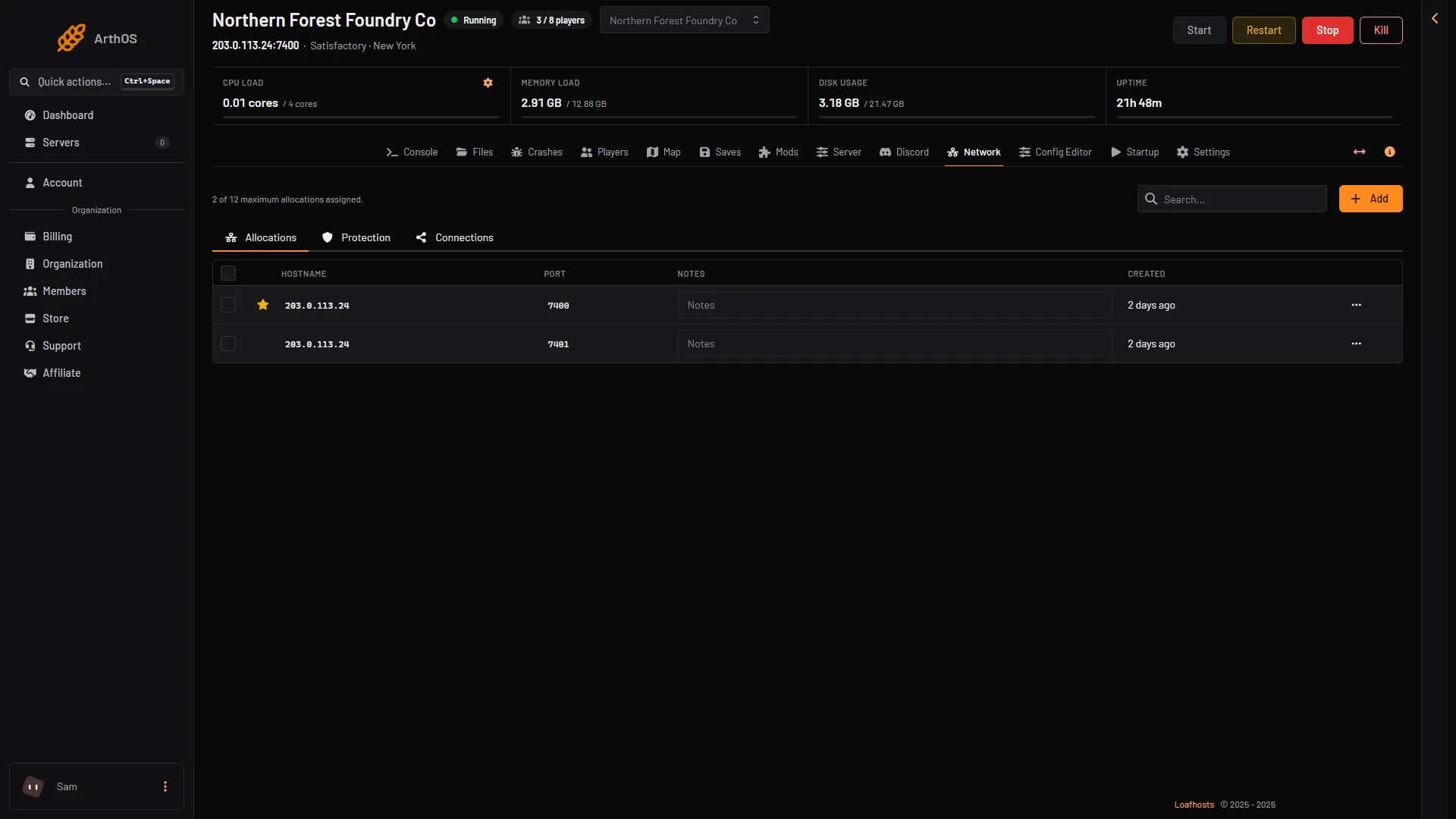
Besides the game port, the game uses a second port for its own messages. The Joining card names it (the next number after the game port). Players never type it. Without it, a player waits on the loading screen for ever. Loafhosts sets it for you: Reliable messaging port on Startup is read only. Both ports are on the Network page. The game port uses UDP and TCP, and the reliable port uses TCP. UDP and TCP are two ways of sending data over a network.
- Game port
- Reliable messaging port
A wrong clock
If the game says “Certificate Verify Result: certificate is not yet valid”, the player’s computer has the wrong time or time zone. The player sets it right and tries again. The wiki says the same error also comes from a wrong clock on the server. If the player’s clock is right and the error stays, contact support.
If it still does not work
Send support the time of the try, the address you used, and the line from Lately.
More about the game: Satisfactory servers.
Sources: satisfactory.wiki.gg: Dedicated servers, satisfactory.wiki.gg: Multiplayer