






A new Squad server needs one first start, a name, and a few admins. Then players can find it in the in-game server browser. This guide takes you from a new server to a joinable one.
In the ArthOS panel
- Open your server and go to Console. Choose Start.
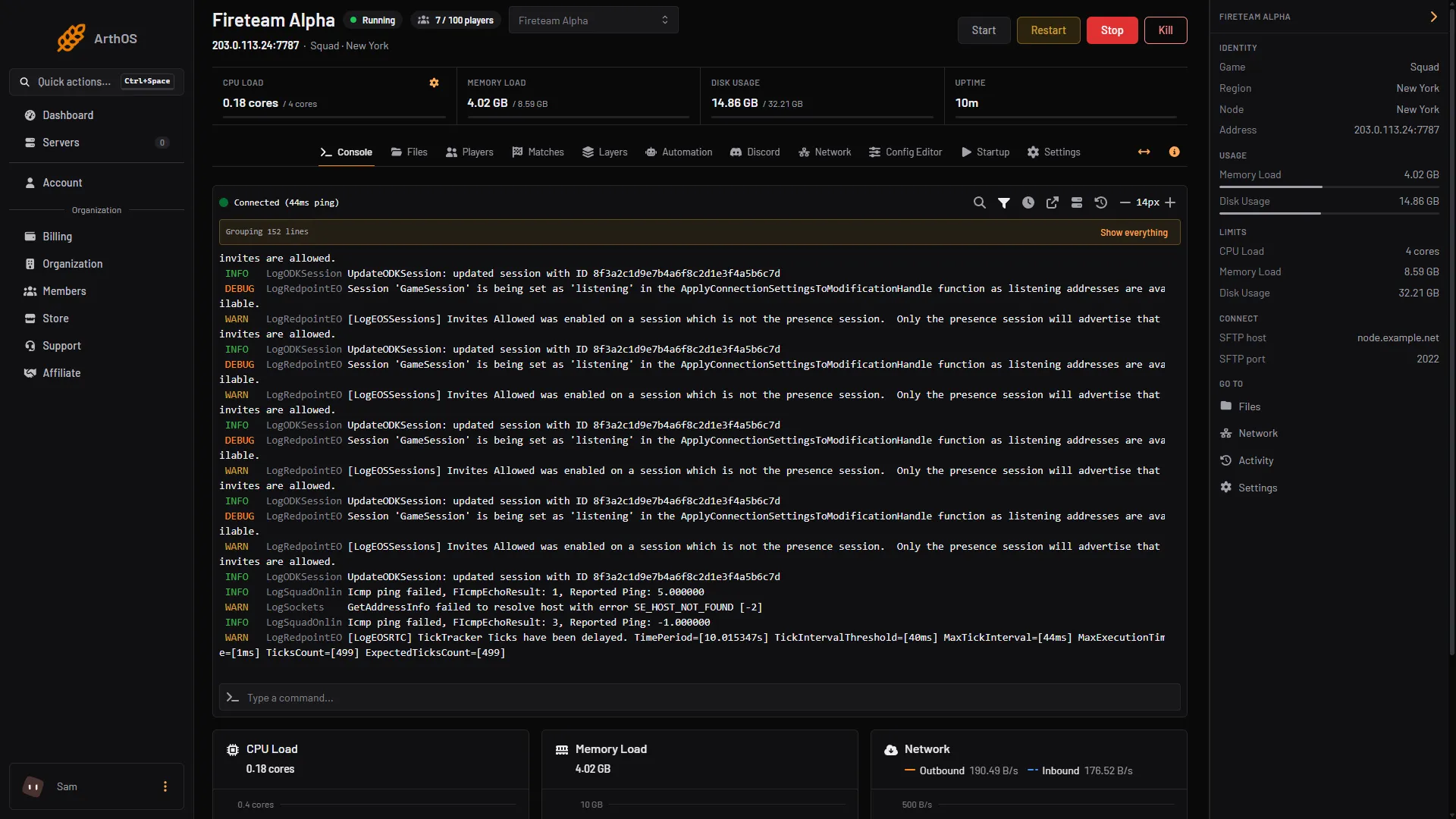
- Wait. On the first start the server checks Steam and downloads the game, which takes a few minutes. The server is ready when the console prints
LogInit: Display: Engine is initialized.The panel then shows the server as running.
- Open Config Editor. In the group Server list, set Server name. Players search for this name in the game. See change the server name.
- In the same group, set Join password if you want a private server, or leave it empty for a public one. A server with a licence key may not have a password. See set a password.
- Save, then restart the server. The game reads its settings when it starts.
- Open Players. Under Admins, enter a Steam ID (17 digits) or an EOS ID (32 characters), pick a Group (Admin or Moderator) and choose Add admin. The running server reloads the list at once. To find your own ID, see add admins.
Licensed or not
Offworld Industries, the makers of Squad, give a licence key to servers that meet their rules. Licensed servers appear in the main server list in the game. All other servers appear on a second tab called Custom. A server with no licence is a normal, working server. It is only listed on that other tab.
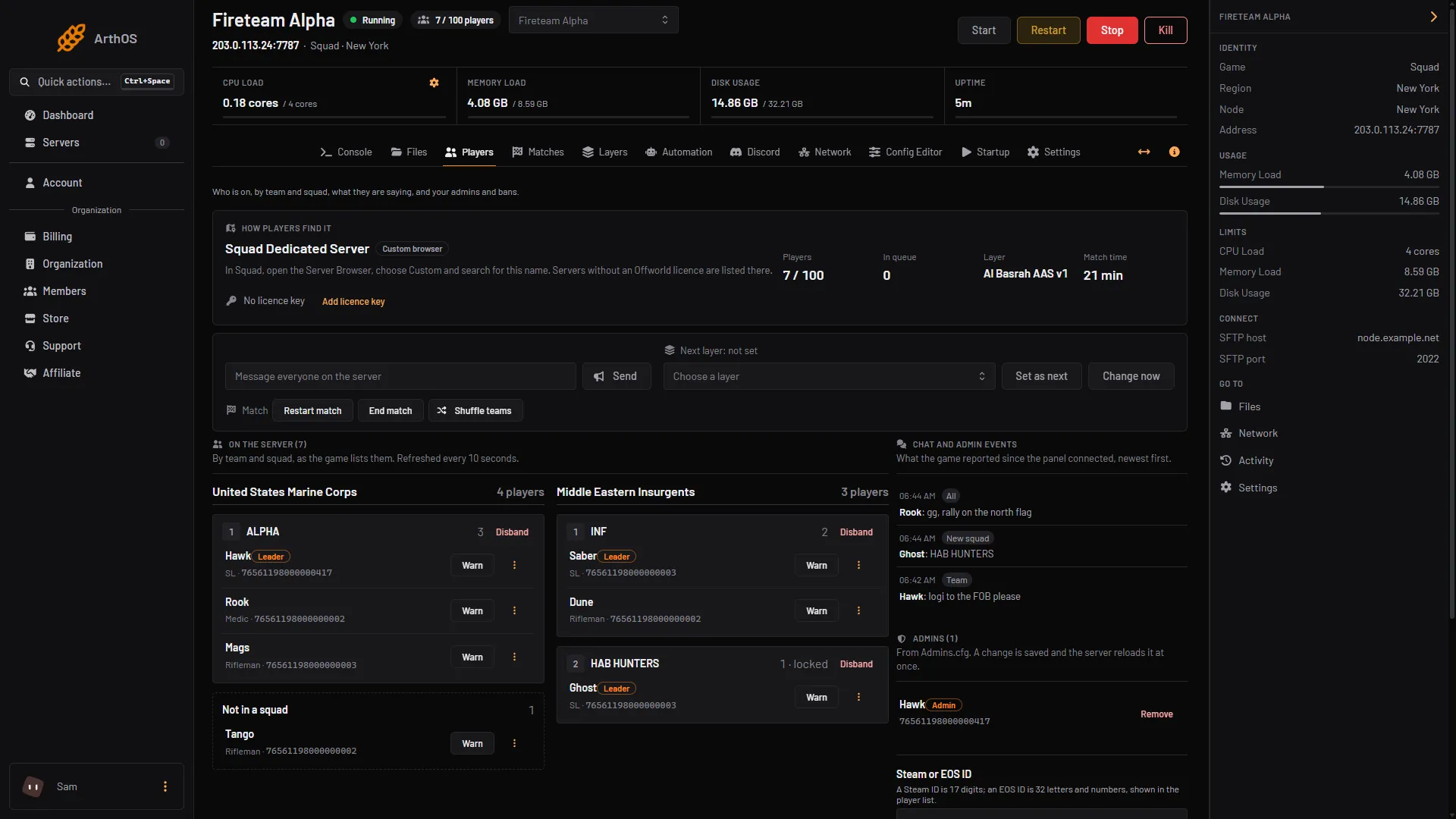
Offworld’s policy asks for at least 10 admins, and Squad’s wiki also mentions 60 slots. Check with Offworld. Apply with Offworld, not with Loafhosts. If you get a key, paste it with Add licence key on the Players page (box 2 in the picture below). Offworld and the panel spell it licence. See Squad server licence.
How players find it
The Players page has a card called How players find it (box 1 in the picture). It says Licensed or Custom browser and whether a Password is set.
- How players find it
- Add licence key
Box 1 is the card, and box 2 is the Add licence key button.
On a new server the card reads: “In Squad, open the Server Browser, choose Custom and search for this name. Servers without an Offworld licence are listed there.”
- Licensed: in Squad, open the Server Browser and search for the server name.
- Custom browser: in Squad, open the Server Browser, choose Custom and search for the server name.
The page also shows the player count, the people waiting in the queue, the layer and the match time while the server is running.
For more on joining, see connect to a Squad server.
If it does not work
- The console never prints
Engine is initialized. Give the first start more time, it is downloading. If the server stops, read the end of the console for the reason and start it again. - Players cannot see it. Check that Show in the server browser is on in Config Editor, and look on the Custom tab if the server has no licence.
- The server was just restarted and is still missing. Wait for the console line, then search again.
More about the game: Squad servers.
Sources: squad.fandom.com: Server Configuration, squad.fandom.com: Server licensing, squad.fandom.com: Server Installation