
















“The world could not be loaded” means the game could not read your world file, and it stopped on purpose. It does not make a new world over yours. Stop the server, put a backup back on the World page, and start again.
Confirm the finding
- Open the Crashes tab and choose the newest start.
- Under What the panel can tell, look for “The world could not be loaded”. It comes from log lines such as
Load failed!orUnable to load world:.
The game stopped rather than make a new world in its place, so the server did not replace your world.
Put a backup back
The game keeps earlier saves of each world beside it, as .bak files. The World page lists them.
- Stop the server. The page will not put a backup back while the server runs, because the game would save over it (1).
- Open the World page.
- Find The game’s backups (2). Each line shows when it was made and its size.
- Choose Put back (3) on the newest one, and confirm in the box “Put (name) back?”.
- Start the server.
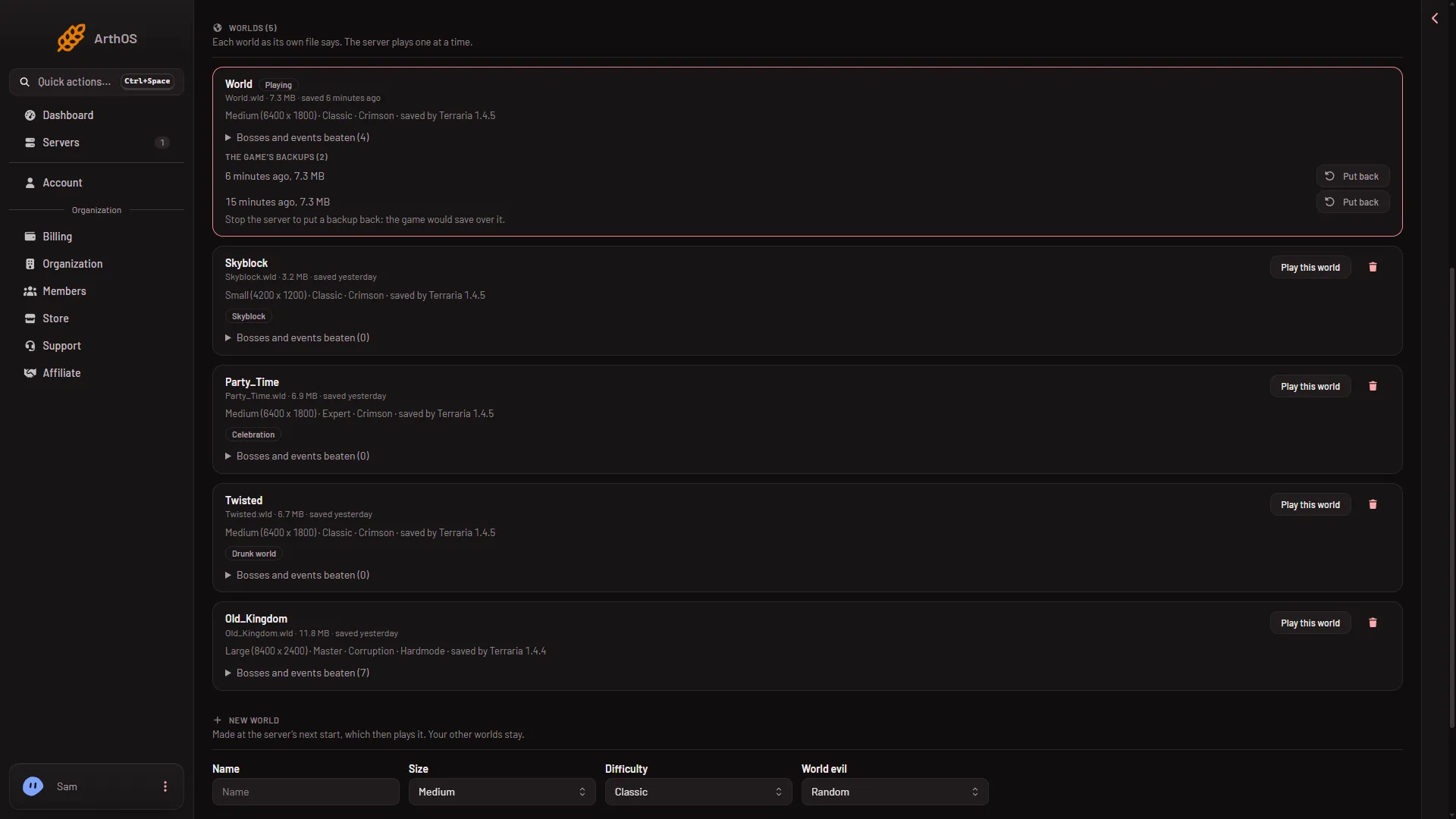
- Stop the server first
- The game's backups
- Put back
If the newest backup does not load either, try the next one. You do not need to change any setting.
How many backups there are
By default the game keeps two earlier saves. Open the Config Editor, choose Server settings, and raise World backups kept (0 to 20). It applies at the next start. Backups are earlier saves, so a higher number reaches further back.
If it does not work
- Every game backup fails. Use a backup of the whole server. Open Settings, then Backups, and choose Restore on one made before the problem. See panel backups. Everything on the server goes back to that backup, not only the world, so use it last.
- The World page says it cannot read the header. The file is damaged. Treat it like a failed load and put a backup back.
- There are no backups at all. Make a new world on the World page with Make this world. It is made at the next start and your other worlds stay.
- Put back is refused. The server is running, or your role does not allow restoring backups.
More about the game: Terraria servers.