
















The panel can give you a mod pack of the mods applied on your server. Players unzip it into their tModLoader folder and turn it on from Mod Packs. This is a handy way to give friends the same set of mods.
Joining the server downloads its mods anyway, so a pack is optional. The Mods page says so too: “Joining the server downloads its mods anyway.”
Download the pack
- Open the server’s Mods page.
- Open the Mod packs tab.
- Find the card Share the server’s mods.
- Choose Download as a mod pack.
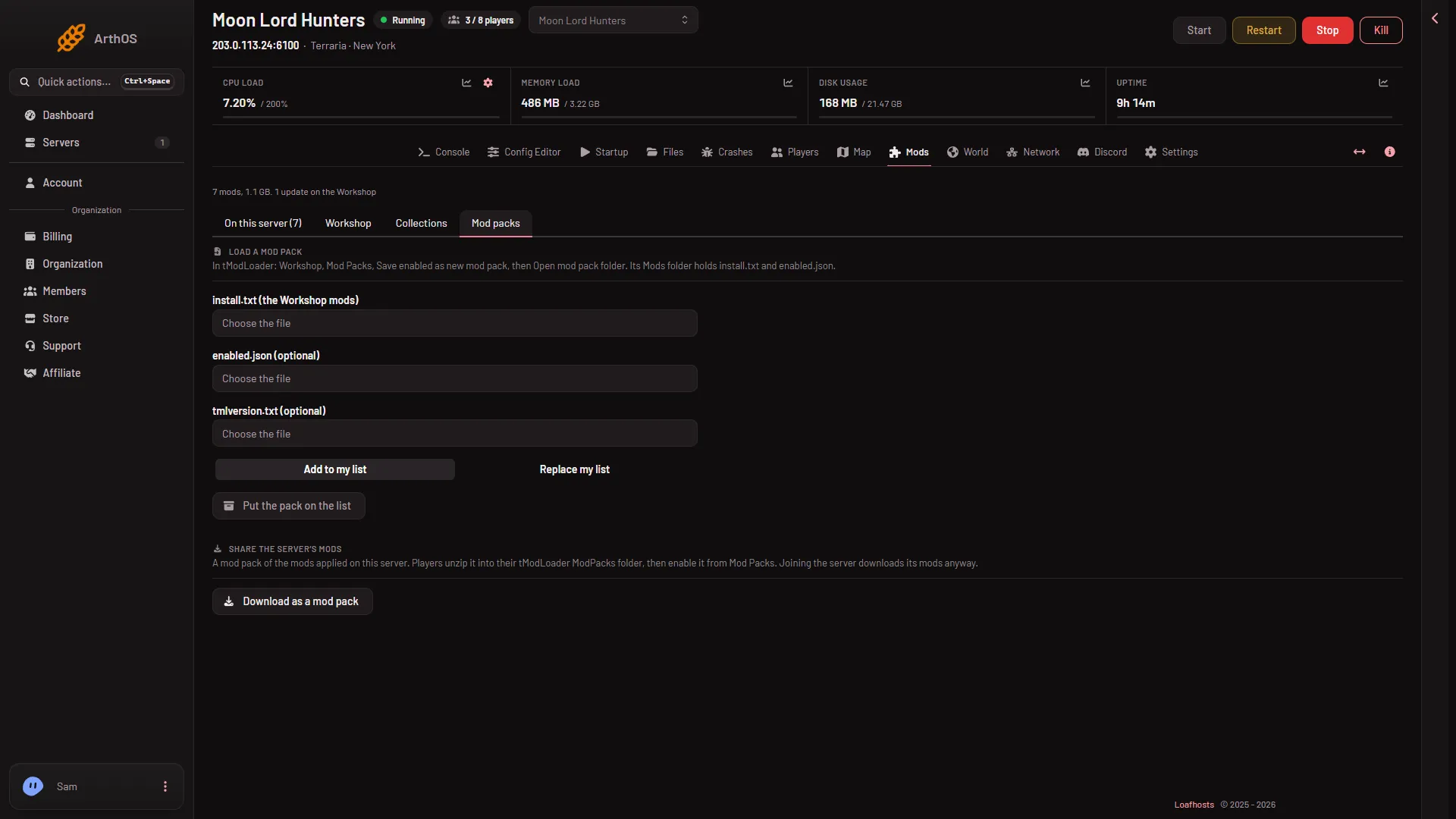
You get a zip file called server-mod-pack.zip.
If you see “No mods are applied on this server yet.”, there is nothing to share. Add mods and apply them first. See the Mods page.
What is in the zip
The zip holds one folder named after the pack, with a Mods folder inside it. In Mods are three files:
install.txt: the Workshop mods.enabled.json: the mods that are turned on.tmlversion.txt: the tModLoader version.
These are the same three files tModLoader writes when you save a mod pack yourself.
Where players unzip it
- Unzip the file into their tModLoader
ModPacksfolder. - In tModLoader, open Workshop, then Mod Packs.
- Choose the pack to enable it.
The card puts it this way: “Players unzip it into their tModLoader ModPacks folder, then enable it from Mod Packs.”
The pack covers the mods that are applied on the server. A mod that is only on the list and not applied yet is not in it.
If it does not work
- The button gives nothing. No mods are applied yet. Apply the list on the On this server tab.
- The button is missing. Your role may not allow reading the startup.
- A player cannot find the pack. The unzipped folder (named after the pack) must sit directly inside
ModPacks.
For what players do when they just join, see how players get the mods. To load a pack onto a server instead, see load a mod pack.
More about the game: Terraria servers.