
















If you already play with a mod pack in tModLoader, you can put the same mods on your server. You upload the pack’s files, the panel puts its Workshop mods on the server’s list, and the server changes only when you press Apply.
This is for a server that runs tModLoader. If the server runs Vanilla or TShock, the Mods page asks you to switch on the World page first.
Save the pack in tModLoader
- In tModLoader, open Workshop, then Mod Packs.
- Choose Save enabled as new mod pack.
- Choose Open mod pack folder.
- Open the pack’s
Modsfolder. It holdsinstall.txtandenabled.json. Atmlversion.txtmay be there too.
install.txt lists the Workshop mods, one id on each line. enabled.json says which mods are turned on. tmlversion.txt names the tModLoader version the pack was made with.
Load it on the server
- Open the server’s Mods page.
- Open the Mod packs tab.
- In the card Load a mod pack, choose the file for install.txt (the Workshop mods).
- Optionally choose enabled.json (optional) and tmlversion.txt (optional). Each button reads Choose the file.
- Under How the pack goes on the list, choose Add to my list or Replace my list.
- Choose Put the pack on the list.
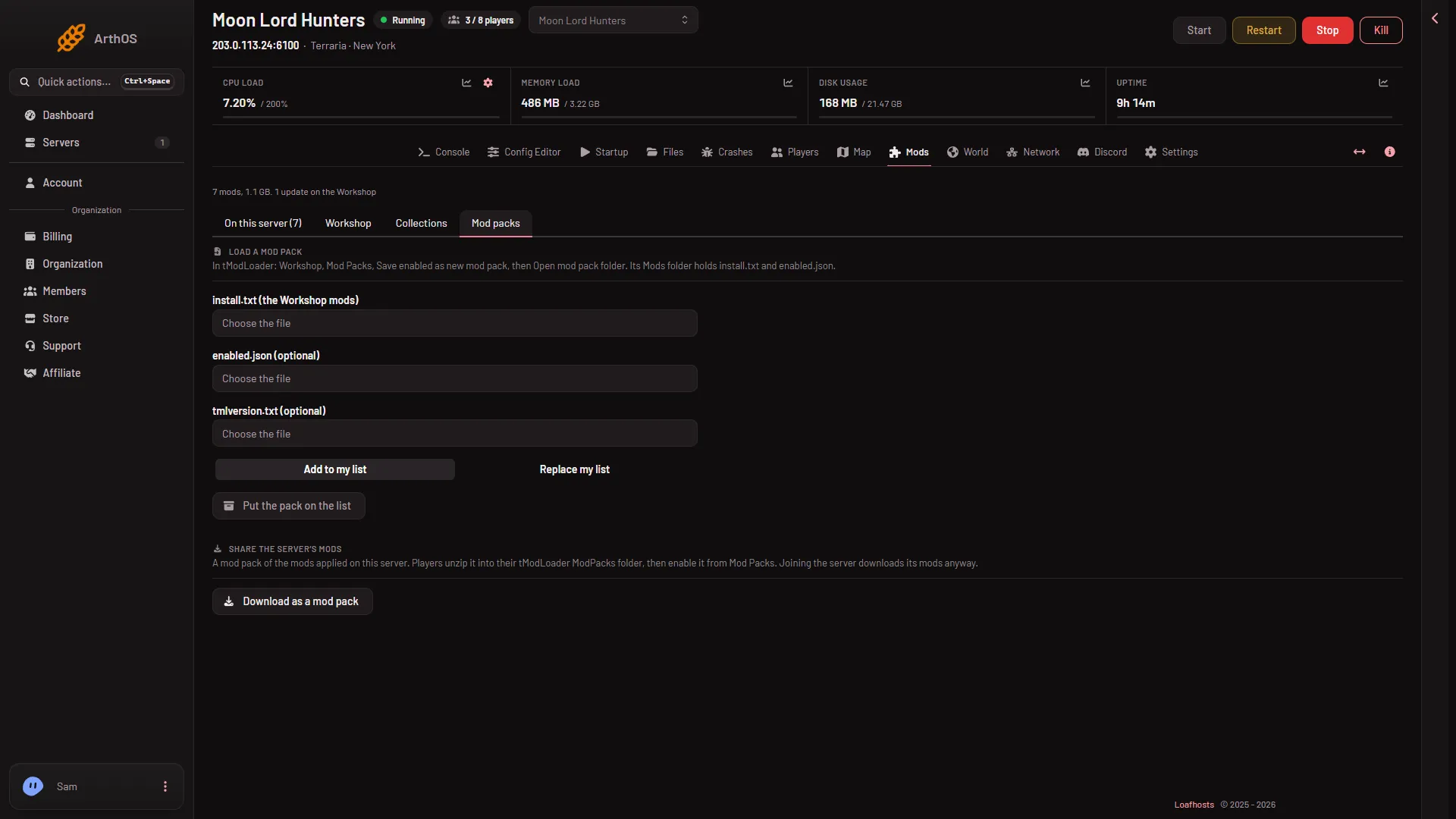
Add to my list keeps the mods already on the server. Replace my list swaps the list for the pack’s.
You need a role that allows changing the startup. Without it the panel says: “Loading a pack needs permission to change the startup.”
Then press Apply
The panel says “(count) Workshop mod(s) from the pack are on the list. Apply to download them.” Nothing is downloaded and nothing changes on the server until you apply.
Open On this server and choose Apply (or Apply and restart). A running server stops, downloads and starts again, so it disconnects everyone who is on. Use Message everyone on the Players page to warn them first.
What the panel tells you
- Mods not from the Workshop. “(count) mod(s) in the pack are not from the Workshop. Upload their .tmod files to tModLoader/Mods in Files, then apply.” See put a .tmod file in by hand.
- A different tModLoader version. “The pack was made with tModLoader (pack version); the server runs (server version). The World page can set the server to the pack’s.”
- A file that is too large. “That file is too large to be a mod pack’s.” A pack file may be at most 64 KB.
If it does not work
- The pack has no mods. The panel refuses a pack that names no mods.
- install.txt has a line that is not a Workshop id. The panel names the line and refuses. Each line must be a Workshop id.
- Too many mods. A server takes at most 200 mods. The pack has more, so the panel refuses it.
- enabled.json is refused. It is not the list tModLoader writes. Save the pack again in tModLoader and use its file.
- A mod stays off after Apply. A mod missing a mod it needs, or made for a newer tModLoader, is left off and stays on the list, waiting.
More about the game: Terraria servers.