












A mod with a newer version on the Steam Workshop shows an Update chip on its row on the Mods page. Choose Update on the row, or Update all (N), then Apply. If the server is running, Apply stops it, downloads the new version and starts it again. If it is offline, Apply downloads now and stays offline.
See which mods are behind
- Open the Mods page and the On this server tab.
- Look for the chip Update beside a mod’s name (1). The row explains: “The Workshop has a newer version. Players who already have it cannot join until the server has it too.”
Each row also shows the package and its version (2), so you can see what the server has now. The picture shows no mod that is behind, so no Update chip appears in it: box 1 marks where a mod’s name and chips are.
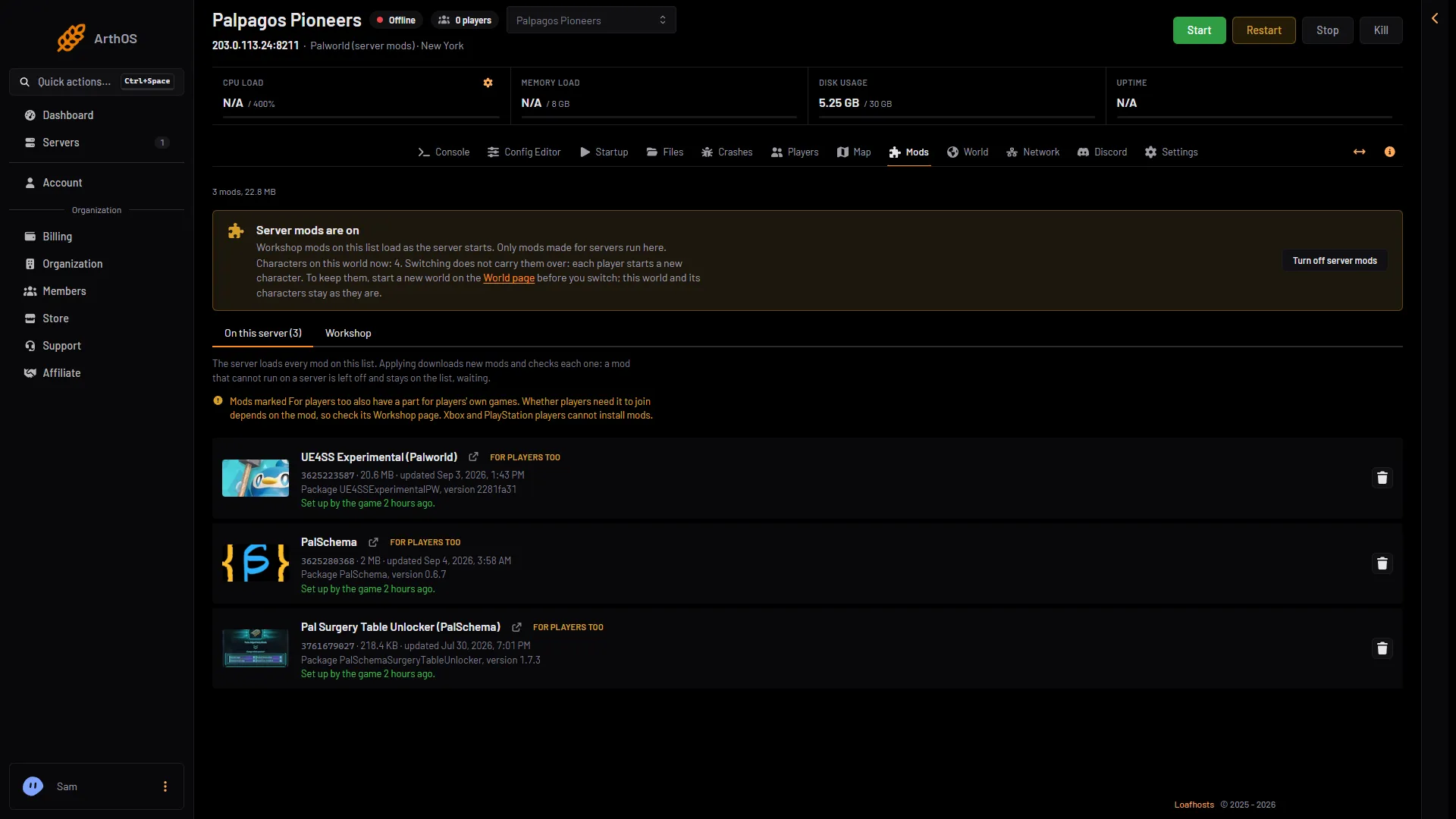
- A mod's name and chips
- Package and version
That last sentence matters. Players who use the mod on their own game get the new version from Steam. They may not be able to join until the server has it as well. Update soon.
Update
- On a row with the chip, choose Update. The row then says “Updates on apply”.
- Or choose Update all (N) above the list, where N is how many mods are behind. Update none clears the choice.
- The bar Changes not applied yet lists the updates. Choose Apply, or Apply and restart if the server is running.
- The Apply the mod changes? box shows Downloads and the size. If the server is running, it says: “The server stops now, downloads, and starts again. Players online are disconnected. If a download fails, the copy the server had stays.” Confirm.
If the server is offline, the box says it downloads now and stays offline. Start it when you are ready; the next start loads the new version.
The game sets it up at the next start
Downloading is not the last step. The game sets a mod up as the server starts. Until then the row says: “The game runs version (version); the one in its folder is set up at the next start.” After the start it says “Set up by the game (when).”
Pocketpair describes the same rule: if the mod’s version changes, restarting the server uninstalls the old version and sets up the new one. If you applied while the server was offline, start it.
A failed update
If a download fails, the page says: “(name) could not be updated ((reason)). The copy the server had stays and keeps loading.” Nothing breaks. Try Apply again later. A row that shows Download again can fetch the copy again.
After a Palworld update
A Palworld update can change what mods need. A mod may ask for a newer game build than the server has. The panel then leaves it off and says so. A mod that loads but is broken on the new build is not caught: it can crash the server. Update the server first: with Update on start on, it updates when it starts. Then apply again. Players must also run the same game version as the server, so they cannot join a server still on the old build.
Back up first
Pocketpair warns that mods “may cause save-data corruption or crashes.” Take a backup before a big update if the world matters.
If it does not work
- The chip stays after Apply. The Workshop may not have answered. The row then says: “The Workshop did not answer, so this shows what was last known.” Look again later.
- The mod is not loading after the update. See Palworld mods not loading.
More about the game: Palworld servers.
Sources: docs.palworldgame.com: Mod