












To remove a Palworld server mod, take it off the list on the Mods page and choose Apply. The server stops loading it when the apply finishes (or at its next start, if it is offline). Its files stay on the server until you delete them.
Take a mod off the list
- Open the Mods page and the On this server tab (1).
- Find the mod’s row (2). On it, choose the bin button at the right end of the row.
- The page says: “(name) is off the list. Apply to take it off the server.”
- The bar Changes not applied yet shows the count, such as “1 to remove”.
- Choose Apply. If the server is running, you can choose Apply and restart.
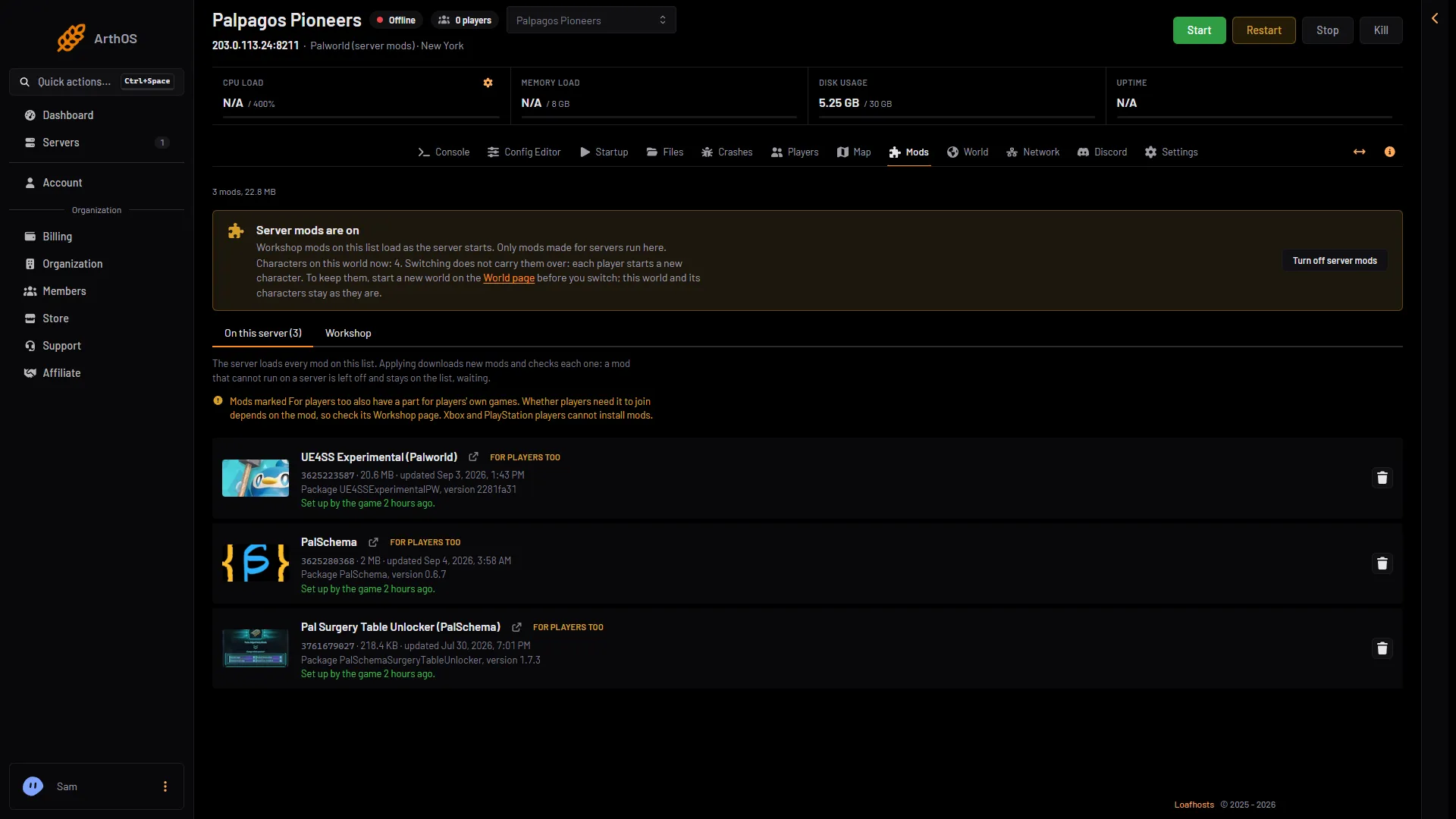
- The On this server tab
- The mod's row
The Apply the mod changes? box lists the mod under Takes off the list. Confirm it.
If the server is running, it stops, writes the new list and starts again. Players who are on are disconnected. If it is offline, the list changes now and the server loads the new list at its next start.
Changed your mind before you apply? Choose Discard changes.
The files stay
A mod taken off the list stays downloaded. It is not loaded, and the game ignores it. It moves to a section called On the server, not loaded. The page says: “These folders are not on the list, so the game does not load them. They only take disk space.”
From there you have two choices for each mod.
- Put on the list brings it back. Choose Apply to load it again.
- Delete files frees the space. A box asks “Delete (name)‘s files?” and says: “This frees the space. Adding the mod again later downloads it again.”
Leaving the files costs only disk space. Delete them when you are sure.
Remove what only that mod needed
Some mods bring a helper with them, such as UE4SS Experimental (Palworld). Taking a mod off the list does not take its helpers off. If nothing else needs a helper, take it off the same way. Look at the other rows first: a row that says “Needs (name)” still wants it. See UE4SS and PalSchema.
Stop every mod at once
To stop all mods, turn off server mods. On the Mods page, choose Turn off server mods. The panel warns that “Mods stop loading and their files are deleted”, and that characters made with mods on do not carry back. Read turn off Palworld server mods before you do it.
Back up first
Pocketpair warns that mods “may cause save-data corruption or crashes.” If the world matters, take a backup before you change the mod list.
If it does not work
- The mod is still loading. You did not choose Apply, or the server is offline and has not started since. The change waits in the bar until you apply it.
- The row came back. Discard changes puts the list back as it was.
- The server will not start after a removal. Another mod needed the one you took off. Put it back with Put on the list, or take off the mods that need it, then apply.
More about the game: Palworld servers.
Sources: docs.palworldgame.com: Mod