











The Players page lists every death on your VEIN server and says who or what caused it. It also counts Kills for each player. You can send deaths to a Discord channel too.
Deaths in the list
- Open the Players page.
- Scroll to Chat and what happened.
- Look for lines that say “(name) died” or “(name) was killed by (killer)”.
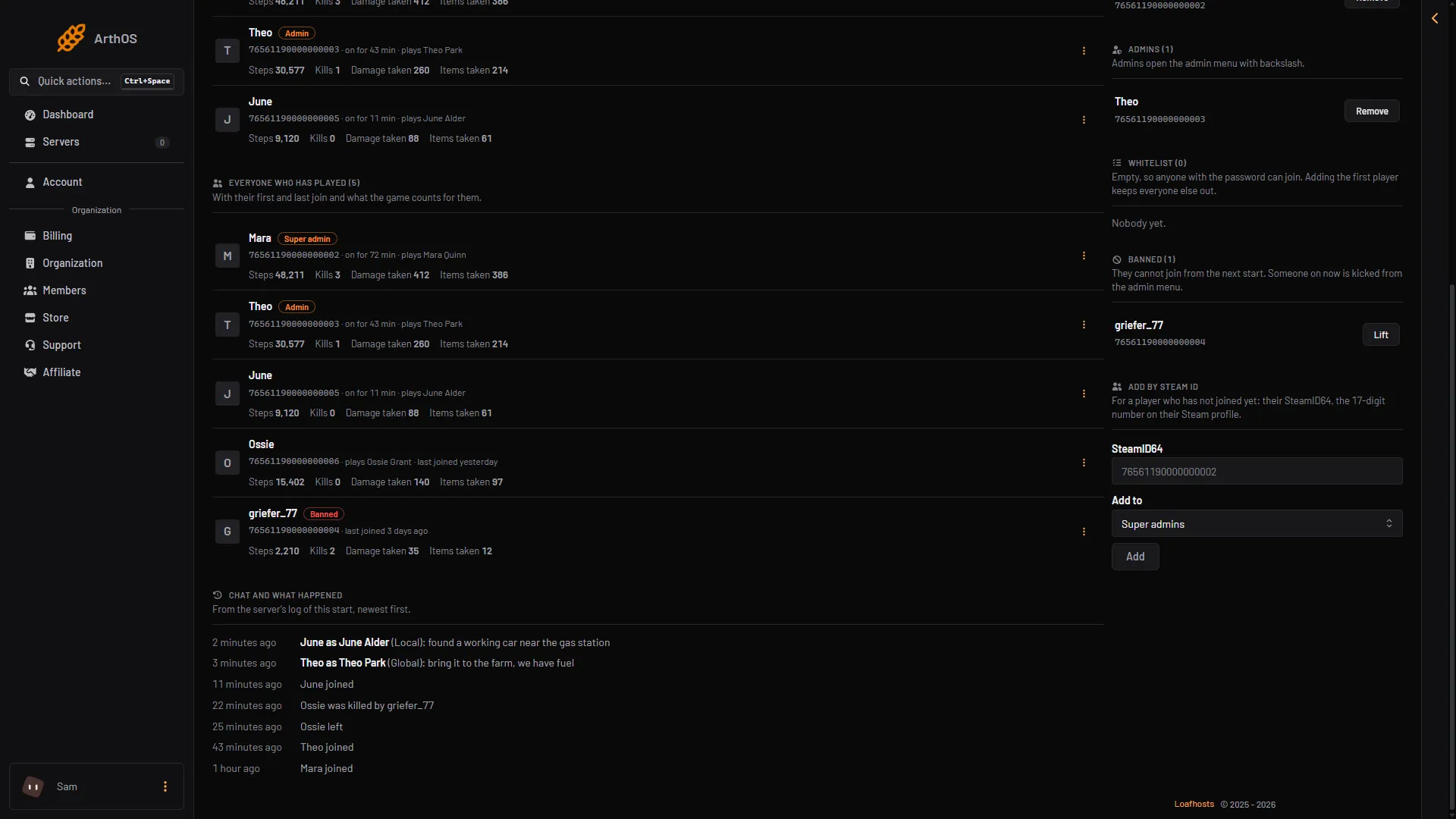
- The list
- A death
- A join
The list is newest first. It comes from the server’s log of the current start, so a restart begins a new list. It also holds joins, leaves and chat.
What the words mean:
- (name) died: the player killed themselves, or the game named no killer.
- (name) was killed by (another player): a player killed them. The line shows that player’s name.
- (name) was killed by Zombie: a creature of the game killed them. The panel shows the creature’s name, such as Zombie.
The line names the player, not the character. A player can have several characters.
Kills in the stats
Under Everyone who has played, each player has a line of what the game counts for them: Steps, Kills, Damage taken and Items taken. The game keeps these counts. The panel only shows them. The list is read from the running game, so it shows while the server runs.
Post deaths to Discord
The panel can post each death to a Discord channel. You need a webhook (a web address that lets the panel post into one channel) from your own Discord. This is separate from the game’s own posts on the Discord page. The top card of that page, Status in Discord (Link a channel), is a different feature: a message that the Loafhosts bot keeps up to date in a channel. The posts below need no bot.
- In Discord, open the channel settings, then Integrations, then Webhooks, then create a webhook and copy its URL.
- In the panel, open the Discord page and find Event posts.
- Paste the URL into Webhook URL.
- Tick Has a player join or leave (and die, on games that log deaths). It is off to start with, because a busy server posts a lot.
- Choose Save. The page says events are posted within 20 seconds. Choose Send a test to check the channel.
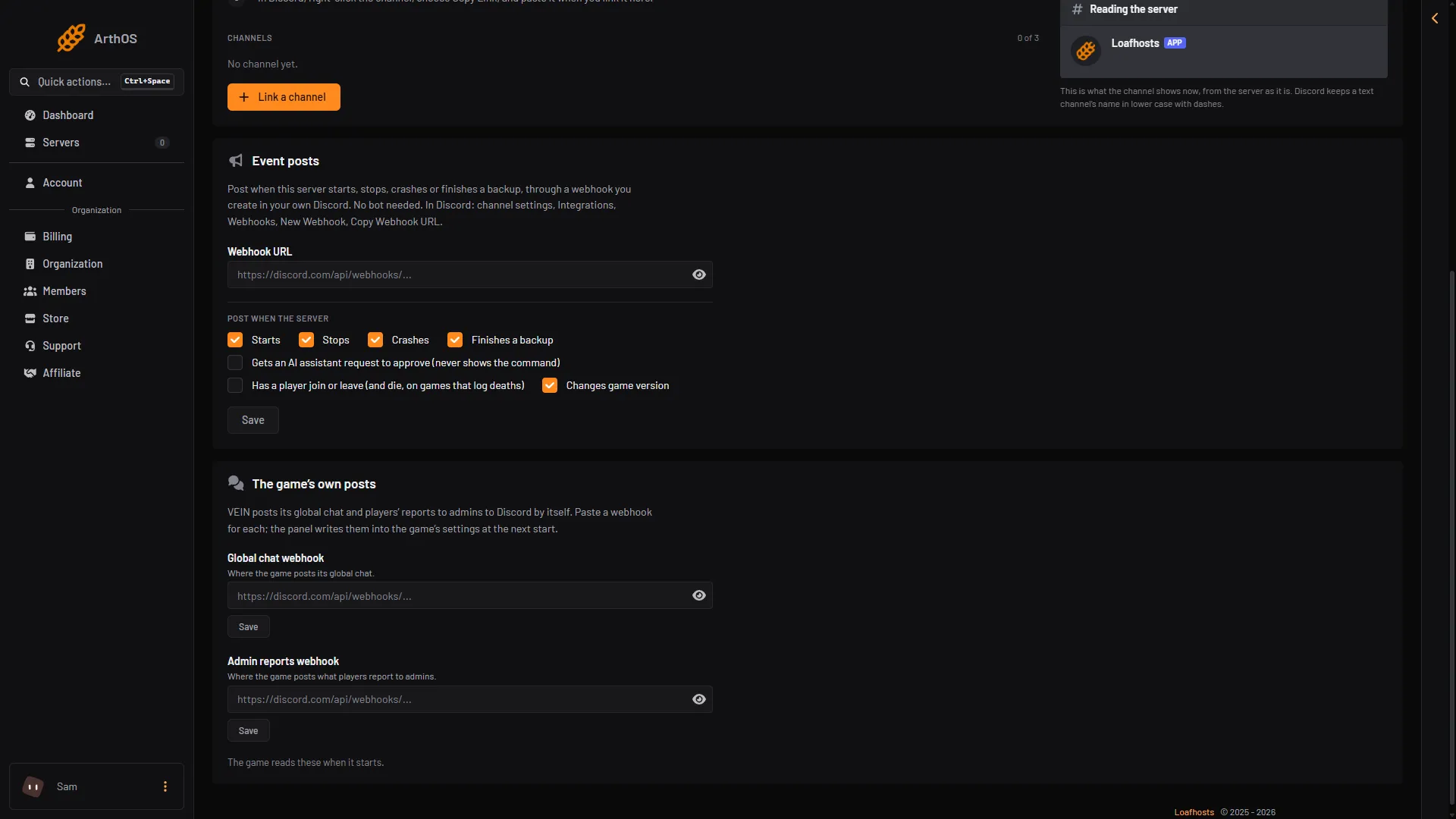
- Paste the webhook
- Tick joins, leaves and deaths
A death is posted with the title “Player died”. The text reads “(name) died.” or “(name) was killed by (killer).” A join or leave is posted under the same box. Each time the panel checks, it posts at most ten events, so a big fight may not show every line.
What happens when someone dies
Two game rules decide what a death costs. Both are in the Config Editor, in the file Game rules, group Survival:
- Permadeath: a character that dies cannot respawn. See VEIN permadeath.
- Keep items on death: players keep what they carry. See keep items on death.
Edit them while the server is stopped. The game rewrites its files when it stops. A new value applies at the next start.
If it does not work
- No deaths are listed. The list is from the current start of the server. Nobody may have died since it started.
- Discord shows nothing. The box for joins, leaves and deaths must be ticked and saved. Check that the webhook URL was saved, and use Send a test.
- The Kills number looks wrong. The panel shows what the game counts. Not checked on 0.025 as of 27 October 2026 for every kind of kill.
More about the game: VEIN servers.