











A VEIN server is listed in the game’s server browser by default. To hide it, set Listed in the server browser to False in the Config Editor. Players then use Steam favourites, which are their saved servers in Steam. Stop the server to change it, and start it again to apply it.
The settings
All four are in the Server settings file, under Players and the server.
- Listed in the server browser. True by default. False hides the server from the browser.
- Admin badges on the scoreboard. Shows which players are admins.
- Valve Anti-Cheat. Kicks players flagged by Valve Anti-Cheat.
- Server list heartbeat (seconds). How often the server tells the browser it is there. The game’s own default is 5. A Loafhosts server starts at 30. Most servers never need to change it.
Hide the server
- Choose Stop at the top right of the server page. The game rewrites its settings files when it stops, so the editor saves only while the server is stopped.
- Open Config Editor and choose Server settings.
- Under Players and the server, set Listed in the server browser to False.
- Choose Save. The changes apply when the server starts.
- Choose Start at the top right of the server page.
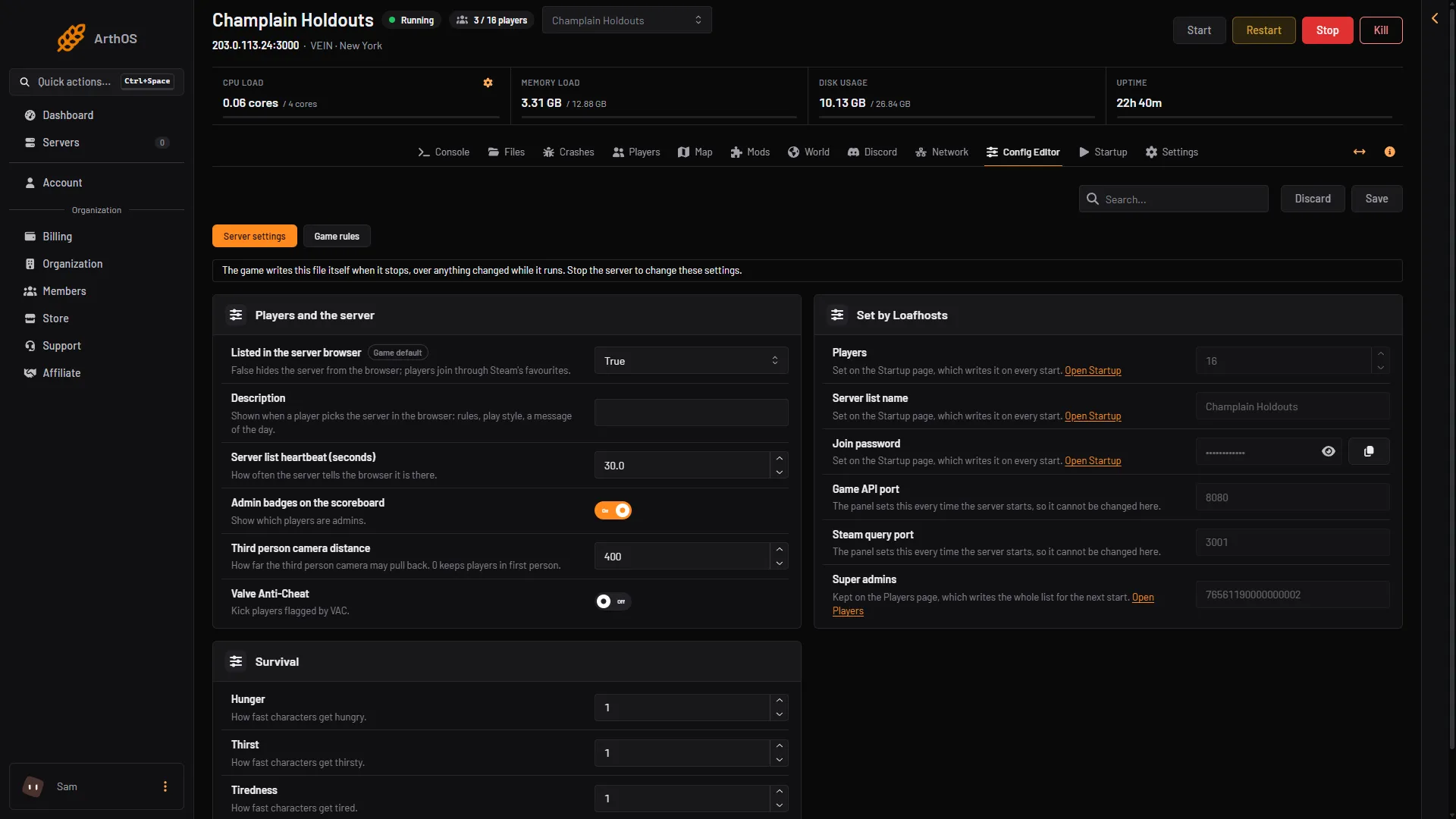
- Listed in the server browser
- Valve Anti-Cheat
Use (1) to hide or show the server. (2) is Valve Anti-Cheat.
How players join a hidden server
Players cannot find it by name in the server browser. The game’s wiki says to add the server’s address and port to your Steam favourites, which are the player’s saved servers list in Steam.
- Open the Players page. The Joining card shows the address. Choose Copy.
- Send it to your players, with the join password if the server has one. The password is on Startup, under Join password.
- Each player adds the address to their Steam favourites and joins from there.
Not checked on 0.025 as of 27 October 2026: which port Steam’s favourites box needs (the game port or the query port), and that a hidden server can be joined this way.
A listed server
The name in the browser is Server list name on Startup. After every start the server takes a short time to show up: about 30 seconds after it is ready. The first heartbeat fails and the next one lists it. The wiki also says the in-game list limits how many servers it shows at once, so a listed server may not always appear. See server not showing.
If it does not work
- Save is greyed out. The server is running. Stop it first.
- The server is still listed. It has to start again after saving. Choose Start at the top right of the server page.
- Players cannot find a hidden server. That is the point of the setting. Give them the address.
By hand
Edit Vein/Saved/Config/LinuxServer/Game.ini in Files, only while the server is stopped. A Windows server’s folder: Not checked on 0.025 as of 27 October 2026.
[/Script/Vein.VeinGameSession]
bPublic=False
HeartbeatInterval=30.0
bVACEnabled=1 under [OnlineSubsystemSteam] turns on Valve Anti-Cheat, and GS_ShowScoreboardBadges under [/Script/Vein.ServerSettings] shows admin badges. The panel writes the name, password, players and ports itself before every start.
More about the game: VEIN servers.
Not checked on 0.025 as of 27 October 2026: what Valve Anti-Cheat flags in practice.