











A VEIN server that has only just started is not in the game’s server browser yet. It is ready in about a minute, and it lists itself about 30 seconds after that. Wait, then search for its name again. If it is still missing, the steps below find the cause. The browser is the players’ normal way in, so a server that is not listed needs fixing.
Why a new start is missing for a while
Every start tries to tell the server list that it is up (the game calls this a heartbeat). The first try fails, and the next try, about 30 seconds later, works. This is normal on 0.025. So after you choose Start at the top right of the server page, give the server about two minutes before you worry.
In the panel
- Open Console and check the server is running and ready. A server that is still starting is not listed.
- Open Startup. Look at Server list name. This is the name to search for in the browser. If you changed it, the new name shows after the next start.
- Open Config Editor, then Server settings, and look in Players and the server for Listed in the server browser. It must be True. Set to False, the server is hidden from the browser on purpose. This file is saved only while the server is stopped, and the change applies at the next start.
- Open Crashes. If the last start never reached the server list, the panel shows the finding “The server list could not be told the server is up”. Its advice is to restart the server. If that does not help, ask support. VEIN server ports lists the ports the server uses.
- In the game, search the browser by the server’s name. The wiki says the in-game list shows only a limited number of servers at one time, so a busy list can hide yours. Searching by name helps.
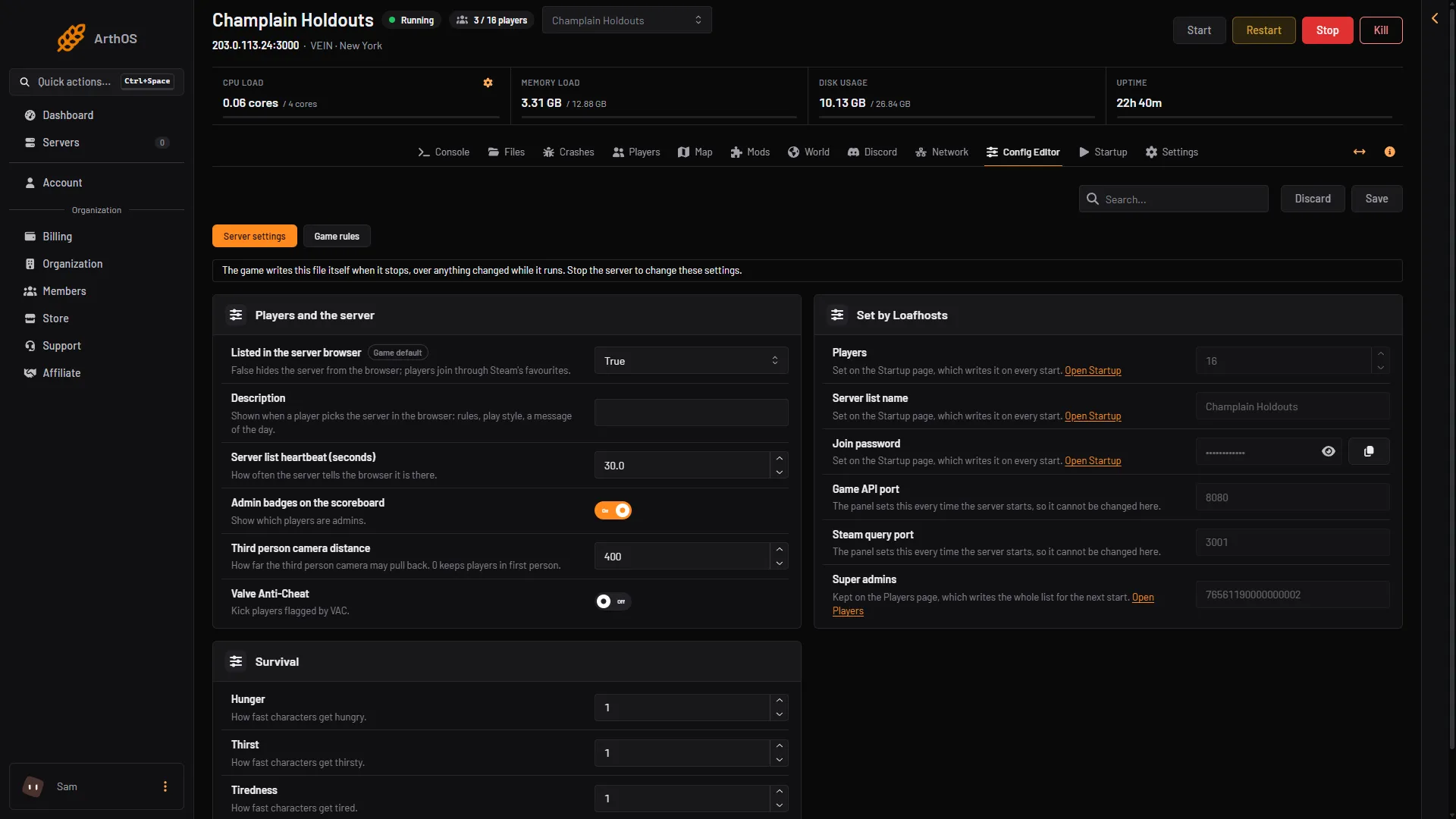
- Listed in the server browser
Try Steam favourites
The wiki says to add the server’s address, with its port, to your Steam favourites (a list of servers you save in Steam) and join from the favourites tab in the game.
- Open Players in the panel. The Joining card shows the address. Choose Copy.
- In Steam, add that address, as IP and port, to your favourites.
- In VEIN, open the favourites tab and pick the server.
- Type the join password when asked. You can read or change it on Startup, under Join password.
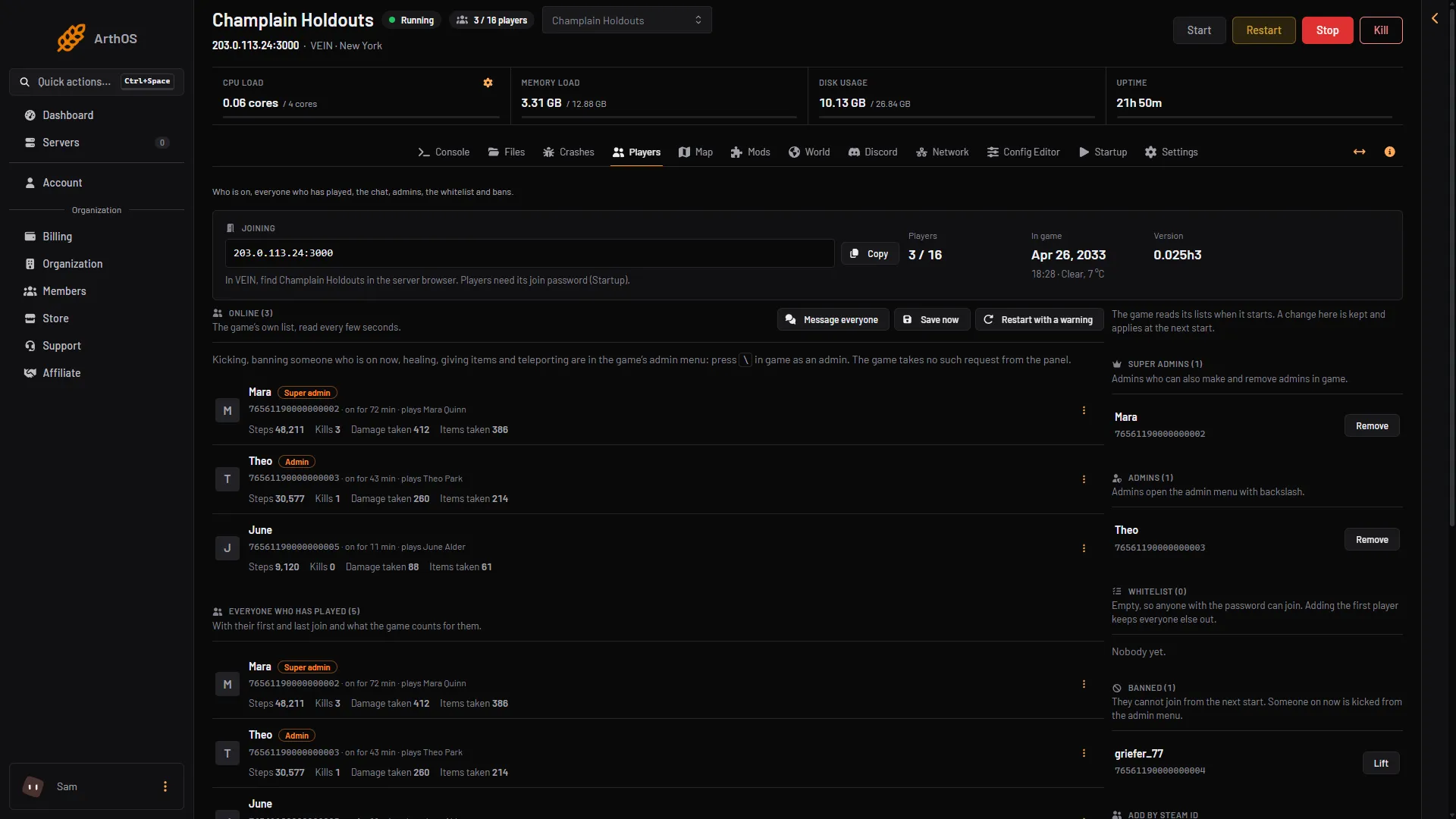
- Copy the address
- How players join
Not checked on 0.025 as of 27 October 2026: which port Steam favourites needs, the game port or the query port. The Joining card copies the game port.
If it does not work
- Missing for the first two minutes. Normal. Wait.
- Missing for long, and Crashes shows the server list finding. Choose Restart at the top right of the server page. The panel saves the world first.
- Listed in the server browser is False. Set it to True while the server is stopped, then start it.
- You search for the old name. The browser shows Server list name from the last start.
- Favourites do not connect either. Check the join password on Startup, and that the server is running.
More about the game: VEIN servers. Related: VEIN public server listing.