











If a VEIN setting you changed is gone, you most likely changed it while the server was running. The game rewrites its settings files, Game.ini and Engine.ini, every time it stops, and it writes over anything you changed while it ran. Stop the server first, change the setting, then start it.
Change settings the right way
- Choose Stop at the top right of the server page.
- Open the Config Editor. Choose Server settings (
Game.ini) or Game rules (Engine.ini). - Change the setting and choose Save.
- Choose Start at the top right of the server page. The game reads the files at start, so the change applies then.
When the server is running, the Config Editor shows a note under the two tabs: “The game writes this file itself when it stops, over anything changed while it runs. Stop the server to change these settings.” The picture marks the two tabs.
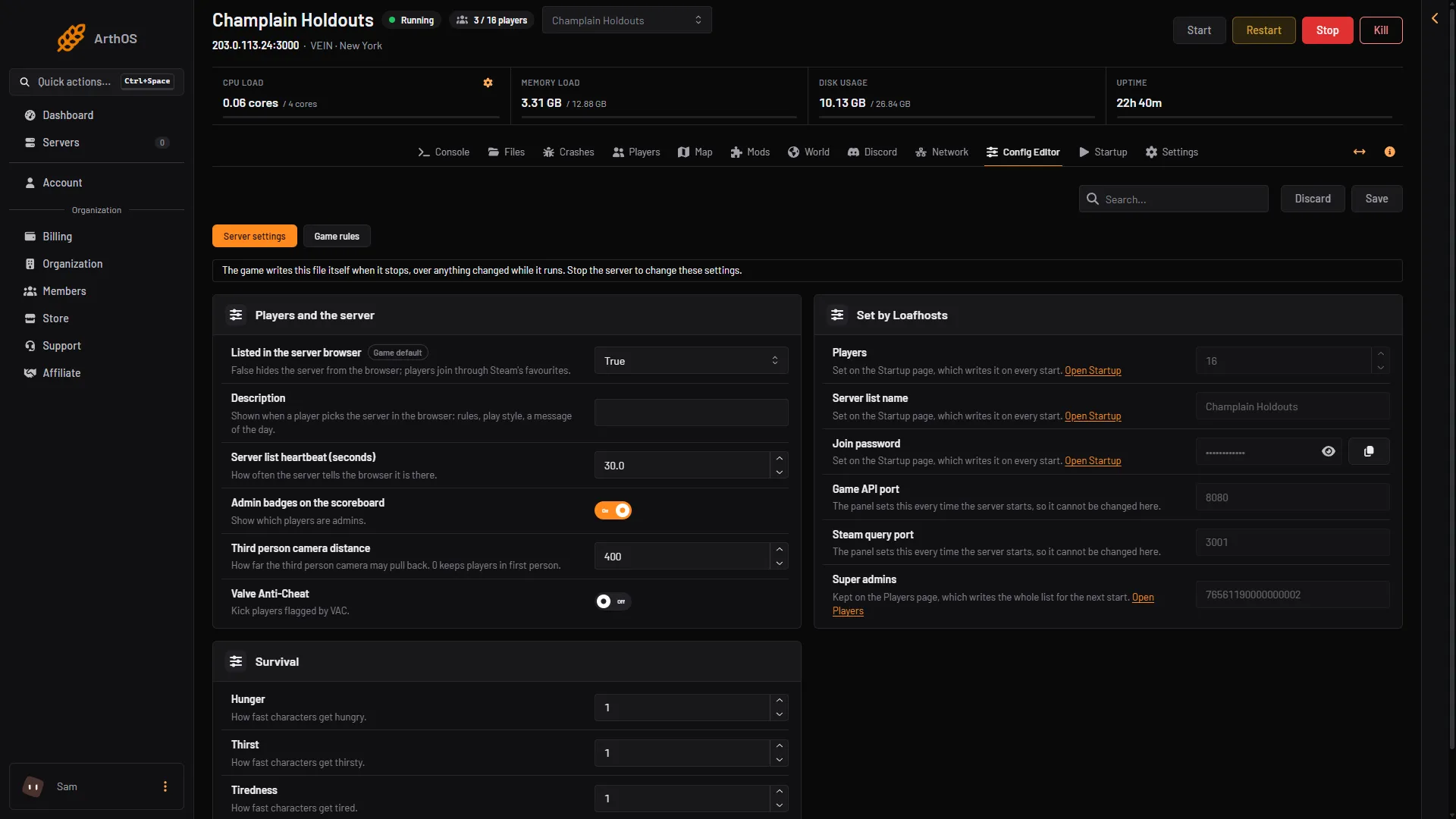
- Server settings tab
- Game rules tab
The same rule holds if you edit Game.ini or Engine.ini in Files while the server runs. The game replaces your edit when it stops.
By hand
Edit only while the server is stopped. The files are in Vein/Saved/Config/LinuxServer. Not checked on 0.025 as of 27 October 2026: the folder on a Windows server.
[/Script/Vein.VeinGameSession]
ServerDescription=Friendly server, be kind

[/Script/Vein.ServerSettings]
GS_HungerMultiplier=1
That is Game.ini (Server settings). Engine.ini (Game rules) holds rules such as vein.Autosave.Interval=300 under [ConsoleVariables].
A setting at its default disappears
Unreal Engine, which VEIN is built on, leaves out every line that equals the game’s own default when it writes a file. So if you set something back to its normal value, you will not see the line any more. This is expected. The setting still has that value.
In the Config Editor, a setting missing from the file shows a Game default badge beside its name.
Some settings are not in the Config Editor
A few settings are set elsewhere, and the panel writes them again before every start:
- Players, Server list name and Join password: change these on the Startup page.
- Super admins: change these on the Players page.
- Global chat webhook and Admin reports webhook: change these on the Discord page.
In the Config Editor these sit in the Set by Loafhosts card, greyed out, each with a link to the page that changes it. Edit them in the file by hand and the next start will overwrite your edit.
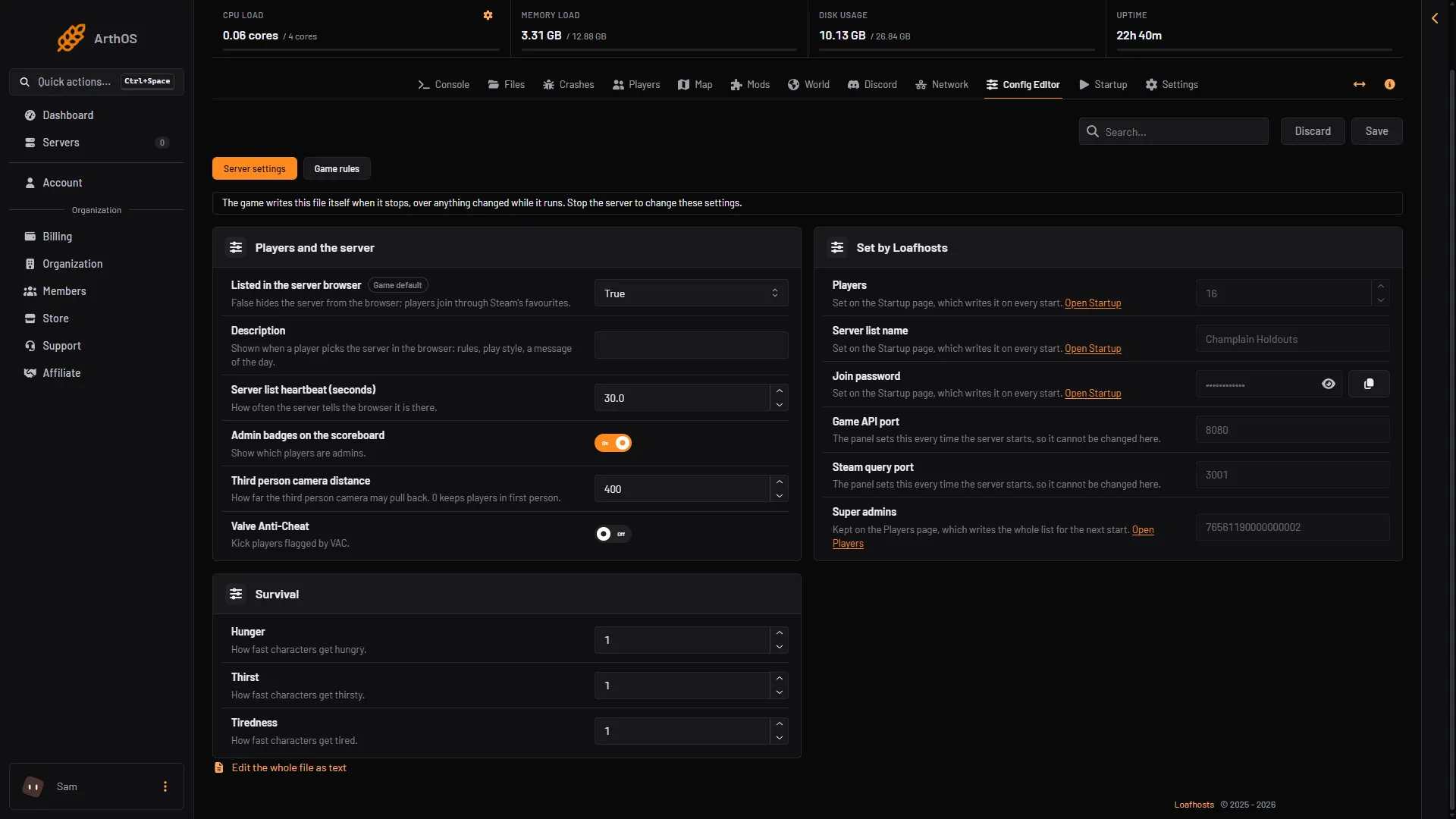
- Set by Loafhosts
- Open Startup
- Open Players
Lists change at the next start
Super admins, admins, the whitelist and bans are on the Players page. The game reads these lists only when it starts. A change made while the server runs is kept and applies at the next start.
Autosave settings on the World page also need the server stopped: the page says “Stop the server to change this: the game rewrites its settings when it stops.” See autosave settings.
If it does not work
- The setting is back to normal after a start. It was changed while the server ran, or edited by hand in a locked place. Stop the server and change it in the Config Editor.
- You cannot change a setting. The server is running or still starting or stopping. Wait until it is stopped.
- A rule has no effect in game. Check the name of the rule in game rules. Some can also be changed in the game’s admin menu, opened with backslash (
\) by an admin.
More about the game: VEIN servers.
Not checked on 0.025 as of 27 October 2026: every setting’s effect in game, and which settings the admin menu offers.