
















To stop new players joining your Arma 3 server, open the Players page and choose Lock out under New players. To open it again, choose Let in. The change is immediate.
When to lock
Lock the server when you do not want anyone new to join. For example:
- You are in the middle of a planned event and want a closed group.
- A mission needs a set number of people and the slots are full.
- You are testing a mission and do not want strangers to walk in.
Locking is quicker than a join password. A password needs a restart before it takes effect. A lock works at once and you can undo it at once. To keep a server closed all the time, use a password instead: set a join password.
Lock the server
- Open the Players page of your server. The server must be running and BattlEye must be answering.
- Find the row of controls above the Online list.
- Beside the words New players, choose Lock out (1).
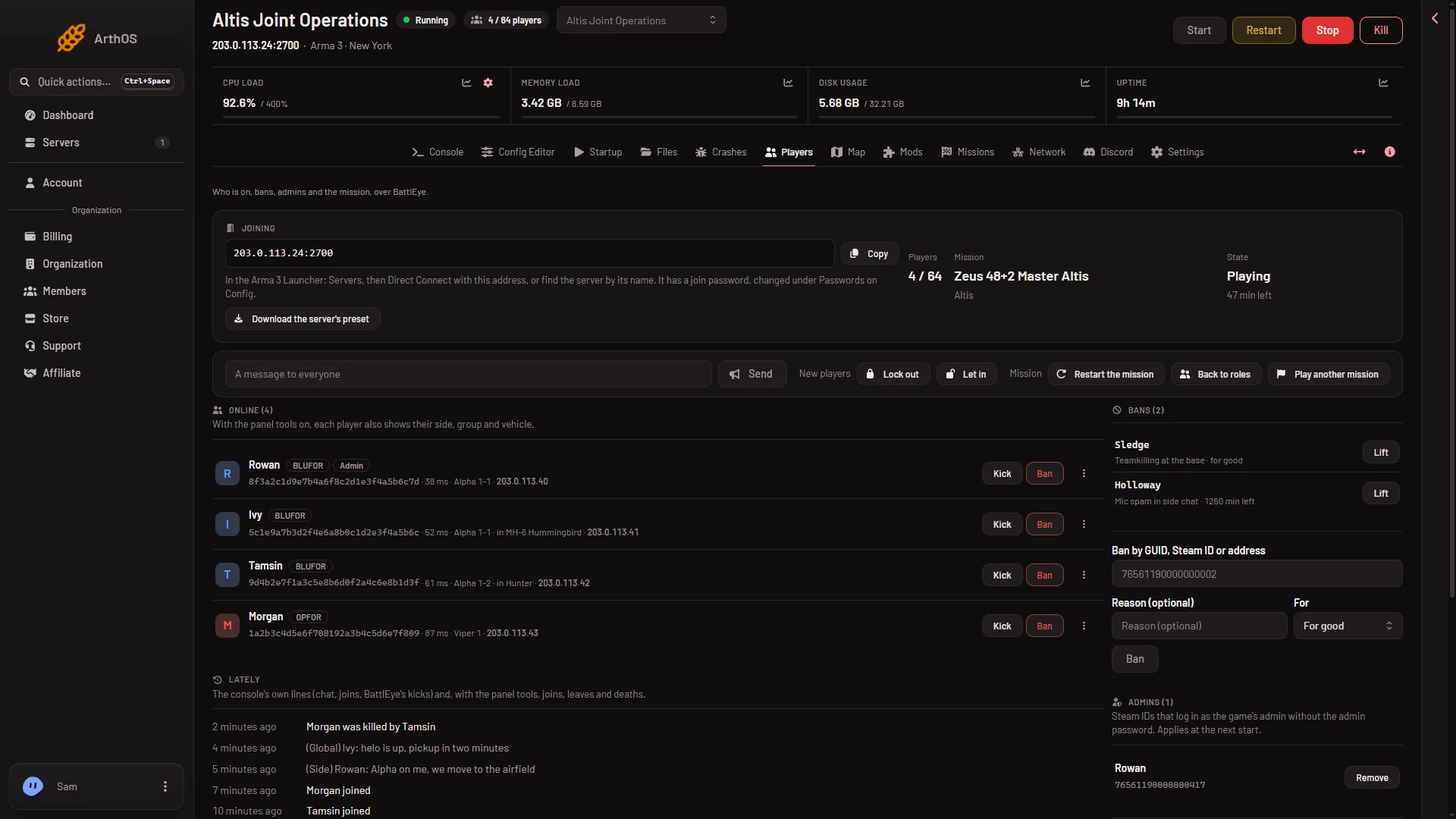
- Lock out
- Let in
The panel shows: “Server locked: nobody new can join until it is unlocked or restarts”. It sends the game’s own #lock command through BattlEye.
Let players in again
Next to it, choose Let in (2). The panel shows “Server unlocked” and sends #unlock.
Things to know
- The panel does not show the state. Both buttons stay on screen all the time. Nothing on the page tells you whether the server is locked right now. If you are not sure, press Let in when you want players to join.
- It is for new players. The panel’s wording is “nobody new can join”. Use Kick to remove a player who is already in. See kick a player.
- Tell your players. Players already on the server can use a short note about why. See message all players.
By hand
If you run the server yourself, an admin who is logged in types the same two commands in the game’s chat, or you send them through BattlEye’s remote console:
#lock
#unlock
Who can do it
Your role on the organization must be allowed to message and manage players. If New players is missing, your role does not allow it. Ask the owner to change your role.
If it does not work
- The buttons are missing. BattlEye is not answering yet, or the server is stopped. The page says “The server is running, but BattlEye is not answering yet.” or “The server is starting.” Wait until the server is up.
- A player got in after you locked. If the server restarted since, the lock is gone. Press Lock out again.
- An error says too many actions. The panel allows 30 actions a minute for one server. Wait a minute.
Not checked on 2.22.154089 as of 13 November 2026: what a refused player sees on their screen, and what happens to a player who drops and joins again while the server is locked, because locking has not been tried with a real player.