
















The Players page shows who is on your Arma 3 server and lets you act on them. It also holds the join address, the bans, the admins list and a few mission controls. This guide walks through it from top to bottom.
The page talks to the game through the remote console of BattlEye (the game’s anti-cheat) and reads the server’s Steam query for the player count. It refreshes by itself: every 10 seconds while the server runs, every 30 seconds while it is stopped. Which buttons you see depends on your role in the organization. A button that is missing means your role does not allow it.
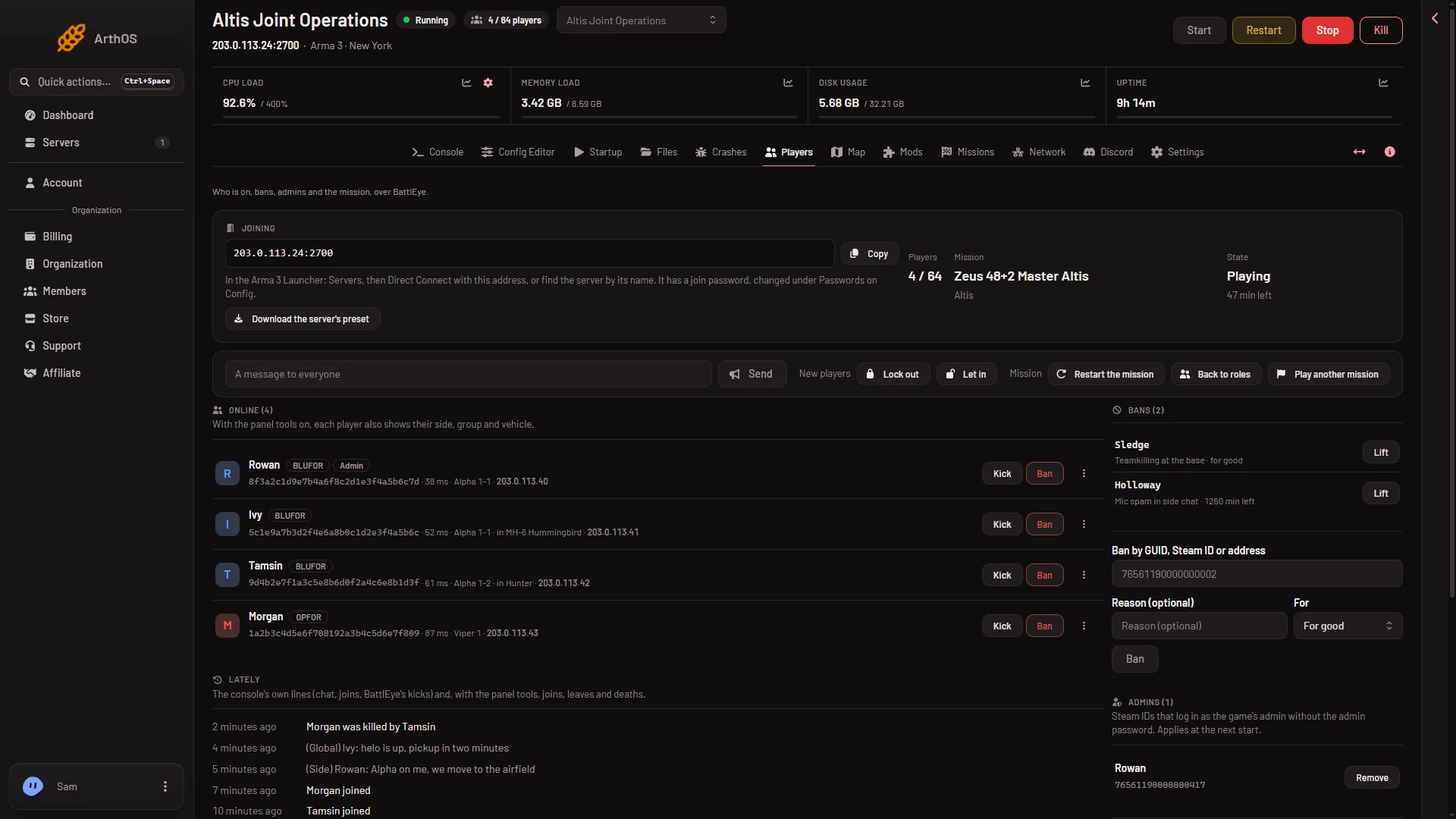
- How players join
- State
- A message to everyone
- Who is on
- Bans
When the page has no players to show
The page tells you why:
- “The server is starting. Players show here once it is up.”
- “The server is running, but BattlEye is not answering yet.” Wait a little. If it stays, see whether BattlEye is on in the Config Editor.
- “The server is stopped.” The online list is empty, but the bans, the admins and the players seen lately are still there.
Joining
The card with the address (1) is the one to send your players. It shows:
- The server’s address in a box with a Copy button. It is your server’s address and game port.
- How to join: “In the Arma 3 Launcher: Servers, then Direct Connect with this address, or find the server by its name.”
- Whether there is a password: “It has a join password, changed under Passwords on Config.” (the Config Editor tab) or “It has no join password.” This shows only while the server answers.
- Download the server’s preset. It is a file for the Arma 3 Launcher with the server’s mods in load order. Players drag it onto the Launcher to get the same mods. Server-only mods are left out, because players never need them.
The password is not shown here. You change it under Passwords in the Config Editor, and it applies at the next start.
The strip: Players, Mission, State
Three values sit beside the address. State (2) is the last of them.
- Players is how many are on, out of the maximum, for example 12 / 32.
- Mission is the name of the mission and its world, or “Choosing a mission” while nobody has picked one.
- State is where the mission is: Choosing a mission, Loading, Briefing, Playing, Debriefing or Starting. When the mission says so, it adds the minutes left, such as “20 min left”. Choosing a mission is normal for a healthy server that waits for an admin to pick one.
Online
Online (4) lists everyone on the server now. Each row shows:
- the player’s name, with tags: Admin (the player is logged in as admin, or their Steam ID is on the Admins list), In the lobby, Dead, and GUID not checked yet while BattlEye is still checking a player who has just joined;
- their BattlEye GUID, which you can click to copy;
- their ping, such as “48 ms”, and the group or vehicle if the panel tools are on.
The GUID is a 32-character code BattlEye makes from the player’s Steam ID. It stays the same between visits, so it is the safe way to point at one player. It is not the Steam ID itself.
With the panel tools on, rows also show the player’s side (BLUFOR, OPFOR, Independent, Civilian) and their group and vehicle. Without them the page says “Side, group, Steam ID and where everyone is come from the panel tools.” and links to the Map page, where you turn them on. See turn on the panel tools.
A player’s address is shown only to a role that is allowed to see addresses. Everyone else does not see it.
Row actions
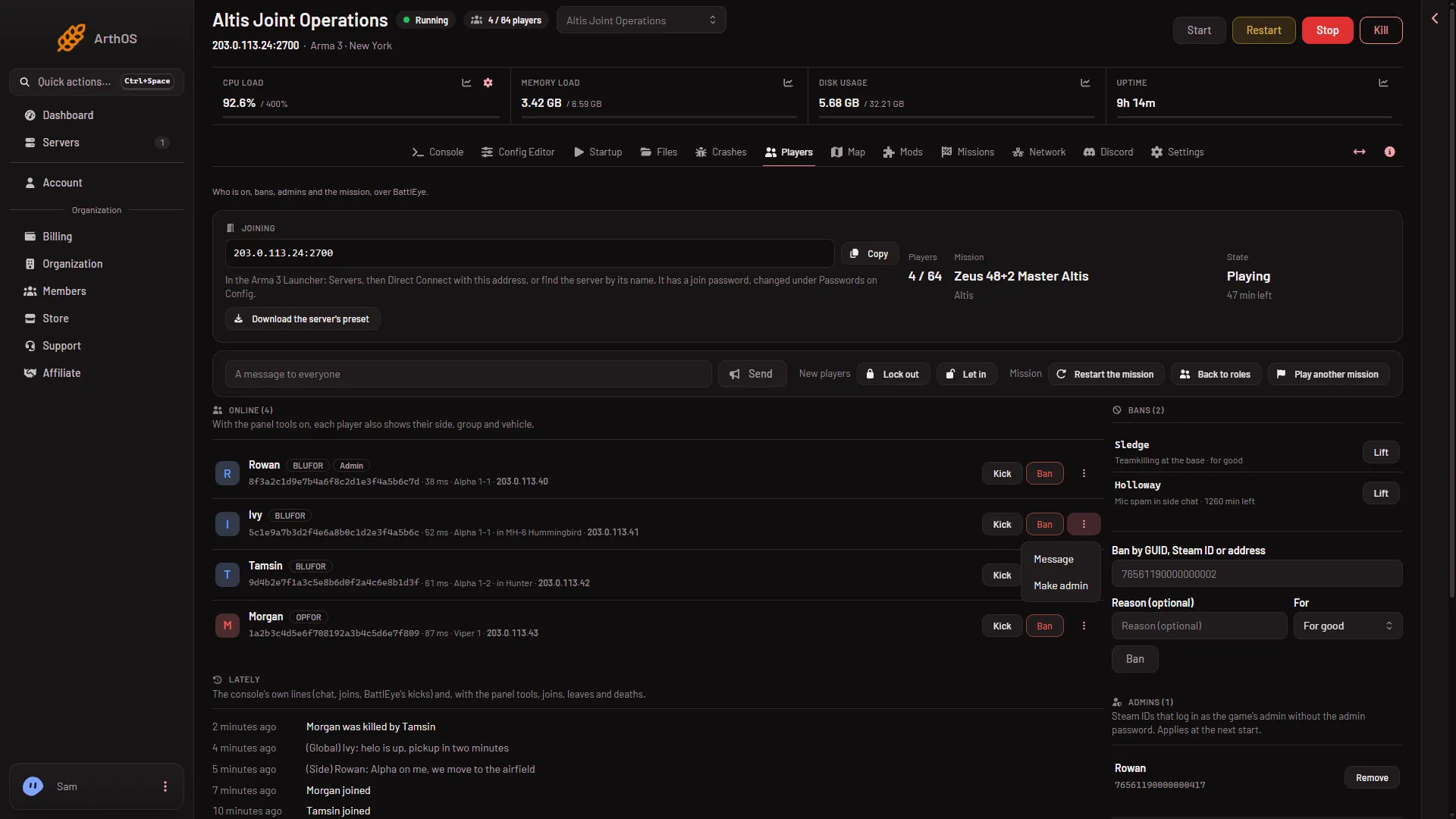
- Message
- Make admin
- Kick asks for an optional Reason (optional) and removes the player. The box says “They can join again at once.” See kick a player.
- Ban asks for a reason and For: For good, 1 hour, 1 day, 3 days, 7 days or 30 days. The list starts on For good. See ban a player.
- The three dots, “More for (name)”, hold Message (a message to that player) and Make admin or Take admin away. Make admin needs the player’s Steam ID, which comes from the panel tools.
Each action goes to the player by number and GUID. If the player left and someone else took the number, the panel says the player is no longer on the server and hits nobody. The panel sends the command to the game. How a kicked or banned player’s game looks was not checked as of 13 November 2026.
A player who is still joining cannot be acted on yet. The buttons wait until the GUID is checked.
Messages and the mission
The bar under the join band (3) is for the whole server.
- A message to everyone: type up to 120 characters and choose Send.
- New players: Lock out stops anyone new joining until you choose Let in or the server restarts. Players already in stay. The page does not show whether the server is locked. If you are not sure, choose Let in.
- Mission: three buttons.
- Restart the mission starts it again from the beginning. Progress is lost unless the mission saves it. A box asks you to confirm.
- Back to roles ends the mission and sends everyone back to choosing a role, then it starts again.
- Play another mission opens a picker. Choose the mission, a Difficulty (The server’s own, Recruit, Regular, Veteran or Custom) and Play it now. The mission playing now ends. The rotation is not changed.
These do not restart the server. They change the mission only. See change the mission now and restart the mission.
Bans
Bans (5) lists the BattlEye bans, by GUID or address. Each shows how long is left, “for good” or “ended”. Choose Lift to remove one.
Below the list is Ban by GUID, Steam ID or address. Type a 32-character GUID or a 17-digit Steam ID, such as 76561190000000101, choose For and then Ban. A Steam ID is turned into its GUID for you. This bans someone who is not on the server now. See ban by GUID or Steam ID.
A role that may see addresses can also ban an address. For everyone else, an address in the list reads “An address”.
Admins
Admins lists Steam IDs that log in as the game’s admin without the admin password. Add one with Add by Steam ID: 17 digits, then Add. Remove takes it off. The list holds at most 30, and it applies at the next start. See make someone admin.
Admins who are not on the list log in with the admin password, which you set under Passwords, by typing #login and the password in the game’s chat.
Seen lately
Seen lately lists everyone who played on the server in the last 90 days, newest first. It shows the first 8. Choose Show all for the rest and Show fewer to fold it again. Each name has a Ban button, so you can ban someone who has already left. That button bans for good at once, with no box and no question. See ban a player who left.
The panel checks BattlEye’s list every two minutes to remember names. A player who joined and left in between may not be listed.
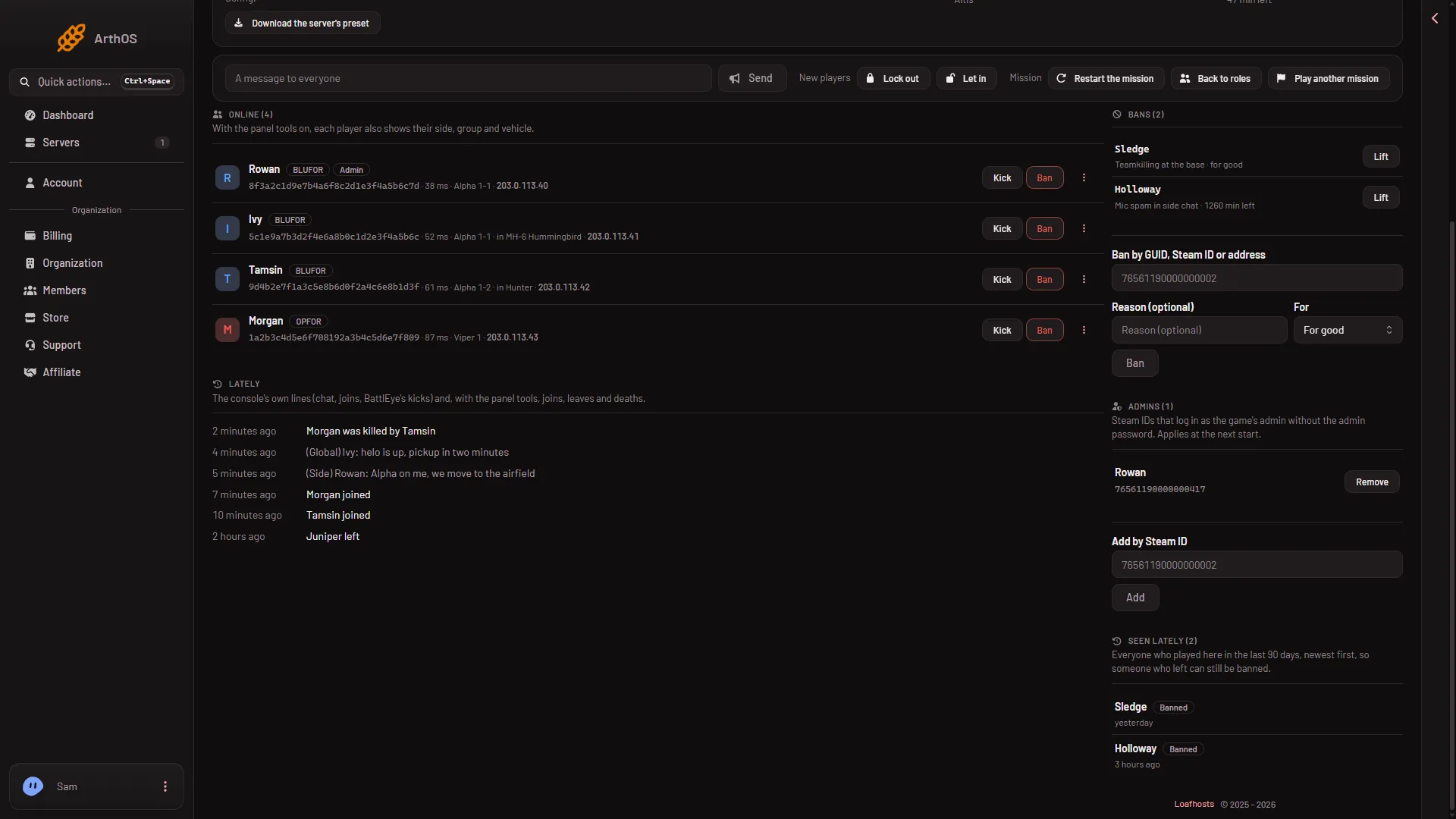
- Bans
- Admins
- Add by Steam ID
- Seen lately
- Lately
Lately
Lately is a short log of the newest 60 events: chat, joins, BattlEye’s kicks and, with the panel tools, deaths and leaves. Lines read “(name) joined”, “(name) left”, “(name) died” and “Mission: (name)”. Remote console logins are left out.
If it does not work
- The page says BattlEye is not answering. The server is still starting, or BattlEye is off. Wait, then check the Config Editor.
- The page says BattlEye refused the panel’s password. The RCon password was changed while the server ran. Restart the server. A restart disconnects everyone who is on, so choose a quiet moment and send A message to everyone first.
- A button is missing. Your role in the organization does not allow it. Ask the owner.
- Make admin is missing. The panel needs the player’s Steam ID, so turn on the panel tools on the Map page first.
More about the game: Arma 3 servers.
Sources: Bohemia wiki: Dedicated Server, Bohemia wiki: BattlEye, Bohemia wiki: Server Config File