
















The Mods page keeps the list of Steam Workshop mods your Arma 3 server loads. You change the list here, then apply it. Nothing reaches the server until you apply. The page has four tabs. Open the Mods tab in the row of tabs at the top of your server. Read about your Arma 3 server for the rest of the panel.
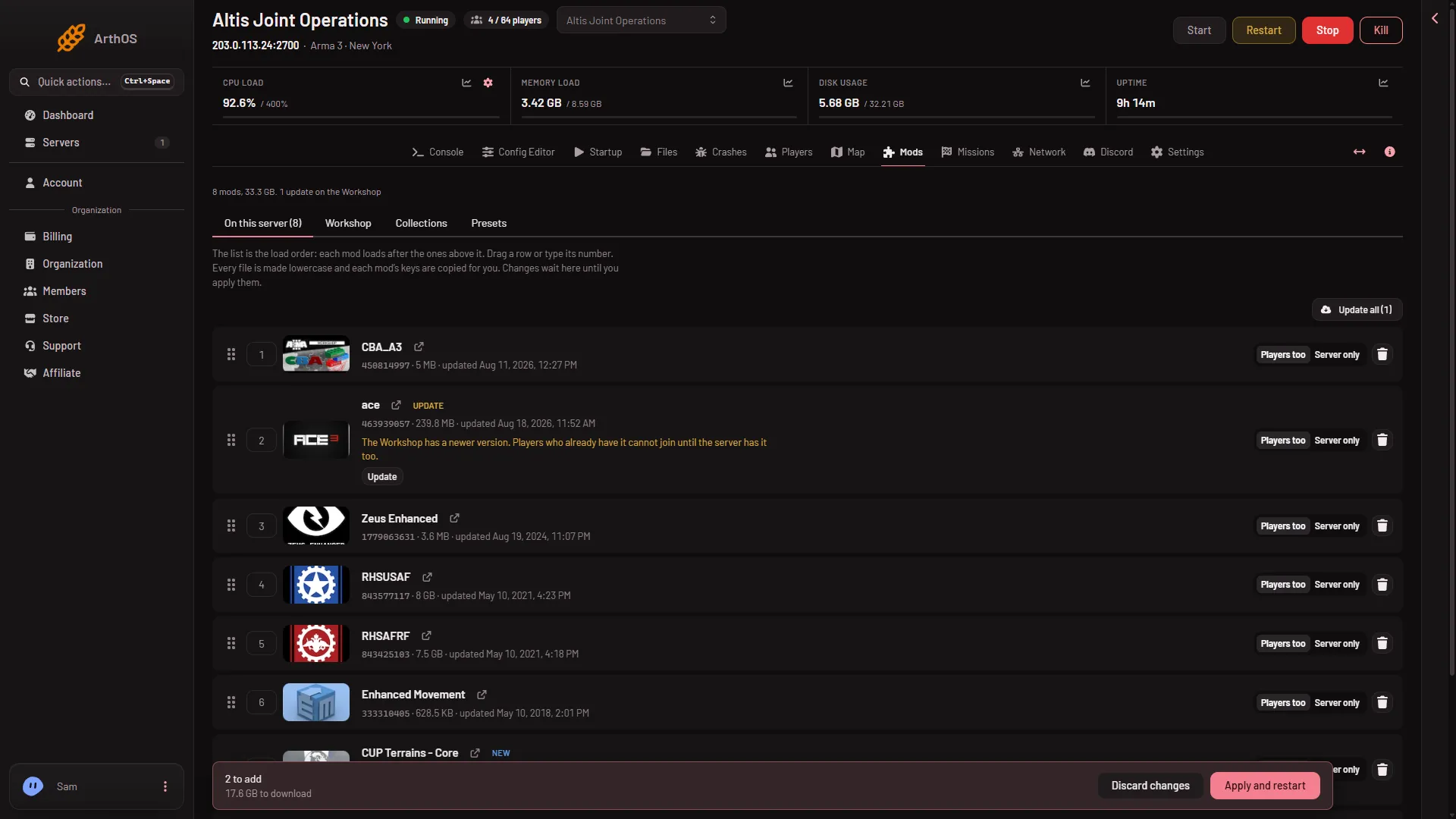
The subtitle under the page title shows the number of mods and their size, for example “6 mods, 4 GB”. When the Workshop has newer versions, it also says how many.
- On this server
- Workshop
- Collections
- Presets
- Drag to change the order
- Apply and restart
The tabs are On this server (1), Workshop (2), Collections (3) and Presets (4). Drag a row by its handle (5). The bar at the bottom ends with Apply and restart (6).
On this server
The first tab is On this server, with the count in brackets. It is the list, and the list is the load order (the order the mods load in): each mod loads after the ones above it. Drag a row by its handle to move it, or type its number.
Each row shows:
- The mod’s name and when it was last updated.
- Open on the Workshop, a link to its Steam page.
- A picker called Who loads the mod, with Players too or Server only. Players too means players must have the mod as well. Server only means it stays on the server. See client mods and server-only mods.
- A button to take the mod off the list.
- Small chips that tell you its state: New, Update, Not downloaded, Not on the Workshop, Wrong game, Local folder, Server only, Not for servers, For players too and Players only.
A row also explains itself. If a mod needs another mod that is not on the list, the row says “Needs (name), which is not on the list.” and offers Add (name). If a mod loads before a mod it needs, the row tells you to drag it lower. Sort by what each needs fixes the whole order in one click. See mod load order.
At the bottom, a card may list folders on the server that are not on the list. They are not loaded and only take disk space. You can put them on the list or choose Delete files.
Workshop
The Workshop tab is where you find mods. Paste a link or ID in Add by link or ID, or search with Search the Workshop. See install a Workshop mod.
Collections
The Collections tab keeps lists of mods you want to reuse. These are the panel’s own collections, not a Steam Workshop collection page. You can keep the current list as a collection, share it with your organization or with everyone, and put another collection onto your list. Using a collection only changes the list on this page. The server changes when you apply.
Presets
The Presets tab has three jobs:
- Give players the server’s mods: download a preset file. Players drag it onto the Arma 3 Launcher and it loads the same mods.
- Import a preset: bring in a preset exported from the Arma 3 Launcher.
- Modpacks: well-known sets, such as ACE3, to start from. What each mod needs comes with it.
The change bar
When you change anything, a bar appears at the bottom. It counts what will be added or removed, for example “2 to add”, and shows the size to download. Choose Discard changes to undo it all. Choose Apply to make the server match the list. If the server is running, the button reads Apply and restart. See apply mod changes.
Good to know
- The server runs on Linux. Mods that carry their extension only as a Windows
.dllcannot run on it. - A server can load at most 200 mods.
- The panel’s own tools are not a mod. They are turned on and off on the Map page, and they do not appear in the list.
- Players need Arma 3 and the same mods and versions as the server.
Sources: Bohemia wiki: Startup Parameters