












Open the Mods page, find a mod in the Workshop tab, press Add, then press Apply. If the server is running, it stops, downloads the mod, checks it and starts again. If it is offline, it downloads the mod and stays offline. This needs server mods turned on first. See Palworld server mods.
Only Steam Workshop mods work here. Mods from other sites are not offered. Only mods made for servers run.
Add a mod
- Open the Mods page. It must say Server mods are on.
- Choose one way to find the mod:
- Search. Open the Workshop tab. Type in Search the Workshop. Use Sort to pick Most subscribed, Trending, Recently updated or Newest.
- A link or ID. In Add by link or ID, paste a Workshop link or the mod’s ID. You can paste several. Choose Look up. A box Add these mods? lists them. Its button shows the number of mods, for example Add 2. Choose it.
- In the search results, choose Add on the mod. The page says “Added to the list. Apply to download.”
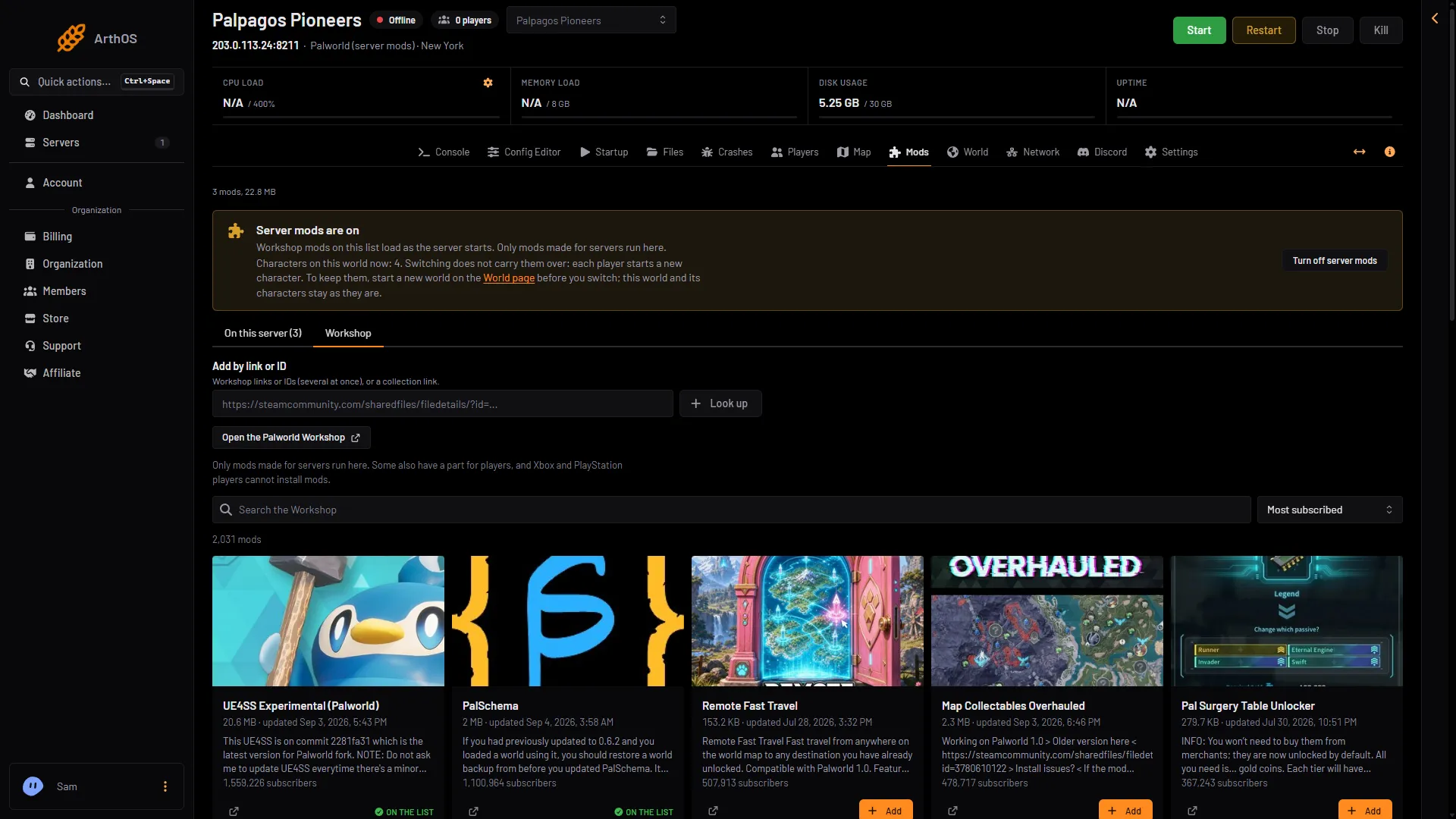
- Paste a link or ID
- Look up
- Search the Workshop
- Add
In this picture, paste a link or ID (1) and choose Look up (2), or type in Search the Workshop (3) and choose Add (4) on a mod card.
The mod goes on your list. Nothing downloads yet.
Add what it needs
Many mods need another mod. The mod’s row then says “Needs (name), which is not on the list.” Choose Add (name) next to it. The common ones are UE4SS and PalSchema. See UE4SS and PalSchema.
Apply
A bar appears: Changes not applied yet. It counts what you are adding and removing and how much will download.
- Choose Apply. If you want the server to restart afterwards, the bar may show Apply and restart.
- Read the box Apply the mod changes?. If the server is running, it says the server stops now, downloads, checks each mod, writes the game’s mod settings and starts again. Players online are disconnected. If the server is offline, it says the mods download now and the server stays offline. The next start loads the list. If a download fails, the copy the server had stays.
- Confirm. Progress shows at the top of the page.
If you change your mind before applying, choose Discard changes.
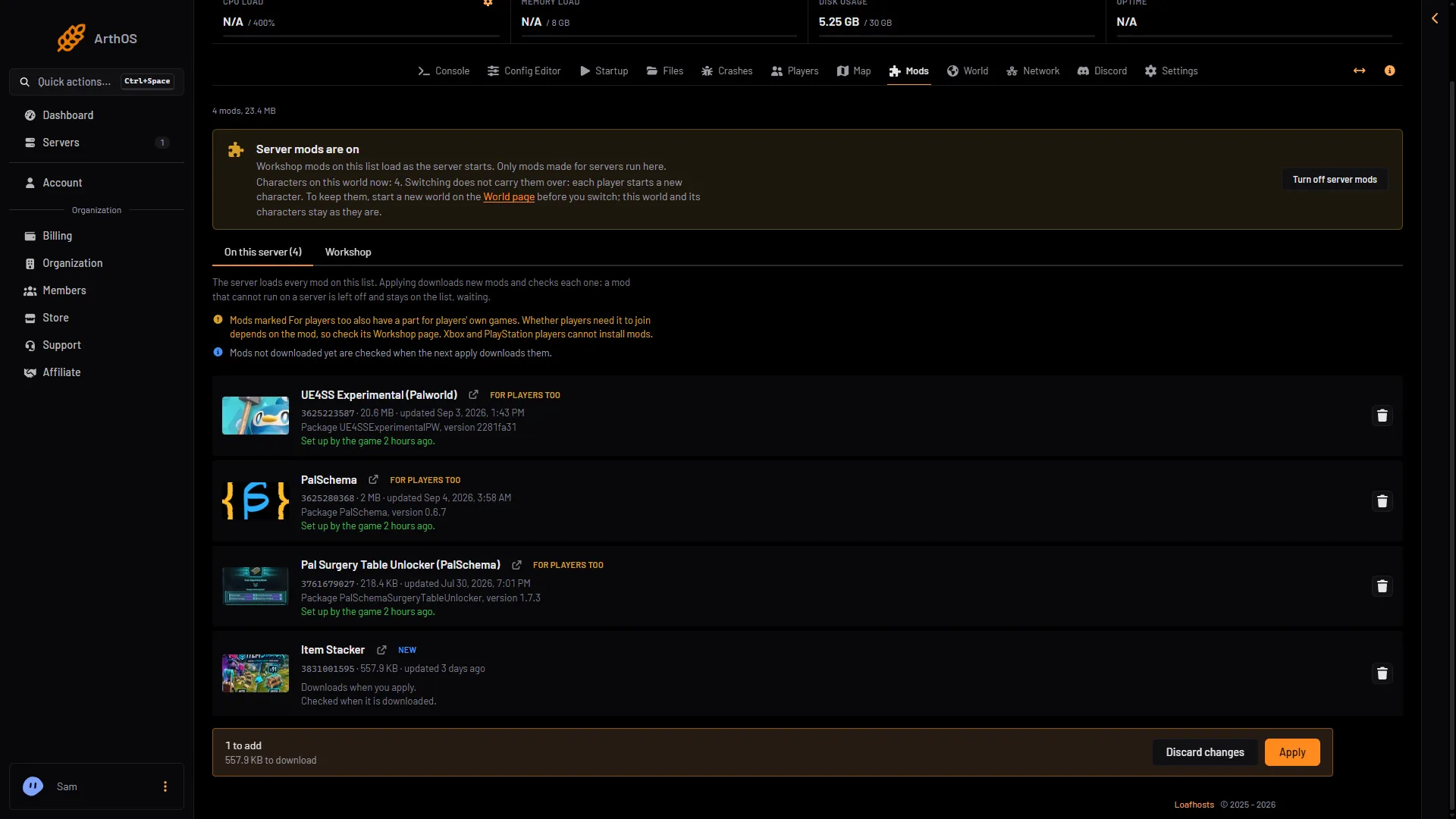
- A mod added
- Discard changes
- Apply
In this picture, the new mod (1) waits on the list. Choose Discard changes (2) to drop it, or Apply (3).
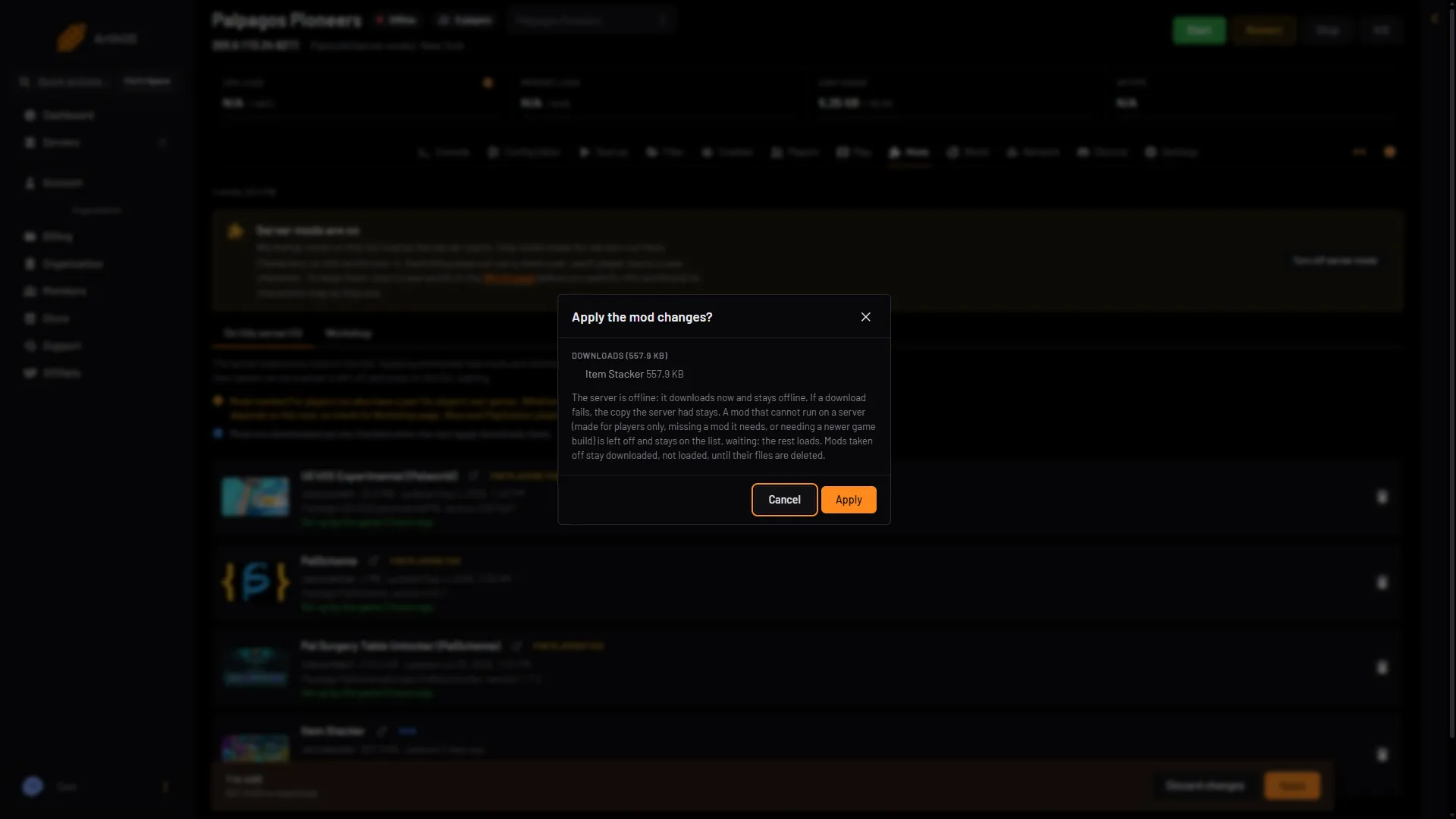
- A mod that cannot run
- Apply
In this picture, the box shows the offline case. Read what it says about a mod that cannot run (1), then choose Apply (2).
A mod is left off only when it declares that it cannot run on a server. It stays on your list, waiting. The rest still loads. The cases are: a mod made for players only, a mod missing a mod it needs, and a mod that needs a newer game version. A mod that loads and then breaks on a new game build is not caught. Pocketpair says mods ” may cause save-data corruption or crashes.
Check each row after the start
Open the On this server tab. Each row shows what the game did at its last start:
- “Set up by the game (time).” The game set the mod up. This is what you want.
- “The game sets it up at the next start.” Start or restart the server.
- “The game runs version (number); the one in its folder is set up at the next start.” The mod was updated. Restart to use the new version.
- “The game did not set it up at its last start.” Choose “Its log from that start says why.” It opens the Crashes page.
A row can also show chips such as Not downloaded, Update, Server only, For players too or Not for servers. A Not for servers mod will not run.
If it does not work
- Apply is greyed out or missing. You need a role that allows changing the startup and restarting the server.
- The mod is on the list but off. Read its row. It will say what is missing or that it needs a newer game build.
- A mod will not look up. The link may be for another game. The page says “This is a mod for (game), so this server cannot use it.”
- Players cannot join after you add a mod. See mods for players.
More about the game: Palworld servers.
Sources: docs.palworldgame.com: Mod