






To play your own world with friends, zip its folder, upload the zip in Files, extract it, and type the folder’s name into World folder (level-name) in the Config Editor. The server must run the same Minecraft version as the world, or a newer one.
The zip holds one folder named for the world. After you extract it, level.dat is directly inside that folder.
The Nether and the End are inside the world folder, so you copy one folder and nothing else.
Before you start
- Find the version. Note the version you last played the world in. Your server must run that version or a newer one: change your server version. A newer server upgrades an older world the first time it loads it, and that world cannot go back.
- Find the world. Your worlds are in the
savesfolder inside your game folder:
| System | Game folder |
|---|---|
| Windows | %APPDATA%\.minecraft |
| macOS | ~/Library/Application Support/minecraft |
| Linux | ~/.minecraft |
On Windows, press the Windows key and R, paste %APPDATA%\.minecraft\saves and press Enter. On Linux and macOS the game folder is hidden: press Ctrl+H (Linux) or Cmd, Shift and the full stop key (macOS) in your file manager to show it.
- Zip the world. Zip the one folder that holds your world. Open the zip and check that the world’s folder is inside it, with
level.datinside that folder.
On 26.x that folder holds level.dat, players, datapacks and dimensions. The Nether and the End are in dimensions/minecraft/the_nether and dimensions/minecraft/the_end. Before 26.1 they were the DIM-1 and DIM1 folders in the world folder. Either way they travel with it.
In the ArthOS panel
- Open your server, go to the Console and press Stop. Wait until it says the server is offline.
- If the server already has a world you want to keep, make a backup first.
- Open Files. Drop the zip onto the page, or choose Upload, then Upload from computer. If the world is saved at a web address with a direct link, Upload from URL works too.
- Open the menu on the zip’s row (right click it) and choose Extract. Keep the server’s main folder in Destination Directory, then confirm.
- Check that a folder with your world’s name appeared in Files, with
level.datdirectly inside it. Delete the zip afterwards to free space. - Open the Config Editor, search for World folder and type that folder’s name exactly (1). It must match the folder, capital letters included. Press Save.
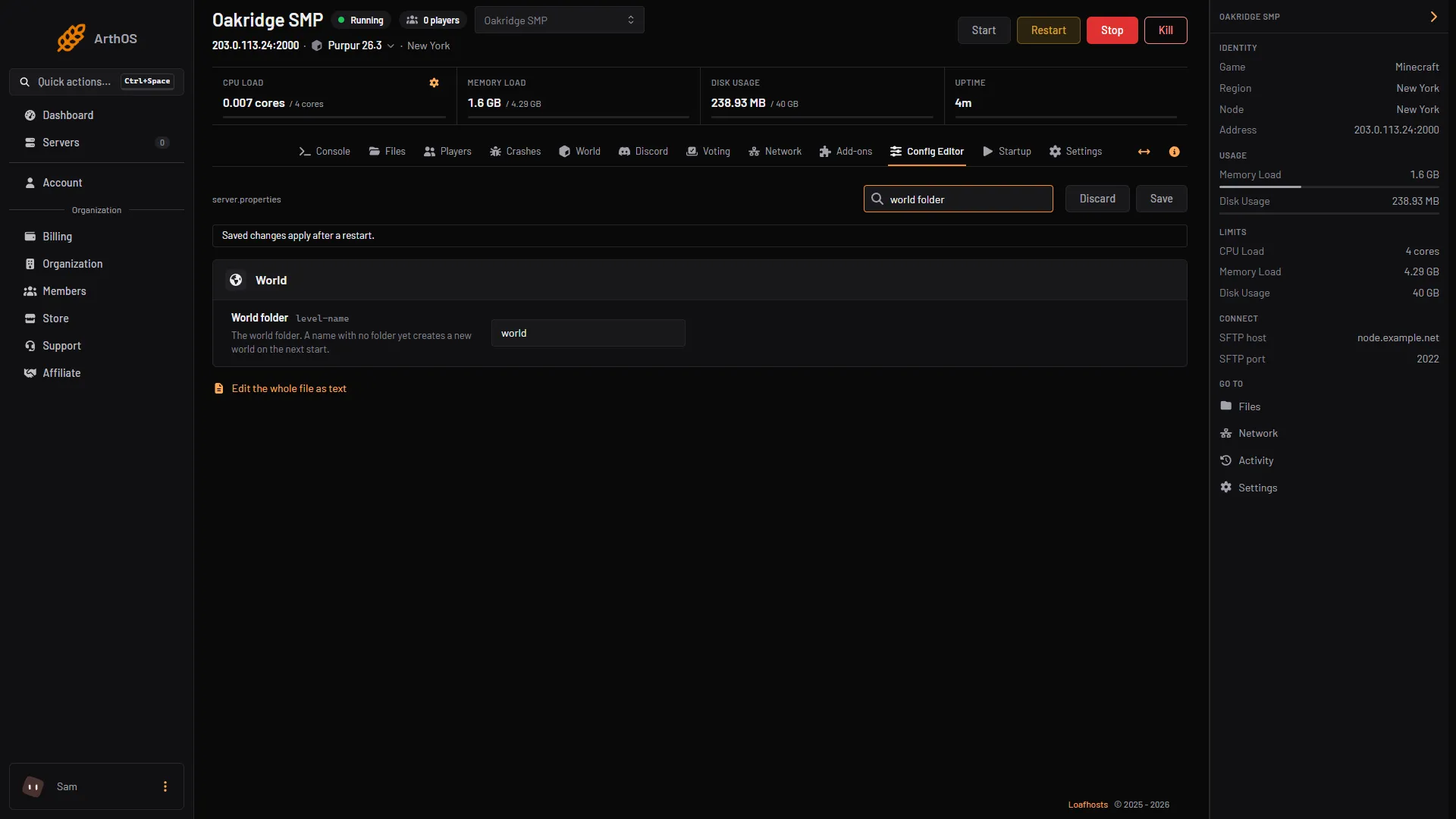
- Type the folder name
- Start the server and watch the Console. Open the World tab to look at the map. The tab shows which Minecraft version the world was saved in.
To keep the name world:
- Rename the old
worldfolder in Files, for example toworld-old. - Rename the folder you uploaded to
world.
What does not come with the world
- Your character. A singleplayer world keeps your character inside
level.dat. A server keeps each player in a file of their own inplayers/data, named after the player’s UUID. Look at your inventory after you join. - Commands. On a server you need operator status to use commands. See make someone an operator.
- Mod blocks and items. If you played with mods, the blocks and items they added are lost on a server that does not run the same mod loader and mods.
- Who can join. A new 26.3 server starts with the whitelist on. Add your friends first: set up the whitelist.
By hand
- Stop the server.
- Upload your world’s folder next to
server.jar, and unzip it there. - Open
server.propertiesand setlevel-nameto the folder’s name, for examplelevel-name=MyWorld. - Start the server.
If the folder named in level-name does not exist, the server makes a new world.
If it does not work
- The server made a new, empty world. The name in World folder does not match the folder, or the zip extracted into a folder inside a folder. Open Files and check that
level.datis directly inside the folder you named. - The server hangs when it starts. The world was saved by a newer Minecraft than the server runs. Open Versions, choose your world’s version or a newer one, or restore your backup. The dialog asks you to tick a box named for the older version before it lets you go back.
- Blocks or items are missing. The world used mods. Run a mod loader with the same mods: see install a mod.
- Friends cannot join. The whitelist is on. Add them in the Players tab.
More on the game: Minecraft servers.
Sources: minecraft.wiki: .minecraft, minecraft.wiki: Player.dat format, minecraft.wiki: Java Edition level format, docs.papermc.io: Migration