












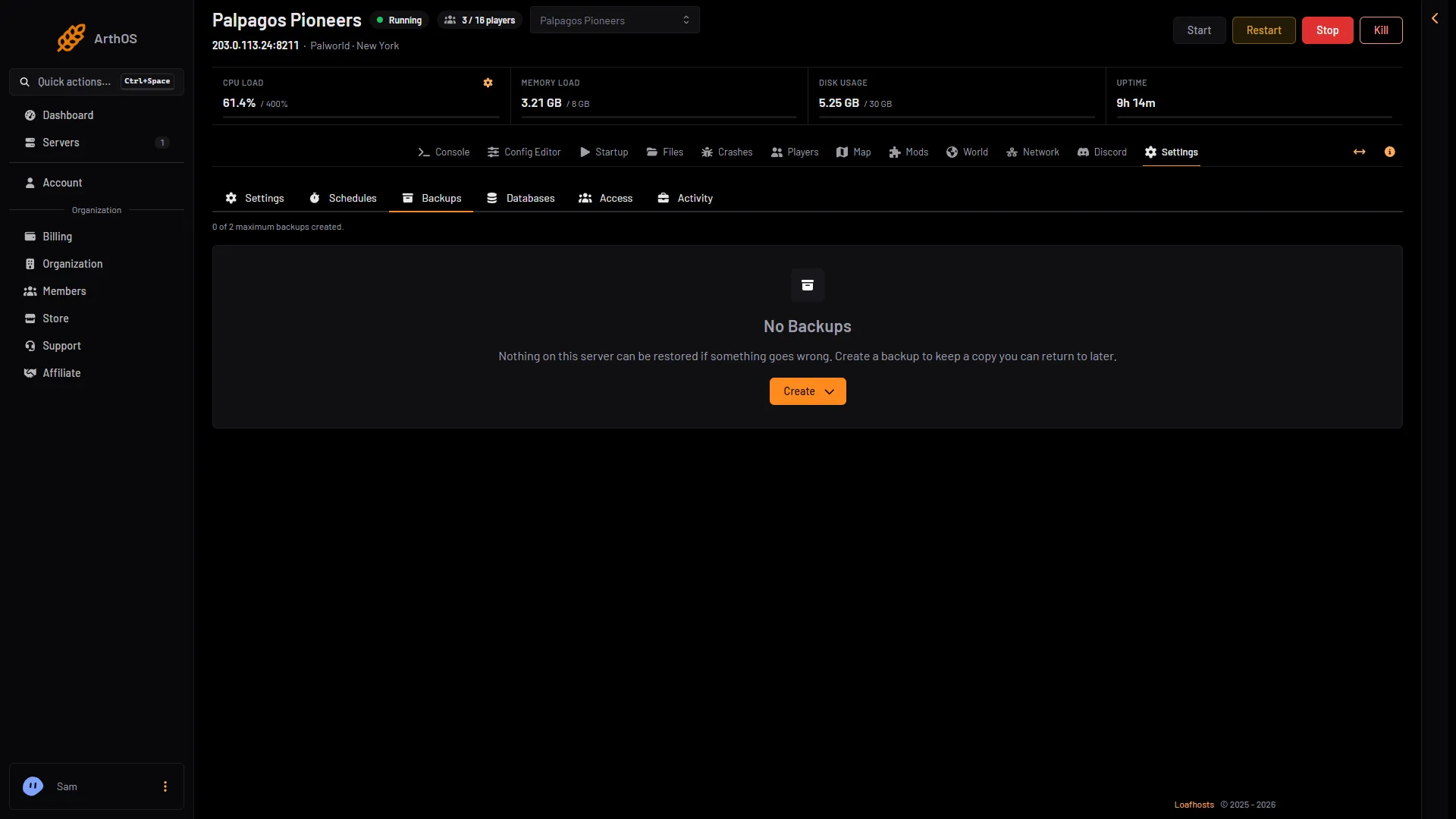
Open Settings, then Backups, choose Create, then Create Backup. The panel copies the server’s files and lists the copy. A backup of a Palworld server holds the world as the game last saved it. Press Save now on the Players page first if you want it up to the second.
The game also keeps its own backups of the world. They are a second safety net and are covered in Palworld world backups.
Make a backup
- Open the Players page and choose Save now. This asks the game to write the world to disk at once. It needs the game’s API. The game’s API is how the panel talks to the game. The panel keeps it on while the Admin password is 16 characters or more (a new server gets a 20-character one). With the API off, Save now does not work: wait for the next autosave, or set a longer admin password first.
- Open Settings, then Backups.
- Choose Create (1), then Create Backup in the menu.
- Leave the name as it is, or type your own.
- Choose Create.
The row shows a progress bar, then the size. The line at the top (2) says how many you have, for example “0 of 2 maximum backups created.”
- Create
- The backup limit
Without Save now, the backup still holds the world as of the game’s last autosave. The game saves every 30 seconds by default.
Lock a backup
A locked backup is never removed to make room, and it cannot be deleted until you unlock it.
- Open the menu on the backup’s row and choose Edit.
- Turn on Locked and choose Save.
The Locked? column shows a closed lock. You can also select rows and use Lock or Unlock in the bar that appears.
The limit
Each server has a backup limit. When you are at it, a new manual backup is refused. Delete one you no longer need, or unlock and delete an old one. The panel says “This server is limited to (number) backups.”
A scheduled backup works differently. At the limit, it deletes the oldest unlocked backup and then makes the new one. Lock the ones you want to keep, or the schedule will eventually remove them.
Back up on a schedule
- Open Settings, then Schedules, and create a schedule.
- Add a step of type Create Backup, from the Backups group.
- Set when it runs.
To make the world fresh for each backup, add a Send Command step with Save before it. See Palworld server commands. A schedule is also the place for scheduled restarts.
Download a backup
Open the menu on the row and choose Download. The panel starts the download of an archive. Keep a copy off the server if the world matters to you.
Restore a backup
Restoring puts the backup’s files over the server’s files. The panel stops the server itself.
- Open Settings, then Backups.
- Open the menu on the row and choose Restore.
- In the box Restore Backup, leave both switches off for a plain restore.
- Choose Restore.
The panel shows “Restoring backup…” and the server page shows that it is restoring. Wait for it to finish, then start the server.
The two switches matter:
- Do you want to delete all files of this server before performing this action? This cannot be undone. Turn it on only for a full wipe and replace. Files newer than the backup are lost, including other worlds.
- Restore the startup command, image, and variables from this backup. Turn it on only if you changed those and want them back.
To change only the world, or to go back a few minutes, use Put back on the World page instead. It keeps the current world as a backup. See roll back a Palworld world.
If it does not work
- Create Backup is refused. You are at the limit. Delete an unlocked backup first.
- Delete is not available. The backup is locked. Edit it and turn Locked off.
- The restored world is older than expected. The backup was made before the game’s last autosave. Press Save now before the next backup.
- Save now does not work. The API is off, usually because the admin password is shorter than 16 characters. Set a longer one in the Config Editor and restart.
More about the game: Palworld servers.
Sources: docs.palworldgame.com: Configuration