












Palworld makes its own backups of the world it is playing. They are on by default. On the Loafhosts panel you see them on the World page, under The game’s backups, and you can put one back there.
These are not the panel’s backups. Those are whole copies of the server’s files that you or a schedule make. See backup a Palworld server for those. The two are separate safety nets, and it is worth having both.
What the game keeps
When the setting is on, the game makes a backup folder inside the world’s save folder. Each backup is a whole copy of the world at one moment. Pocketpair gives these intervals (the game keeps this number of each kind):
- 5 backups, one every 30 seconds.
- 6 backups, one every 10 minutes.
- 12 backups, one every hour.
- 7 backups, one every day.
So the newest backups are very close together, and older ones are further apart. The oldest reach back about a week.
The game only backs up the world in play. If the server has other worlds, they get no new backups. See switch worlds.
Check that it is on
- Open the Config Editor page.
- Open the Game settings and find the Saving group.
- Look at World backups (2). It should be On.
- Save.
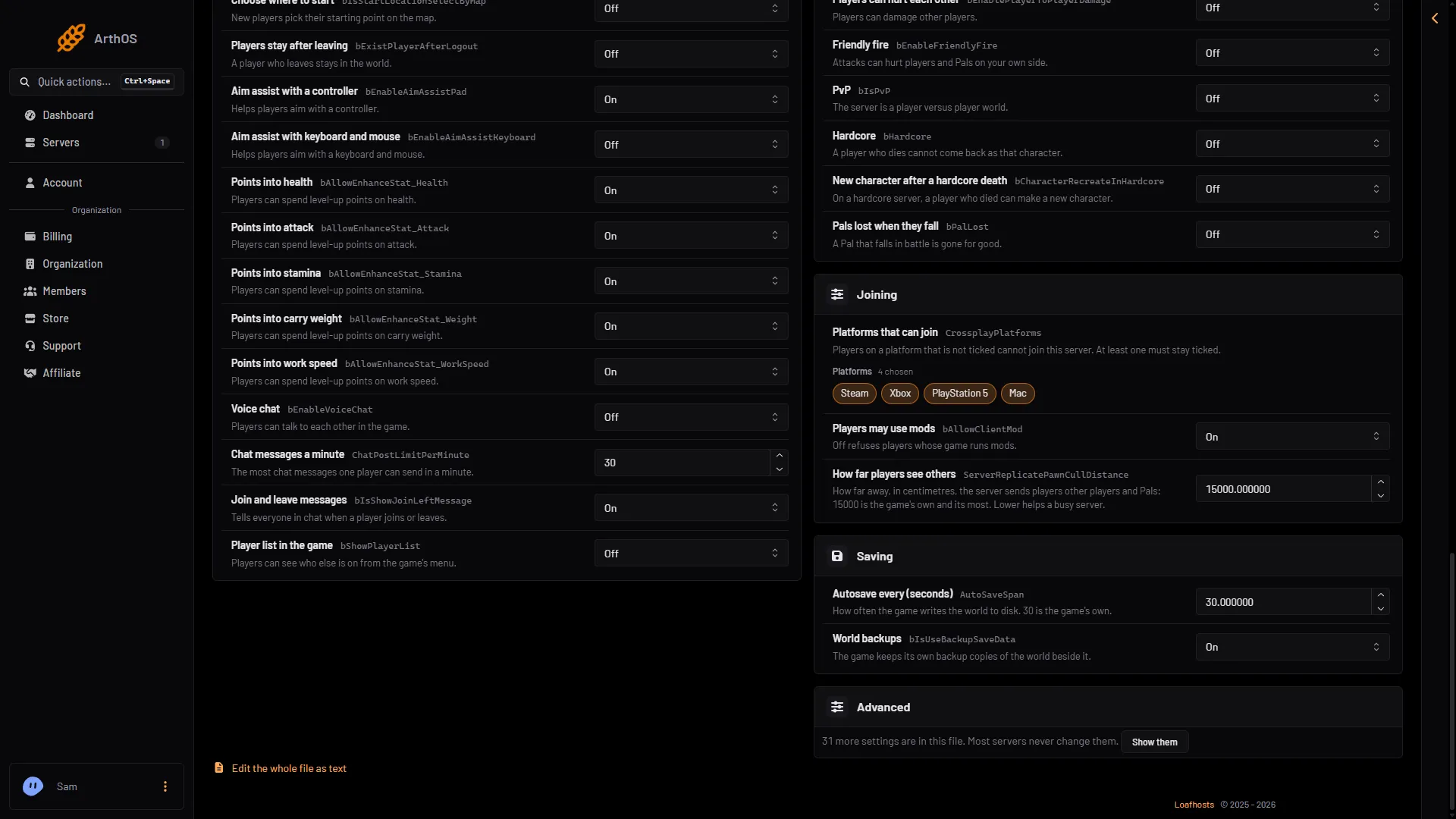
- Autosave setting
- World backups switch
The same group has Autosave every (seconds) (1). The game’s own value is 30. Backups are copies of what the game has written to disk, so the autosave sets how fresh each one is.
If you save while the server runs, the change waits for the next restart. The panel says “Saved, waiting for the next restart: (names).” Use Restart now to apply it. A restart disconnects everyone.
See the backups
- Open the World page.
- Find the card The game’s backups (1). The number in brackets is how many there are.
- The list runs newest first. Each row has a time and a Put back button (2).
The page lists the newest 40. If there are more, it says how many older ones are not listed.
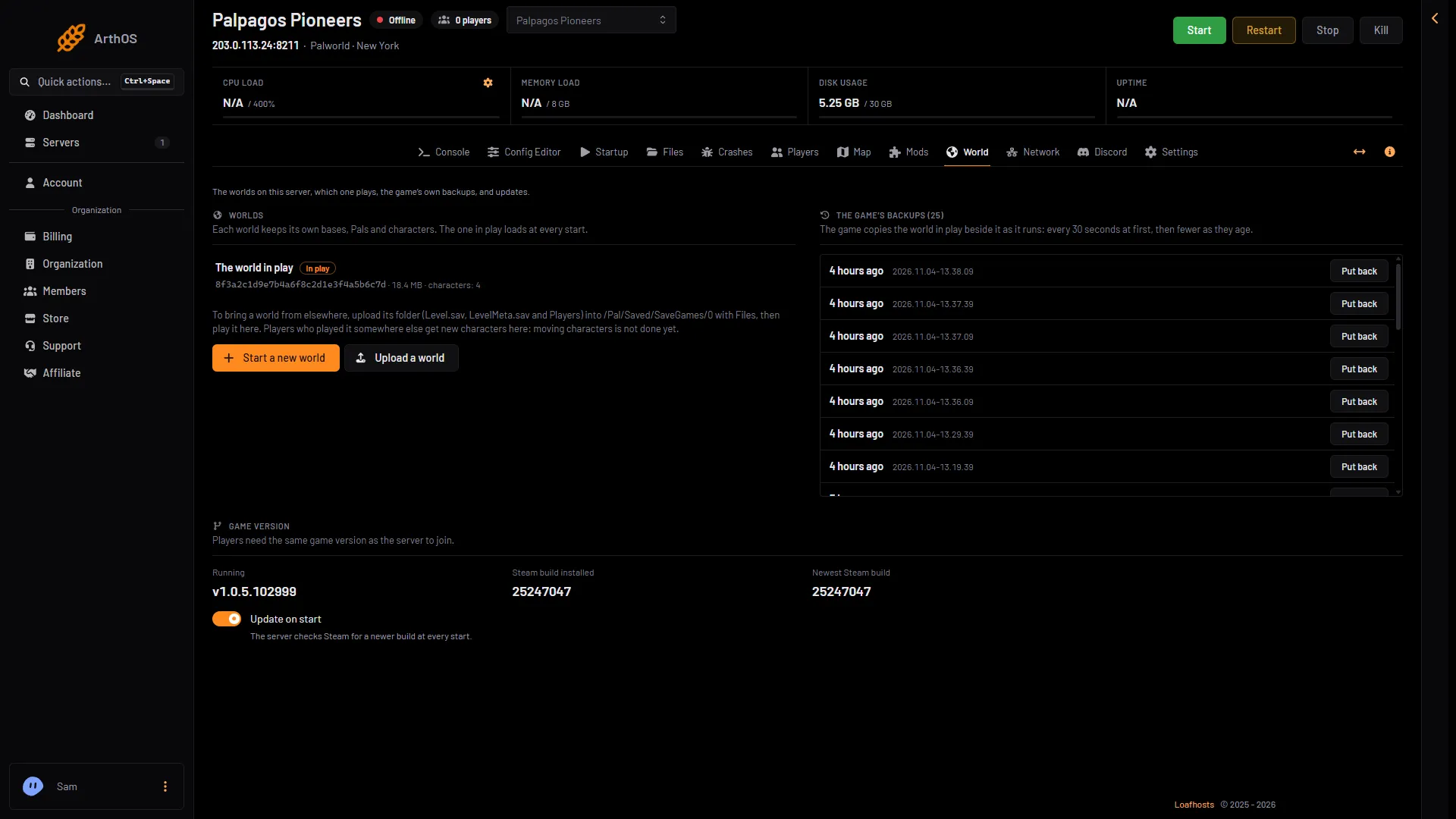
- The game's backups
- Put back
If you see “No backups of this world yet”, the server has not run long enough, or World backups is off.
Put one back
Put back is greyed out while the server runs. Stop it first. The page says: “Stop the server to change worlds or put a backup back: the game writes its world and settings again when it stops.”
- Stop the server.
- On the World page, choose Put back next to the time you want.
- Read the box in the picture below. It says “The world goes back to that moment. The world as it is now is kept as a backup of its own, so this can be undone.” Choose Put back (3).
- Start the server. The old moment loads at the start.
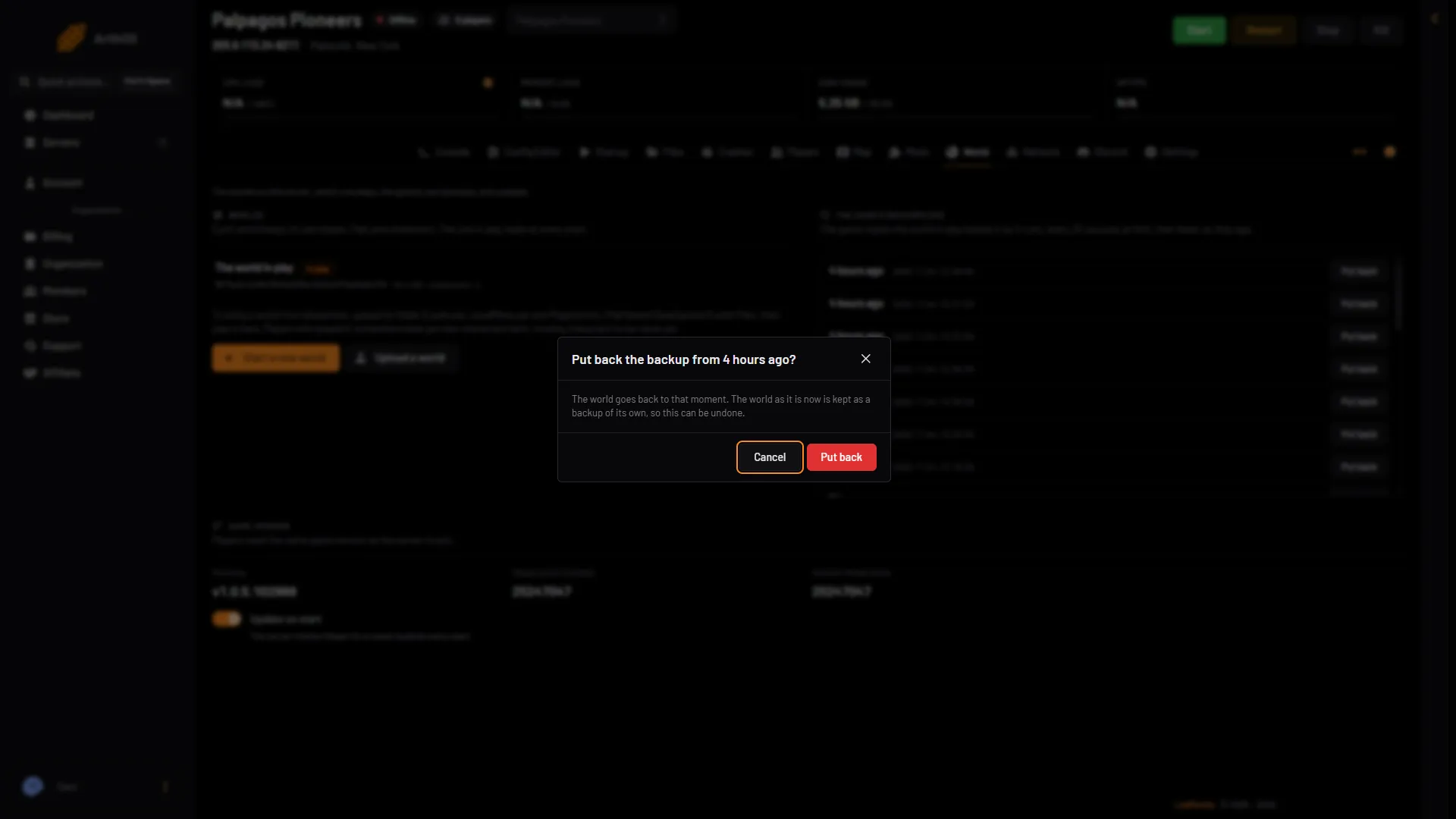
- Which backup
- Can be undone
- Put back
The full steps are in roll back a Palworld world.
By hand
Open Files and go to Pal/Saved/SaveGames/0. Each world has a folder named with 32 letters and digits. Inside it, backup/world holds the backups, one folder per moment, named like 2026.10.29-17.31.19 (UTC). Copying files by hand over a world is risky. Use the World page.
If it does not work
- No backups are listed. World backups is off, or the world is new. Wait a few minutes after a start.
- Put back is greyed out. The server is running. Stop it first.
- An older moment is missing. The game keeps a fixed number of each kind and removes the oldest. A moment from three days ago may only exist as a daily copy.
More about the game: Palworld servers.
Sources: docs.palworldgame.com: Configuration