












A Palworld server only shows in the in-game list when it is set up as a community server. On Loafhosts that is one switch, Listed in Community Servers. If it is on, wait for the server to finish starting, then search for its name.
What the list is
Pocketpair, the maker of Palworld, says a community server is “a dedicated server that has registered a dedicated server on the server list in the game client”. It is the same server as an unlisted one. The only difference is whether it appears in the list. Pocketpair’s server guide says the server starts as a community server with the option -publiclobby. The panel adds that option for you when the server is listed.
Xbox and PlayStation 5 players can only join a listed server. PC players can join an unlisted one by typing its address.
Check, in this order
1. Is it running?
Open the Players page. If it says “The server is starting.”, wait. If it says “The server is stopped.”, start it.
2. Is it listed?
Open the Config Editor, choose Server settings, and look at the card Server. Listed in Community Servers (2) must be On. The Players page shows “It is not listed, so Xbox and PlayStation players cannot find it.” when it is off.
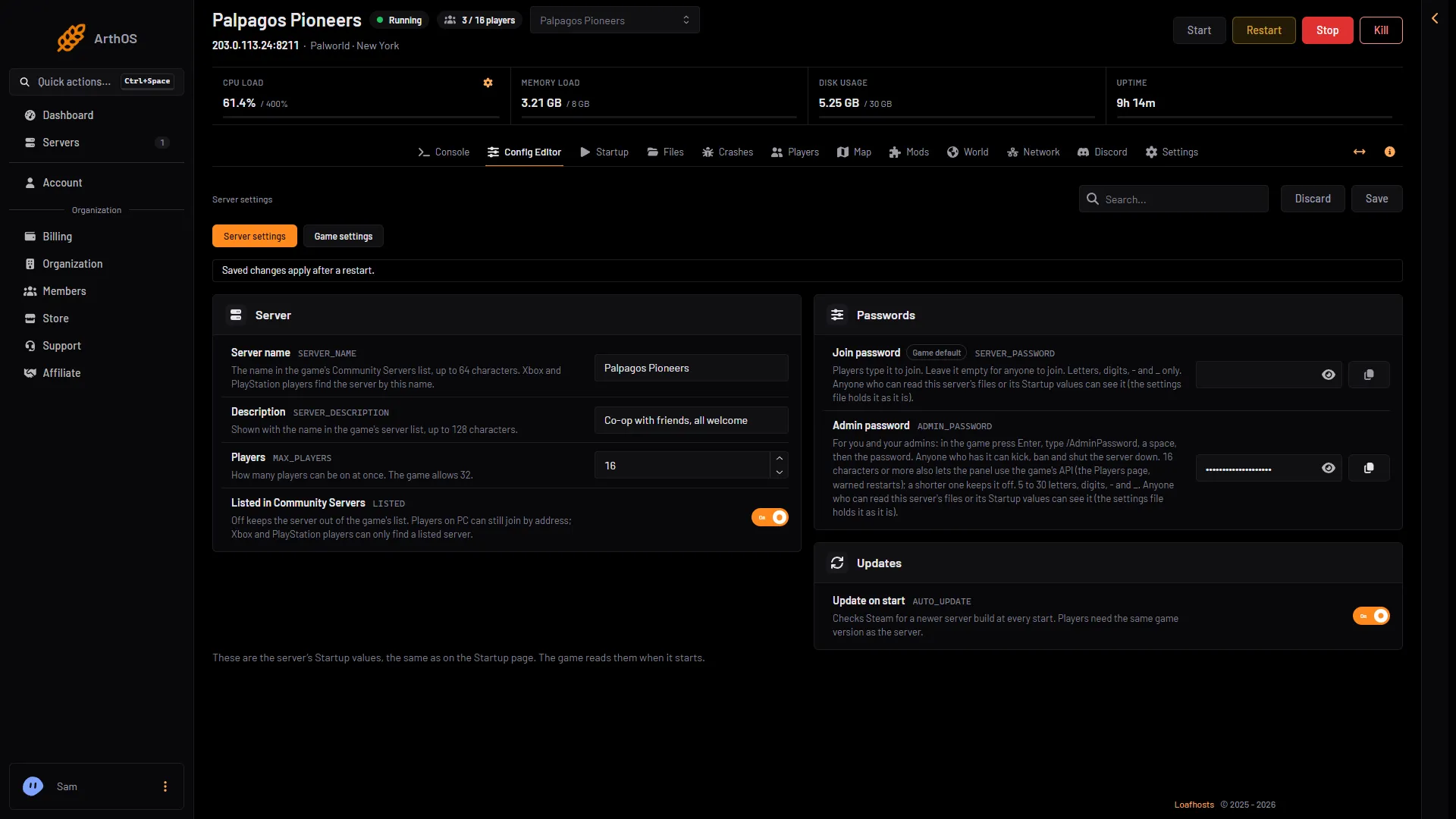
- Server name
- Listed in Community Servers
- Save
3. Did you restart after changing it?
These settings are the server’s Startup values. The game reads them when it starts, so a change applies at the next start. Choose Save, then restart.
4. Are you searching the right name?
Players find the server by its Server name, in the same card (up to 64 characters). A new server is called “Hosted By Loafhosts.com”. The Joining card on the Players page shows the name too: “find (name) in Community Servers.”
5. Do you want a name that is easy to find?
Change Server name, save, and restart. The name on the server’s own Settings page (Rename Server) is only the panel’s name for it. Players never see that one.
How long a new start takes to show
How many minutes pass between the server being ready and it appearing in the in-game list: not checked on 1.0.5 as of 4 November 2026. If it is ready and listed, give it a few minutes and search again.
You can still play without the list
PC players (Steam, Microsoft Store) and Mac players do not need the list. In Palworld choose Join Multiplayer Game and type the address from the Copy button in the Joining card on the Players page. See how to connect.
Xbox and PlayStation 5 players have no box for an address. For them the server must be listed.
If it is still missing
- The player is on a platform you did not allow. In Game settings, group Joining, check Platforms that can join.
- The server shows but the join fails. A different game version is a common cause. See Palworld version mismatch.
- The list is working but the join fails for another reason. See cannot connect.
More about the game: Palworld servers.
Sources: docs.palworldgame.com: About server, docs.palworldgame.com: Deploy community server, docs.palworldgame.com: Arguments