












To start over, stop the server, open the World page, choose Start a new world, and start the server. The old world is not deleted. It stays on the server and you can play it again later.
What changes and what does not
- The world is new: new map state, no bases, no Pals.
- Characters are new. Everyone starts again on the new world. Each world keeps its own characters.
- Settings carry over. The server name, passwords, and everything in the Config Editor stay as they are.
- The old world stays on disk, with its bases, Pals, characters and backups. It still takes up space.
Start a new world
-
Tell players. Use Message everyone on the Players page.
-
Stop the server. The World page says: “Stop the server to change worlds or put a backup back: the game writes its world and settings again when it stops.”
-
Open the World page.
-
Choose Start a new world (1 in the first picture). Start a new world is greyed out while the server runs. The world now in play (2) is the one you are leaving.
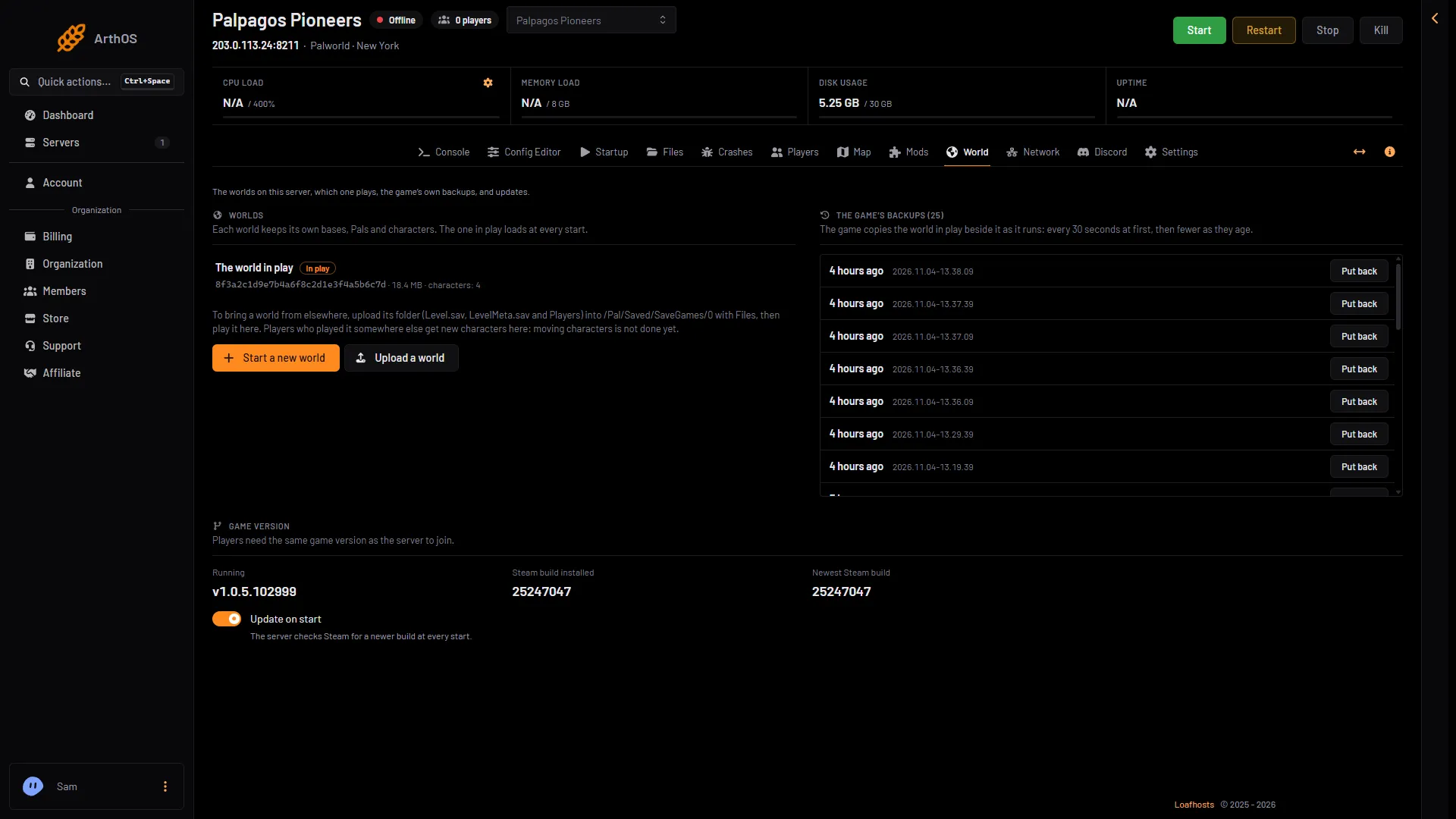
- Start a new world
- The world in play
-
In the box, choose Start a new world (3 in the second picture). Its text (2) says: “A new world loads at the next start. The world in play now stays on the server and can be played again.”
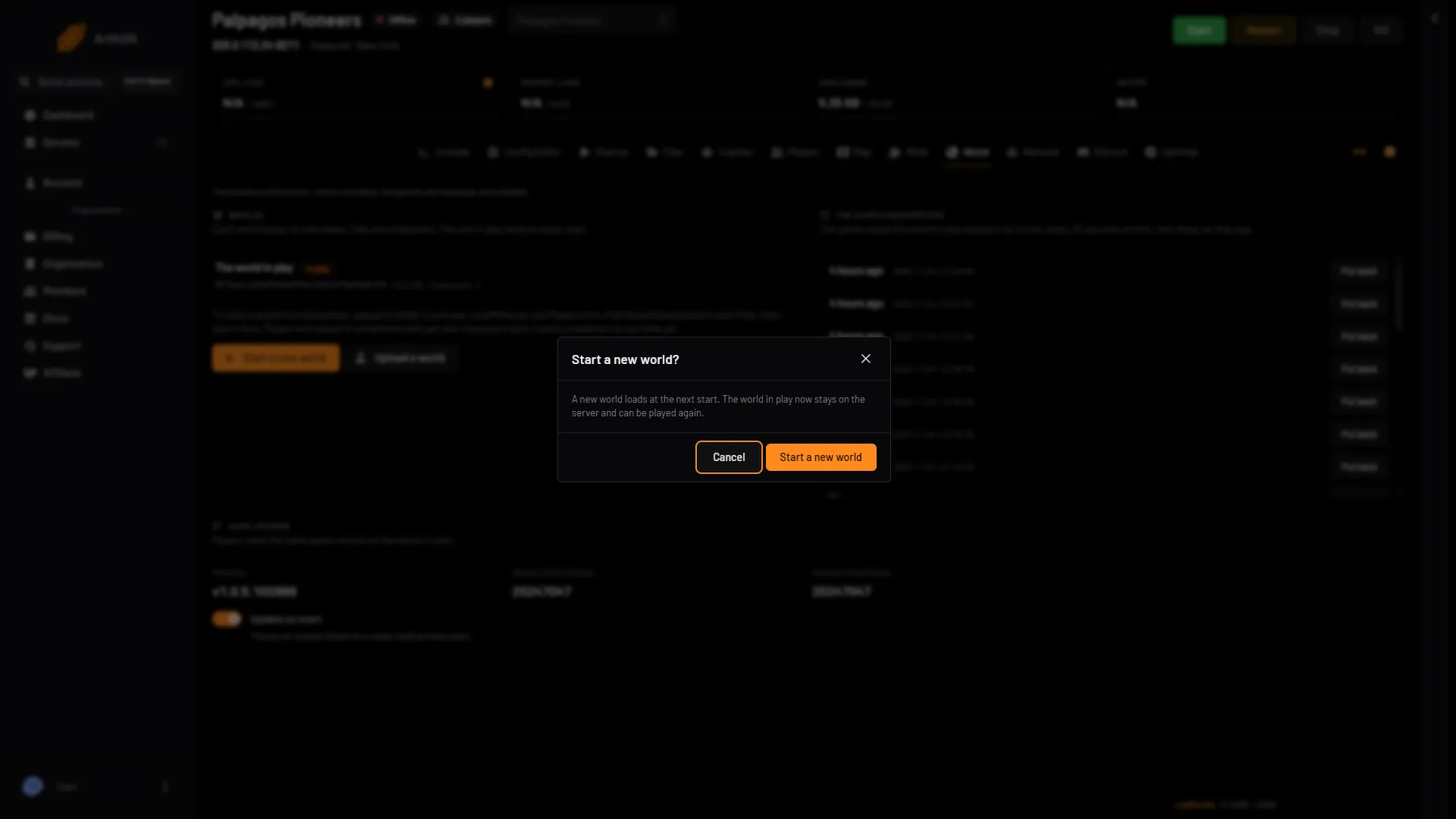
- Start a new world?
- The old world stays
- Start a new world
-
The page says “Saved. A new world starts at the next start.” Start the server.
The new world does not exist yet. The page says: “A new world starts at the next start. The game makes it about a minute after the server is up.” After about a minute, the World page lists it next to the old one, with the tag In play.
Before you do it
If you might want the old world back, you do not need to do anything. It is kept. To be safe, make a panel backup first.
Free up space later
Both worlds sit on the server. When you are sure you do not want the old one, delete it. The Delete button is on the old world’s row, and it only works for a world that is not in play. It removes the bases, Pals, characters and backups of that world. The panel’s own backups are not touched. See delete a Palworld world.
Go back to the old world
Stop the server. On the World page, choose Play this world on the old world. Start the server. See switch between worlds.
If it does not work
- The button is greyed out. The server is running. Stop it first.
- The old world still loads. The change applies at the next start. Start the server after you save.
- The new world is not listed yet. Give it a minute after the server is up.
- Players keep their old characters. They do not. Each world has its own. If someone sees their old character, the server is still on the old world.
More about the game: Palworld servers.
Sources: docs.palworldgame.com: Configuration