












A Palworld server can hold several worlds, but it plays only one at a time. To switch, stop the server, open the World page, choose Play this world on the one you want, and start the server again.
What each world keeps
The page says: “Each world keeps its own bases, Pals and characters. The one in play loads at every start.”
So when you switch, the buildings, the Pals and every player’s character change with it. A player who has a character on one world has none on another until they play there.
Where worlds come from
- The game made it. The first world is made at the first start. Start a new world makes another one.
- You uploaded it. See upload a Palworld world. Players who played that world somewhere else get new characters here.
Each world is a folder in Pal/Saved/SaveGames/0, named with 32 letters and digits. The game names the folder when it makes the world. The World page chooses which world loads. The World page shows that id on each row, with its size, the time it was last saved, and “characters: (number)”.
Switch worlds
-
Tell players. Use Message everyone on the Players page.
-
Stop the server.
-
Open the World page. The Worlds card lists every world. The tag In play (1) marks the world the server loads at every start.
-
Choose Play this world (2) on the one you want. Play this world is greyed out while the server runs. Stop it first.
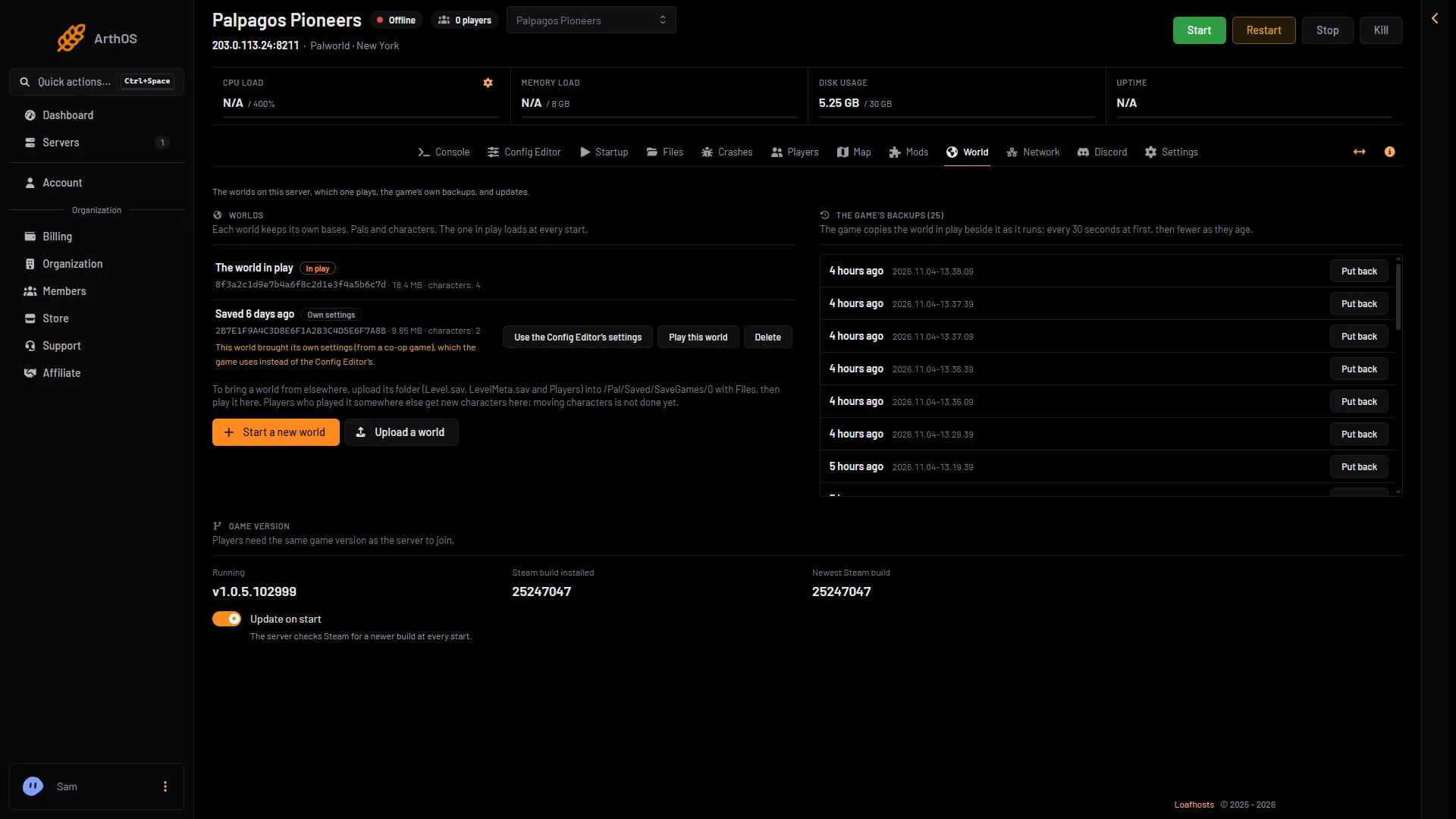
- In play
- Play this world
- Own settings
- Use the Config Editor's settings
- Delete
-
Read the box “Play world (name)?”. It says: “It loads at the next start. The world in play now stays on the server and can be played again.” Choose Play it.
-
The page says “Saved. That world loads at the next start.” Start the server.
A world with its own settings
A world that came from a co-op game can bring its own settings file, WorldOption.sav. For the settings that file holds, the game ignores the Game settings in the Config Editor. The server name, passwords, player limit and ports still come from Server settings: the panel writes them before every start. That row has the tag Own settings (3 in the picture above), with the note: “This world brought its own settings (from a co-op game), which the game uses instead of the Config Editor’s.”
If you want the Config Editor’s settings on that world, choose Use the Config Editor’s settings (4 in the picture above). The panel renames the file, it does not delete it. The change applies from the next start. See WorldOption.sav.
Delete a world you do not need
Delete (5 in the picture above) appears on worlds that are not in play. It removes the world’s bases, Pals, characters and backups. Make a panel backup first if you are not sure.
If it does not work
- Play this world is greyed out. The server is running. Stop it first.
- The wrong world loads. The change applies at the next start. Check which row has In play.
- My character is gone. You are on a different world. Characters belong to one world.
- The settings do not match the Config Editor. The world has Own settings. Choose Use the Config Editor’s settings.
More about the game: Palworld servers.
Sources: docs.palworldgame.com: Configuration