

If you deleted the world folder in Files, it went to the Trash first. Stop the server, open the Trash, choose Restore, and start the server. The folder comes back as it was when you deleted it. A delete that turned on Delete permanently is not in the Trash (see What the Trash does not hold). More about the game: Project Zomboid servers.
Which folder it is
The world is the folder .cache/Saves/Multiplayer/<Server Name>. The name is your Server Name on the Startup page. The default is servertest.
Two other places are not the world. Accounts are in .cache/db. Server settings are in .cache/Server. Do not move or delete them while you restore.
Restore it
- Choose Stop at the top of the server page. Wait until it is offline.
- Open Files. Choose the Trash button on the toolbar. It is an icon with no text.
- Find the folder named after your Server Name.
- Open the menu on its row and choose Restore.
- Start the server. Wait for the console to show
*** SERVER STARTED ****.
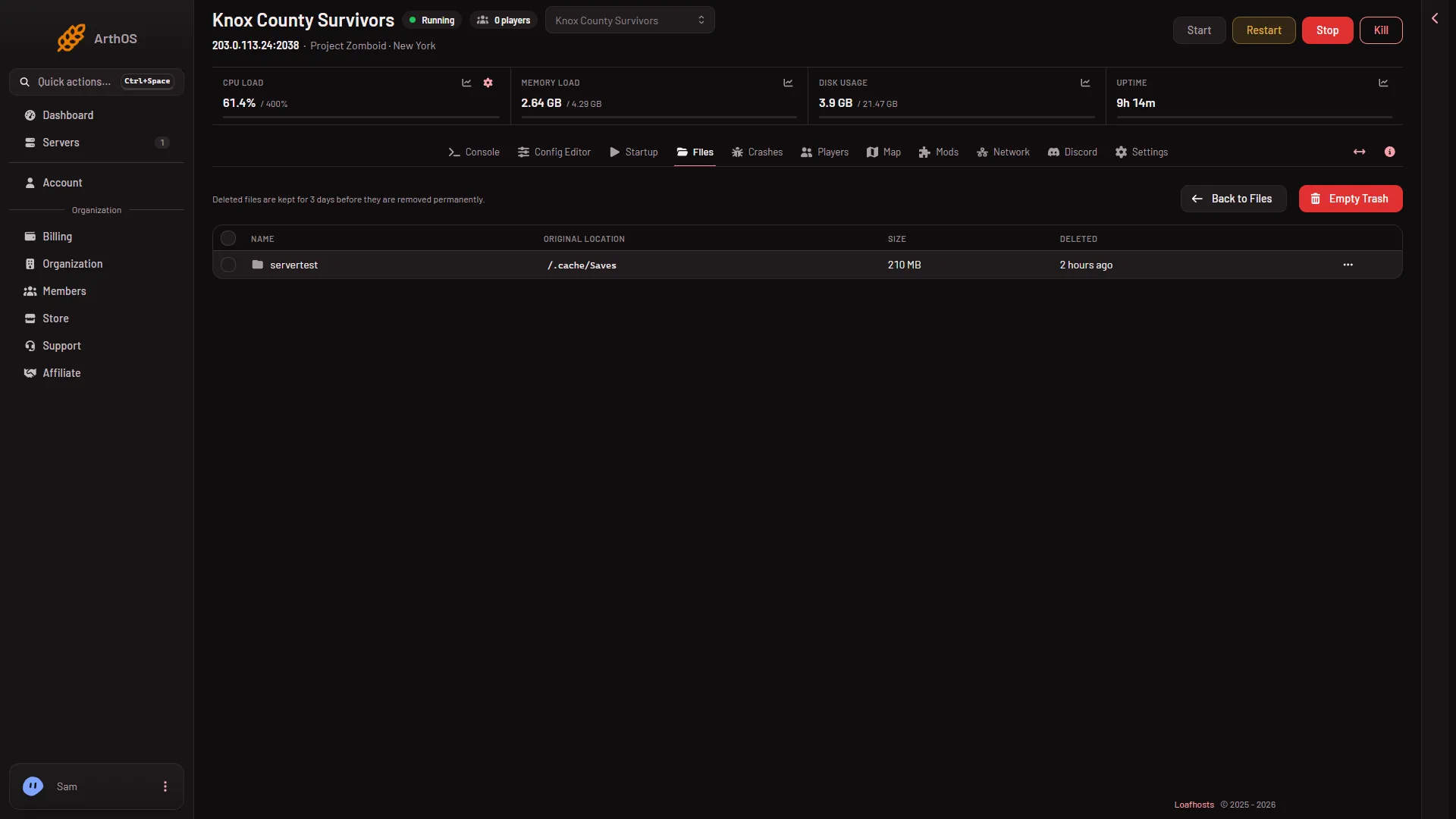
- How long files are kept
- A deleted file or folder
- Back to Files
- Empty Trash
Original Location names the folder each item came from.
The line at the top (1) says how long the Trash keeps files. Find your folder in the list (2). Back to Files (3) takes you back. Do not press Empty Trash (4): it deletes everything in the list for good.
Your role needs permission to read files to see the Trash, and permission to delete files to restore. The button only shows while the Trash is on for your server.
If the game already made a new world
If you started the server after the delete, the game made a new world in a folder with the same name. Restore then shows Resolve Restore Conflicts. For each item you can choose:
- Skip: leave the Trash copy where it is. This is the starting choice.
- Rename: restore it under a name you type.
- Overwrite: replace what is on the server with the Trash copy.
Overwrite may replace or merge a folder. Use Rename if you want to keep both. The Restore button at the bottom stays grey until you set at least one item to Overwrite or Rename. Rename shows a New name box with a copy name already filled in.
A renamed folder is not your world until its name matches the Server Name. You can set the name on the Startup page. The settings, accounts and bans belong to the old name. See change the server name.
What the Trash does not hold
Only a delete made in Files goes to the Trash. The delete dialog is titled Move to Trash and says the item can be restored for 3 days. That is the time at the moment.
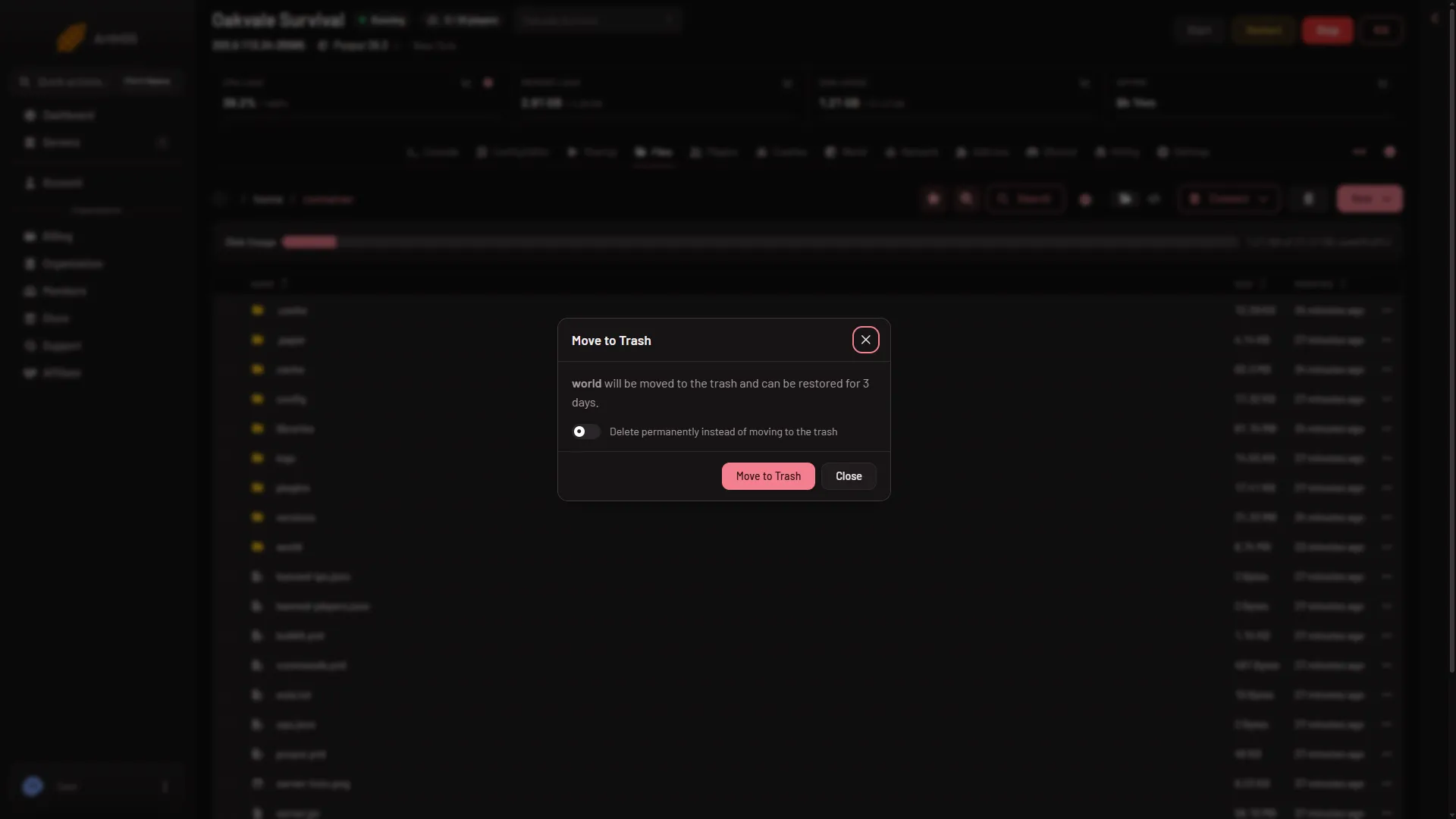
- Kept for 3 days
- Delete permanently instead
If Delete permanently instead of moving to the trash (2) was switched on, the folder is gone at once. The same is true after Delete Permanently or Empty Trash on the Trash page.
Files in the Trash still count toward your disk. Empty Trash frees the space now. The panel also clears the oldest entries by itself when the server nears its disk limit.
If it does not work
- There is no Trash button. The Trash is off for this server, or your role cannot read files.
- The folder is not in the list. It is older than the time on the Trash page, or it was deleted for good.
- Restore says a file rule limits your role. Someone who is not limited by a file rule must restore it. The owner is never limited.
- The world is gone for good. Restore a backup. See back up and restore a Project Zomboid server.
- You wanted a fresh world. See reset a Project Zomboid server.