




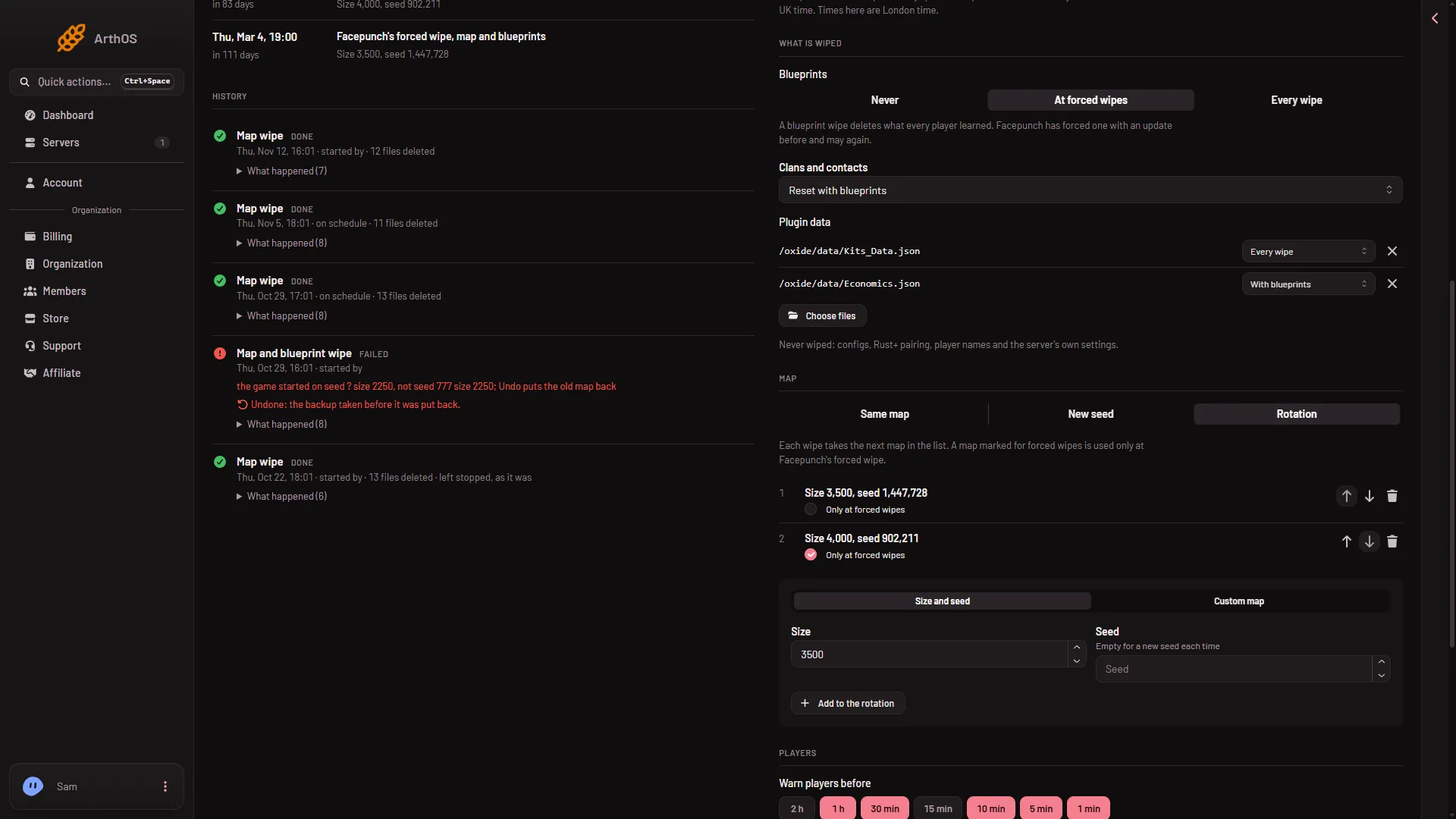
The History list on the Wipes tab records the last 20 wipes the panel ran, started by a plan or by hand. Each row says how it ended and what it did, step by step. A failed wipe shows its reason in red. If the wipe took a backup, Roll back puts the old map back.
If a wipe finished but players or files look wrong, see Rust wipe went wrong. To set up wipes, see schedule automatic wipes. More about the game: Rust servers.
Read a row
History is below Coming up on the left of the Wipes tab. It lists the last 20 wipes, newest first.
- History
- A wipe
Each wipe (2) shows:
- The kind: Map wipe or Map and blueprint wipe, or Facepunch’s forced wipe.
- A status: Waiting, Running, Done, Failed or Skipped.
- When it ran, and “on schedule” or “started by” the person who pressed Wipe now.
- How many files it deleted, and “left stopped, as it was” when the server was off before the wipe (it was stopped before the wipe, so it stays stopped).
- The reason, when it was not done.
- “Undone: the backup taken before it was put back.” after a roll back.
- What happened, a fold-out with every step and its time.
Open What happened first. It shows how far the wipe got. The steps follow the order in which the panel works: warn, save, stop, back up, delete the files, set the next map, start, and check the new map.
Why a wipe fails
The panel proves the result, so a wipe fails with a reason you can act on:
- “(n) file(s) could not be deleted (names); nothing else was changed”. (n) is the number of files and (names) are their names. A world file was still there after the delete. Every other file on the list was already deleted and the server is stopped. “Nothing else was changed” means the next map, name and tag were not set. If the wipe took a backup, Roll back puts everything back. Otherwise run Wipe now again. Check the server’s state in the header.
- “The server stopped while starting on its new map”. Read the Console and the Crashes tab for why. Roll back puts the old map back.
- “The server did not answer within 45 minutes of starting”. The console says what the game is doing. A first start on a new big map is slow, and the start can include game updates or a map download, but 45 minutes is a long time. Read the console.
- “The server is up but no new map file was made”. Check the console. Roll back if needed.
- “The game started on seed (a) size (b), not seed (c) size (d)”. The game ignored the map the panel set. Check Map seed and Map size on Startup, then wipe again. Roll back puts the old map back, and its startup settings with it.
- “Another change kept the server busy for two hours after the wipe could start”. Something else, such as a software switch, held the server. The wipe did not run.
Why a wipe is skipped
A Skipped row is not an error. The reason says why:
- “Missed: the panel was not running at the wipe time”. The wipe was more than two hours late.
- “The server is suspended”.
- “The wipe plan was turned off” while it waited.
- “Replaced by a wipe started by hand”.
- A forced wipe you chose Stop waiting on. The server keeps its map until the next wipe. Facepunch’s update still resets it at the next start.
A forced wipe that is waiting for Facepunch’s update shows the wait reason at the top of the page. It is not stuck.
Roll back a failed wipe
When the wipe took a backup, the banner at the top of the server shows Roll back.
- Choose Roll back.
- Read “Roll this change back?”. The server is stopped and its files are replaced with the backup taken before the wipe. Its startup settings, image and game go back as they were. Anything changed since is lost.
- Confirm. The banner says “Rolling back” and then “Rolled back to the backup taken before it.”
- If the server is offline afterwards, start it with Start.
The History row then says “Undone: the backup taken before it was put back.” You need to be allowed to change startup settings and to restore backups.
If the banner says “No backup was taken before this change, so it cannot be rolled back”, there is nothing to roll back to. Turn on Take a backup before each wipe under Safety before the next one.
What to know
- One wipe backup is kept. After a good wipe the panel deletes the wipe backups from earlier good wipes. A backup you made yourself is never replaced.
- The banner and History agree. After a failed wipe that was not rolled back, the page shows a red line: “The last wipe stopped” with the reason. After Roll back the line goes.
- Activity. Every plan change and wipe is also in the server’s activity log.
If it does not work
- History is empty. It says “No wipes yet”. No wipe has run on this server.
- No Roll back button. The wipe took no backup, or your role cannot restore backups.
- You want to see the wipe’s backup. Open Backups on Settings. It is listed there like any backup.
- The same failure again. Read the reason. For a failed start, read the Console of the server for the game’s own words.